# Generate Aggregate Report Tabulations

Learn how to set up aggregate reports and generate report tables.

## Trigger Table Generation

Once the aggregate report has been created, trigger table generation through the _Generate Aggregate Report Tabulations_ action. This action may be available from the **All Actions** menu on the aggregate report or may be initiated automatically as part of the Aggregate Report workflow.

The table generation process duration depends on the size of the Vault and the number of Cases. Once table generation is complete, the user who initiated the report generation is notified with an email and Vault notification.

In the standard Vault Safety template, table generation occurs after you complete the Review Report Record task. Once complete, the Aggregate Report record enters the Authorship stage and Vault starts generating the tables.

<div class="note-border alert-info">
  <div class="alert alert-info" role="alert">
    <div><i class="far fa-info-circle"></i></div>
    <div class="alert-text">
      <p><strong>Note</strong>: This page describes the Review Report Record task in the default configuration. If your organization has a custom workflow, follow the recommendations in your business standard operating procedure for generating aggregate report tables.</p>
    </div>
  </div>
</div>


## Regenerate Report Tabulations

To regenerate and update the report tabulations prior to submission, once the aggregate report is approved, select **Regenerate Report Tabulations** when you complete the **Review & Author Report** task. 

## Create Next Aggregate Report Record

Vault Safety enables you to generate subsequent reports and assign tasks according to the aggregate reporting period. 

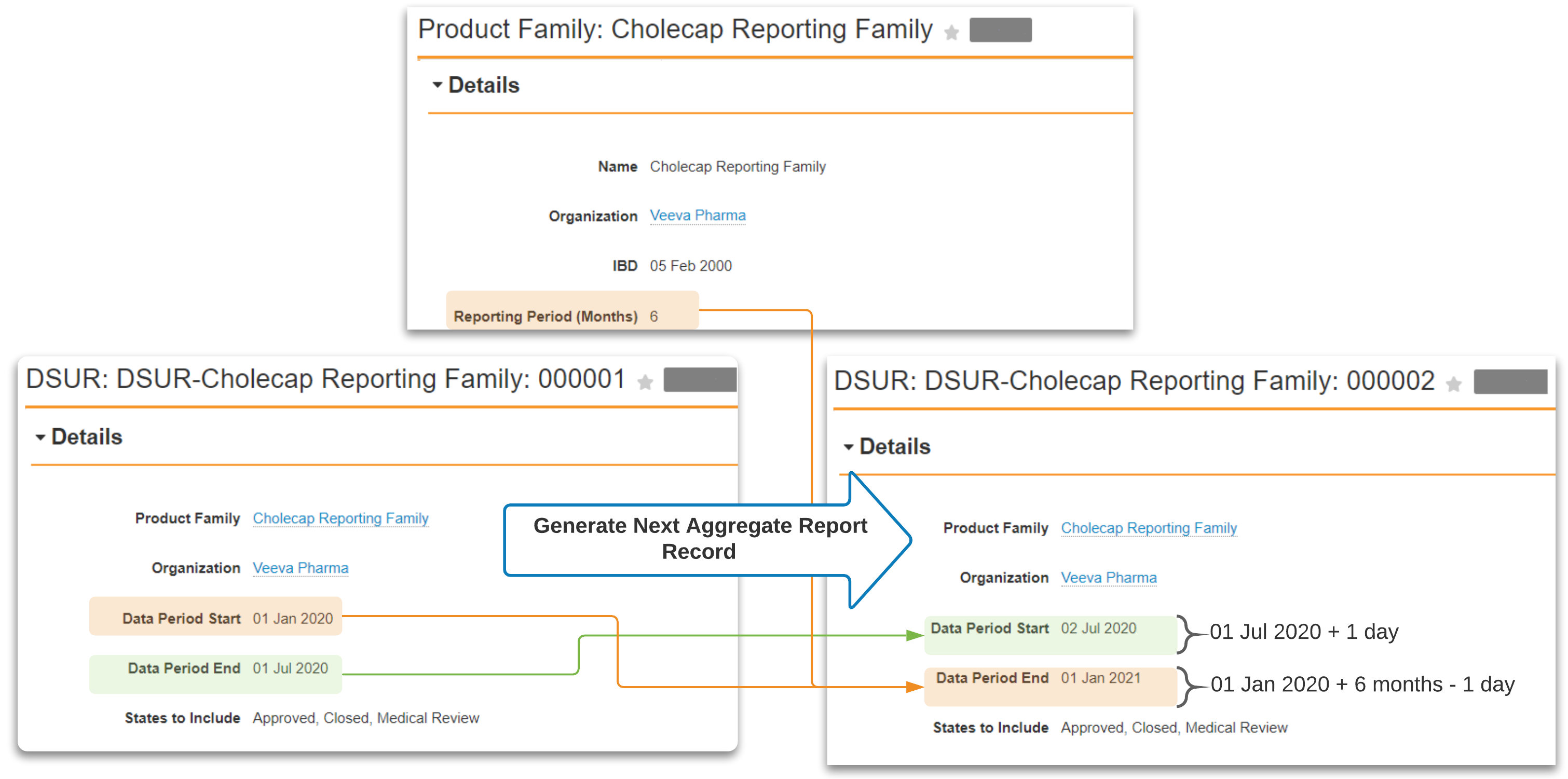
The _Create Next Aggregate Report Record_ action generates the next aggregate report, using the reporting period defined on the <a href="/en/gr/01179/">Reporting Family</a>, and the Start Date and End Date defined on the _Aggregate Report_ record. This action may be available through the **All Actions** menu or may be run automatically as part of workflows configured by your Admin.

When you run the _Create Next Aggregate Report Record_ action, Vault creates a new aggregate report with the following settings:

<table>
    <thead>
        <tr>
            <th>Field</th>
            <th>Value</th>
        </tr>
    </thead>
    <tbody>
        <tr>
            <td>Product Family</td>
            <td>The same <a href="/en/gr/01179/">Reporting Family</a> specified on the initial Aggregate Report.</td>
        </tr>
        <tr>
            <td>States to Include</td>
            <td>The same States to Include specified on the initial Aggregate Report.</td>
        </tr>
        <tr>
            <td>Data Period Start</td>
            <td><p>The Data Period End on the initial Aggregate Report*, plus one (1) day.</p>
            <p>When generating <a href="/en/gr/01127/#pmda-exception">PMDA Post-Market J-PSR tabulations</a>, Vault maps the <em>Interval Start Date</em> on the current <em>Interval Dates</em> record.</p>
            </td>
        </tr>
        <tr>
            <td>Data Period End</td>
            <td><p>The Data Period Start on the initial Aggregate Report*, plus the Reporting Period (Months) specified on the <a href="/en/gr/01179/">Reporting Family</a>, minus one (1) day.</p>
            <p>When generating <a href="/en/gr/01127/#pmda-exception">PMDA Post-Market J-PSR tabulations</a>, Vault maps the <em>Interval End Date</em> on the current <em>Interval Dates</em> record.</p></td>
        </tr>
    </tbody>
    <tfoot>
        <tr>
            <td colspan="2">*The initial Aggregate Report refers to the aggregate report on which the <em>Create Next Aggregate Report Record</em> action runs.</td>
        </tr>
    </tfoot>
</table>

The following diagram shows an example of how the _Create Next Aggregate Report Record_ action sets the report time period:

<a href="https://platform.veevavault.help/assets/images/saf-generate-next-aggregate-report-calculation.png" data-lightbox="saf-generate-next-aggregate-report-calculation.png" data-title="Generate Next Aggregate Report Action Date Calculation" data-alt="Generate Next Aggregate Report Action Date Calculation">
  <img class="docimage" src="https://platform.veevavault.help/assets/images/saf-generate-next-aggregate-report-calculation.png" alt="Generate Next Aggregate Report Action Date Calculation" style=""  />
</a>

## Generate Tabulations Using Aggregate Report Sections

As an alternative to the above functionality, you can divide your report into Aggregate Report Sections to generate and manage tabulations per Section. 

With this option, rather than initiating the **Generate Aggregate Report Tabulations** action from a parent Aggregate Report and having the tabulations added under the **Documents** section, you can link the tabulations to specific Sections and manage them individually. This gives you more granular control over your aggregate reports because tabulations can be generated or updated for specific areas of the report as needed.

Managing tabulations at the Aggregate Report level or managing them at the Aggregate Report Section level is determined by an Admin setting in your Vault.

The following sections provide more details.

### Prerequisites

To generate tabulations and manage them at the Aggregate Report Section level, your Admin must:

* <a href="/en/gr/681638/">Enable Generating Tabulations from Aggregate Report Sections</a>.
* <a href="/en/gr/681638/#enable-setting-to-generate-tabulations-using-sections">Enable the Generate Tabulations Using Sections setting</a>. If this setting is not enabled, you can still generate tabulations at the Aggregate Report level.

<!--adding this reuse file because the Combine Tabulations and Authoring feature (23R3.4) is shared across Safety Management and SafetyDocs-->

### Select a Document to Generate

To tell Vault which tabulation documents to generate, create Aggregate Report Sections and complete the **Document to Generate** field using the following steps:

1. Go to an **Aggregate Report** record.
2. Create Aggregate Report Sections.
   * If you are <a href="/en/gr/680414/#automatically-generate-sections">automatically generating Sections</a> using a template and your Admin has set up the corresponding Template Item, Vault automatically creates a **Safety Tabulation** type Section with the **Document to Generate** field populated.
   * If you are <a href="/en/gr/680414/#manually-create-sections">manually creating Sections</a>, in the **Create Aggregate Report Section** dialog, select **Safety Tabulation**.
3. In the **Details** section, complete the **Document to Generate** field as follows and select **Save**:

<table>
   <thead>
       <tr>
           <th>Field</th>
           <th>Value</th>
       </tr>
   </thead>
   <tbody>
       <tr>
           <td>Document to Generate</td>
           <td>Select which tabulation document to generate from the dropdown.
           <p>
           The options that appear in the dropdown depend on the Aggregate Report Type.</p>
           <p>
           If this Section was auto-created from a template, Vault maps this field from the corresponding Template Item.</p></td>
       </tr>
   </tbody>
</table>

The following fields also appear on **Safety Tabulation** type Sections:

<table>
   <thead>
       <tr>
           <th>Field</th>
           <th>Value</th>
       </tr>
   </thead>
   <tbody>
       <tr>
           <td>Report Document (Masked)</td>
           <td>When you select the <a href="/en/gr/01128/">Generate Masked Documents option</a> on the parent <strong>Aggregate Report</strong> record, Vault links masked tabulation reports to this field.</td>
       </tr>
       <tr>
           <td>Report Document (Log)</td>
           <td>Vault creates a log file and links it to this field every time tabulations are generated.</td>
       </tr>
       <tr>
           <td>Tabulation Generation Date</td>
           <td>Vault populates this field with the date when tabulations are generated.</td>
       </tr>
   </tbody>
</table>

### Run the Generate Aggregate Report Tabulation Action

Once the _Document to Generate_ field has been populated, generate tabulations for a specific _Aggregate Report Section_ by going to the **All Actions** menu of that section and selecting **Generate Aggregate Report Tabulation**.

<div class="note-border alert-info">
  <div class="alert alert-info" role="alert">
    <div><i class="far fa-info-circle"></i></div>
    <div class="alert-text">
      <p><strong>Note</strong>: The <em>Generate Aggregate Report Tabulation</em> action appears only for <em>Safety Tabulation</em> type sections.</p>
    </div>
  </div>
</div>


When you initiate the action, Vault does the following:

* Generates tabulations based on the option selected in the _Document to Generate_ field.
* Links the generated tabulations to the _Report Document_ or _Report Document (Masked)_ field on the _Aggregate Report Section_.
* Creates a log file in the library and links it to the _Report Document (Log)_ field on the _Aggregate Report Section_.
* Populates the _Tabulation Generation Date_ field on the _Aggregate Report Section_.
* Populates the _Listing of Cases on Interval Report_ section with links to _Cases_ from the following interval reports for the applicable aggregate report:
  * **DSUR:** <a href="/en/gr/01280/#interval-line-listings-serious-ar">Interval Line Listings of Serious Adverse Reactions</a> for _Study Cases_
  * **PBRER:** <a href="/en/gr/01282/#interval-line-listings-serious-ar">Interval Line Listings of Serious Adverse Reactions (from Clinical Trials)</a> for _Study Cases_
  * **PADER:** <a href="/en/gr/01281/#interval-line-listings">Interval Line Listings</a>
  * **PSUR:** <a href="/en/gr/01279/#cioms-ii-line-listing">CIOMS II Interval Line Listing of Adverse Drug Reactions</a>
  * **CIOMS II:** <a href="/en/gr/01279/#cioms-ii-line-listing">CIOMS II Interval Line Listing of Adverse Drug Reactions</a>
  * **PMDA Post-Market:**
    * <a href="/en/gr/674650/#nupr">NUPR Line Listing Form 7-2</a>
    * <a href="/en/gr/674650/#form-3">J-PSR Cumulative Tabulation of Adverse Events Form 3</a>
    * <a href="/en/gr/674650/#form-4">J-PSR Line Listing of Adverse Events Form 4</a>

To generate tabulations for multiple sections at once, navigate to the parent **Aggregate Report** record, and from the **All Actions** menu, select **Generate Aggregate Report Tabulations**. When the action is run from the parent _Aggregate Report_ record, Vault completes the actions above for all _Safety Tabulation_ type sections on that record.

### Update Generated Tabulations

To update these tabulation documents, you can run the **Generate Aggregate Report Tabulations** action again if your Aggregate Report Sections have not reached the **Complete** state. When the action is re-initiated, Vault regenerates the associated tabulations and upversions the linked documents with the new details. Related fields are also updated as required.

