# Case Intake Overview
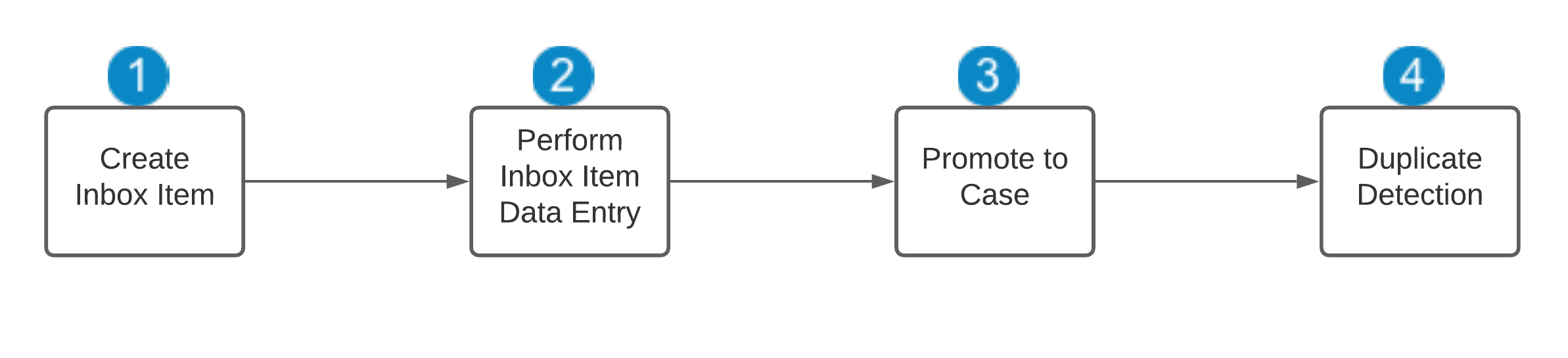
To perform case intake, create an _Inbox Item_ to enter basic case information before promoting it to an initial or follow-up _Case_, or merged to an in-flight _Case_. You can access all _Inbox Items_ in your Vault on the _Inbox_ tab. The general overview of the case intake process using _Inbox Items_ is as follows:
1. Create the _Inbox Item_ using the appropriate [intake method][1].
2. Perform _Inbox Item_ data entry. When you promote an _Inbox Item_, additional data entry fields are available on the _Case_.
* If you're manually creating an _Inbox Item_, enter the basic report information.
* If you're generating an _Inbox Item_ from a source file or email, review and validate the populated field values. When applicable, update _Inbox Item_ fields as needed. For [_Adverse Event Reports_][4], you can use the Document Intake Highlighter to review and extract data.
3. If the _Inbox Item_ qualifies as a valid _Case_, promote it to a _Case_.
4. When you promote the _Inbox Item_, Vault performs duplicate detection. If Vault finds matching records, complete the _Potential Matches_ page.
 ## Case Intake Methods {#intake}
You can manually create _Inbox Items_ and generate _Inbox Items_ from the following sources:
* E2B transmissions
* Emails and email attachments
* Imported files
* E2B XML files
* CSV and ZIP files for multi-Case tabular data import
* E2B XML files through the Vault API
* _Library_ documents
* [Uploaded files][2]
* Document Intake Highlighter
* Online Follow-Up Questionnaires
* _Literature Articles_ in SafetyDocs Vaults
* Connections
* Medical-Safety Connection
* Quality-Safety Connection
* Safety-EDC Connection
Vault populates generated _Inbox Items_ with field values based on the source data.
### Library Documents {#library}
Depending on your Admin's configuration, Vault may automatically initiate intake by generating _Inbox Items_ when you upload certain files to your _Library_:
* XML files for E2B file import
* CSV and ZIP files for multi-Case tabular data import
* Supported file formats for [_Adverse Event Report_ documents][4]
The _Inbox Item_ field on the source document's Doc Info pane links to the generated record. You can navigate to the uploaded document from the _Source Document_ field of the _Inbox Item_.
#### Adverse Event Reports {#aer}
In Vaults using Veeva AI for Safety, Vault may automatically generate an _Inbox Item_ for each _Case > Source > Adverse Event Report_ classified document uploaded to your _Library_ for the following supported file formats that meet all source file requirements:
* Electronic Mail File (EML)
* HyperText Markup Language (HTML, HTM)
* Hangul Word Processor (HWP)
* JPEG, JPG
* Microsoft Outlook Mail Messages (MSG)
* Microsoft Powerpoint Presentations (PPT, PPTX)
* Microsoft Word Documents (DOC, DOCX, DOCM, DOT, DOTM, DOTX)
* Portable Document Format (PDF)
* Portable Network Graphics (PNG)
* Rich Text Files (RTF)
* Tagged Image File Format (TIFF, TIF)
* Text (TXT, CSV)
If your Vault does not automatically generate an _Inbox Item_ for _Adverse Event Report_ documents, you can initiate intake by using the _Create Inbox Item from Document_ action or _Document Intake Highlighter_ panel to generate the record.
[1]: #intake
[2]: #library
[3]: #intake-agent
[4]: #aer
## Case Intake Methods {#intake}
You can manually create _Inbox Items_ and generate _Inbox Items_ from the following sources:
* E2B transmissions
* Emails and email attachments
* Imported files
* E2B XML files
* CSV and ZIP files for multi-Case tabular data import
* E2B XML files through the Vault API
* _Library_ documents
* [Uploaded files][2]
* Document Intake Highlighter
* Online Follow-Up Questionnaires
* _Literature Articles_ in SafetyDocs Vaults
* Connections
* Medical-Safety Connection
* Quality-Safety Connection
* Safety-EDC Connection
Vault populates generated _Inbox Items_ with field values based on the source data.
### Library Documents {#library}
Depending on your Admin's configuration, Vault may automatically initiate intake by generating _Inbox Items_ when you upload certain files to your _Library_:
* XML files for E2B file import
* CSV and ZIP files for multi-Case tabular data import
* Supported file formats for [_Adverse Event Report_ documents][4]
The _Inbox Item_ field on the source document's Doc Info pane links to the generated record. You can navigate to the uploaded document from the _Source Document_ field of the _Inbox Item_.
#### Adverse Event Reports {#aer}
In Vaults using Veeva AI for Safety, Vault may automatically generate an _Inbox Item_ for each _Case > Source > Adverse Event Report_ classified document uploaded to your _Library_ for the following supported file formats that meet all source file requirements:
* Electronic Mail File (EML)
* HyperText Markup Language (HTML, HTM)
* Hangul Word Processor (HWP)
* JPEG, JPG
* Microsoft Outlook Mail Messages (MSG)
* Microsoft Powerpoint Presentations (PPT, PPTX)
* Microsoft Word Documents (DOC, DOCX, DOCM, DOT, DOTM, DOTX)
* Portable Document Format (PDF)
* Portable Network Graphics (PNG)
* Rich Text Files (RTF)
* Tagged Image File Format (TIFF, TIF)
* Text (TXT, CSV)
If your Vault does not automatically generate an _Inbox Item_ for _Adverse Event Report_ documents, you can initiate intake by using the _Create Inbox Item from Document_ action or _Document Intake Highlighter_ panel to generate the record.
[1]: #intake
[2]: #library
[3]: #intake-agent
[4]: #aer