Note: When you promote an Inbox Item and create a Case with a related Case Adverse Event, Case Product, or Case Reporter, you cannot delete the generated Case, nor can you delete the primary Case Adverse Event, Case Product, or Case Reporter records.
 ) icon. When the action runs, Vault displays a message that it is searching for potential matches. If any matches exist, Vault displays the [_Potential Matches_ page][5]. If no matches exist, Vault creates a _Case_ and an _Inbound Transmission_.
Depending on your Admin's configuration, before you can run the _Promote to Case_ action, the following fields may require values or, in some cases, must have _Yes_ values:
* _Identifiable Patient_
* _Identifiable Reporter_
* _Country_ of the primary _Reporter_ or primary _Adverse Event_
* _Adverse Event_
* _Study_ or _Company Product_
Your Admin may also configure your Vault so you can promote _Inbox Items_ only in specific lifecycle states.
## About the Potential Matches Page {#potential-matches}
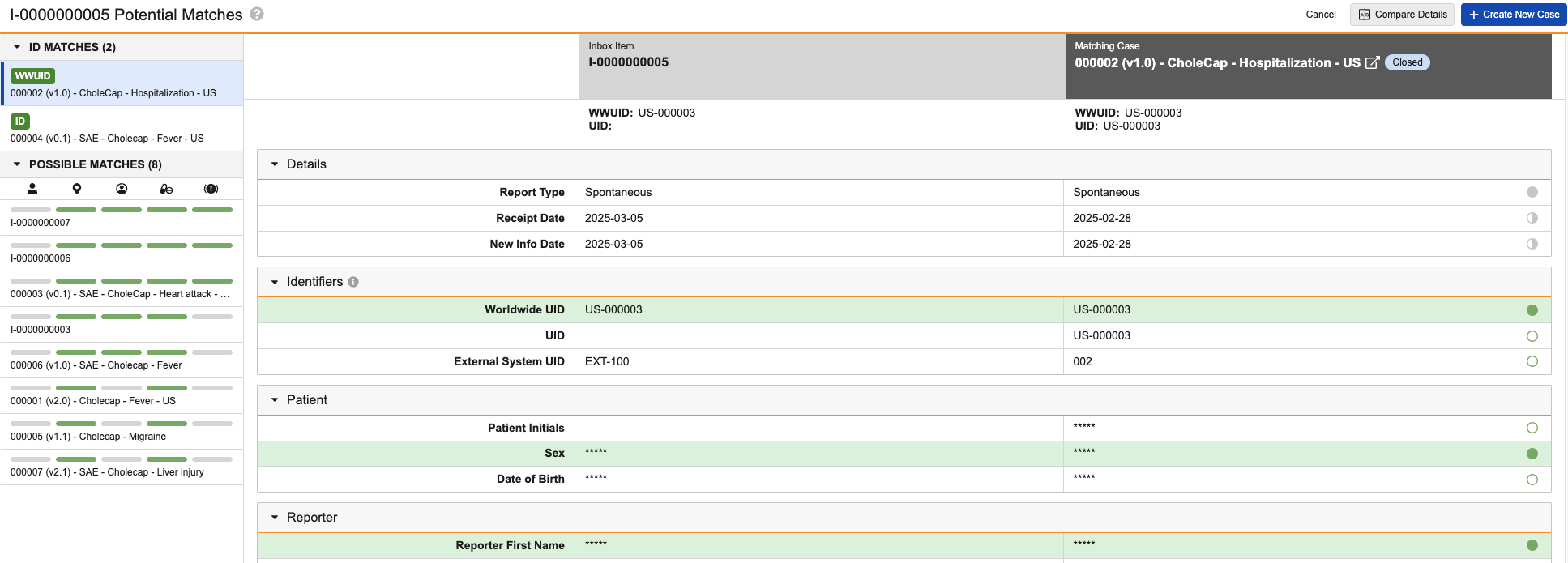
If Vault finds matches after running the _Promote to Case_ action, you're directed to the _Potential Matches_ page. The left pane of the page lists all potential matches. The right panes display a comparison table, with the field values of the current record and the selected potential match, allowing you to compare the data of the two records side-by-side. You can select the header of the potential match to open the record to review additional details.
Based on your Admin's configuration, Vault may display or mask [certain field values][13] in the comparison table.
### Page Display Options
The _Potential Matches_ page displayed in your Vault depends on your Admin's configuration. We recommend using the [enhanced page][7], which offers an improved user experience, instead of the [legacy page][8], which will be deprecated in a future release and no longer receives functionality updates such as [_Subject Matches_][2] for clinical trial study _Cases_ and the potential matches results log.
### PHI and PII Masking {#phi-pii-mask}
If your Admin has configured _Mask PHI and PII on the Potential Matches Page_ setting, Vault masks protected health information (PHI) and personally identifiable information (PII) on both the enhanced and legacy _Potential Matches_ pages. In Vaults configured for Case Access Group Security, Vault offers more refined masking on the enhanced page based on user permissions.
Vault considers the following fields to contain PHI and PII on the _Potential Matches_ page:
* **Patient**:
* _Patient First Name_
* _Patient Last Name_
* _Patient Initials_
* _Date of Birth_
* _MRN - GP_
* _MRN - Specialist_
* _MRN - Investigation_
* _Sex_ (This field displays as _Gender_ on the legacy page.)
* **Reporter**:
* _Reporter First Name_
* _Reporter Last Name_
* _Reporter Country_
* **Event**:
* _Event Onset_
#### Enhanced Page {#enhanced}
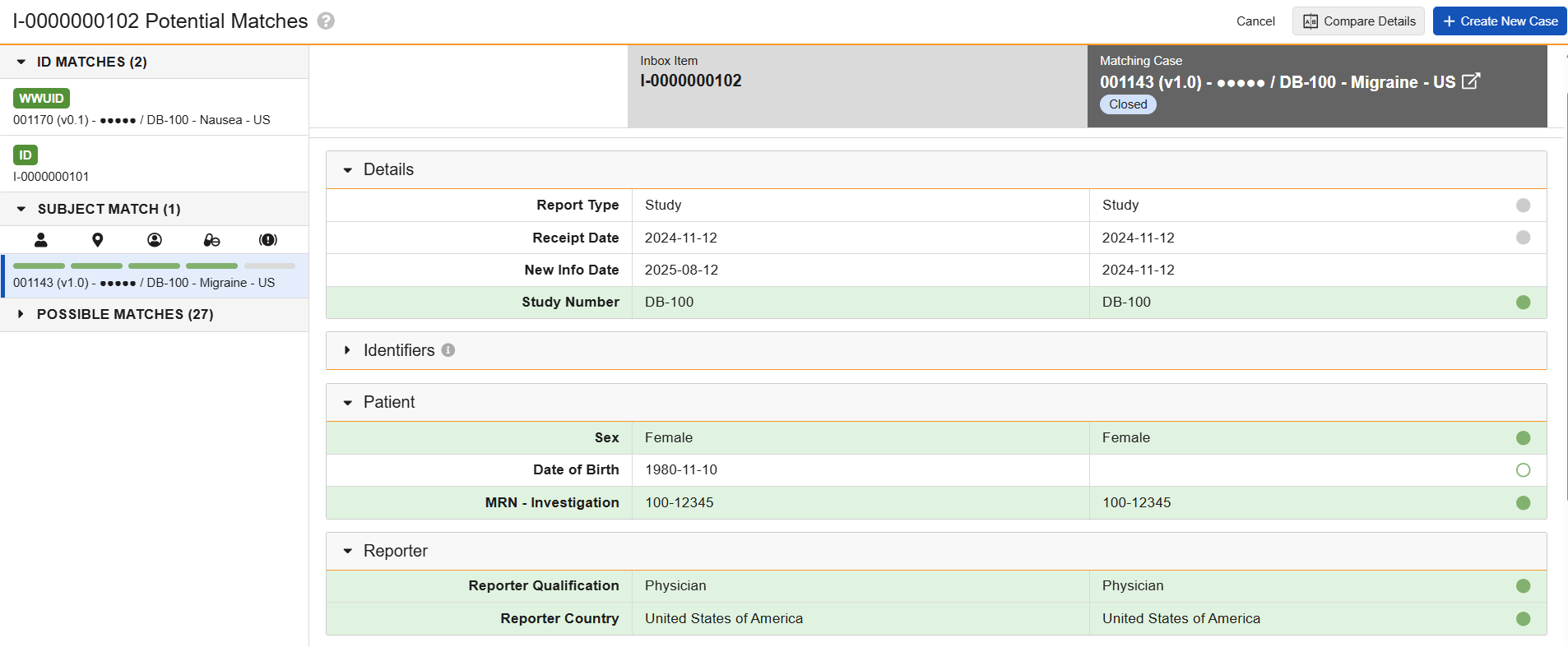
The left pane groups the results into [_ID Matches_][9], [_Subject Matches_][2], and [_Possible Matches_][10] sections, with section headers displaying the number of matched records within it. The [comparison table][12] in the right pane displays the current record and the selected matched record.
In the left pane of the page, you can use keyboard shortcuts to navigate between listed records and your **Enter** key to open a selected record in the comparison table. The page includes the following icons to assist with your review:
* Select caret icons in any section header to expand () or minimize () that section.
* Select the legend (
) icon. When the action runs, Vault displays a message that it is searching for potential matches. If any matches exist, Vault displays the [_Potential Matches_ page][5]. If no matches exist, Vault creates a _Case_ and an _Inbound Transmission_.
Depending on your Admin's configuration, before you can run the _Promote to Case_ action, the following fields may require values or, in some cases, must have _Yes_ values:
* _Identifiable Patient_
* _Identifiable Reporter_
* _Country_ of the primary _Reporter_ or primary _Adverse Event_
* _Adverse Event_
* _Study_ or _Company Product_
Your Admin may also configure your Vault so you can promote _Inbox Items_ only in specific lifecycle states.
## About the Potential Matches Page {#potential-matches}
If Vault finds matches after running the _Promote to Case_ action, you're directed to the _Potential Matches_ page. The left pane of the page lists all potential matches. The right panes display a comparison table, with the field values of the current record and the selected potential match, allowing you to compare the data of the two records side-by-side. You can select the header of the potential match to open the record to review additional details.
Based on your Admin's configuration, Vault may display or mask [certain field values][13] in the comparison table.
### Page Display Options
The _Potential Matches_ page displayed in your Vault depends on your Admin's configuration. We recommend using the [enhanced page][7], which offers an improved user experience, instead of the [legacy page][8], which will be deprecated in a future release and no longer receives functionality updates such as [_Subject Matches_][2] for clinical trial study _Cases_ and the potential matches results log.
### PHI and PII Masking {#phi-pii-mask}
If your Admin has configured _Mask PHI and PII on the Potential Matches Page_ setting, Vault masks protected health information (PHI) and personally identifiable information (PII) on both the enhanced and legacy _Potential Matches_ pages. In Vaults configured for Case Access Group Security, Vault offers more refined masking on the enhanced page based on user permissions.
Vault considers the following fields to contain PHI and PII on the _Potential Matches_ page:
* **Patient**:
* _Patient First Name_
* _Patient Last Name_
* _Patient Initials_
* _Date of Birth_
* _MRN - GP_
* _MRN - Specialist_
* _MRN - Investigation_
* _Sex_ (This field displays as _Gender_ on the legacy page.)
* **Reporter**:
* _Reporter First Name_
* _Reporter Last Name_
* _Reporter Country_
* **Event**:
* _Event Onset_
#### Enhanced Page {#enhanced}
The left pane groups the results into [_ID Matches_][9], [_Subject Matches_][2], and [_Possible Matches_][10] sections, with section headers displaying the number of matched records within it. The [comparison table][12] in the right pane displays the current record and the selected matched record.
In the left pane of the page, you can use keyboard shortcuts to navigate between listed records and your **Enter** key to open a selected record in the comparison table. The page includes the following icons to assist with your review:
* Select caret icons in any section header to expand () or minimize () that section.
* Select the legend ( ) icon to display comparison table status icon descriptions.
* Select an information (
) icon to display comparison table status icon descriptions.
* Select an information ( ) icon to display relevant details in a tooltip for certain sections.
**Potential Matches for a Postmarketing Inbox Item**:
**Potential Matches for a Clinical Trial Inbox Item**:
) icon to display relevant details in a tooltip for certain sections.
**Potential Matches for a Postmarketing Inbox Item**:
**Potential Matches for a Clinical Trial Inbox Item**:
 ##### ID Matches {#id}
The _ID Matches_ section lists records with matching ID values:
* **WWUID** (
##### ID Matches {#id}
The _ID Matches_ section lists records with matching ID values:
* **WWUID** ( ): Indicates matching _Worldwide UID_ values.
* **ID** (
): Indicates matching _Worldwide UID_ values.
* **ID** ( ): Indicates any of the following values match, including _Worldwide UID_ cross-field matches:
* _UID_
* _External System UID_
* _Case Identifier_
* _Event Vault Global ID_ (for records generated by the Safety-EDC Connection)
* _Case Vault Global ID_ (for records generated by the Safety-EDC Connection)
If a record has one matching WWUID value and multiple matching ID values, the section displays the **WWUID** badge and not the **ID** badge.
##### Subject Matches {#subject}
The _Subject Matches_ section appears only for _Inbox Items_ and _Cases_ with a _Study Type_ of _Clinical Trial_. The section lists records in the following rank of matching values:
* EDC subject information (for records generated by the Safety-EDC Connection)
* _Study Number_ and _MRN - Investigation_
* _Study Number_ and _Patient Initials_
##### Possible Matches {#possible}
The _Possible Matches_ section lists records in order of their [ranked matching field values][11]. Depending on your Admin's configuration, this section may appear for _Inbox Items_ and _Cases_ with a _Study Type_ of _Clinical Trial_.
##### Status Bars
Each listed record in the _Subject Match_ and _Possible Match_ sections includes status bars to indicate the categories in which Vault has identified matched values. For each status bar, green (
): Indicates any of the following values match, including _Worldwide UID_ cross-field matches:
* _UID_
* _External System UID_
* _Case Identifier_
* _Event Vault Global ID_ (for records generated by the Safety-EDC Connection)
* _Case Vault Global ID_ (for records generated by the Safety-EDC Connection)
If a record has one matching WWUID value and multiple matching ID values, the section displays the **WWUID** badge and not the **ID** badge.
##### Subject Matches {#subject}
The _Subject Matches_ section appears only for _Inbox Items_ and _Cases_ with a _Study Type_ of _Clinical Trial_. The section lists records in the following rank of matching values:
* EDC subject information (for records generated by the Safety-EDC Connection)
* _Study Number_ and _MRN - Investigation_
* _Study Number_ and _Patient Initials_
##### Possible Matches {#possible}
The _Possible Matches_ section lists records in order of their [ranked matching field values][11]. Depending on your Admin's configuration, this section may appear for _Inbox Items_ and _Cases_ with a _Study Type_ of _Clinical Trial_.
##### Status Bars
Each listed record in the _Subject Match_ and _Possible Match_ sections includes status bars to indicate the categories in which Vault has identified matched values. For each status bar, green ( ) indicates a match and gray (
 ) indicates no match. A green status bar indicates a record meets the following conditions:
* **Patient** (
) indicates no match. A green status bar indicates a record meets the following conditions:
* **Patient** ( ): Any of the following patient-related values match:
* _Patient Initials_
* _First Name_
* _Last Name_
* _MRN_
* _Date of Birth_
* EDC subject information (for [_Subject Matches_][2] only)
* **Country** (
): Any of the following patient-related values match:
* _Patient Initials_
* _First Name_
* _Last Name_
* _MRN_
* _Date of Birth_
* EDC subject information (for [_Subject Matches_][2] only)
* **Country** ( ): The primary reporter's _Country_ matches
* **Reporter** (
): The primary reporter's _Country_ matches
* **Reporter** ( ): Any of the following reporter-related values match:
* _First Name_
* _Last Name_
* _Qualification_ of the primary reporter
* **Products** (
): Any of the following reporter-related values match:
* _First Name_
* _Last Name_
* _Qualification_ of the primary reporter
* **Products** ( ): Any of the following displayed (and not blinded) product-related values match:
* _Product (Reported)_
* _Product_
* **Adverse Events** (
): Any of the following displayed (and not blinded) product-related values match:
* _Product (Reported)_
* _Product_
* **Adverse Events** ( ): Any of the following adverse event-related values match:
* _Event (Reported)_
* _Event (MedDRA)_
#### Comparison Table {#table}
The comparison table allows you to compare data between two records. Rows highlighted in green indicate exact matching values for fields used to [identify matches][1]. Rows with displayed values include status indicator icons (or harvey balls) to indicate the type of match for fields used to identify matches (green icons) and informational fields (gray icons):
* **Exact Match** (
): Any of the following adverse event-related values match:
* _Event (Reported)_
* _Event (MedDRA)_
#### Comparison Table {#table}
The comparison table allows you to compare data between two records. Rows highlighted in green indicate exact matching values for fields used to [identify matches][1]. Rows with displayed values include status indicator icons (or harvey balls) to indicate the type of match for fields used to identify matches (green icons) and informational fields (gray icons):
* **Exact Match** ( and
and  ): Values exactly match, including cross-field [ID matches][9]
* **Partial Match** (
): Values exactly match, including cross-field [ID matches][9]
* **Partial Match** ( and
and  ): For the following fields, values partially match:
* _Details_ section: _Receipt Date_ and _New Info Date_ values overlap within 30 days
* _Reporter_ section: _First Name_ and _Last Name_, including cross-field first and last name matches
* _Products_ section: _Product (Reported)_
* _Adverse Events_ section: _Onset_ values overlap within 30 days or the month and day values are inverse
* **No Match** (
): For the following fields, values partially match:
* _Details_ section: _Receipt Date_ and _New Info Date_ values overlap within 30 days
* _Reporter_ section: _First Name_ and _Last Name_, including cross-field first and last name matches
* _Products_ section: _Product (Reported)_
* _Adverse Events_ section: _Onset_ values overlap within 30 days or the month and day values are inverse
* **No Match** ( ): Values do not match
The comparison table has the following conventions and behavior:
* The header includes the _WWUID_ and _UID_ values of both records for easy reference as well as the matching record's lifecycle status and a link to open the record in a modeless browser window.
* The _Details_ section always displays the _Report Type_.
* The _Identifiers_ section includes up to ten matching records and displays ID type badges to indicate any cross-field [ID matches][9]. This section is collapsed on page load if Vault finds no matches.
* The _Products_ section includes up to three matching records.
* The _Adverse Events_ section includes up to three matching records.
* Certain rows may not display when neither the current or selected match records contain values for that field.
* Hovering over an underlined coded MedDRA event displays details in a hovercard.
* For [_Subject Matches_][2] only, when either the source or matched record includes EDC subject information, the _Patient_ section displays the _EDC Subject Information_ from the _Case Patient_.
#### Legacy Page {#legacy}
The legacy page lists [ranked][11] matches from most similar to least similar and displays the following visual indicators to help you to compare data on [matched records][1]:
* **Checkmark** (
): Values do not match
The comparison table has the following conventions and behavior:
* The header includes the _WWUID_ and _UID_ values of both records for easy reference as well as the matching record's lifecycle status and a link to open the record in a modeless browser window.
* The _Details_ section always displays the _Report Type_.
* The _Identifiers_ section includes up to ten matching records and displays ID type badges to indicate any cross-field [ID matches][9]. This section is collapsed on page load if Vault finds no matches.
* The _Products_ section includes up to three matching records.
* The _Adverse Events_ section includes up to three matching records.
* Certain rows may not display when neither the current or selected match records contain values for that field.
* Hovering over an underlined coded MedDRA event displays details in a hovercard.
* For [_Subject Matches_][2] only, when either the source or matched record includes EDC subject information, the _Patient_ section displays the _EDC Subject Information_ from the _Case Patient_.
#### Legacy Page {#legacy}
The legacy page lists [ranked][11] matches from most similar to least similar and displays the following visual indicators to help you to compare data on [matched records][1]:
* **Checkmark** ( ): Indicates matching values on the records.
* **Question Mark** (
): Indicates matching values on the records.
* **Question Mark** ( ): Indicates similar values on the records. For the _Event Onset_ field value, this indicator appears when the date values differ by up to 30 days.
* **Likely Match** (
): Indicates similar values on the records. For the _Event Onset_ field value, this indicator appears when the date values differ by up to 30 days.
* **Likely Match** ( ): Indicates an ID match on the listed matched record.
* **Possible Match** (
): Indicates an ID match on the listed matched record.
* **Possible Match** ( ): Indicates matching field values on the listed record.
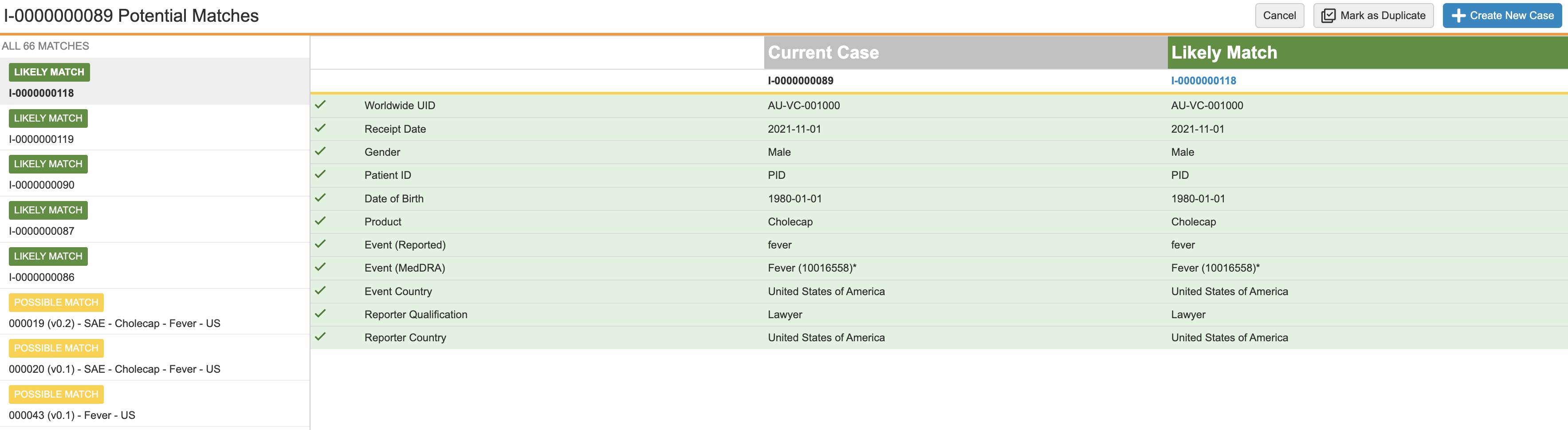
Note: The Sex field in the Patient section displays as Gender.
Jacob Smith and Smith Jacob.↩
When multiple records match, Vault lists them according to the rank of the matching field values. For example, if potential match A has the same _Patient_ value and potential match B has the same _Study_, _Primary Reporter_, and _Case Product_ values, Vault ranks potential match A first since _Patient_ ranks higher than the other fields. If multiple records match on the same field values (for example, multiple matches with the same _Patient_ values), Vault ranks the record with the most field value matches higher.
## Complete the Potential Matches Page {#page}
To complete the _Potential Matches_ page:
1. In the left pane, select a listed _Case_ or _Inbox Item_ to compare with the current record.
2. Review the details of the records.
3. Select one of the following options after reviewing the details:
* **Cancel**: Select this button to exit the _Potential Matches_ page and return to the current _Inbox Item_.
* **Compare Details**: This button appears when you are comparing a _Case_ to your current record. When selected, Vault directs you to the _Inbox Item to Case Compare_ page, where you can mark the current record as duplicate or follow-up, merge to current, or create a new _Case_ with existing patient information.
* **Mark as Duplicate**: This button appears when you are comparing an _Inbox Item_ to your current record. Select this option if the _Inbox Item_ is an exact match to the current record. When selected, Vault updates the record to _Duplicate_ state and does not create a _Case_. Vault adds a link to the duplicate _Case_ or _Inbox Item_ of the current record.
* **Create New Case**: Select this option if the current record is not a duplicate of any potential matches. When selected, Vault creates an initial _Case_ and an _Inbound Transmission_.
### Combination Products {#combination}
When you promote an _Inbox Item_ with a _Combination Product_, Vault uses the _Product Registration_ data to populate certain fields, calculate expectedness, and generate _Submissions_.
### Blinded Study Cases {#blinded}
On _Inbox Items_ for blinded study cases without study arms, Vault does the following upon promoting the record to a blinded _Case_:
* If the _Study Product Role_ value is _Standard of Care_, Vault ignores the _Blinded_ field value of the _Inbox Item's_ associated _Study Product_ since these are always considered _Open Label_. For all other _Study Product Role_ values, Vault populates the following field values on the generated _Case Product_ based on values on the _Inbox Item's_ associated _Study Product_:
* Populates the _Blinded Name_ with value of the _Name_ of the _Study Product_
* Populates the _Masking_ field based on the _Blinded_ value of the _Study Product_
* _Blinded_ = _Yes_
* _Unblinded_ = _No_
* _Open Label_ = _blank_
* Vault populates the _Study Arm_ or _Study Blinded_ value of the _Case_ with the same value of the applicable _Inbox Item_ field.
### Clinical Trial Cases {#clinical-trial}
If your Admin has configured your Vault to isolate blinded _Product_ information on Clinical Trial _Study Cases_, when promoting an _Inbox Item_ for blinded clinical trial study _Cases_, Vault generates blinded and unblinded records based on the _Drug Role_ and _Blinded_ field values of the _Study Product_.
[1]: #overview-of-duplicate-detection
[2]: #subject
[5]: #potential-matches
[7]: #enhanced
[8]: #legacy
[9]: #id
[10]: #possible
[11]: #rank
[12]: #table
[13]: #phi-pii-mask