# Close a Case

After you report a _Case_ to health authorities, authorized users can close the _Case_ to permanently lock it from any changes that would trigger an audit violation. Once a _Case_ enters the _Closed_ state, Vault locks all _Case_ fields and _Case_ child records (such as _Case Assessment_ and _Case Product_) to prevent changes. After closing a _Case_, the only way to revise the _Case_ is to <a href="/en/gr/01148/">add a follow-up _Case_</a>.

## Prerequisites

Consider the following prerequisites for closing _Cases_:

* You must be authorized to move _Cases_ to the _Closed_ state. In the Vault template configuration, users assigned the Distribution Manager role can close _Cases_.
* Your Admin's configuration may require _Cases_ to be in the _Approved_ state before you can access the user task to close a _Case_.
* You cannot close a _Case_ until all _Transmissions_ (_Submissions_ and _Distributions_) associated with the _Case_ are completed successfully.

## Verify Case Transmissions are Completed

To verify that all _Transmissions_ for a _Case_ are complete and you can close the _Case_:

1. Go to the _Case_ you want to close.
2. To view the _Transmissions_ associated with the _Case_, expand **Submissions & Distributions**.
3. To view a _Transmission_ record, select the record **Name**.
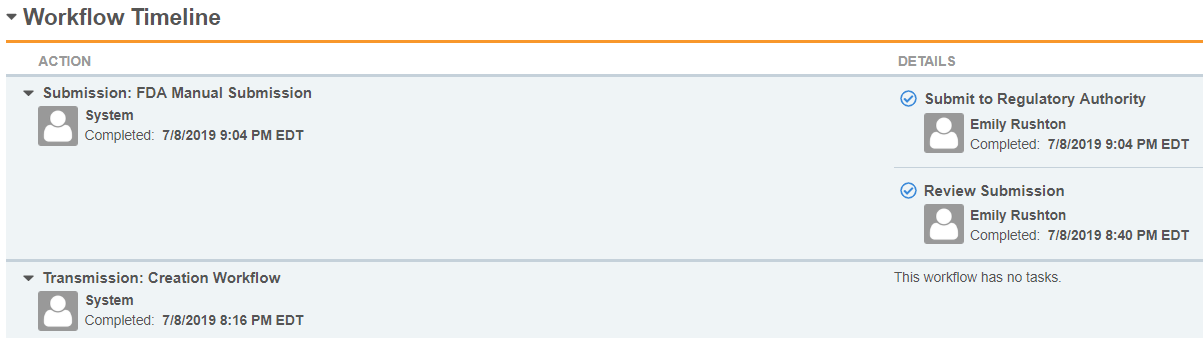
4. To view the task history on the _Transmission_, expand **Workflow Timeline**, and then expand each action. 
    <a href="https://platform.veevavault.help/assets/images/saf-workflow-timeline.png" data-lightbox="saf-workflow-timeline.png" data-title="Workflow Timeline Section" data-alt="workflow-timeline">
  <img class="docimage" src="https://platform.veevavault.help/assets/images/saf-workflow-timeline.png" alt="workflow-timeline" style=""  />
</a>
5. If there are any _Transmissions_ that are incomplete or in an error state, a Distribution Manager must complete the _Transmission_. The following links provide more information on how to execute different _Transmission_ methods:
   * <a href="/en/gr/01266/">AS2 gateway</a>
   * <a href="/en/gr/01267/">Email</a>
   * <a href="/en/gr/01268/">Manual</a>

## Complete the Case Close Workflow

<div class="note-border alert-info">
  <div class="alert alert-info" role="alert">
    <div><i class="far fa-info-circle"></i></div>
    <div class="alert-text">
      <p><strong>Note</strong>: This page describes the <em>Case Close</em> workflow in the Vault template configuration. If your organization has a customized workflow, follow the recommendations in your business standard operating procedure for closing <em>Cases</em>.</p>
    </div>
  </div>
</div>


Once a _Case_ enters the <a href="/en/gr/01150/">_Approved_ state</a>, the _Case Close_ workflow starts, making the _Review Submissions_ task available to users in the Distribution Manager role for the _Organization_ associated with the _Case_. Complete the _Review Submissions_ task to verify that all _Transmissions_ have been completed successfully. Once you complete this task, the _Case_ moves to the _Closed_ state. If all completed _Transmissions_ have the _Reason_ set to _Nullification_, Vault selects the _Suppress Submissions_ checkbox on the closed or nullified _Case_, depending on your Admin's configuration.

<div class="note-border alert-info">
  <div class="alert alert-info" role="alert">
    <div><i class="far fa-info-circle"></i></div>
    <div class="alert-text">
      <p><strong>Note</strong>: If an error appears, verify that all <em>Submissions</em> are complete and try again.</p>
    </div>
  </div>
</div>

