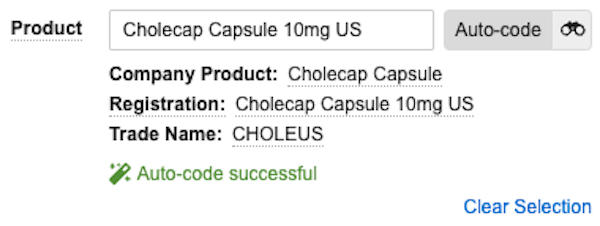
 If Vault cannot find an exact match for _Product_, _Product Registration_, _Trade Name_, _Product Alias_, or _Localized Product_, Vault attempts to find the closest match and populates the _Company Product_ field. A message indicates if a better match may be found by using the _Product Browser_. In this scenario, partial auto-coding has occurred. If Vault does not find any match, Vault displays `No match found`. If Vault finds a match, but the _Product_ is deprecated, Vault displays `No Match Found. A better match may be found in the product browser`.
In the case of partial auto-coding, no matches, or deprecated _Products_, you can use the [_Product Browser_][1] to search the _Product_ library. From the _Product Browser_, you can also access product browsers to code [_External Products_][2] using the following dictionaries:
* WHODrug Dictionary
* Iyakuhinmei Data File for Japan
* Korea Drug Dictionary
* WHODrug Global Chinese
### Auto-Code a Product
You can auto-code active _Products_ on _Inbox Items_ and _Cases_.
If Vault cannot find an exact match for _Product_, _Product Registration_, _Trade Name_, _Product Alias_, or _Localized Product_, Vault attempts to find the closest match and populates the _Company Product_ field. A message indicates if a better match may be found by using the _Product Browser_. In this scenario, partial auto-coding has occurred. If Vault does not find any match, Vault displays `No match found`. If Vault finds a match, but the _Product_ is deprecated, Vault displays `No Match Found. A better match may be found in the product browser`.
In the case of partial auto-coding, no matches, or deprecated _Products_, you can use the [_Product Browser_][1] to search the _Product_ library. From the _Product Browser_, you can also access product browsers to code [_External Products_][2] using the following dictionaries:
* WHODrug Dictionary
* Iyakuhinmei Data File for Japan
* Korea Drug Dictionary
* WHODrug Global Chinese
### Auto-Code a Product
You can auto-code active _Products_ on _Inbox Items_ and _Cases_.
Note: If you do not see the Auto-Code field, ensure the Study Product field is blank.
 ) icon next to the reported _Product_ field. This opens the _Product Browser_, which has filtering and column sorting options to support faster searches.
* If you entered text in the reported _Product_ field, Vault displays the term below the _Search_ bar for your reference and uses that term for the initial search.
* If you populated the _Country Obtained_ field, results are filtered accordingly.
* Results are filtered to display active _Products_, but you can display [deprecated _Products_][3] or [unknown formulation _Products_][4].
The _Product Browser_ returns all _Products_ and _Product Registrations_ that match the search text. When you search without entering any text, Vault displays all _Products_ in alphabetical order by _Product Name_ and does not include _Product Registrations_ in the results.
To code a _Product_, select the row and then select **Confirm**.
### Product Browser Search Fields
The _Product Browser_ searches using the following fields:
* _Trade Name_
* _Localized Product Name_ (for _Localized Cases_)
* _Product Name_
* _Substance(s)_
* _Generic name_
* _Dose Strength_
* _Dose Unit_
* _MPID_
* _Product Family_ (if enabled by your Admin)
* _Registration Number_
* _Registration Name_
* _Product Use Type_ (This field does not appear in the browser, but Vault returns only _Products_ with a _Product Use Type_ of _Company Use_ or blank)
You can narrow your search by filtering on the following fields:
* _Country_
* When you filter by _[is blank]_, the results exclude records with a _Country_ value. This is useful for excluding _Product Registrations_ and for finding _Products_ when data such as _Dose Strength_, _Dose Unit_, and _Country_ have not been reported.
* _Marketing Authorization Start Date_
* _Default Registration_
* _Product Type_
* _Lifecycle State_
* _Dose Form_
* _Dose Strength_
* _Dose Unit_
* _Registration Type_
* _Agency_
* _MPID_
### Browse Unknown Formulation Products {#browse-unknown-formulation-products}
To browse only unknown formulation _Products_, select the **Show Unknown Formulation Products** checkbox. When selected, the _Product Browser_ displays an _UNKNOWN FORMULATION_ (
) icon next to the reported _Product_ field. This opens the _Product Browser_, which has filtering and column sorting options to support faster searches.
* If you entered text in the reported _Product_ field, Vault displays the term below the _Search_ bar for your reference and uses that term for the initial search.
* If you populated the _Country Obtained_ field, results are filtered accordingly.
* Results are filtered to display active _Products_, but you can display [deprecated _Products_][3] or [unknown formulation _Products_][4].
The _Product Browser_ returns all _Products_ and _Product Registrations_ that match the search text. When you search without entering any text, Vault displays all _Products_ in alphabetical order by _Product Name_ and does not include _Product Registrations_ in the results.
To code a _Product_, select the row and then select **Confirm**.
### Product Browser Search Fields
The _Product Browser_ searches using the following fields:
* _Trade Name_
* _Localized Product Name_ (for _Localized Cases_)
* _Product Name_
* _Substance(s)_
* _Generic name_
* _Dose Strength_
* _Dose Unit_
* _MPID_
* _Product Family_ (if enabled by your Admin)
* _Registration Number_
* _Registration Name_
* _Product Use Type_ (This field does not appear in the browser, but Vault returns only _Products_ with a _Product Use Type_ of _Company Use_ or blank)
You can narrow your search by filtering on the following fields:
* _Country_
* When you filter by _[is blank]_, the results exclude records with a _Country_ value. This is useful for excluding _Product Registrations_ and for finding _Products_ when data such as _Dose Strength_, _Dose Unit_, and _Country_ have not been reported.
* _Marketing Authorization Start Date_
* _Default Registration_
* _Product Type_
* _Lifecycle State_
* _Dose Form_
* _Dose Strength_
* _Dose Unit_
* _Registration Type_
* _Agency_
* _MPID_
### Browse Unknown Formulation Products {#browse-unknown-formulation-products}
To browse only unknown formulation _Products_, select the **Show Unknown Formulation Products** checkbox. When selected, the _Product Browser_ displays an _UNKNOWN FORMULATION_ ( ) tag for each _Product_ with an unknown formulation. When you code an unknown formulation _Product_ on an _Inbox Item_, Vault displays an _UNKNOWN FORMULATION_ tag on the _Product_.
Note: When browsing for product terms related to unknown formulation Products on an Inbox Item without the Show Unknown Formulation Products checkbox selected, the Product Browser returns all Product Aliases in the related Product Family.
 ) tag appears beside the applicable field on the _Inbox Item_ or _Case_.
## Launch External Product Browsers {#external-product-browser}
When creating a new _Case Product_ using the _Product Browser_ from a _Case_, you can launch product browsers to search for and code _External Product_ types of _Case Products_ using the following dictionaries:
* **WHODrug Dictionary**: For any _Case_, select **Launch WHODrug** to search terms in the WHODrug dictionary.
* **Iyakuhinmei Data File (IDF)**: For Japan domestic _Cases_, select **Launch JDrug** to search terms in the IDF.
* **Korea Drug Dictionary**: For Korea domestic _Cases_, select **Launch Korea Drug** to search terms in the Korea Drug Dictionary.
* **WHODrug Chinese**: For Chinese domestic _Cases_, select **Launch WHODrug Chinese** to search terms using WHODrug Global Chinese.
In the external product browsers, Vault displays the reported _Product_ value below the _Search_ bar and uses the term to perform the initial search. If you do not want to code an _External Product_, you can return to the _Product Browser_ by selecting **Back to Product Browser** in the top-left corner of the dialog or return to the _Create Case Product_ page by closing the browser.
[1]: #product-browsing
[2]: #external-product-browser
[3]: #browse-deprecated
[4]: #browse-unknown-formulation-products
) tag appears beside the applicable field on the _Inbox Item_ or _Case_.
## Launch External Product Browsers {#external-product-browser}
When creating a new _Case Product_ using the _Product Browser_ from a _Case_, you can launch product browsers to search for and code _External Product_ types of _Case Products_ using the following dictionaries:
* **WHODrug Dictionary**: For any _Case_, select **Launch WHODrug** to search terms in the WHODrug dictionary.
* **Iyakuhinmei Data File (IDF)**: For Japan domestic _Cases_, select **Launch JDrug** to search terms in the IDF.
* **Korea Drug Dictionary**: For Korea domestic _Cases_, select **Launch Korea Drug** to search terms in the Korea Drug Dictionary.
* **WHODrug Chinese**: For Chinese domestic _Cases_, select **Launch WHODrug Chinese** to search terms using WHODrug Global Chinese.
In the external product browsers, Vault displays the reported _Product_ value below the _Search_ bar and uses the term to perform the initial search. If you do not want to code an _External Product_, you can return to the _Product Browser_ by selecting **Back to Product Browser** in the top-left corner of the dialog or return to the _Create Case Product_ page by closing the browser.
[1]: #product-browsing
[2]: #external-product-browser
[3]: #browse-deprecated
[4]: #browse-unknown-formulation-products