# Review Case Data Entry

After the Data Entry task is complete, the system assigns a Quality Control (QC) task to the appropriate workflow participants. The QC task is an important step in the Case Processing workflow to ensure the Case is complete and accurate, without any data entry errors or missing information. If configured, <a href="/en/gr/679956/">QC Checklists</a> can be generated to provide guidance during the QC process for a specific Case. 

<div class="note-border alert-info">
  <div class="alert alert-info" role="alert">
    <div><i class="far fa-info-circle"></i></div>
    <div class="alert-text">
      <p><strong>Note</strong>: This page describes the QC task in the default Vault Safety workflow. If your organization has a custom workflow, follow the recommendations in your business standard operating procedure for reviewing data entry.</p>
    </div>
  </div>
</div>


## Prerequisites
* Data entry must be complete.
* You must be assigned the QC role.
* To use QC checklists, your Admin must <a href="/en/gr/679958/">enable QC Checklist generation</a> and then <a href="/en/gr/679957/">configure QC Checklist Creation Rules</a>. 

To assist with review, you can preview the Case as a regulatory report. <a href="/en/gr/01224/">Generate a Regulatory Report</a> provides more information.

## Start the QC Task

1. To accept a QC task, go to **Home > Available Tasks**, and then in the row for the task that you want to complete, select **Accept**.<br>You can also accept the task from the Case page. If you do not see the task available, it may be assigned to another user or role.
2. Go to **Home > My Tasks**, and then select the name of the Case that you want to review.<br>The Case page appears. 
3. Review the Case page to ensure the information is complete and accurate. 
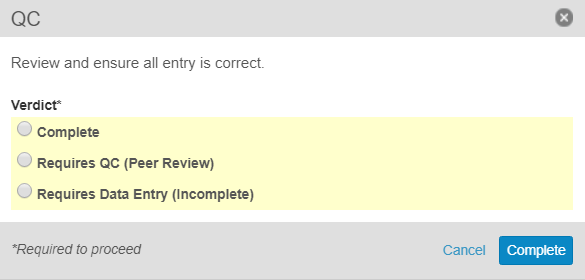
4. In the **QC** task banner, select **Complete**.<br>The **QC** window appears.

<a href="https://platform.veevavault.help/assets/images/saf-qc-window.png" data-lightbox="saf-qc-window.png" data-title="" data-alt="QC window">
  <img class="docimage" src="https://platform.veevavault.help/assets/images/saf-qc-window.png" alt="QC window" style="max-width: 75%;"  />
</a>

### Send a Case Back to Data Entry

1.  In the **QC** window, select **Requires Data Entry (Incomplete)**.
2.  Under **Rationale**, enter the reason the Case requires more data entry. 
3.  Select **Complete**.

**Result**

The system assigns a new Data Entry task. Once a user completes the Data Entry task, the Case will assign another QC task. 

### Send a Case for Peer QC Review

1.  In the **QC** window, select **Requires QC (Peer Review)**.
2.  Under **Rationale**, enter the reason the Case requires more data entry. 
3.  Select **Complete**.

**Result**

The system assigns a new QC task for peer review. 

### Approve Case Data Entry

1.  In the **QC** window, under **Verdict**, select **Complete**. 
2.  Select **Complete**.

**Result**

<ul>
<li>If the Case is flagged for expedited reporting, it advances to one of the following states: 
    <ul>
        <li>Blinded study Cases move to the Unblinding state.</li>
        <li>All other types of Cases move to the Medical Review state.</li>
    </ul></li>
<li>If the Case is not flagged for expedited reporting, the system assigns an Approval task to users in the Head of Safety role.  </li>
</ul>