# Manage EDQM Mapping for Dose Form and Routes of Administration Terms

Learn about how the system maps dose forms and routes of administration to the latest European Directorate for the Quality of Medicines & HealthCare (EDQM) terminology when importing and exporting E2B files.

## About the Feature

The EDQM Mapping for Dose Form and Routes of Administration Terms feature supports mandatory EDQM standard terminology for pharmaceutical dose forms and routes of administration when reporting to EudraVigilance.

On EMA E2B(R3) Submissions, Dose Form and Routes of Administration (RoA) data elements will follow the standard terminology maintained by the EDQM. This affects the following fields:

* G.k.4.r.9.1 Pharmaceutical Dose Form
* G.k.4.r.9.2a Pharmaceutical Dose Form TermID Version Date/Number
* G.k.4.r.9.2b Pharmaceutical Dose Form TermID
* G.k.4.r.10.1 Route of Administration
* G.k.4.r.10.2a Route of Administration TermID Version Date / Number
* G.k.4.r.10.2b Route of Administration TermID
* G.k.4.r.11.1 Parent Route of Administration
* G.k.4.r.11.2a Parent Route of Administration TermID Version Date / Number
* G.k.4.r.11.2b Parent Route of Administration TermID

When creating EMA E2B(R3) Submissions, mapped EDQM codes will be used to generate compliant files. When importing E2B files, EDQM codes will be mapped to your Dose Forms and Routes of Administration records.

<a href="/en/gr/01288/#ema-e2b-r3">E2B Generation Data Mapping</a> describes how system terms are exported to EMA E2B(R3) files, and <a href="/en/gr/01134/">E2B Case Import Data Mapping</a> describes how E2B file terms are imported into the system.

### Manage Custom Dose Form and Route of Administration Values

Vault Safety supports managing custom Dose Form and Route of Administration values that are used by your organization. When created, custom values are immediately available for EDQM mapping. For more information, see <a href="/en/gr/659148/">Manage Custom Dose Forms, Routes of Administration, and Units of Measurement</a>.

## Enablement Update: Auto-On

For all Vaults, the **Export EMA EDQM Terms** feature is automatically on.

## Manage EDQM Term Mappings

With the **Export EMA EDQM Terms** feature, Vault Safety loads the current EDQM terms. The system creates standard mapping for EDQM dose forms and routes of administration terms, as follows: 

* **Dose Form**: R2_DOSAGEFORMCODE is mapped to EDQMTermID
* **Routes of Administration**: Terms will be mapped through text matching, for example EDQM term "Oral Use" will be mapped to "Oral".

As EDQM terms are regularly updated, reviewing the mapping is recommended.

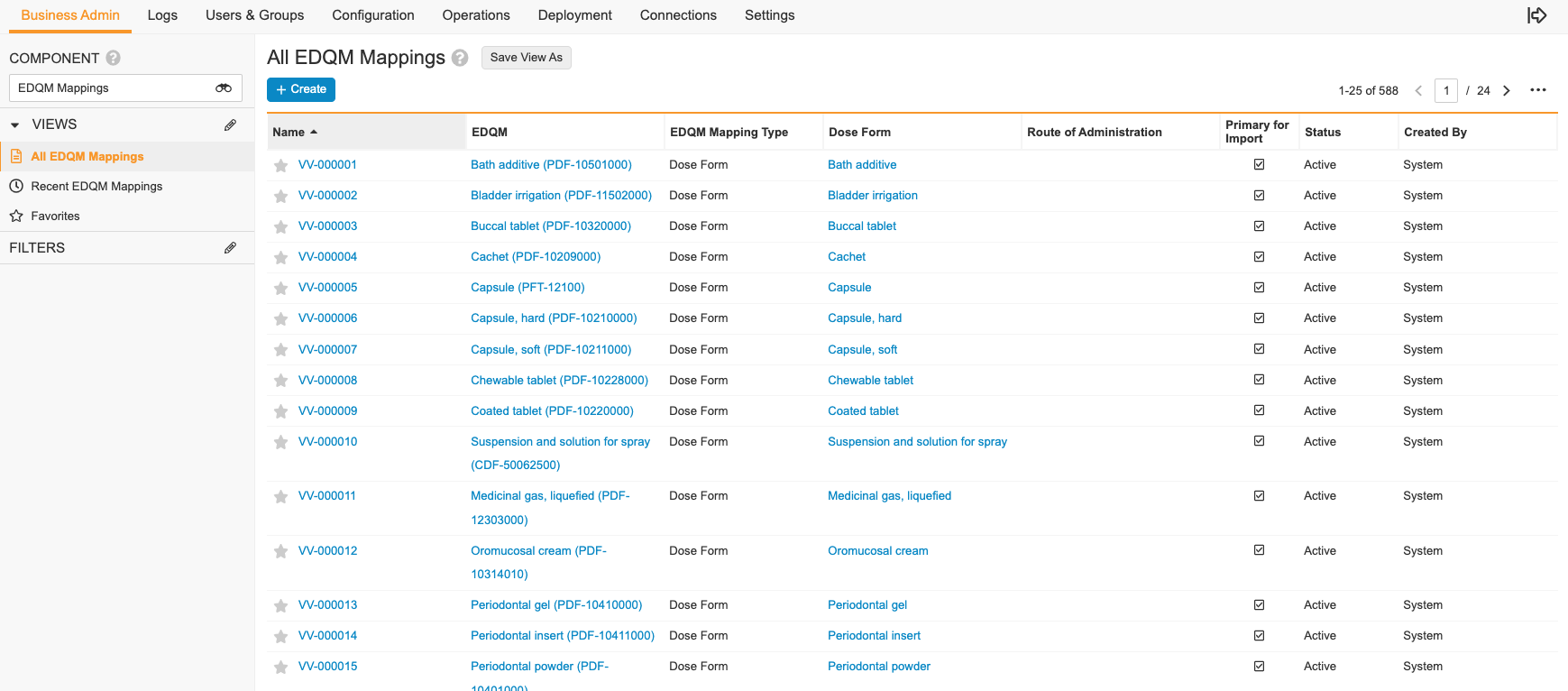
1. Go to **Business Admin > Objects > EDQM Mappings**.
2. (Optional) Select the **All Actions** menu, and then select **Edit Columns**. A window appears with the available column options.
3. Select the columns you want to display, and then select **Save**.

**Result**

All EDQM Mappings are listed.

<a href="https://platform.veevavault.help/assets/images/saf-edqm-mappings-list.png" data-lightbox="saf-edqm-mappings-list.png" data-title="" data-alt="All EDQM Mappings">
  <img class="docimage" src="https://platform.veevavault.help/assets/images/saf-edqm-mappings-list.png" alt="All EDQM Mappings" style=""  />
</a>

### Add Dose Form and Route of Administration Mapping Records

1. Go to **Business Admin > Objects > EDQM Mappings**, and then select **Create**.
2. In the **Create EDQM Mapping** dialog, select **Dose Form** or **Route of Administration** from the drop-down list. See the table [below][1] for more details about how to update editable fields.
4. Select **Save**.

**Result**

The **EDQM Mapping** record is created.

#### <a id="table-1"></a>How to Update Editable Fields

The table below describes how to update editable fields in the **Create EDQM Mapping** dialog:

<table>
        <tr>
            <th>FIELD</th>
            <th>DESCRIPTION</th>
        </tr>
        <tr>
          <td>Dose Form</td>
          <td>Select the binoculars (<img class="inline" src="https://platform.veevavault.help/assets/images/saf-advanced-search.png" alt="Binoculars Icon" style="" />) icon to search the system Dose Forms or start typing for instant search.</td>
        </tr>
        <tr>
            <td>EDQM</td>
          <td>Select the binoculars (<img class="inline" src="https://platform.veevavault.help/assets/images/saf-advanced-search.png" alt="Binoculars Icon" style="" />) icon to search the EDQM Terms or EDQM Codes, or start typing for instant search.</td>
        </tr>
        <tr>
            <td>Primary for Import</td>
          <td>Select the <strong>Primary for Import</strong> checkbox on the current EDQM Term record so it is used during E2B file import.
            <div class="note-border alert-info">
  <div class="alert alert-info" role="alert">
    <div><i class="far fa-info-circle"></i></div>
    <div class="alert-text">
      <p><strong>Note</strong>: For each EDQM Term, <strong>Primary for Import</strong> can be selected on only one record. Ensure the option is selected on the current EDQM Term so that system mapping is correct.</p>
    </div>
  </div>
</div>

</td>
        </tr>
        <tr>
            <td>Route of Administration</td>
          <td>Select the binoculars (<img class="inline" src="https://platform.veevavault.help/assets/images/saf-advanced-search.png" alt="Binoculars Icon" style="" />) icon to search the system Routes of Administration or start typing for instant search.</td>
        </tr>
</table>

### Edit Dose Form and Route of Administration Mapping Records 

1. Go to **Business Admin > Objects > EDQM Mappings**.
2. To change a record, select it from the **Name** column.
3. Select the **All Actions** menu, and then select **Edit**. See the table [below][2] for more details about how to update editable fields.
4. Select **Save**.

**Result**

The **EDQM Mapping** record is updated.

#### <a id="table-2"></a>How to Update Editable Fields

The table below describes how to update editable fields on **EDQM Mappings** records:
<table>
    <thead>
        <tr>
            <th>FIELD</th>
            <th>DESCRIPTION</th>
        </tr>
    </thead>
        <tbody>
        <tr>
          <td>Dose Form</td>
          <td>Select the binoculars (<img class="inline" src="https://platform.veevavault.help/assets/images/saf-advanced-search.png" alt="Binoculars Icon" style="" />) icon to search the system Dose Forms or start typing for instant search.</td>
        </tr>
        <tr>
            <td>EDQM</td>
          <td>Select the binoculars (<img class="inline" src="https://platform.veevavault.help/assets/images/saf-advanced-search.png" alt="Binoculars Icon" style="" />) icon to search the EDQM Terms or EDQM Codes, or start typing for instant search.</td>
        </tr>
        <tr>
            <td>Primary for Import</td>
          <td>Select the <strong>Primary for Import</strong> checkbox on the current EDQM Term record so it is used during E2B file import.
            <div class="note-border alert-info">
  <div class="alert alert-info" role="alert">
    <div><i class="far fa-info-circle"></i></div>
    <div class="alert-text">
      <p><strong>Note</strong>: For each EDQM Term, <strong>Primary for Import</strong> can be selected on only one record. Ensure the option is selected on the current EDQM Term so that system mapping is correct.</p>
    </div>
  </div>
</div>

</td>
        </tr>
        <tr>
            <td>Route of Administration</td>
          <td>Select the binoculars (<img class="inline" src="https://platform.veevavault.help/assets/images/saf-advanced-search.png" alt="Binoculars Icon" style="" />) icon to search the system Routes of Administration or start typing for instant search.</td>
        </tr>
    </tbody>
</table>

[1]: #table-1
[2]: #table-2