# Case and Submission Validation

Vault validates E2B files against the XSD (XML Schema Definition) to catch E2B errors prior to ICSR submissions. The XML is validated automatically as part of the E2B generation process.

During validation, the E2B file is validated against the appropriate agency's schema. The following list describes how Vault validates each type of E2B file:

* **E2B(R3)**:
  * Vault validates the following formats against the EMA XSD schema:
    * EMA E2B(R3)
    * FDA E2B(R3)
    * FDA VAERS E2B(R3)
    * ICH E2B(R3)
    * Vigiflow E2B(R3)
  * Vault validates NMPA E2B(R3) files against the NMPA XSD schema
  * Vault validates PMDA E2B(R3) files against the PMDA XSD schema
* **E2B(R2)**:
  * Vault validates the following formats against FDA ICSR XML DTD version 2.1:
    * FDA E2B(R2)
    * HC E2B(R2)
  * Vault validates FDA E2B(R2) files with _Combination Products_ against FDA ICSR XML DTD version 2.2

MFDS E2B(R3) files are validated against _Case_ data only, not against an agency schema. Vault does not validate EU Convention E2B(R2) files.

## About Case and Submission Business Validation

Vault performs validation for most E2B(R2) and (R3) formats. E2B schema validation occurs at the _Submission_ level once the E2B file is generated. Business validation occurs at the _Case_ and _Transmission_ levels (_Submission_ and _Distribution_).

Non-SUSAR and manual submissions are not _Case_ validated because _Case_ validation operates on rule engine evaluation. _Transmissions_ created manually are validated but the associated _Case_ is not validated. For a _Transmission_ to be validated, it must reference a _Transmission Profile_ for a supported file format. For example, if _Outbound Format_ on the <a href="/en/gr/01202/#outbound-format">_Transmission Profile_</a> is set to _Other_, no _Validation Results_ records are generated because the format does not require validations.


<div class="note-border alert-info">
  <div class="alert alert-info" role="alert">
    <div><i class="far fa-info-circle"></i></div>
    <div class="alert-text">
      <p><strong>Note</strong>: Consider the following limitations for E2B validation on <em>Distribution</em> type transmissions:</p>
<ul>
  <li>If <em>Always Evaluate</em> on the <em>Validation Criteria</em> object is not set to <em>Yes</em>, Vault does not validate E2B XML files generated for Email Distributions to regional destinations.</li>
  <li>Other <em>Distributions</em> (non-email) are validated, but Vault does not send a notification when validation is complete.</li>
  <li>Vault does not support <em>Case</em> level validation for <em>Imported Cases</em>. See <a href="/en/gr/01217/">Migrate External Cases</a> for more information on <em>Imported  Cases</em>.</li>
</ul>
    </div>
  </div>
</div>


### Custom Validation Criteria

If required, your Admin can configure your Vault to add _Validation Criteria_ that are not already included in Vault. See <a href="/en/gr/01461/">Configure Custom Validation Criteria</a> for more information.

## FDA Character Encoding Validation

The FDA supports only ISO 8859-1 characters for E2B(R2) submissions and does not support the UTF-8 character set.

During FDA E2B(R2) report validation at the _Case_ and _Transmission_ level, if any text fields or narrative documents have non-ISO 8859-1 characters, Vault generates a validation warning along with a CSV file to capture the validation results for conformance with ISO 8859-1. The CSV file provides a direct link to the validation error for the character. This is a separate file from the [validation file][1], which captures all other validation errors.

### ISO-Compliant Replacements

Some UTF-8 characters with a matching character in ISO 8859-1 are auto-replaced in the generated FDA E2B(R2) file, while the remainder are replaced with blank fields.

The following table displays the UTF-8 characters that are auto-replaced with ISO 8859-1-compliant characters:
<table>
    <thead>
        <tr>
            <th>UTF-8 Character</th>
            <th>ISO 8859-1-Compliant Character</th>
        </tr>
    </thead>
        <tbody>
        <tr>
          <td>&ldquo;</td>
          <td>"</td>
        </tr>
        <tr>
          <td>&rdquo;</td>
          <td>"</td>
        </tr>
        <tr>
          <td>&lsquo;</td>
          <td>'</td>
        </tr>
        <tr>
          <td>&rsquo;</td>
          <td>'</td>
        </tr>
        <tr>
          <td>&ndash;</td>
          <td>-</td>
        </tr>
        <tr>
          <td>&mdash;</td>
          <td>-</td>
        </tr>
        <tr>
          <td>Other non-ISO-compliant character</td>
          <td>[White Space]</td>
        </tr>
    </tbody>
</table>

### Configure the Excel File to View Unsupported Characters

When you open the ISO 8859-1 validation CSV file with Microsoft Excel, the **Unsupported Characters** column contains ambiguous characters because Excel does not automatically encode them as UTF-8.

To view these characters in the CSV file, perform the following steps:

1. Close the downloaded file.
2. Open a new Excel file.
3. Perform one of the following actions depending on your operating system:
    * Mac OS: Go to **File > Import**.
    * Windows: Go to **Data > From Text/CSV**.
4. Select **CSV file** then select **Import**.
5. In your folder, select the downloaded CSV file and then select **Get Data**.
6. From the **File Origin** dropdown, select **Unicode (UTF-8)**, and then select **Next**.
7. Under **Delimiters**, deselect **Tab**, and then select **Comma**.
8. Perform one of the following actions depending on your operating system:
    * Mac OS: Select **Finish**.
    * Windows: Select **Load**.

**Result**

The unsupported characters on the CSV file are now viewable when you open the file.

## Business Validation

Business validation occurs at the _Case_ and/or _Transmission_ level. Validations are completed based on global (ICH) and regional conformance rules. Regional validation occurs only at the _Submission_ and _Distribution_ levels. Validations include:

* Over 190 ICH conformance rules validated at the _Case_ and _Transmission_ level against:
  * E2B(R3) files, including EMA E2B(R3), FDA E2B(R3), FDA VAERS E2B(R3), ICH E2B(R3), MFDS E2B(R3), NMPA E2B(R3), PMDA E2B(R3), and Vigiflow E2B(R3).
    * Vault validates _Case_-level File Format rules against ICH E2B(R3) files for PMDA reportable _Cases_. See considerations for PMDA reportable _Cases_ with [Special Report Classifications][3].
  * All _Cases_ reportable to regional destinations.
* Over 260 FDA conformance rules validated at the _Case_ and _Transmission_ level against the FDA E2B(R3) file format.
* Over 170 FDA VAERS conformance rules validated at the _Transmission_ level against the FDA VAERS E2B(R3) file format.
* Over 100 EMA conformance rules validated at the _Transmission_ level against the EMA E2B(R3) file format.
* Over 169 conformance rules validated at the _Case_ and _Transmission_ levels. The PMDA validation rules include Case Data, Case Data - Expression, and File Format rules. Case Data and Case Data - Expression rules validate against _Case_ data and File Format rules validate against PMDA E2B(R3) files.

Some regional rules supersede (override) ICH global rules. In this case, only the regional rule is validated at the _Transmission_ level. <a href="/en/gr/01461/">Custom Validation Criteria</a> may also be set up to override global rules.

Vaults created in 20R2 or earlier must be configured to add <a href="/en/gr/01325/">Case-level validation</a> and to insert the Validation Results section on _Submission_ and _Distribution_ layouts.

Business validation results with fail or warning outcomes are reported in the _Validation Results_ object. If you regenerate the E2B file, the reported validation results are deleted and new validation results records are created if there are any failures or warnings specific to the validation criteria.

### Validation for PMDA Special Report Classifications {#special-report-validation}

When validating PMDA reportable _Cases_ with a value in the _Special Report Classification_ field, Vault does not validate non-applicable report sections and data elements. You can review which <a class="download-link " href="https://platform.veevavault.help/assets/downloads/saf-data-transmitted-by-pmda-reporting-category.xlsx" target="_blank" rel="noopener">data elements Vault exports<i class="fa fa-download" aria-hidden="true"></i></a> based on the <a href="/en/gr/696910/#pmda-cat">_PMDA Reporting Category_</a> in the _Local Reporting Details_ record of the _Case_ or _Localized Case_.

### Trigger Validation

The following describes when Vault performs validation:

* **Transmissions**: When a _Submission_ or _Distribution_ file is created, Vault automatically validates against the schema (for supported file formats), and against the Global (ICH) and regional _Validation Criteria_.
* **Cases**: A _Case_ is validated when a user triggers the <a href="/en/gr/01325/">Evaluate Regulatory Conformance</a> action. Admins can configure your Vault to automatically run this action as part of the _Case_ lifecycle.

Business validation results with fail or warning outcomes are reported in the _Validation Results_ object. If you regenerate the E2B file, the reported validation results are deleted and new _Validation Results_ records are created if there are any failures or warnings, specific to the validation criteria.

<div class="note-border alert-info">
  <div class="alert alert-info" role="alert">
    <div><i class="far fa-info-circle"></i></div>
    <div class="alert-text">
      <p><strong>Note</strong>: Regional validations are not executed on E2B formats that will not be sent to a region.</p>
    </div>
  </div>
</div>


### View Validation Results

When a validation criteria rule evaluates as a fail or warning, Vault creates a corresponding _Validation Result_ for the _Case_ and _Transmission_. Vault also creates a _Validation Results Summary_ for each validated _Case_ and _Transmission_. Vault displays the _Validation Results_ and the _Validation Results Summary_ in the _Conformance Validations_ section of a _Case_ or _Transmission_. Each _Validation Results Summary_ record includes an attachment detailing all the results of the rules run: pass, fail, and warning.

The sections below describe the _Validation Criteria_ and _Validation Result_ objects. _Validation Criteria_ and _Validation Results_ appear on _Cases_ or _Transmissions_ after validation.

<div class="note-border alert-info">
  <div class="alert alert-info" role="alert">
    <div><i class="far fa-info-circle"></i></div>
    <div class="alert-text">
      <p><strong>Note</strong>: Validation Rules and Results are system managed. You cannot modify or delete existing system rules or validation rules.</p>
    </div>
  </div>
</div>


#### Validation File {#validation-file}

Upon validation completion, Vault generates a CSV file that captures the pass or fail result of each validation rule.

The file is added as an attachment to the _Transmission_ (_Submission_ or _Distribution_) record and as a link in Vault notifications.

#### Validation Criteria Fields

The _Validation Criteria_ object captures validation rule criteria (such as business and conformance rules) based on industry guidance.

The following table describes the fields on the _Validation Criteria_ object:

<table>
    <thead>
        <tr>
            <th>Field</th>
            <th>Description</th>
        </tr>
    </thead>
    <tbody>
        <tr>
            <td>Agency</td>
            <td>Agency the rule originated from. For global (i.e. ICH) rules, this field will be blank.</td>
        </tr>
        <tr>
            <td>API Name</td>
            <td>The record's unique identifier.</td>
        </tr>
        <tr>
            <td>Conformance</td>
            <td>Business, conformance, schema or other rule definition based on the Source.</td>
        </tr>
        <tr>
            <td>Data Element</td>
            <td>The Data Element number, as specified in the guidance document, for the evaluated value.</td>
        </tr>
        <tr>
            <td>Data Element Name</td>
            <td>The name of the Data Element, as specified in the guidance document. </td>
        </tr>
        <tr>
            <td>Evaluation Level</td>
            <td>The level at which the rule should evaluate (i.e. <em>Case</em> or <em>Submission</em>).</td>
        </tr>
        <tr>
            <td>File Format</td>
            <td>The format used to drive validation rules. </td>
        </tr>
        <tr>
            <td>Result Status Type</td>
            <td>
              <p>Select <strong>Fail</strong>, <strong>Warning</strong>, or <strong>Hard Fail</strong> as the rule result outcome. This field also populates the <em>Validation Status</em> on the <a href="/en/gr/01287/#case-validation-status"><em>Case</em></a> or <a href="/en/gr/1022564/#transmission-validation-status"><em>Transmission</em></a>.</p>
              <p>Note the difference between a <em>Fail</em> and <em>Hard Fail</em> value:</p>
              <ul>
                  <li>Either a <em>Fail</em> or <em>Hard Fail</em> result will prevent an auto-submission to a gateway.</li>
                  <li>Only a <em>Hard Fail</em> result will prevent you from triggering the <em>Submit to Gateway</em> action.</li>
              </ul>
            </td>
        </tr>
        <tr>
            <td>Rule Formula</td>
            <td>The formula used to validate the data element conformance.</td>
        </tr>
        <tr>
            <td>Rule Formula Format</td>
            <td>The format used for formula execution. This includes:
                <ul>
                    <li>File Format</li>
                    <li>Case Data</li>
                    <li>Case Data - Expression</li>
                </ul>
                <p>If left blank, Vault defaults to File Format.</p>
                <p><div class="note-border alert-info">
  <div class="alert alert-info" role="alert">
    <div><i class="far fa-info-circle"></i></div>
    <div class="alert-text">
      <p><strong>Note</strong>: File Format is used for all standard ICH E2B(R3) validation rules.</p>
    </div>
  </div>
</div>

</p></td>
        </tr>
        <tr>
            <td>Rule Version</td>
            <td>The validation criteria version.</td>
        </tr>
        <tr>
            <td>Always Evaluate</td>
            <td>If selected, Vault evaluates this <em>Validation Rule</em> for all global and regional destinations regardless of the <em>Case</em> having a reporting obligation.</td>
        </tr>
        <tr>
            <td>Source</td>
            <td>The origin of the validation rule.</td>
        </tr>
        <tr>
            <td>Vault Field</td>
            <td>The name of the field to be evaluated.</td>
        </tr>
        <tr>
            <td>Vault Object</td>
            <td>The name of the object to be evaluated.</td>
        </tr>
        <tr>
            <td>Supersedes</td>
            <td>Select a rule to override with the new conformance. The Superseded rule will not evaluate for the parameters specified. </td>
        </tr>
        <tr>
            <td>Superseded Conformance</td>
            <td>The conformance for the superseded rule.</td>
        </tr>
    </tbody>
</table>

#### Validation Result Fields

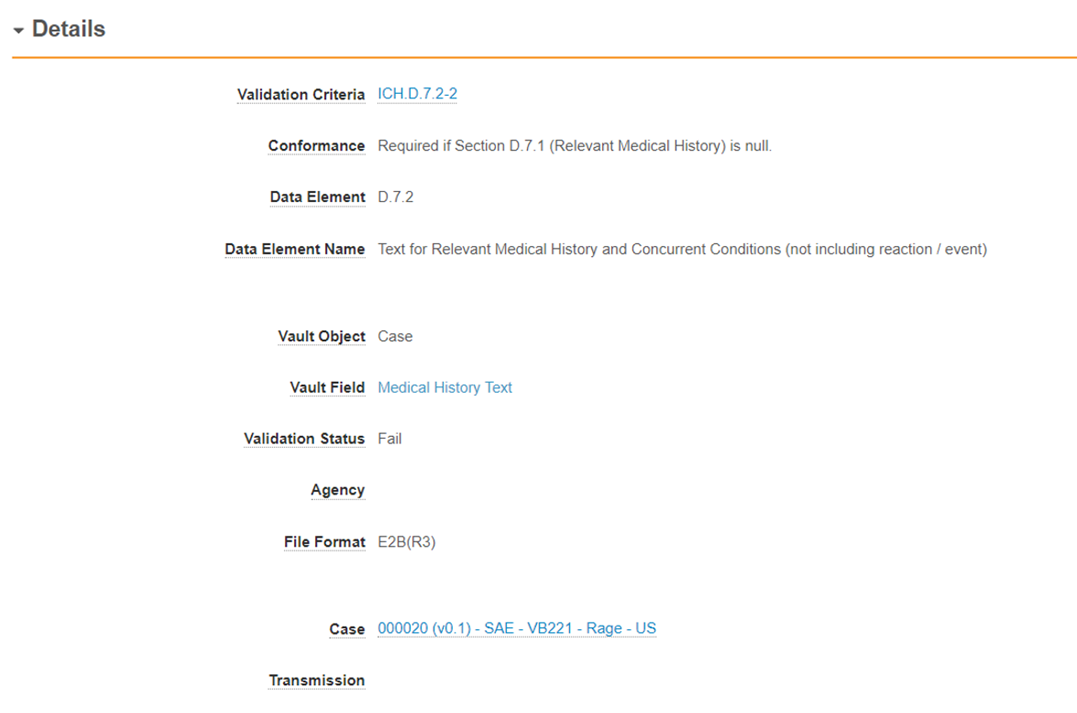
The _Validation Result_ object captures validation criteria results from the imported _Case_ or _Submission_. _Validation Results_ indicate failed and warning messages - rules that pass validation are not displayed.

<a href="https://platform.veevavault.help/assets/images/saf-case-validation-result.png" data-lightbox="saf-case-validation-result.png" data-title="Case Validation Result" data-alt="Case Validation Result">
  <img class="docimage" src="https://platform.veevavault.help/assets/images/saf-case-validation-result.png" alt="Case Validation Result" style="max-width: 70%;"  />
</a>

<div class="note-border alert-info">
  <div class="alert alert-info" role="alert">
    <div><i class="far fa-info-circle"></i></div>
    <div class="alert-text">
      <p><strong>Note</strong>: Not all warnings are displayed as validation results. Previously implemented warnings will continue to be sent via notifications or email.</p>
    </div>
  </div>
</div>


The following table describes the fields on the _Validation Result_ object:

<table>
    <thead>
        <tr>
            <th>Field</th>
            <th>Description</th>
        </tr>
    </thead>
    <tbody>
        <tr>
            <td>Validation Criteria</td>
            <td>Reference to the validation criteria that resulted in the rule evaluation.</td>
        </tr>
        <tr>
            <td>Conformance</td>
            <td>Reference to the validation criteria conformance that resulted in the rule evaluation. Value is inherited from the <em>Validation Criteria</em>.</td>
        </tr>
        <tr>
            <td>Data Element</td>
            <td>The Data Element number, as specified in the guidance document, for the evaluated value.</td>
        </tr>
        <tr>
            <td>Data Element Name</td>
            <td>The name of the Data Element, as specified in the guidance document. </td>
        </tr>
        <tr>
            <td>Vault Object</td>
            <td>The name of the evaluated object.</td>
        </tr>
        <tr>
            <td>Vault Field</td>
            <td>The name of the evaluated field.</td>
        </tr>
        <tr>
            <td>Validation Status</td>
            <td>The outcome of the rule: pass, fail, or warning.</td>
        </tr>
        <tr>
            <td>Agency</td>
            <td>The agency the rule originated from. For global (i.e. ICH) rules, this field will be blank.</td>
        </tr>
        <tr>
            <td>File Format</td>
            <td>The format used to drive validation rules. </td>
        </tr>
        <tr>
            <td>Case</td>
            <td>The <em>Case</em> record this validation result was evaluated for.</td>
        </tr>
        <tr>
            <td>Transmission</td>
            <td>Specifies when the validation occurs at the <em>Transmission</em> level. This field references the related <em>Transmission</em>. This field will be blank if the rule was evaluated at the <em>Case</em> level.</td>
        </tr>
        <tr>
            <td>Validation Criteria Version</td>
            <td>The version of the <em>Validation Criteria</em> used for the evaluation.</td>
        </tr>
        <tr>
            <td>Organization</td>
            <td>The name of the organization associated with the <em>Case</em>.</td>
        </tr>
        <tr>
            <td>Vault Record ID</td>
            <td>The record ID for the evaluated field. We recommend your Admin to remove this field from layouts.</td>
        </tr>
    </tbody>
</table>

### View All Validation Criteria

Your Admin can access a complete list of validation criteria in your Vault by navigating to **Business Admin > Objects > Validation Criteria**.

<div class="note-border alert-info">
  <div class="alert alert-info" role="alert">
    <div><i class="far fa-info-circle"></i></div>
    <div class="alert-text">
      <p><strong>Note</strong>: To download a list of the validation criteria from the <strong>Business Admin &gt; Objects &gt; Validation Criteria</strong> page, expand the <strong>All Actions</strong> menu, and then select <strong>Excel</strong> or <strong>CSV</strong>.</p>
    </div>
  </div>
</div>


### Ignore Validation Results {#ignore-validation-results}

When a validation criteria rule evaluates as a fail or warning, you can ignore the validation result for the given criteria for any subsequent evaluations of that _Case_ or _Transmission_. This option allows for _Submissions_ without deleting any _Case_ data, even when the evaluation returns validation failures, which helps to ensure submissions are not blocked.

#### Prerequisites

Your Admin must perform the configurations in <a href="/en/gr/01359/">Enable Ignore Validation Rule</a> to use this feature.

#### Ignore Validation Results for a Case

To instruct Vault to ignore the validation results for a _Case_:

1. Navigate to **Cases** and select the _Case_ you want to submit.
2. In the **Validation Results (Failures & Warnings)** section, select the **All Actions** menu next to any validation results you want to ignore.
3. Select **Ignore Validation Result**. You can include this validation result in evaluations again by selecting **Activate Validation Result**.

**Result**

Vault ignores the respective validation results for the _Case_ and its associated _Transmissions_. The _Case_ can now be submitted, considering all other criteria are met. The summary record will not include the validation result.

#### Ignore Validation Results for a Transmission

To instruct Vault to ignore the validation results for a _Transmission_:

1. Navaigate to **Transmissions > Submissions** or **Distributions**.
2. Select a _Transmission_.
3. In the **Validation Results (Failures & Warnings)** section, select the **All Actions** menu next to any validation results you want to ignore.
4. Select **Ignore Validation Result**. You can include this validation result in evaluations again by selecting **Activate Validation Result**.

**Result**

Vault ignores the respective validation results for that _Transmission_ only. The summary record will not include the validation result.

### Assign Hard Fail to Validation Rules {#assign-hard-fail-to-validation-rules}

We recommend that your Admin configures the following **Result Status Types** to be "Hard Fail":

* ICH.C.1.3-1
* ICH.C.1.3-2
* ICH.C.1.4-1
* ICH.C.1.4-2
* ICH.C.1.4-3
* ICH.C.1.5-1
* ICH.C.1.5-2
* ICH.C.1.5-3
* ICH.C.2.r.3-1
* ICH.C.2.r.3-2
* ICH.C.5.4-1
* ICH.C.5.4-2
* ICH.D.1
* ICH.E.i.4-1
* ICH.E.i.4-2
* ICH.E.i.7-1
* ICH.E.i.7-2
* ICH.G.k.1-1
* ICH.G.k.1-2
* ICH.G.k.2.2

This is a recommended list. You may choose to add more or less of these depending on your business's evaluation of severity of each validation criteria.
1. Navigate to **Business Admin > Objects > Validation Criteria**.
2. Select [_Validation Criteria_].
3. Select **Hard Fail** from the **Result Status Type** field.
4. Select **Save**.

Your Admin must also <a href="/en/gr/01408/">configure workflow transitions for _Case_ validations</a>.

## Data Entry Validation

In addition to validating E2B XML during file generation, Vault validates certain fields during _Case_ data entry to prevent issues that would generate an invalid E2B file.

### Value and Unit Field Validation

Vault validates all standard (system-provided) combined Value and Unit fields.

When a field contains invalid data, Vault prevents you from saving the record and marks the field with an **Invalid** label.

See the following example, where the **Weight** field has a unit but no value:

<a href="https://platform.veevavault.help/assets/images/saf-invalid-tag-data-entry.png" data-lightbox="saf-invalid-tag-data-entry.png" data-title="Invalid Data Tag" data-alt="Invalid Data Tag">
  <img class="docimage" src="https://platform.veevavault.help/assets/images/saf-invalid-tag-data-entry.png" alt="Invalid Data Tag" style=""  />
</a>

### Reason Omitted Field Validation

Vault validates standard (system-provided) Reason Omitted (nullFlavor) fields, with the exception of those listed [below][2]. Reason Omitted fields allow you to select only valid NullFlavor values, according to E2B specifications.

### Data Entry Validation Limitations {#validation-limits}

Consider the following limitations for data entry validation:

* Custom (non-standard) fields are not validated.
* The following Reason Omitted (nullFlavour) fields are not validated or filtered to valid values:

<table>
    <thead>
        <tr>
            <th>Object or Document Type</th>
            <th>Field</th>
        </tr>
    </thead>
    <tbody>
        <tr>
            <td>Case Contact Object</td>
            <td>Country (reason omitted) (<code>country_reason_omitted__v</code>)</td>
        </tr>
        <tr>
            <td>Case Object</td>
            <td>Medical History Text (reason omitted) (<code>medical_history_text_reason_omitted__v</code>)
            <div class="note-border alert-info">
  <div class="alert alert-info" role="alert">
    <div><i class="far fa-info-circle"></i></div>
    <div class="alert-text">
      <p><strong>Note</strong>: To comply with E2B specifications, your Admin must ensure <em>Case</em> layouts include the <img class="inline" src="https://platform.veevavault.help/assets/images/saf-app-control.png" alt="slider" style="" /> <strong>Medical History Text</strong> control field, which is filtered to valid values for Reasons Omitted. For more information, see <a href="/en/gr/01219/#update-the-case-layout-for-reasons-omitted-for-medical-history-text">Configure Reasons Omitted</a>.</p>
    </div>
  </div>
</div>

</td>
        </tr>
        <tr>
            <td>Case Object</td>
            <td>Study Name (reason omitted) (<code>study_name_reason_omitted__v</code>)</td>
        </tr>
        <tr>
            <td>Case > Source > Literature Document Type</td>
            <td>Reference (reason omitted) (<code>reference_reason_omitted__v</code>)</td>
        </tr>
    </tbody>
</table>

## Prerequisites for E2B XML Validation

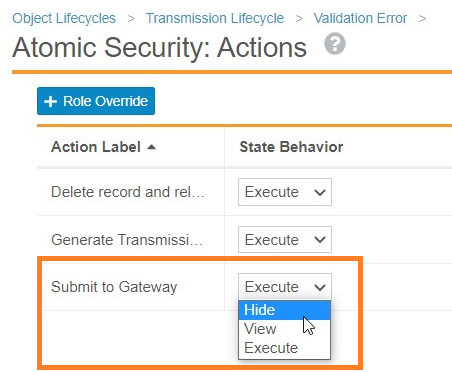
While E2B XML validation is available in all Vaults, we recommend that your Admin performs the following configuration to prevent the **Submit to Gateway** action when Vault detects a validation error.

1. Navigate to **Admin > Configuration > Object Lifecycles > Transmission Lifecycle**.
2. Open the **Validation Error** lifecycle state.
3. Under **Atomic Security: Actions**, select **Edit**.
4. For the **Submit to Gateway** action, change the **State Behavior** to **Hide**.

<a href="https://platform.veevavault.help/assets/images/saf-update-submit-to-gateway-action.png" data-lightbox="saf-update-submit-to-gateway-action.png" data-title="Change Submit to Gateway Behavior to Hide" data-alt="Change Submit to Gateway Behavior to Hide">
  <img class="docimage" src="https://platform.veevavault.help/assets/images/saf-update-submit-to-gateway-action.png" alt="Change Submit to Gateway Behavior to Hide" style=""  />
</a>

## Trigger E2B XML Validation

To validate an E2B file, generate an EMA E2B(R3), FDA E2B(R3), FDA E2B(R2), or HC E2B(R2) file from a _Transmission_ (_Submission_ or _Distribution_) record.

Vault validates files generated using either of the following methods:

* Manually with the **Generate Transmission Document(s)** user action.
* Automatically as part of a _Submission_ or _Distribution_ workflow.

<div class="note-border alert-info">
  <div class="alert alert-info" role="alert">
    <div><i class="far fa-info-circle"></i></div>
    <div class="alert-text">
      <p><strong>Note</strong>: Vault does not validate E2B files generated from the <em>Case</em>.</p>
    </div>
  </div>
</div>


### Notifications

Vault sends an email and notification to the appropriate user if errors are found during validation. Vault sends the same notifications if a _Transmission_ or _Transmission Documents_ fail to generate.

The following list describes which users receive notifications:

* If the action was run manually, Vault notifies the user who ran the action of any failures.
* If the action was run through a workflow, Vault notifies Distribution Manager users for that organization.
* Otherwise, Vault notifies the System Admin user group.

## Resolve Validation Errors

Once a _Submission_ enters the _Pending_ state, Vault generates an E2B XML file, validates it against the corresponding schema, and <a href="/en/gr/01260/#validation-state">sets the lifecycle state</a>. At the same time, the _Review Submission_ workflow starts, and the Distribution Manager should accept their task as they do in their standard workflow.

If there are validation errors, the _Submission_ record lifecycle state changes to _Validation Error_. The Distribution Manager must review and fix the validation errors attached in the CSV file. Once the errors are resolved, the Distribution Manager must move the _Transmission_ to a state where they can regenerate the transmission documents.

If there are no further validation errors, Vault removes the attached validation CSV file and you can proceed with completing the _Submission_ workflow.

If there are new validation errors, the appropriate user receives a notification and a validation CSV file replaces the previous attachment.

## E2B Error Message Guide

The following tables describe the E2B validation errors you may encounter, and the possible cause of each error message.

### EMA E2B R3 Error Messages

<table>
    <thead>
        <tr>
            <th>Error</th>
            <th>Possible Cause</th>
        </tr>
    </thead>
    <tbody>
        <tr>
            <td>cvc-complex-type.2.4.a: Invalid content was found starting with element 'responseModeCode'. One of '{urn:hl7-org:v3:creationTime}' is expected.</td>
            <td>The <em>Submission</em> record is missing a value in the <em>Transmission Date</em> field.</td>
        </tr>
        <tr>
            <td>cvc-complex-type.2.4.a: Invalid content was found starting with element 'creationTime'. One of '{urn:hl7-org:v3:realmCode, urn:hl7-org:v3:typeId, urn:hl7-org:v3:templateId, urn:hl7-org:v3:id}' is expected.</td>
            <td>The <em>Submission</em> record is missing a value in the <em>E2B Message ID</em> field.</td>
        </tr>
        <tr>
            <td>cvc-complex-type.2.4.a: Invalid content was found starting with element 'controlActProcess'. One of '{urn:hl7-org:v3:sequenceNumber, urn:hl7-org:v3:attachmentText, urn:hl7-org:v3:receiver}' is expected.</td>
            <td>A <em>Transmission Profile</em> was not found. Either the <em>Transmission Profile</em> was not configured, or it was not assigned to the <em>Submission</em> record correctly. Verify the <em>Transmission Profile</em> field on the <em>Submission</em> record links to a <em>Transmission Profile</em>, and verify the record is set up correctly. </td>
        </tr>
        <tr>
            <td>cvc-complex-type.2.4.b: The content of element 'MCCI_IN200100UV01' is not complete. One of '{urn:hl7-org:v3:PORR_IN049016UV, urn:hl7-org:v3:PORR_IN049017UV, urn:hl7-org:v3:PORR_IN049018UV, urn:hl7-org:v3:receiver}' is expected.</td>
            <td>A <em>Transmission Profile</em> was not found. Either the <em>Transmission Profile</em> was not configured, or it was not assigned to the <em>Submission</em> record correctly. Verify the <em>Transmission Profile</em> field on the <em>Submission</em> record links to a <em>Transmission Profile</em>, and verify the record is set up correctly.</td>
        </tr>
    </tbody>
</table>

### FDA and HC E2B R2 Error Messages

<table>
    <thead>
        <tr>
            <th>Error</th>
            <th>Possible Cause</th>
        </tr>
    </thead>
    <tbody>
        <tr>
            <td>The content of element type ichicsrmessageheader must match (messagetype, messageformatversion, messageformatrelease, messagenumb, messagesenderidentifier, messagereceiveridentifier, messagedateformat, messagedate).</td>
            <td>The message header is not formatted correctly due to missing <em>Submission</em> details. For example, the <em>Submission</em> record may be missing values in the <em>Transmission Date</em> or <em>E2B Message ID</em> fields.</td>
        </tr>
    </tbody>
</table>

[1]: #validation-file
[2]: #validation-limits
[3]: #special-report-validation