Note: Depending on your Admin’s configuration, your Vault’s object, field, and section labels, lifecycle states, and workflows may differ from the general information in all articles. Refer to your organization’s business processes for guidance.
## Cases
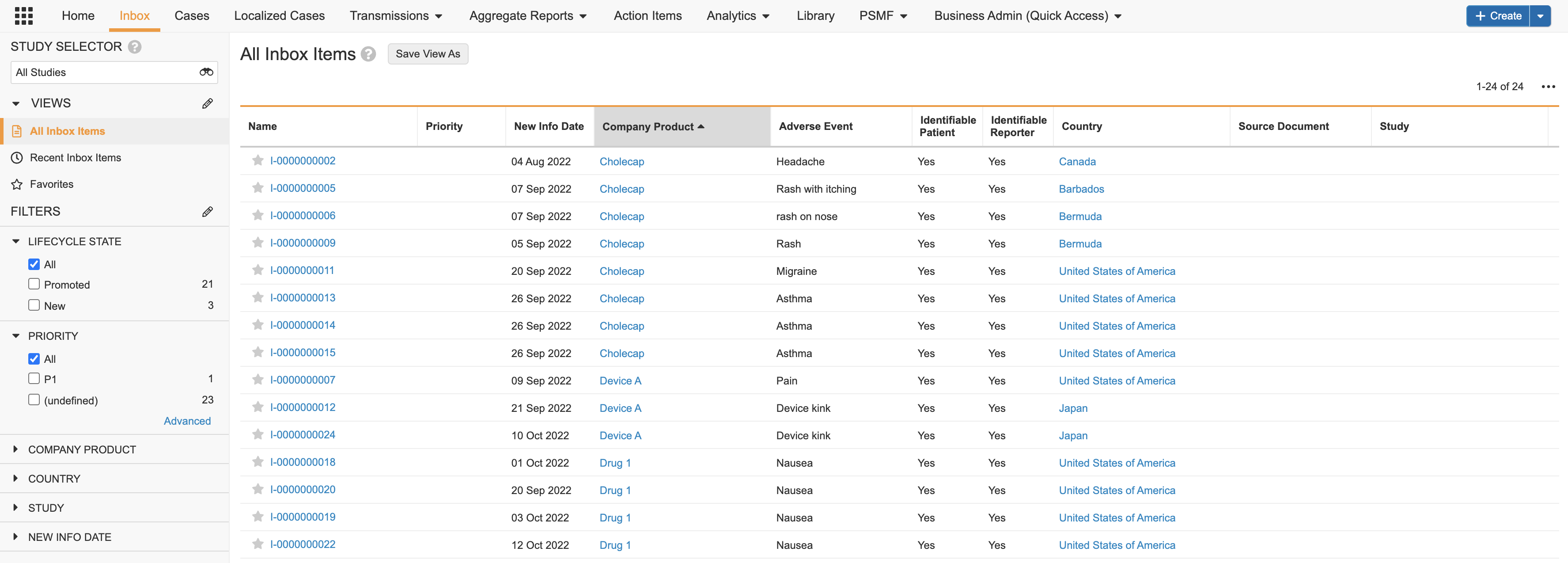
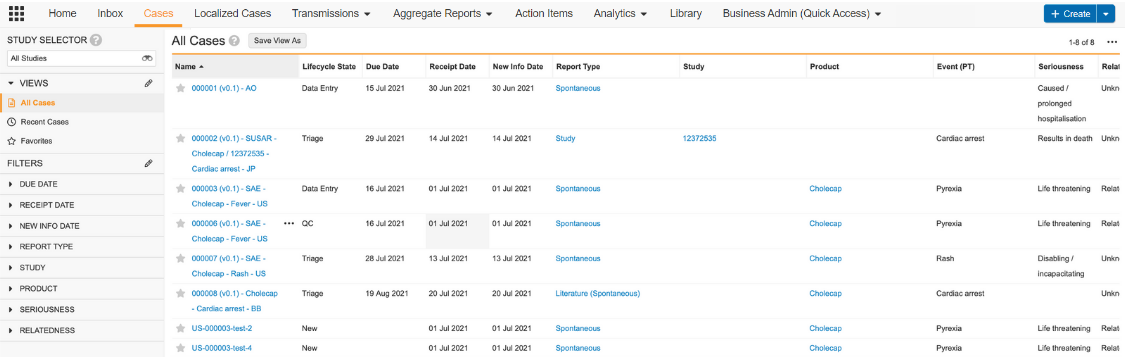
The **Cases** tab contains all Safety _Cases_. To create a _Case_, you must create an _Inbox Item_ from the **Inbox** tab and then promote the _Inbox Item_ to a _Case_. You cannot create a _Case_ directly from the **Cases** tab.
 ## Localized Cases
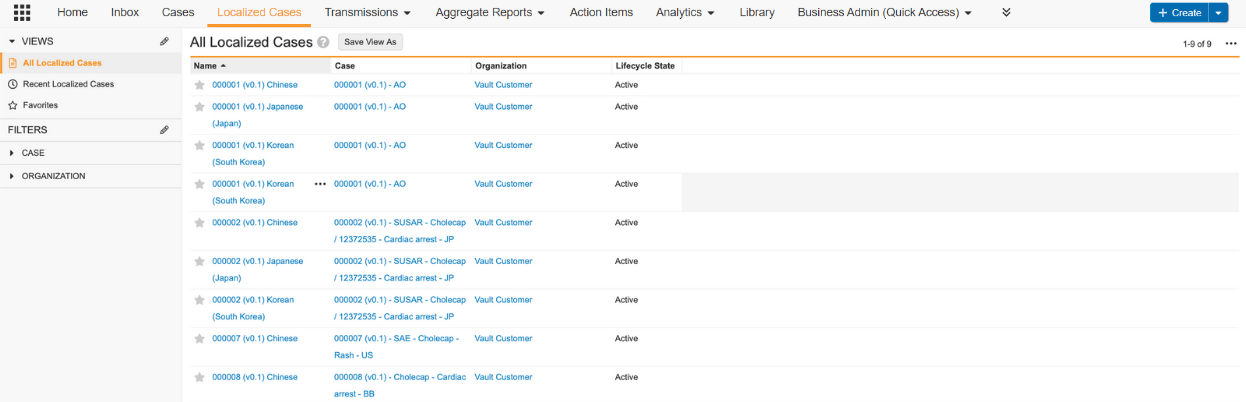
Certain Vaults may contain the **Localized Cases** tab for quick access to _Localized Cases_.
## Localized Cases
Certain Vaults may contain the **Localized Cases** tab for quick access to _Localized Cases_.
 ## Transmissions
Safety supports both manual and automated submissions of Individual Case Safety Reports (ICSRs) to the FDA. Manage _Submissions_ from the **Transmissions** tab.
## Transmissions
Safety supports both manual and automated submissions of Individual Case Safety Reports (ICSRs) to the FDA. Manage _Submissions_ from the **Transmissions** tab.
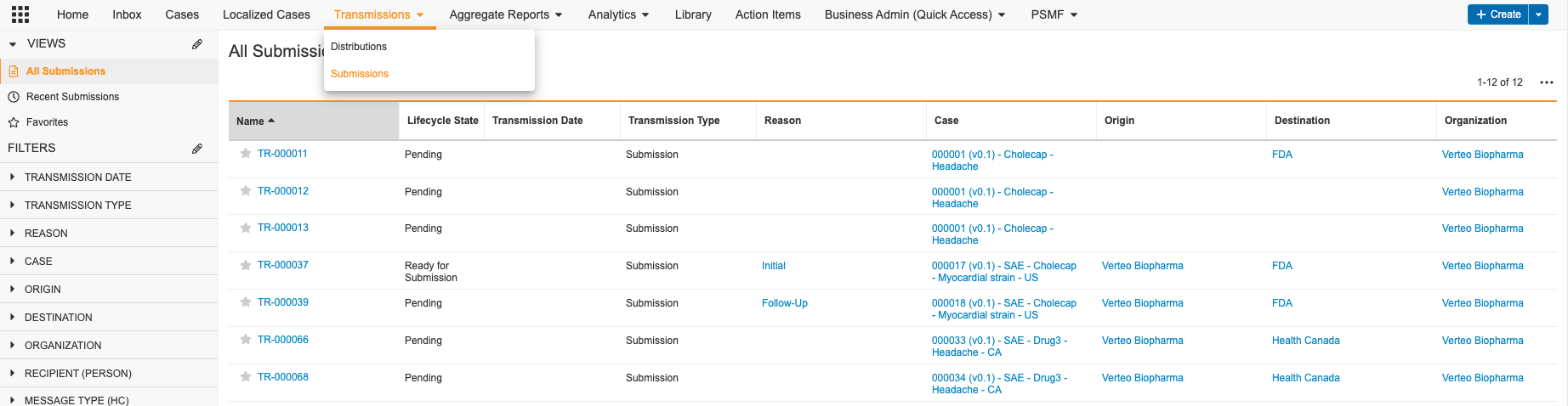 If you do not see the **Transmissions** tab, you may not have permission to participate in _Submission_ workflows. By default, only users assigned the Head of Safety and Distribution Manager roles can participate in _Submissions_.
## Case Collections
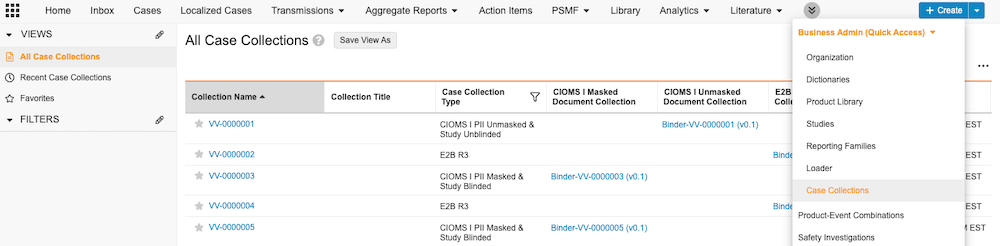
The **Case Collections** tab includes groups of _Case Numbers_ collected for the purpose of non-submission reporting, for example, reporting to an auditor or ethics committee about a specific subset of _Cases_. _Case Numbers_ can be added or removed from _Case Collections_. Safety Report Document Collections can be generated from _Case Collections_, so you can export multiple ICH E2B(R3) or CIOMS I forms at once. If safety reports have been generated, a link to the associated binder appears on the _Case Collection_. This facilitates easy downloading and sharing of safety reports with partners or relevant health authorities.
If you do not see the **Transmissions** tab, you may not have permission to participate in _Submission_ workflows. By default, only users assigned the Head of Safety and Distribution Manager roles can participate in _Submissions_.
## Case Collections
The **Case Collections** tab includes groups of _Case Numbers_ collected for the purpose of non-submission reporting, for example, reporting to an auditor or ethics committee about a specific subset of _Cases_. _Case Numbers_ can be added or removed from _Case Collections_. Safety Report Document Collections can be generated from _Case Collections_, so you can export multiple ICH E2B(R3) or CIOMS I forms at once. If safety reports have been generated, a link to the associated binder appears on the _Case Collection_. This facilitates easy downloading and sharing of safety reports with partners or relevant health authorities.