# Archive Documents in Vault Safety
Vault includes archiving capabilities for documents that are no longer relevant in day-to-day operations. For more details of this feature including how to archive documents, see the Archiving Documents
.
### Vault Safety Restrictions
As archived documents are read-only, be aware of the following restrictions when archiving documents in Vault Safety:
* Only archive documents that are related to a Case version in one of the Complete states
.
* If a case version contains archived documents, you can create a new case version or a Follow-Up Case
without issue.
* You cannot Merge to In-Flight Case
if the case contains an archived narrative and/or documents.
* Vault Safety actions that regenerate or re-render documents will not work for archived documents. These include the following actions:
* Re-Render Document
* Generate Preview for CIOMS I, E2B, or MedWatch (3500A)
* Regenerate Transmission Files
* Re-Render Document for archived PADER, PBRER, PSUR, DSUR documents
* Create Inbox Item
Note: If you need to view archived attachments in the Documents section of a case, unarchive them first.
### Find Archived Documents Related to a Case
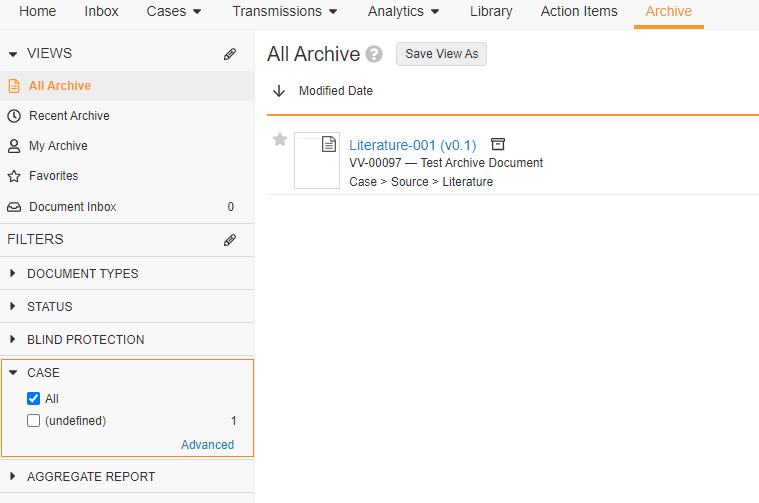
As archived documents are excluded from the main library search by default, you will need use the Case filter under the **Archive** tab to find any archived documents related to a particular case.
Note: To quickly find a case, switch to the Advanced Case filter and enter the first few characters of the Case name.