# Standard Reporting Rule Sets

Veeva Safety comes with _Safety Rule Sets_ for certain <a href="/en/gr/01245/">standard agencies</a>. _Safety Rule Sets_ include one or more _Safety Rules_, which contain <a href="/en/gr/01250/">rule parameters</a> that define conditions for which an <a href="/en/gr/01264/#icsr-transmission-types">ICSR _Transmission_</a> is generated.

For more information on how the Safety Reporting Rules Engine is triggered to automatically generate ICSR _Transmissions_, see <a href="/en/gr/01256/">Understand the Reporting Rules Engine</a>.

The standard _Safety Rule Sets_ are automatically available for customers who have enabled the _Evaluate Reporting Obligations_ action.

When new reporting rules are added, your Admin can configure when to adopt the new rules using the <a href="/en/gr/01251/">_Active Rule Version_</a>.


<div class="note-border alert-info">
  <div class="alert alert-info" role="alert">
    <div><i class="far fa-info-circle"></i></div>
    <div class="alert-text">
      <p><strong>Note</strong>: 
If you require <em>Safety Rule Sets</em> beyond the standard ones supplied, your Admin can <a href="/en/gr/873466/">create and configure additional rule sets</a>.</p>
    </div>
  </div>
</div>


You can assign a _Safety Rule Set_ to an <a href="/en/gr/01256/#submission-rules">Agency</a> or <a href="/en/gr/01256/#distribution-rules">distribution rule</a>.

The following sections list the _Safety Rules_ and their _Safety Rule Parameters_ for each of the standard _Safety Rule Sets_.

<div class="note-border alert-info">
  <div class="alert alert-info" role="alert">
    <div><i class="far fa-info-circle"></i></div>
    <div class="alert-text">
      <p><strong>Note</strong>: In the Excel file, the Regulation is the agency’s regulation associated with the reporting rule.</p>
    </div>
  </div>
</div>


## FDA ICSR Reporting Rule Set {#psmr}

Click the following link to download an Excel file with the FDA Reporting Rules, including versions 2.0, 3.0, and 4.0 of the Rule Set:

<a class="download-link " href="https://platform.veevavault.help/assets/downloads/saf-fda-submission-rules.xlsx" target="_blank" rel="noopener">Download FDA Reporting Rules<i class="fa fa-download" aria-hidden="true"></i></a>

For version 1.0 of the FDA Rule Set, used before the 21R1 release (April 2021), see <a href="/en/gr/01244/">Reporting Rule Sets (20R3 and Earlier)</a>.

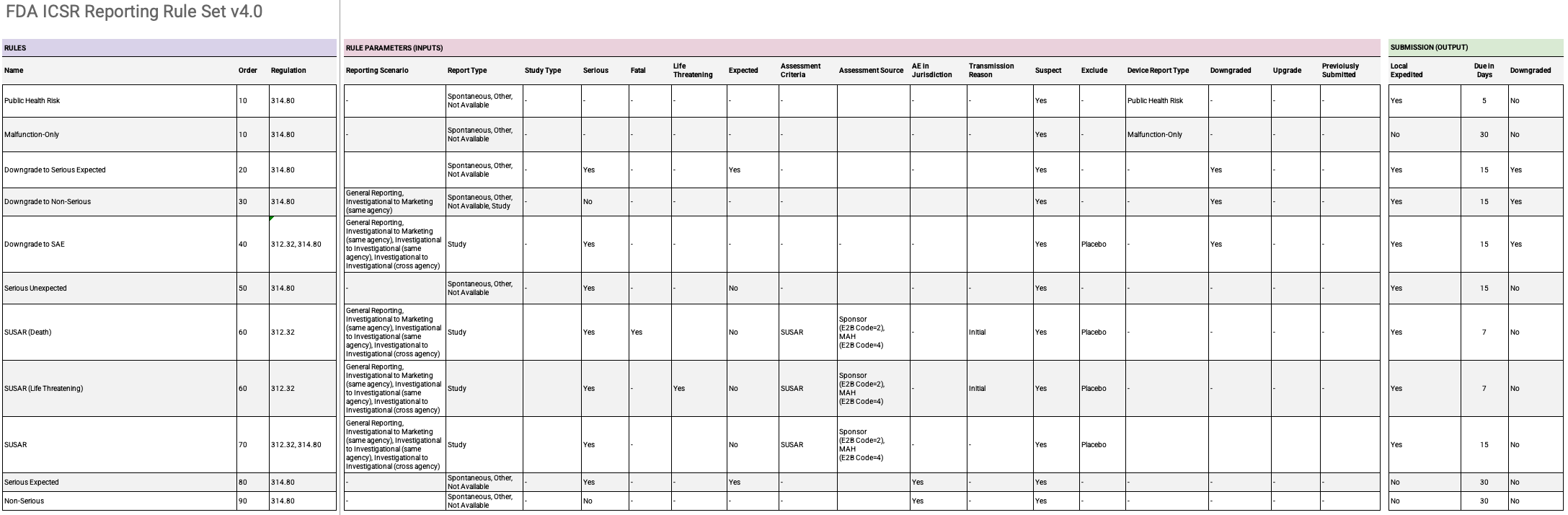
Version 4.0 of the FDA ICSR Reporting Rule Set contains the following rules:

* Public Health Risk
* Malfunction-Only
* Downgrade to Serious Expected
* Downgrade to Non-Serious
* Downgrade to SAE
* Serious Unexpected
* SUSAR (Death)
* SUSAR (Life Threatening)
* SUSAR
* Serious Expected
* Non-Serious

<a href="https://platform.veevavault.help/assets/images/saf-fda-rule-set-version-4.png" data-lightbox="saf-fda-rule-set-version-4.png" data-title="FDA Reporting Rules" data-alt="FDA Reporting Rules">
  <img class="docimage" src="https://platform.veevavault.help/assets/images/saf-fda-rule-set-version-4.png" alt="FDA Reporting Rules" style=""  />
</a>

## EMA ICSR Reporting Rule Set {#ema}

Click the following link to download an Excel file with the EMA Reporting Rules, including version 2.0 and 3.0 of the Rule Set:

<a class="download-link " href="https://platform.veevavault.help/assets/downloads/saf-ema-submission-rules.xlsx" target="_blank" rel="noopener">Download EMA Reporting Rules<i class="fa fa-download" aria-hidden="true"></i></a>

For version 1.0 of the EMA Rule Set, used before the 21R1 release (April 2021), see <a href="/en/gr/01244/">Reporting Rule Sets (20R3 and Earlier)</a>.

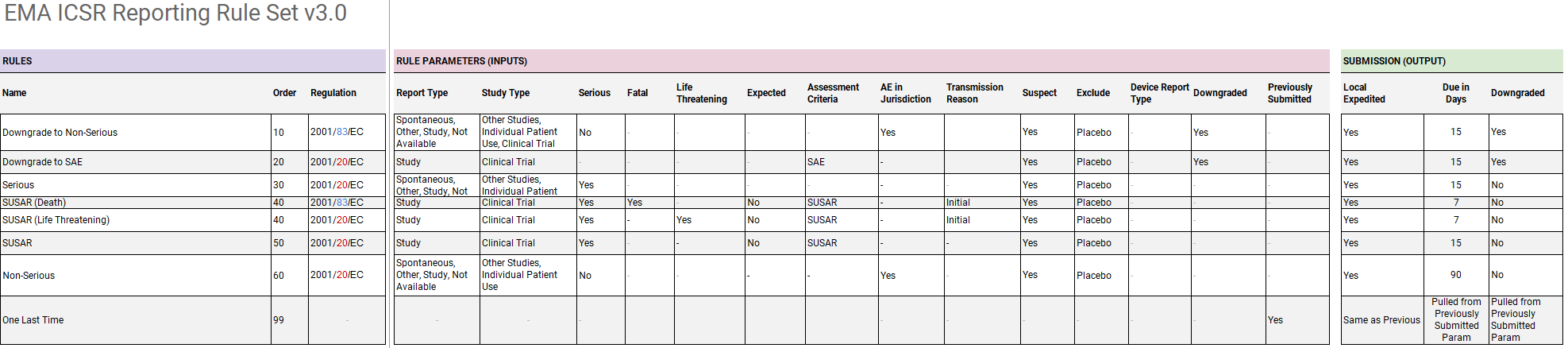
Version 3.0 of the EMA ICSR Reporting Rule Set contains the following rules:

* Downgrade to Non-Serious
* Downgrade to SAE
* Serious
* SUSAR (Death)
* SUSAR (Life Threatening)
* SUSAR
* Non-Serious
* One Last Time
<a href="https://platform.veevavault.help/assets/images/saf-ema-rule-set-version-3.png" data-lightbox="saf-ema-rule-set-version-3.png" data-title="EMA Reporting Rules" data-alt="EMA Reporting Rules">
  <img class="docimage" src="https://platform.veevavault.help/assets/images/saf-ema-rule-set-version-3.png" alt="EMA Reporting Rules" style=""  />
</a>

## MHRA Rule Set

The MHRA Rule Set inherits the <a href="#ema-icsr-reporting-rule-set">EMA ICSR Reporting Rule Set</a>.

## PMDA ICSR Reporting Rule Set {#pmda}

Click the following link to download an Excel file with the PMDA Reporting Rules, including versions 1.0, 2.0, and 3.0 of the Rule Set:

<a class="download-link " href="https://platform.veevavault.help/assets/downloads/saf-pmda-submission-rules.xlsx" target="_blank" rel="noopener">Download PMDA Reporting Rules<i class="fa fa-download" aria-hidden="true"></i></a>

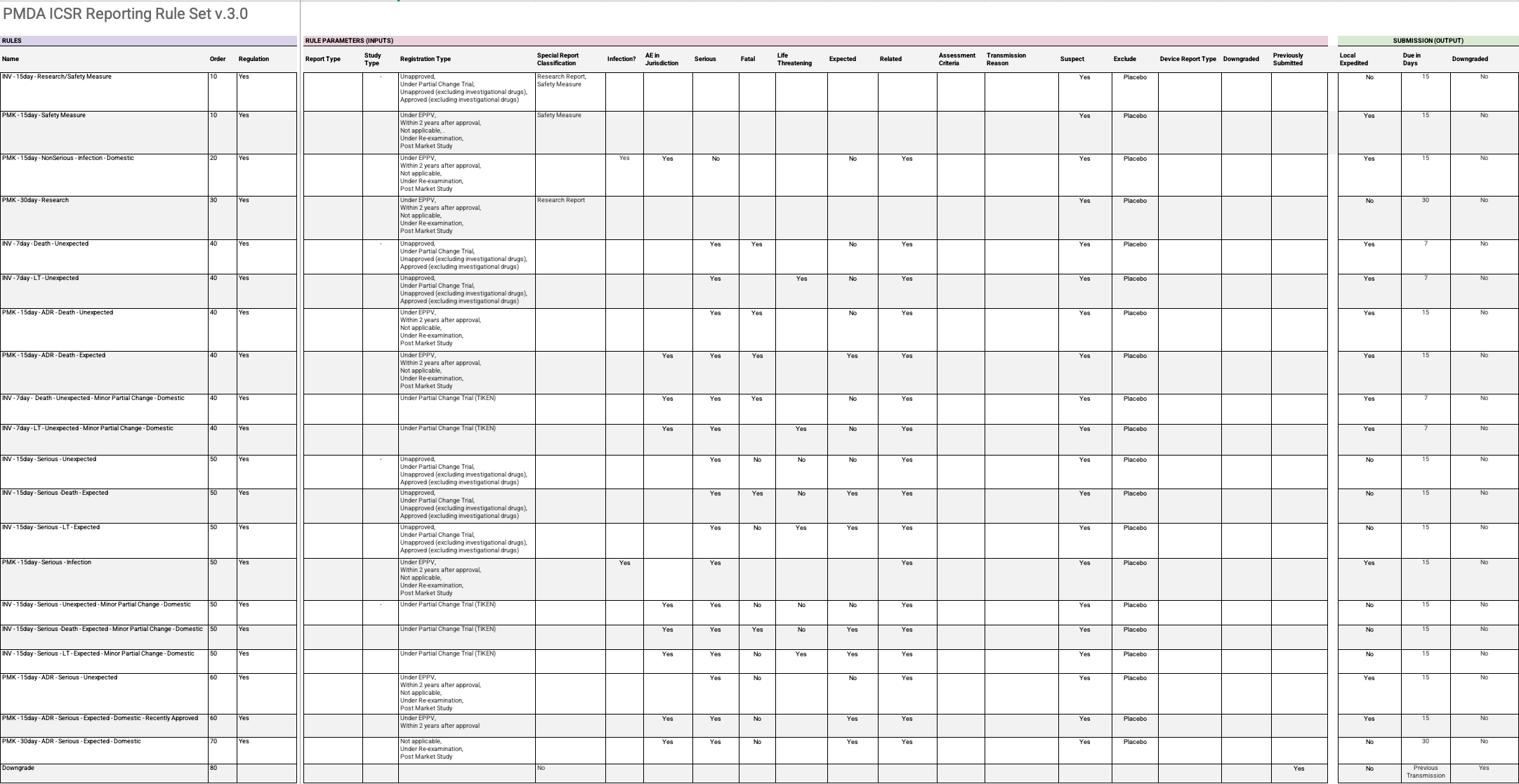
The PMDA ICSR Reporting Rule Set contains the following rules:

* INV - 7day -  Death - Unexpected
* INV - 7day - LT - Unexpected
* INV - 15day - Serious - Unexpected
* INV - 15day - Serious -Death - Expected
* INV - 15day - Serious - LT - Expected
* PMK - 15day - ADR - Death - Unexpected
* PMK - 15day - ADR - Death - Expected
* INV - 7day - Death - Unexpected - Minor Partial Change - Domestic
* INV - 7day - LT - Unexpected - Minor Partial Change - Domestic
* PMK - 15day - ADR - Serious - Unexpected
* PMK - 15day - ADR - Serious - Expected - Domestic - Recently Approved
* PMK - 30day - ADR - Serious - Expected - Domestic
* PMK - 15day - Serious - Infection
* INV - 15day - Serious - Unexpected - Minor Partial Change - Domestic
* INV - 15day - Serious - Death - Expected - Minor Partial Change - Domestic
* INV - 15day - Serious - LT - Expected - Minor Partial Change - Domestic
* PMK - 15day - NonSerious - Infection - Domestic
* INV - 15day - Research/Safety Measure
* PMK - 30day - Research
* PMK - 15day - Safety Measure
* Downgrade
<a href="https://platform.veevavault.help/assets/images/saf-23r3-and-later-pmda-rules.png" data-lightbox="saf-23r3-and-later-pmda-rules.png" data-title="" data-alt="PMDA Reporting Rules">
  <img class="docimage" src="https://platform.veevavault.help/assets/images/saf-23r3-and-later-pmda-rules.png" alt="PMDA Reporting Rules" style=""  />
</a>

## Template Rule Sets

Safety comes with two (2) template _Safety Rule Sets_: the _General Distribution Rule Set_ and the _Placeholder Rule Set (Empty)_. Your Admin can use these template _Safety Rule Sets_ as a starting point to set up general distribution rules for a reporting destination such as a partner or other safety system.


<div class="note-border alert-warning">
  <div class="alert alert-warning" role="alert">
    <div><i class="far fa-exclamation-triangle"></i></div>
    <div class="alert-text">
      <p><strong>Warning</strong>: 
Your Admin must perform
<a href="/en/gr/659226/">testing and validation</a>
during implementation to use the <em>General Distribution Rule Set</em> or the <em>Placeholder Rule Set (Empty)</em>.</p>
    </div>
  </div>
</div>


### General Distribution Rule Set

You can assign the _General Distribution Rule Set_ to an <a href="/en/gr/01253/">Agency</a> or <a href="/en/gr/01254/">Partner Distribution List</a> when you need more flexibility than the standard rule sets provide.

The _General Distribution Rule Set_ is assigned the _EMA ICSR Reporting Rule Set_ as its _Base Rule Set_, along with additional rules. This means that the _General Distribution Rule Set_ inherits all of the EMA reporting rules.

The rules in the _General Distribution Rule Set_ exist as a starting point and an example of rules you can configure (such as initial case submission rules). This is not an exhaustive list, nor does it cover every scenario.

### Placeholder Rule Set (Empty)

To ensure Vault does not automatically generate ICSR _Transmissions_ for a reporting destination, you can assign the _Placeholder Rule Set (Empty)_ to an <a href="/en/gr/01253/">Agency</a> or <a href="/en/gr/01254/">Partner Distribution List</a>.

The _Placeholder Rule Set (Empty)_ is another configuration example of a _Rule Set_ without any _Safety Rules_ associated with it. Thus, Vault does not generate any ICSR _Transmissions_ when a _Product_ or _Study Registration_ matches this _Safety Rule Set_.


## Generate a Safety Rule Set Configuration Report

To review the _Safety Rules_ and _Safety Rule Parameters_ for a _Safety Rule Set_ in an easy-to-read format, you can generate a Safety Rule Set Configuration Report. If required, you can generate this report for multiple _Safety Rule Sets_ simultaneously.

Once Vault has generated the Safety Rule Set Configuration Report, you can download the report as an XLSX file.

For instructions on how to generate and download this report, see <a href="#generate-a-safety-rule-set-configuration-report-for-a-single-rule-set">Generate a Safety Rule Set Configuration Report for a Single Rule Set</a> and <a href="#generate-a-safety-rule-set-configuration-report-for-multiple-rule-sets">Generate a Safety Rule Set Configuration Report for Multiple Rule Sets</a>.


### About the Safety Rule Set Configuration Report

A Safety Rule Set Configuration Report contains the following sections (shown as tabs in the downloaded XLSX file):

* **Cover Page**: This contains information about who generated the report, when it was generated, and from which Vault.
* **Table of Contents**: Lists the total count of _Safety Rules_.
* **Safety Rules**: This contains the details of the _Safety Rules_ and _Safety Rule Parameters_ contained in the _Safety Rule Sets_, described below.

The **Safety Rules** tab contains a row for each of the _Safety Rules_ in your _Safety Rule Set_. Each row contains columns that display the following information:

* The _Safety Rule_'s name
* The _Safety Rule Set_ the _Safety Rule_ belongs to
* Whether the _Safety Rule_ is active or inactive
* The _Safety Rule's_ priority
* The names of any _Overidden Rule_ or _Rule Set Parameters_
* The name of the _Evaluation Function_
* The name of the _Execution Function_

The remaining columns identify each of the _Safety Rule Parameters_ in the _Safety Rule_. The number of remaining columns depends on the number of _Safety Rule Parameters_ defined in each _Safety Rule_. Each of these columns can contain one of the following values:

1. The value specified in the _Safety Rule Parameter_'s **Value** field.
2. Blank (empty). This indicates the _Safety Rule Parameter_'s **Value** field is empty.
3. A double dash (`--`). This indicates that the _Safety Rule Parameter_'s value was overridden to blank (empty). This typically applies to a _Safety Rule Parameter_ inherited from a _Safety Rule Set Parameter_ in the same _Safety Rule Set_, or from a _Safety Rule Parameter_ or _Safety Rule Set Parameter_ in a <a href="/en/gr/873466/#base-rule-set">_Base Rule Set_</a>.

As with the Safety Reporting Rule Engine, the Safety Rule Set Configuration Report always contains the _Safety Rules_ and _Safety Rule Parameters_ that are defined at the lowest level of inheritance. The following list shows the order of inheritance for _Safety Rule Set Parameters_ and _Safety Rule Parameters_:

1. Base Rule Set Parameters (highest level)
2. Base Rule Parameters
3. Rule Set Parameters
4. Rule Parameters (lowest level)

See <a href="/en/gr/01256/">Understand the Reporting Rules Engine</a> for more information on how the Reporting Rule Engine functions.


### Generate a Safety Rule Set Configuration Report for a Single Rule Set

Complete the following steps to generate a Safety Rule Set Configuration Report for a single Rule Set:

1. Go to **Business Admin > Objects > Safety Rule Sets**.
2. Select or hover over the _Safety Rule Set_.
3. From the **All Actions** menu, select **Generate Rule Set Configuration Report**.

**Result**

Vault generates a single report containing the _Safety Rules_ and _Safety Rule Parameters_ for the selected _Safety Rule Set_. Vault also sends you a notification and email. You can download the report from either the notification or the email.


### Generate a Safety Rule Set Configuration Report for Multiple Rule Sets

Complete the following steps to generate a Safety Rule Set Configuration Report for multiple Rule Sets:

1. Go to **Business Admin > Objects > Safety Rule Sets**.
2. Select the **All Actions** menu, then under **Perform Bulk Action,** select **All [number] records**. You can refine your selection in the next step.
3. (Optional) Clear the checkboxes for the respective Rules to exclude these Rules from the report.
4. Select **Next**.
5. Under **Manage Records**, select **Record Actions**, then select **Next**.
6. Select **Generate Rule Set Configuration Report (affects all records)**, then select **Next**.
7. Review the Confirmation information. If everything is correct, select **Finish**.

**Result**

Vault displays a message that it is performing bulk updates. Vault notifies you when the Bulk Record User Action for the Generate Rule Set Configuration Report is complete and the number of successful generations. Vault sends a second notification when the Safety Rule Set Configuration report is complete. You can download the report from either the notification or the email. This report includes the _Safety Rules_ and _Safety Rule Parameters_ for each of the _Safety Rule Sets_ you selected in step 3.

## Override Study Reporting Rules {#override-rules}

By default, _Case_ due dates follow the FDA or EMA reporting rules, depending on the case criteria. To override _Case_ due date calculations, add a Submission Rule Override.

1. Go to the **Study** record page. Find Study records on the **Business Admin > Objects > Studies** page.
2. Select **Edit**.
3. Expand **Submission Rules**.
4. Beside **Due Date Override**, select **Yes**.
5. To override the submission rule for adverse events that are life-threatening or result in death, edit the **7 Day Override** field.
6. To override the submission rule for other serious adverse events, edit the **15 Day Override** field.
7. Select **Save**.

**Result**

When Vault calculates due dates for _Cases_ linked to this _Study Registration_, the due dates follow the Submission Rule Override settings configured on the _Study Registration_.