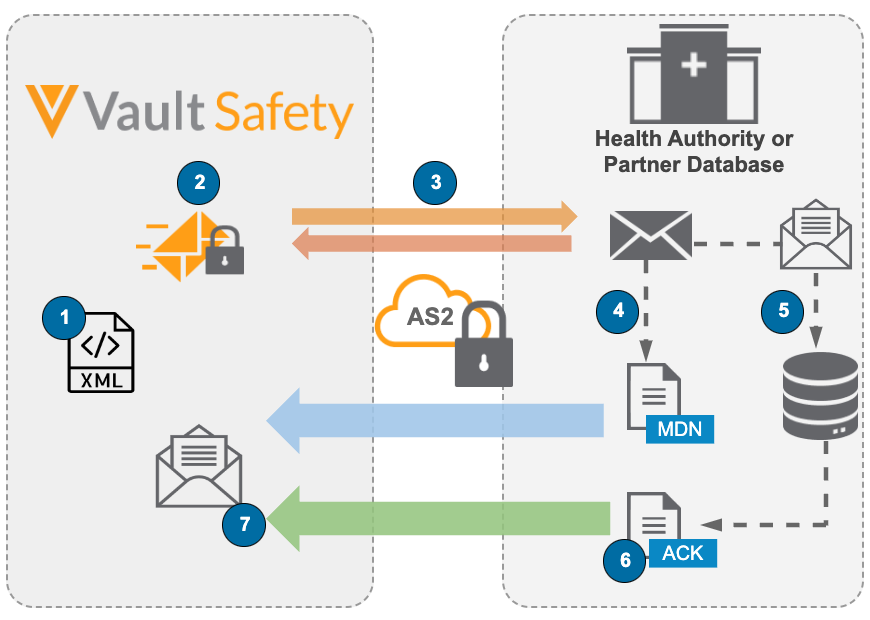
 1. Vault generates the source E2B XML file.
2. Vault affixes a digital signature and sends the encrypted E2B message.
3. The message is sent to the destination gateway and **ACK1** is returned to Vault.
4. Upon receipt of the message, the destination gateway sends an **MDN**.
5. The destination gateway decrypts the message and receives the E2B file.
6. The destination gateway sends the final **ACK** once the E2B is accepted.
7. Vault receives the final **ACK** and moves the _Transmission_ to the **ACK Accepted** state.
1. Vault generates the source E2B XML file.
2. Vault affixes a digital signature and sends the encrypted E2B message.
3. The message is sent to the destination gateway and **ACK1** is returned to Vault.
4. Upon receipt of the message, the destination gateway sends an **MDN**.
5. The destination gateway decrypts the message and receives the E2B file.
6. The destination gateway sends the final **ACK** once the E2B is accepted.
7. Vault receives the final **ACK** and moves the _Transmission_ to the **ACK Accepted** state.
Note: The above diagram shows the process for asynchronous AS2 transmissions, used for EMA E2B(R3) and FDA VAERS E2B(R3). For synchronous AS2 transmissions, used for FDA E2B (R2), the MDN (step 4) is returned to Vault using the same HTTP connection as the initial transmission (step 3).
 menu, select **Source Document**. Vault downloads the XML file.
4. When the download is complete, open the file to review the ICSR.
### Regenerate the Transmission Document
If the _Case_ or _Transmission_ changes, regenerate the transmission document.
1. Go to the _Transmission_. Find _Transmissions_ under the relevant _Case_ or from the **Transmissions** tab.
2. Expand the **All Actions** menu, and then select **Generate Transmission Document(s)**.
**Result**
Vault generates a new version of the document and updates the _File_ field.
## Types of Gateway Responses (ACKs and MDNs) {#types-of-gateway-responses}
Every gateway transmission returns responses which indicate the success or failure of the transmission. These responses can be a Message Delivery Notification (MDN) or an Acknowledgment (ACK).
When a Vault gateway transmission is sent, MDN and ACKs from the trading partner are added as _Transmission Messages_ referenced by the outbound _Transmission_ (_Early Notification_, _Submission_, or _Distribution_). Vault populates the _Attachments_ section of the _Transmission Message_ record with a downloadable file based on the response type as follows:
* **MDN:** A TXT file
* **ACK:** An XML file
In addition, when transmissions receive an ACK, Vault populates the ACK.B.r.2 Local Report Number in the _Destination Case ID_ field of the associated _Transmission_ record.
The following articles provide more information on inbound ACKs and MDNs:
* Resolve Gateway Issues provides the steps to view gateway response messages.
* Standard Agency ICSR Submissions describes how Vault maps agency MDNs and ACKs to Vault's response labels (ACK 1-4) and _Transmission_ lifecycle states.
See the following section for more information on the standard _Transmission_ lifecycle states.
## Transmission Lifecycle States for Gateway Transmissions {#transmission-lc-states}
menu, select **Source Document**. Vault downloads the XML file.
4. When the download is complete, open the file to review the ICSR.
### Regenerate the Transmission Document
If the _Case_ or _Transmission_ changes, regenerate the transmission document.
1. Go to the _Transmission_. Find _Transmissions_ under the relevant _Case_ or from the **Transmissions** tab.
2. Expand the **All Actions** menu, and then select **Generate Transmission Document(s)**.
**Result**
Vault generates a new version of the document and updates the _File_ field.
## Types of Gateway Responses (ACKs and MDNs) {#types-of-gateway-responses}
Every gateway transmission returns responses which indicate the success or failure of the transmission. These responses can be a Message Delivery Notification (MDN) or an Acknowledgment (ACK).
When a Vault gateway transmission is sent, MDN and ACKs from the trading partner are added as _Transmission Messages_ referenced by the outbound _Transmission_ (_Early Notification_, _Submission_, or _Distribution_). Vault populates the _Attachments_ section of the _Transmission Message_ record with a downloadable file based on the response type as follows:
* **MDN:** A TXT file
* **ACK:** An XML file
In addition, when transmissions receive an ACK, Vault populates the ACK.B.r.2 Local Report Number in the _Destination Case ID_ field of the associated _Transmission_ record.
The following articles provide more information on inbound ACKs and MDNs:
* Resolve Gateway Issues provides the steps to view gateway response messages.
* Standard Agency ICSR Submissions describes how Vault maps agency MDNs and ACKs to Vault's response labels (ACK 1-4) and _Transmission_ lifecycle states.
See the following section for more information on the standard _Transmission_ lifecycle states.
## Transmission Lifecycle States for Gateway Transmissions {#transmission-lc-states}
Note: The following table describes the standard Transmission object lifecycle states. Transmissions must be in the standard Ready, Ready for Submission, or Pending lifecycle state to send to a gateway. Vault does not support custom lifecycle states for gateway Transmissions. If your organization has a custom lifecycle state configuration, follow the recommendations in your business standard operating procedures.
| Lifecycle Stage Group | Lifecycle State | Description |
|---|---|---|
| Pending | Ready | Ready is the initial stage and state of a Transmission for which the Auto-Submit field was set to a value. Auto-Submissions provides more information. |
| Pending | Pending | Pending is the initial stage and state of a Transmission for which the Auto-Submit field was not set to a value. Vault assigns a task to review and approve the Transmission and ICSR E2B file. |
| Pending | Validation Error | Vault found errors during the E2B XML validation process. |
| Pending | Ready for Submission | The transmission and transmission document have been reviewed and approved, and Vault has queued the transmission for sending to the destination gateway. |
| Sending | Sending ICSR | The transmission has been sent but the destination gateway has not sent an acknowledgment message yet. |
| Sent | Sending Attachments | Vault is receiving an acknowledgment message from the destination gateway. |
| Sent | Error | Vault could not send the transmission. |
| Sent | MDN Received | The transmission was acknowledged by the destination gateway. |
| Sent | MDN Failure | The transmission could not be delivered to, or acknowledged by, the destination gateway. |
| Sent | E2B ACK Warning | Vault received the final ACK message indicating the destination gateway could not load the transmission. |
| Sent | E2B ACK Rejected | Vault received the final ACK message with an error indicating the destination gateway loaded the transmission but rejected it, likely due to an issue in the E2B file. |
| Accepted | E2B ACK Accepted | Vault received the final ACK message indicating the destination gateway accepted the E2B file and the transmission is complete. Note that the final ACK may still contain data warnings in this state. |