# Manage Reports in Safety
Vault reports make it easy to track content and business processes in a Vault. The report type determines the reporting objects for the new report. For example, Product with Study means that your report looks at Product and Study records. See Creating Reports and Exporting, Sharing & Copying Reports for more information.
## Report Configuration Examples
### Create a Report on Non-Serious DMEs
1. Create a report with the **Report Type** set to **Case**.
2. Under **Filters**, add the following filter:
1. For the field, select **Case > Watchlist Tags**.
2. For the condition, select **contains**.
3. For the field value, select **DME**.
3. Add the following second filter:
1. For the field, select **Case > Serious**.
2. For the condition, select **equals**.
3. For the field value, select **No**.
4. (Optional) To filter, by Case state, add the following third filter:
1. For the field, select **Case > Lifecycle State**.
2. For the condition, select **contains**.
3. For the field value, add each Lifecycle state to include in the report.
5. Select **Save**.
6. Select **Run**.
**Result**
The report lists any Cases that are flagged as DMEs evaluated as non-serious.
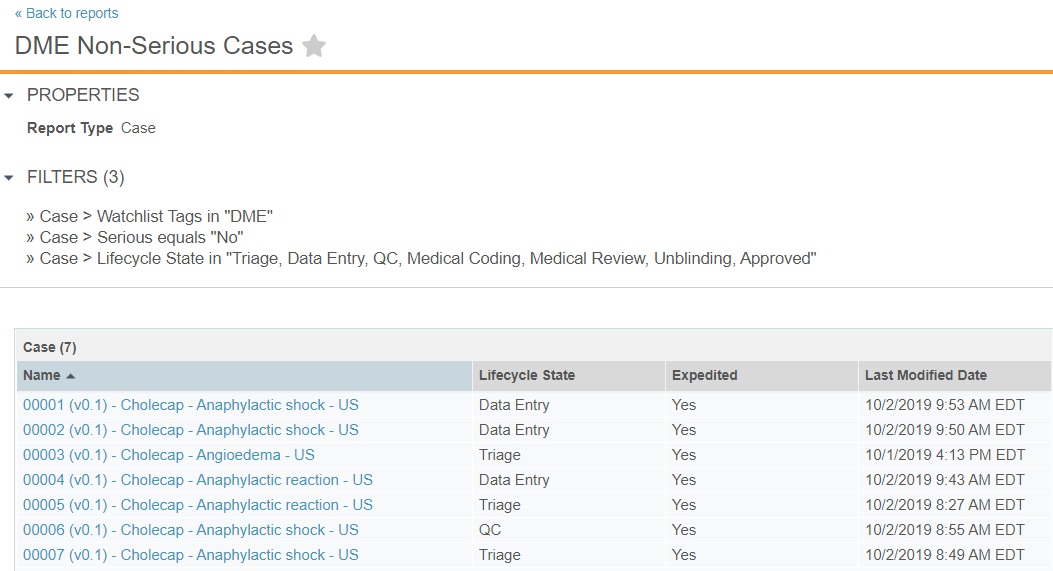 You can schedule flash reports to receive alerts about non-serious DME cases. To schedule a flash report, expand the **All Actions** menu, and then select **Schedule Flash Report**.
See Flash Reports for more information.
### Create a Report on Cases by Seriousness Criteria
1. Create a report with the **Report Type** set to **Case**.
2. Under Case, in the **Group Rows By** field, select **Case > Seriousness**.
3. Select **Save**.
4. Select **Run**.
**Result**
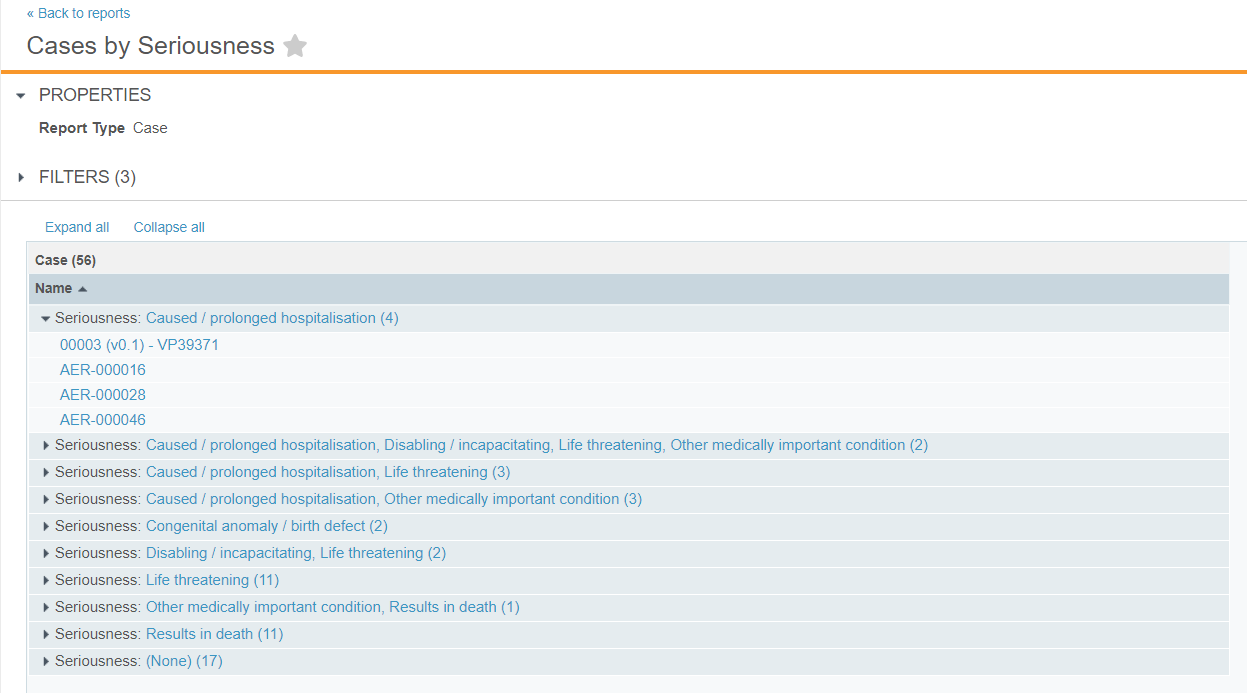
The report groups all Cases by their seriousness criteria.
You can schedule flash reports to receive alerts about non-serious DME cases. To schedule a flash report, expand the **All Actions** menu, and then select **Schedule Flash Report**.
See Flash Reports for more information.
### Create a Report on Cases by Seriousness Criteria
1. Create a report with the **Report Type** set to **Case**.
2. Under Case, in the **Group Rows By** field, select **Case > Seriousness**.
3. Select **Save**.
4. Select **Run**.
**Result**
The report groups all Cases by their seriousness criteria.
 ### Create a Report on Active Cases by Adverse Event Classification per Country
1. Create a report with the **Report Type** set to **Case**.
2. To limit the report to only active cases, specify the following **Filters**:
* Case > Lifecycle State is not equal to Closed
* Case > Lifecycle State is not equal to Duplicate
* Case > Lifecycle State is not equal to Rejected
3. Under **Case**, in the **Group Rows By** field, select **Case > Classification**.
4. Select **Add field to group by (optional)**, and then select **Country** from the drop-down list.
5. Select **Save**.
6. Select **Run**.
**Result**
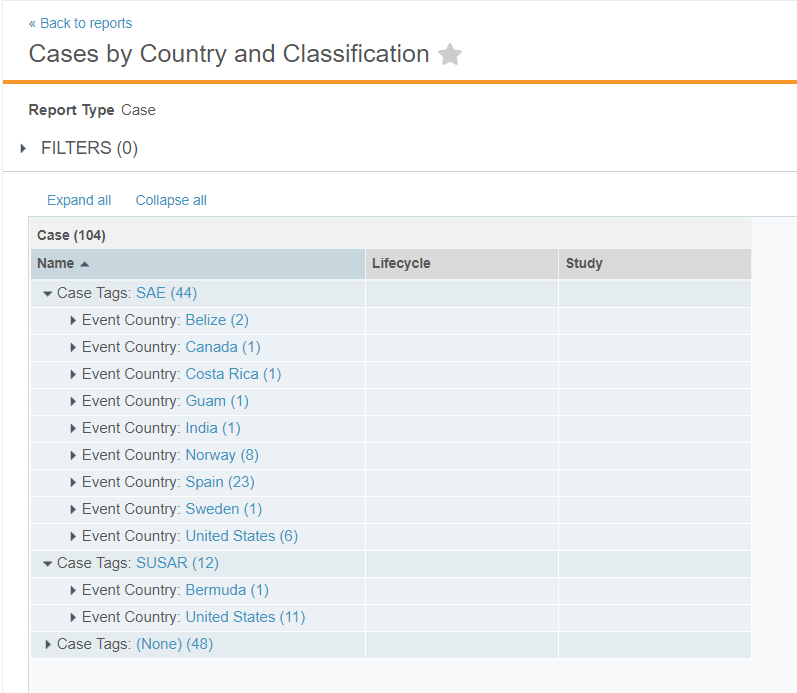
The report lists all active Cases grouped by classification.
### Create a Report on Active Cases by Adverse Event Classification per Country
1. Create a report with the **Report Type** set to **Case**.
2. To limit the report to only active cases, specify the following **Filters**:
* Case > Lifecycle State is not equal to Closed
* Case > Lifecycle State is not equal to Duplicate
* Case > Lifecycle State is not equal to Rejected
3. Under **Case**, in the **Group Rows By** field, select **Case > Classification**.
4. Select **Add field to group by (optional)**, and then select **Country** from the drop-down list.
5. Select **Save**.
6. Select **Run**.
**Result**
The report lists all active Cases grouped by classification.
 ### Create a Report on Adverse Events for a Specific Product
1. Create a report with the **Report Type** set to **Case**.
2. Under **Filters**, add the following filter:
1. For the field, select **Case > Product**.
2. For the condition, select **in**.
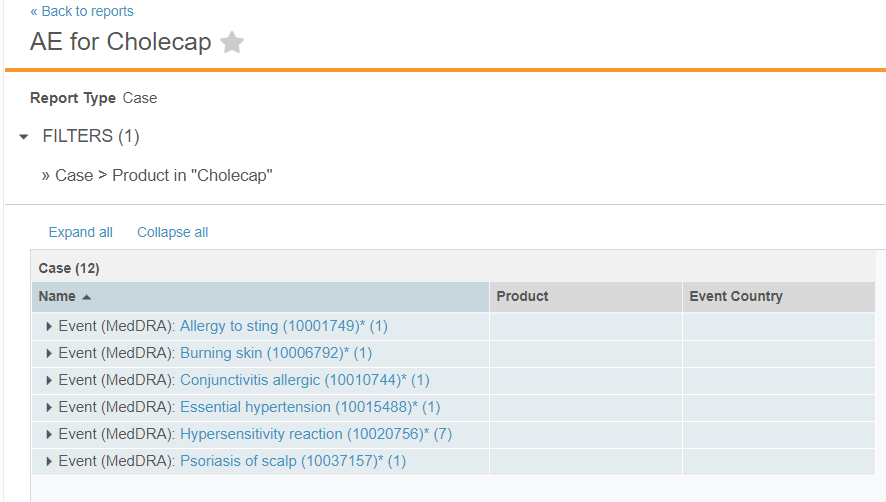
3. For the field value, enter the product name. In the example below, the product is **Cholecap**.
3. Under **Case**, in the **Group Rows By** field, select **Case > Event (MedDRA)**.
4. Select **Save**.
5. Select **Run**.
**Result**
The report lists adverse events for the specified Product.
### Create a Report on Adverse Events for a Specific Product
1. Create a report with the **Report Type** set to **Case**.
2. Under **Filters**, add the following filter:
1. For the field, select **Case > Product**.
2. For the condition, select **in**.
3. For the field value, enter the product name. In the example below, the product is **Cholecap**.
3. Under **Case**, in the **Group Rows By** field, select **Case > Event (MedDRA)**.
4. Select **Save**.
5. Select **Run**.
**Result**
The report lists adverse events for the specified Product.
 ### Create a Report on Expedited Cases by Age
1. Create a report with the **Report Type** set to **Case**.
2. (Optional) Under **Conditional Fields**, create the following conditional fields:
### Create a Report on Expedited Cases by Age
1. Create a report with the **Report Type** set to **Case**.
2. (Optional) Under **Conditional Fields**, create the following conditional fields:
 3. To limit the report to only active cases, specify the following **Filters**:
* Case > Lifecycle State is not equal to Closed
* Case > Lifecycle State is not equal to Duplicate
* Case > Lifecycle State is not equal to Rejected
4. Add the following filter:
1. For the field, select **Case > Expedited**.
2. For the condition, select **equals**.
3. For the field value, enter **Yes**.
5. Under **Case**, in the **Group Rows By** field, select **Age**.
6. Select **Save**.
7. Select **Run**.
**Result**
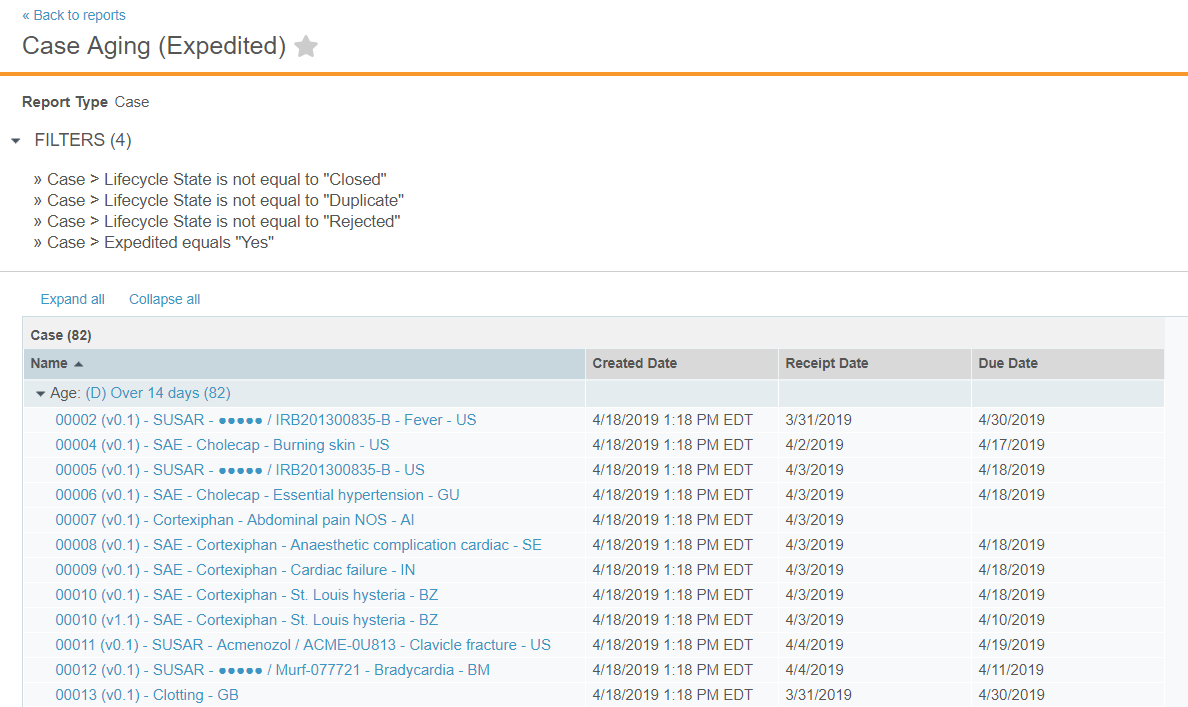
The report lists expedited Cases grouped and labeled by age.
3. To limit the report to only active cases, specify the following **Filters**:
* Case > Lifecycle State is not equal to Closed
* Case > Lifecycle State is not equal to Duplicate
* Case > Lifecycle State is not equal to Rejected
4. Add the following filter:
1. For the field, select **Case > Expedited**.
2. For the condition, select **equals**.
3. For the field value, enter **Yes**.
5. Under **Case**, in the **Group Rows By** field, select **Age**.
6. Select **Save**.
7. Select **Run**.
**Result**
The report lists expedited Cases grouped and labeled by age.
 ### Create a Report on Study Cases by Sponsor Organization
1. Create a report with the **Report Type** set to **Case with Study**.
2. Add the following filter:
1. For the field, select **Study > Organization**.
2. For the condition, select **is not blank**.
3. Under **Case**, in the **Group Rows By** field, select **Study > Organization**.
4. Select **Save**.
5. Select **Run**.
**Result**
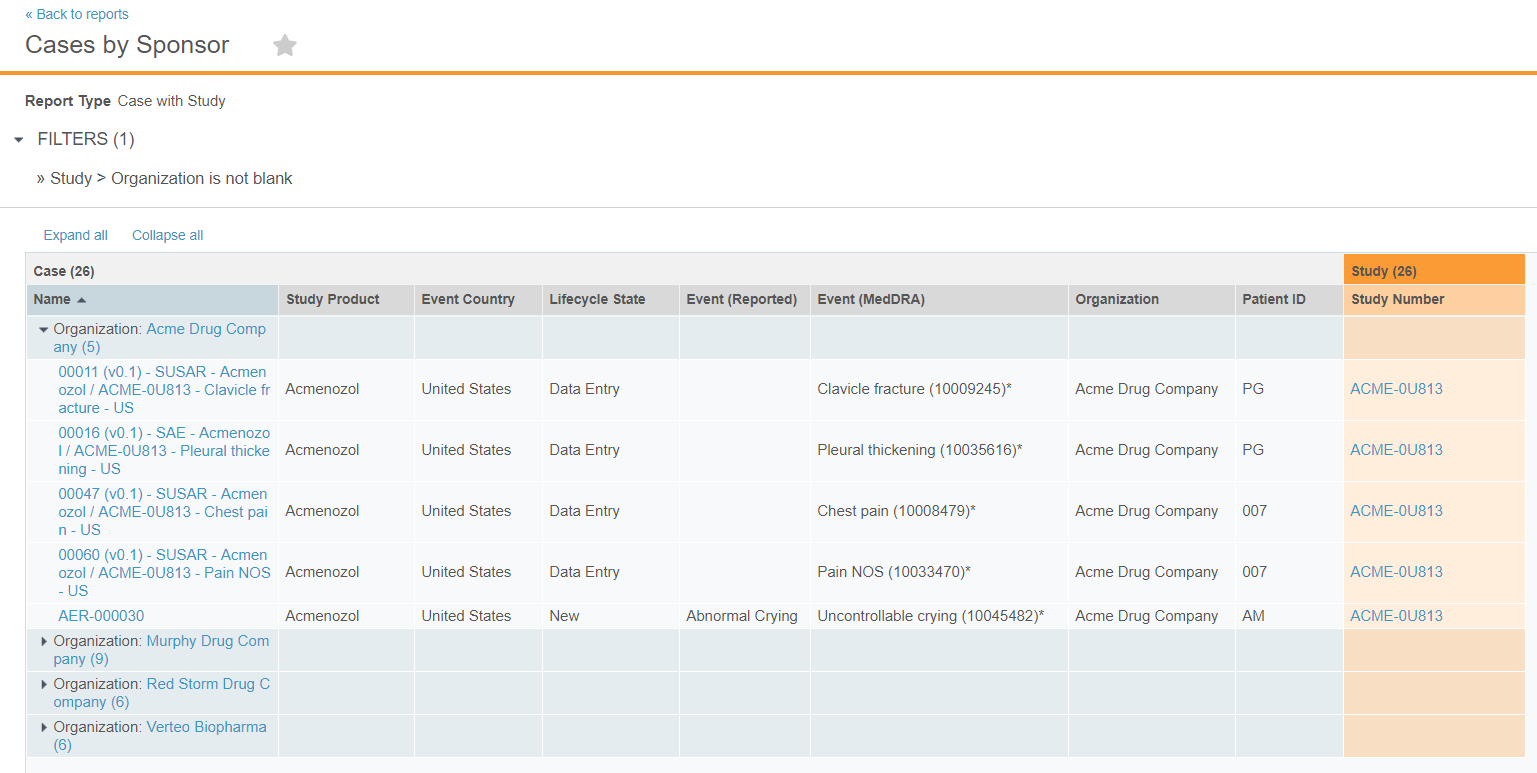
The report lists all study Cases grouped by sponsor organization.
### Create a Report on Study Cases by Sponsor Organization
1. Create a report with the **Report Type** set to **Case with Study**.
2. Add the following filter:
1. For the field, select **Study > Organization**.
2. For the condition, select **is not blank**.
3. Under **Case**, in the **Group Rows By** field, select **Study > Organization**.
4. Select **Save**.
5. Select **Run**.
**Result**
The report lists all study Cases grouped by sponsor organization.
 ## CRO Security Considerations
If you are scheduling a flash report in a Contract Research Organization (CRO) Vault, consider the following security limitations:
* The security privileges of the user who schedules the report determines the records included in the report. If a CRO user who has access to multiple organizations schedules a flash report, sponsor users who receive the report may see other organizations in the email body.
* Report sharing settings cannot be hidden. If multiple sponsors can see the same report, they can see each sponsor the report is shared with from Sharing Settings.
In a CRO Vault, we recommend that you set up and schedule separate reports for each organization to prevent security issues.
## CRO Security Considerations
If you are scheduling a flash report in a Contract Research Organization (CRO) Vault, consider the following security limitations:
* The security privileges of the user who schedules the report determines the records included in the report. If a CRO user who has access to multiple organizations schedules a flash report, sponsor users who receive the report may see other organizations in the email body.
* Report sharing settings cannot be hidden. If multiple sponsors can see the same report, they can see each sponsor the report is shared with from Sharing Settings.
In a CRO Vault, we recommend that you set up and schedule separate reports for each organization to prevent security issues.