# Enable Study Arms and Blinded Product Names

Learn how to update your Vault's configuration to enable Study Arms, including blinded product names.

## About the Feature

<div class="note-border alert-info">
  <div class="alert alert-info" role="alert">
    <div><i class="far fa-info-circle"></i></div>
    <div class="alert-text">
      <p><strong>Note</strong>: Vault will sunset the <em>Single Arm Selection on Inbox</em> setting (formerly labeled <em>Study Has Arms</em>) on <em>Studies</em> by the end of 2026. For more information, see <a href="/en/gr/840048/">Transition to Multi-Product Selection</a>.</p>
    </div>
  </div>
</div>


Study site reporters were added in Vault Safety 20R1. Upgraded Vaults must perform the following configuration changes to enable this feature.

<a href="/en/gr/01216/#about-study-contacts">Manage Studies</a> describes how to set up Study Arms and blinded Study Product names, once you enable this feature.

### 25R3 Update: Safety Data Model & Standardization 25R3

With the 25R3 release, Vault added the _Description_ field to the _Study Product Group_ object. See [Configure the Study Product Group Object][1] to configure your Vault for the updated feature.

## Update the Study Object

You must update layouts and layout rules on the Study object. To edit the Study object, in the Admin area, go to **Configuration > Objects > Study**.

### Layout

On the **Study > Layouts** tab, open the **Study Detail Page Layout**, and then make the following updates.

#### Details Section

Update the **Details** section with the following settings:

* **Section Layout**: Two Columns
* **Fields**:
    * Organization
    * Study Number
    * Masking
    * Start Date
    * Completion Date
    * _space_
    * MedDRA Version
    * Study Name
    * Blinded
    * Single Arm Selection on Inbox (formerly labeled Study Has Arms)
    * Download Dosage to Case
    * _space_

#### Study Products Section

Update the **Study Products** section with the following settings:

* **Creation Option**: Popup Dialog
* **Columns**:
    * Name
    * Study Product Role
    * Dose (number)
    * Dose (unit)
    * Frequency
    * Frequency (unit)
    * Dose Form (text)
    * RoA

#### Study Arms Section

Insert a **Study Arms** related object section with the following settings:

* **Related Object**: Study Arm
* **Creation Option**: Popup Dialog
* **Columns**:
    * Name
    * Blinded
    * Description

#### Study Arm Products Section

Insert a **Study Arms Products** related object section with the following settings:

* **Related Object**: Study Arm Product
* **Creation Option**: New Page
* **Columns**:
    * Name
    * Study Arm
    * Blinded Name (Placeholder)

#### Indications Section

Update the **Indications** section with the following change:

**Creation Option**: Popup Dialog

### Layout Rules

In **Configuration > Objects > Study**, open the **Layouts** tab, and then add the following layout rules to the **Study Detail Page Layout**:

<table>
    <thead>
        <tr>
            <th>Rule Label</th>
            <th>IF this Layout Rule Expression is TRUE</th>
            <th>Apply the following display effects</th>
        </tr>
    </thead>
    <tbody>
        <tr>
            <td>Study Doesn't Have Arms</td>
            <td><code>study_has_arms__v = false</code></td>
            <td>
            <ul>
                <li><strong>Effect</strong>: Hide</li>
                <li><strong>Type</strong>: Sections</li>
                <li><strong>Value</strong>: Study Arms, Study Arm Products</li>
            </ul></td>
        </tr>
        <tr>
            <td>Download Dosage to Case</td>
            <td><code>study_has_arms__v = false || 
blinded__v != true</code></td>
            <td>
            <ul>
                <li><strong>Effect</strong>: Hide</li>
                <li><strong>Type</strong>: Fields</li>
                <li><strong>Value</strong>: Download Dosage to Case</li>
            </ul></td>
        </tr>
    </tbody>
</table>

## Update the Study Product Object

You must update layouts and layout rules on the Study Product object. To edit the Study Product object, in the Admin area, go to **Configuration > Objects > Study Product**.

### Layouts

On the **Study Product > Layouts** tab, make the following updates to each layout.

#### Details Section

Update the **Details** section in each Study Product layout to reorder the existing fields to place the **Name** field below **Study**.

#### Dosage Section

Insert a **Dosage** section _on each Study Product layout_ with the following settings, with the exception of the **Device Detail Page Layout**:

* **Layout**: Single Column
* **Fields**:
    * Dose
    * Frequency
    * Frequency (unit)
    * Dose Form (text)
    * RoA
    * Dosage Notes
    * _space_

### Layout Rules

Go to **Study Product > Layout > Layout Rules**, and then add the following layout rules _to each Study Product layout_:

<table>
    <thead>
        <tr>
            <th>Rule Label</th>
            <th>IF this Layout Rule Expression is TRUE</th>
            <th>Apply the following display effects</th>
        </tr>
    </thead>
    <tbody>
        <tr>
            <td>New Record</td>
            <td><code>status__v != 'active__v' && status__v != 'inactive__v'</code></td>
            <td>
            <ul>
                <li><strong>Effect</strong>: Hide</li>
                <li><strong>Type</strong>: Sections</li>
                <li><strong>Value</strong>: System Information</li>
            </ul></td>
        </tr>
    </tbody>
</table>

## Configure the Study Arm Object

The Study Arm object is new for this feature. You must configure the fields, layout, and layout rules for this object. To edit the Study Arm object, in the Admin area, go to **Configuration > Objects > Study Arm**.

### Fields 

On the **Study Arm > Fields** tab, configure the following field:

* **Label**: Study Blinded
* **Type**: Lookup
* **Lookup Object**: Study
* **Lookup Field**: Blinded

### Layouts

On the **Study Arm > Layouts** tab, configure the **Study Arm Detail Page Layout** to add the following sections:

#### Details Section

Update the **Details** section with the following settings:

* **Layout**: Single Column
* **Fields**: 
    * Organization
    * Study
    * Name
    * Blinded
    * Indication
    * Description

#### Study Arm Products Section

Insert a **Study Arm Products** related object section with the following settings:

* **Related Object**: Study Arm Product
* **Creation Option**: Popup Dialog
* **Fields**: 
    * Name
    * Blinded Name

#### System Information Section

Insert a **System Information** section with the following settings:

* **Layout**: Two Columns
* **Fields**: 
    * Last Modified Date
    * Last Modified By
    * Study Blinded
    * Created Date
    * Created By
    * Study Product Group

### Layout Rules

Go to **Study Arm > Layouts > Study Arm Detail Page Layout > Layout Rules**, and then add the following layout rules:

<table>
    <thead>
        <tr>
            <th>Rule Label</th>
            <th>IF this Layout Rule Expression is TRUE</th>
            <th>Apply the following display effects</th>
        </tr>
    </thead>
    <tbody>
        <tr>
            <td>New Record</td>
            <td><code>status__v != 'active__v' && status__v != 'inactive__v'</code></td>
            <td>
            <ul>
                <li><strong>Effect</strong>: Hide</li>
                <li><strong>Type</strong>: Sections</li>
                <li><strong>Value</strong>: System Information</li>
            </ul></td>
        </tr>
        <tr>
            <td>Workflow Timeline</td>
            <td><code>not(isBlank(name__v))</code></td>
            <td>
            <ul>
                <li><strong>Effect</strong>: Hide</li>
                <li><strong>Type</strong>: Sections</li>
                <li><strong>Value</strong>: Workflow Timeline</li>
            </ul></td>
        </tr>
        <tr>
            <td>Indication</td>
            <td><code>blinded__v = true</code></td>
            <td>
            <ul>
                <li><strong>Effect</strong>: Hide</li>
                <li><strong>Type</strong>: Fields</li>
                <li><strong>Value</strong>: Indication</li>
            </ul></td>
        </tr>
        <tr>
            <td>Blinded</td>
            <td><code>study_blinded__c != true</code></td>
            <td>
            <ul>
                <li><strong>Effect</strong>: Hide</li>
                <li><strong>Type</strong>: Fields</li>
                <li><strong>Value</strong>: Blinded</li>
            </ul></td>
        </tr>
    </tbody>
</table>

## Configure the Study Arm Product Object

The Study Arm Product object is new for this feature. You must configure the fields, layout, layout rules, and validation rules for this object.  

To edit the Study Arm Product object, in the Admin area, go to **Configuration > Objects > Study Arm Product**.

### Fields 

On the **Study Arm Product > Fields** tab, update the following fields:

<table>
    <thead>
        <tr>
            <th>Field</th>
            <th>Change</th>
        </tr>
    </thead>
    <tbody>
        <tr>
            <td>Study</td>
            <td>Delete the existing <strong>Criteria VQL</strong></td>
        </tr>
        <tr>
            <td>Study Arm</td>
            <td>Add the following <strong>Criteria VQL</strong>: <code>study__v = {{this.study__v}}</code></td>
        </tr>
        <tr>
            <td>Blinded Name (Placeholder)</td>
            <td>Change the <strong>Label</strong> to Blinded Name</td>
        </tr>
    </tbody>
</table>

### Layouts

On the **Study Arm Product > Layouts** tab, configure the **Study Arm Product Detail Page Layout** to match the following sections.

#### Details Section

Update the **Details** section with the following settings:

* **Layout**: Single Column
* **Fields**:
    * Organization
    * Study Arm
    * Study Product
    * Name
    * Blinded Name (Placeholder)
    * Dose
    * Dose (unit)
    * Frequency
    * Frequency (unit)

#### System Information Section

Insert a **System Information** section with the following settings:

* **Layout**: Two Columns
* **Fields**:
    * Last Modified Date
    * Last Modified By
    * Study
    * Created Date
    * Created By
    * Study Arm Blinded

### Layout Rules

Go to **Study Arm Product > Layouts > Study Arm Product Detail Page Layout > Layout Rules**, and then add the following layout rules:

<table>
    <thead>
        <tr>
            <th>Rule Label</th>
            <th>IF this Layout Rule Expression is TRUE</th>
            <th>Apply the following display effects</th>
        </tr>
    </thead>
    <tbody>
        <tr>
            <td>New Record</td>
            <td><code>status__v != 'active__v' && status__v != 'inactive__v'</code></td>
            <td><ul>
                <li><strong>Effect</strong>: Hide</li>
                <li><strong>Type</strong>: Sections</li>
                <li><strong>Value</strong>: System Information</li>
            </ul>
            </td>
        </tr>
        <tr>
            <td>Workflow Timeline</td>
            <td><code>not(isBlank(name__v))</code></td>
            <td><ul>
                <li><strong>Effect</strong>: Hide</li>
                <li><strong>Type</strong>: Sections</li>
                <li><strong>Value</strong>: Workflow Timeline</li>
            </ul></td>
        </tr>
        <tr>
            <td>Study Arm is Blinded</td>
            <td><code>study_arm_blinded__v = true</code></td>
            <td><ul>
                <li><strong>Effect</strong>: Hide</li>
                <li><strong>Type</strong>: Fields</li>
                <li><strong>Value</strong>: Dose, Dose (unit), Frequency, Frequency (unit)</li>
            </ul></td>
        </tr>
        <tr>
            <td>Study Arm is Open</td>
            <td><code>study_arm_blinded__v != true</code></td>
            <td><ul>
                <li><strong>Effect</strong>: Hide</li>
                <li><strong>Type</strong>: Fields</li>
                <li><strong>Value</strong>: Blinded Name</li>
            </ul></td>
        </tr>
    </tbody>
</table>

### Validation Rule

On the **Study Arm Product > Validation Rules** tab, configure the following **Validation Rule**:

* **Label**: Blinded Name is Mandatory
* **Error Message**: Blinded Name is Mandatory for products in a blinded arm.
* **Location**: Blinded Name
* **Validation**: Add the following VQL:

    `not (`

    `study_arm_blinded__v = true &&`

    `isBlank(study_product_placeholder__vr.name__v)`

    `)`


## Configure the Study Product Placeholder Object

The Study Product Placeholder object is new for this feature. You must configure the layout and layout rules for this object.  

To edit the Study Product Placeholder object, in the Admin area, go to **Configuration > Objects > Study Product Placeholder**.

### Layouts

On the **Study Product Placeholder > Layouts** tab, configure the **Study Product Placeholder Detail Page Layout** to match the following section.

#### Details Section

Update the **Details** section with the following settings:

* **Layout**: Single Column
* **Fields**:
    * Organization
    * Study
    * Name
    * _space_

### Layout Rules

Go to **Study Product Placeholder > Layouts > Study Product Placeholder Detail Page Layout > Layout Rules**, and then add the following layout rule:

<table>
    <thead>
        <tr>
            <th>Rule Label</th>
            <th>IF this Layout Rule Expression is TRUE</th>
            <th>Apply the following display effects</th>
        </tr>
    </thead>
    <tbody>
        <tr>
            <td>Workflow Timeline</td>
            <td><code>not(isBlank(name__v))</code></td>
            <td><ul>
                <li><strong>Effect</strong>: Hide</li>
                <li><strong>Type</strong>: Sections</li>
                <li><strong>Value</strong>: Workflow Timeline</li>
            </ul></td>
        </tr>
    </tbody>
</table>

## Configure the Study Product Group Object {#config-study-product-group-obj}

The Study Product Group object is new for this feature. You must configure the layout and layout rules for this object.

To edit the Study Product Group object, in the Admin area, go to **Configuration > Objects > Study Product Group**.

### Layouts

On the **Study Product Group > Layouts** tab, configure the **Study Product Group Detail Page Layout** to update the following section.

#### Details Section

Update the **Details** section with the following settings:

* **Layout**: Single Column
* **Fields**:
    * Organization
    * Study
    * Name
    * Description

### Layout Rules

Go to **Study Product Group > Layouts > Study Product Group Detail Page Layout > Layout Rules**, and then add the following layout rule:

<table>
    <thead>
        <tr>
            <th>Rule Label</th>
            <th>IF this Layout Rule Expression is TRUE</th>
            <th>Apply the following display effects</th>
        </tr>
    </thead>
    <tbody>
        <tr>
            <td>Workflow Timeline</td>
            <td><code>not(isBlank(name__v))</code></td>
            <td><ul>
                <li><strong>Effect</strong>: Hide</li>
                <li><strong>Type</strong>: Sections</li>
                <li><strong>Value</strong>: Workflow Timeline</li>
            </ul></td>
        </tr>
    </tbody>
</table>

## Update the Case Object

To edit the Case object, go to **Configuration > Objects > Case**.

### Fields 

On the **Case > Fields** tab, configure the following fields.

* **Identifiable Company Product**: Add the following formula:


`Or(`<br>
&nbsp;&nbsp;&nbsp;&nbsp;`not(isBlank(product__vr.name__v)),`<br>
&nbsp;&nbsp;&nbsp;&nbsp;`Or (`<br>
&nbsp;&nbsp;&nbsp;&nbsp;&nbsp;&nbsp;&nbsp;&nbsp;&nbsp;&nbsp;&nbsp;&nbsp;`And(`<br>
&nbsp;&nbsp;&nbsp;&nbsp;&nbsp;&nbsp;&nbsp;&nbsp;&nbsp;&nbsp;&nbsp;&nbsp;&nbsp;&nbsp;&nbsp;&nbsp;`And(not(isBlank(study__vr.name__v)), study_has_arms__v != true),`<br>
&nbsp;&nbsp;&nbsp;&nbsp;&nbsp;&nbsp;&nbsp;&nbsp;&nbsp;&nbsp;&nbsp;&nbsp;&nbsp;&nbsp;&nbsp;&nbsp;`study_blinded__v = true`<br>
&nbsp;&nbsp;&nbsp;&nbsp;&nbsp;&nbsp;&nbsp;&nbsp;&nbsp;&nbsp;&nbsp;&nbsp;`),`<br>
&nbsp;&nbsp;&nbsp;&nbsp;`Or (`<br>
&nbsp;&nbsp;&nbsp;&nbsp;&nbsp;&nbsp;&nbsp;&nbsp;&nbsp;&nbsp;&nbsp;&nbsp;`And(`<br>
&nbsp;&nbsp;&nbsp;&nbsp;&nbsp;&nbsp;&nbsp;&nbsp;&nbsp;&nbsp;&nbsp;&nbsp;&nbsp;&nbsp;&nbsp;&nbsp;`And(not(isBlank(study__vr.name__v)), study_has_arms__v != true),`<br>
&nbsp;&nbsp;&nbsp;&nbsp;&nbsp;&nbsp;&nbsp;&nbsp;&nbsp;&nbsp;&nbsp;&nbsp;&nbsp;&nbsp;&nbsp;&nbsp;`And(study_blinded__v != true,not(isBlank(study_product__vr.name__v)))`<br>
&nbsp;&nbsp;&nbsp;&nbsp;&nbsp;&nbsp;&nbsp;&nbsp;&nbsp;&nbsp;&nbsp;&nbsp;`),`<br>
&nbsp;&nbsp;&nbsp;&nbsp;&nbsp;&nbsp;&nbsp;&nbsp;&nbsp;&nbsp;&nbsp;&nbsp;`And(`<br>
&nbsp;&nbsp;&nbsp;&nbsp;&nbsp;&nbsp;&nbsp;&nbsp;&nbsp;&nbsp;&nbsp;&nbsp;&nbsp;&nbsp;&nbsp;&nbsp;`And(not(isBlank(study__vr.name__v)), study_has_arms__v = true),`<br>
&nbsp;&nbsp;&nbsp;&nbsp;&nbsp;&nbsp;&nbsp;&nbsp;&nbsp;&nbsp;&nbsp;&nbsp;&nbsp;&nbsp;&nbsp;&nbsp;`not(isBlank(study_product_group__vr.name__v))`<br>
&nbsp;&nbsp;&nbsp;&nbsp;&nbsp;&nbsp;&nbsp;&nbsp;&nbsp;&nbsp;&nbsp;&nbsp;`)`<br>
&nbsp;&nbsp;&nbsp;&nbsp;`)`<br>
`)`<br>


* **Products (Group)**: Change the Label to **Study Arm**
* **Products (Arm)**: Change the Label to **Study Arm (Unblinded)**
* **Study Blinded**: Change the Object Types to **Case** and **Imported Case**

## Permission Sets

On the **Users & Groups > Permission Sets** page, configure the following Object Permissions:

1. Enable the permission to **Read** the **Study Arm**, **Study Arm Product**, **Study Product Group**, and **Study Product Placeholder** objects on the following permission sets:
    * Case Distribution Actions
    * Case Entry Actions
    * Case Intake Actions
    * Case Review Actions
    * Safety Operations Actions
    * Safety Writer
    * Submission Actions
2. Enable the permission to **Read, Create, Edit,** and **Delete** the **Study Arm**, **Study Arm Product**, **Study Product Group**, and **Study Product Placeholder** objects on the following permission set: 

* Administration Actions

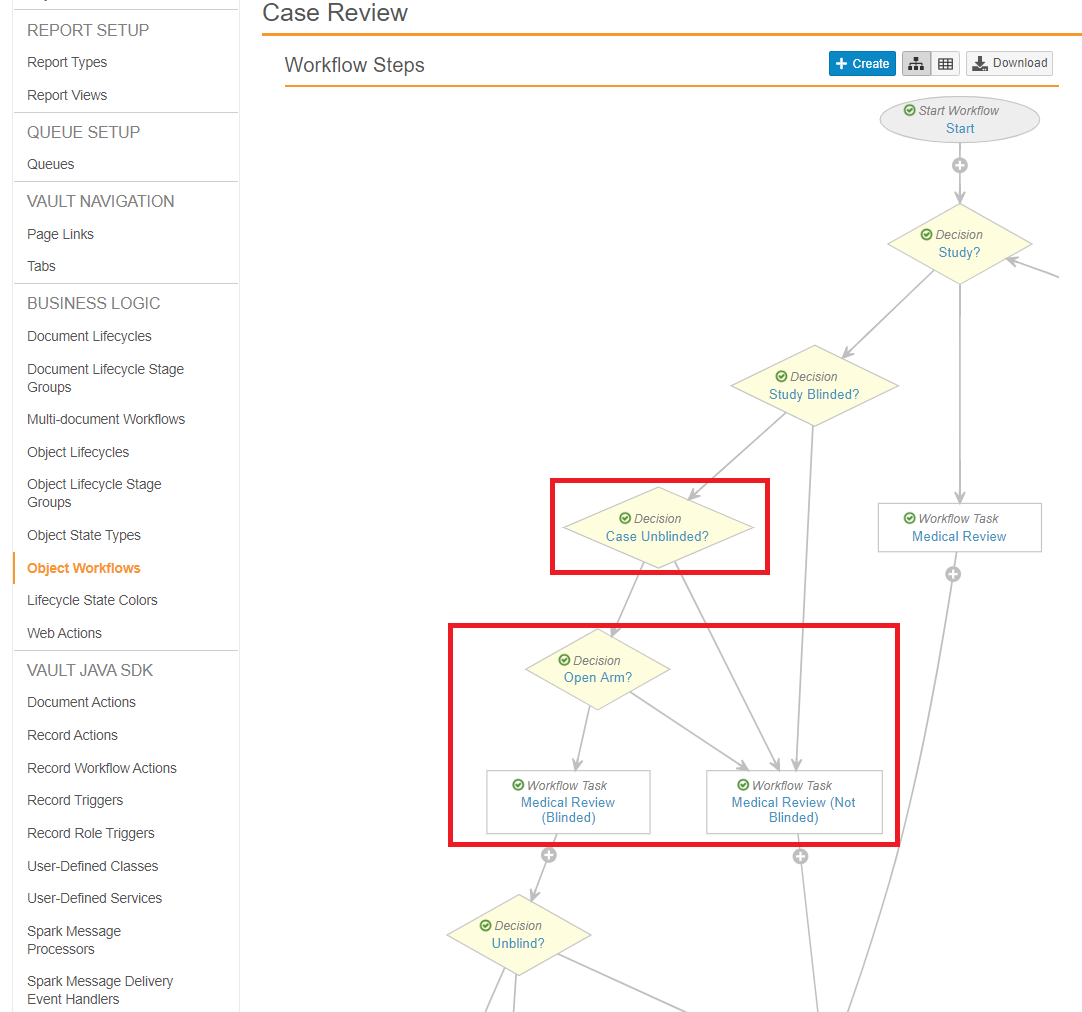
## Update the Case Review Workflow

Go to **Configuration > Object Workflows > Case Review**, and then configure the following steps.

### Decision: Case Unblinded?

Update the **Decision: Case Unblinded?** step to add the following **Else** rule:

* **Type**: Decision
* **Next Steps**: Determined by Rules
* **Rule 1**: Leave the existing rule as-is
* **Else**: _then_ **Open Arm?**

### Decision: Open Arm?

Add the following **Decision: Open Arm?** step after the **Decision: Case Unblinded?** step:

* **Type**: Decision
* **Next Steps**: Determined by Rules
* **Rule 1**:<br>
  _If_ **Single Arm Selection on Inbox** (formerly labeled _Study Has Arms_) equals Yes _and_<br>
  **Study Arm (unblinded)** is not blank<br>
  _then_ Medical Review (Not Blinded)
* **Else**: _then_ Medical Review (Blinded)

<a href="https://platform.veevavault.help/assets/images/saf-case-review-workflow.png" data-lightbox="saf-case-review-workflow.png" data-title="" data-alt="alt-text">
  <img class="docimage" src="https://platform.veevavault.help/assets/images/saf-case-review-workflow.png" alt="alt-text" style=""  />
</a>

## Update the Case Unblinding Workflow

Go to **Configuration > Object Workflows > Case Unblinding**, and then configure the following steps.

### Start

Update the **Start** step to make the following change:

* **Next Steps**: Study Arms?

### Decision: Study Arms?

Add the **Decision: Study Arms** step with the following settings:

* **Type**: Decision
* **Next Steps**: Determined by Rules
* **Rule 1**: _If_ **Single Arm Selection on Inbox** (formerly labeled _Study Has Arms_) equals Yes<br>_then_ Unblinding (Study Arm)
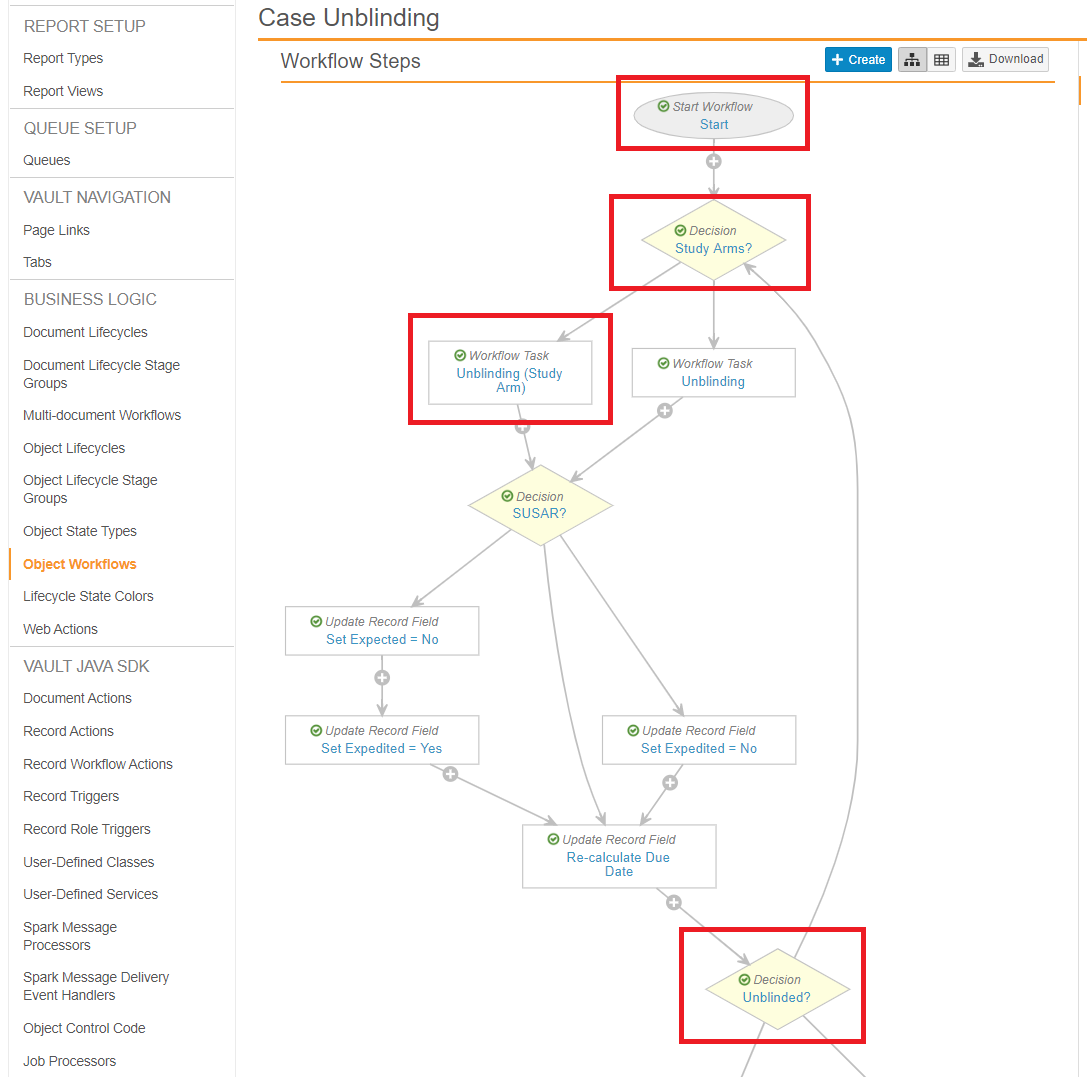
* **Else**: _then_ Unblinding

### Workflow Task: Unblinding (Study Arm)

Add the **Workflow Task: Unblinding (Study Arm)** step with the following settings:

* **Type**: Workflow Task
* **Next Steps**: SUSAR?
* **Prompts**: Copy the same Prompts and Verdicts as the **Workflow Task: Unblinded** step in the same workflow, and then add the following additions:
    1. Add the following SUSAR verdict:
        * **Verdict**: SUSAR
        * **Prompt for Fields**: 
            * Study (required)
            * Study Arm (unblinded) (required)
    2. Add the following Not SUSAR verdict:
        * **Verdict**: Not SUSAR
        * **Prompt for Fields**: 
            * Study (required)
            * Study Arm (unblinded) (required)

### Decision: Unblinded

Update the **Decision: Unblinded** step to match the following settings:

* **Type**: Decision
* **Next Steps**: Determined by the rules below
* **Rule 1**: If task **Unblinding, Unblinding (Study Arm)** at least one label equals **SUSAR** _and_<br>If field **Case Blinded** equals No<br>_then_ Set State Unblinded
* **Rule 2**: Else if all task **Unblinding** labels equal **Not SUSAR** _and_<br>If field **Case Blinded** equals No<br>_then_ Set State Unblinded
* **Rule 3**: Else if all task **Unblinding** labels equal **Keep Blind** _then_ Set State Blinded
* **Else**: _then_ Study Arms?

<a href="https://platform.veevavault.help/assets/images/saf-case-unblinding-workflow.png" data-lightbox="saf-case-unblinding-workflow.png" data-title="" data-alt="alt-text">
  <img class="docimage" src="https://platform.veevavault.help/assets/images/saf-case-unblinding-workflow.png" alt="alt-text" style=""  />
</a>

## Update the Case Lifecycle

Go to **Object Lifecycles > Case Lifecycle**, and then update the **Unblinded** state to add the following Entry Criteria rules:

<table>
    <thead>
        <tr>
            <th>State</th>
            <th>Rule Type</th>
            <th><em>If</em></th>
            <th><em>Validate that</em></th>
        </tr>
    </thead>
    <tbody>
            <tr>
            <td>Unblinded</td>
            <td>Entry Criteria</td>
            <td>Single Arm Selection on Inbox (formerly labeled Study Has Arms) equals <strong>No</strong></td>
            <td>Case Products: No records equal <strong>Blinded</strong><br>Case Products: No records equal <strong>Unblinding</strong></td>
        </tr>
        <tr>
            <td>Unblinded</td>
            <td>Entry Criteria</td>
            <td>Single Arm Selection on Inbox is blank</td>
            <td>Case Products: No records equal <strong>Blinded</strong><br>Case Products: No records equal <strong>Unblinding</strong></td>
        </tr>
    </tbody>
</table>

## Update the Case Product Lifecycle

Go to **Object Lifecycles > Case Product Lifecycle**, and then update the **Unblinding** state to add the following Entry Action rules:

<table>
    <thead>
        <tr>
            <th>State</th>
            <th>Rule Type</th>
            <th><em>If</em></th>
            <th><em>Validate that</em></th>
        </tr>
    </thead>
    <tbody>
            <tr>
            <td>Unblinding</td>
            <td>Entry Action</td>
            <td>Case Product Type equals <strong>Study Product</strong></td>
            <td>Set field <strong>Blinded</strong> to: <strong>No</strong></td>
        </tr>
        <tr>
            <td>Unblinding</td>
            <td>Entry Action</td>
            <td>Case Product Type equals <strong>Study Product</strong> and<br>Blinded Name (Placeholder) is blank</td>
            <td>Start Workflow: <strong>Unblind Case Product</strong></td>
        </tr>
    </tbody>
</table>

[1]: #config-study-product-group-obj