# Enable Standardized and Custom MedDRA Queries

With the 20R1 release, Veeva Safety supports Standardised MedDRA Queries (SMQs) and custom _MedDRA Queries_ (CMQs).

After you have enabled this feature, see <a href="/en/gr/01189/">Use MedDRA Queries</a> for more information.

## 25R3 Update: Extend Upgrade to Latest Action to Update MedDRA SMQs {#r253-update}
With the 25R3 release, Vault includes updating to the latest Standardised MedDRA Queries (SMQs) as part of the <a href="/en/gr/01187/#download">_Upgrade to Latest_ action</a> used to update the central _MedDRA Dictionary_, replacing the previous method where SMQs had to be upgraded separately through manual ZIP file uploads.

To prevent issues that may arise by concurrently running actions, you can configure [Extend Upgrade to Latest Action to Update MedDRA SMQs][6].

## Overview
Complete the following procedures to configure this feature in your Vault:
* [Configure the _MedDRA Query_ object][1]
* [Update the _MedDRA Criteria_ object layouts][2]
* [Configure MedDRA reports][3]
* [Add MedDRA reports to your Vault][4]
* [Update permission sets][5]
* Optional: [(25R3) Extend Upgrade to Latest Action to Update MedDRA SMQs][6]

## Configure the MedDRA Query Object {#configure-meddra-query-object}

The MedDRA Query object is new for this feature. You must configure layouts and layout rules for this object. To edit the MedDRA Query object, in the Admin area, go to **Configuration > Objects > MedDRA Query**.

### Fields 

On the **MedDRA Query > Fields** tab, update the following fields:

<table>
    <thead>
        <tr>
            <th>Field</th>
            <th>Change</th>
        </tr>
    </thead>
    <tbody>
        <tr>
            <td>Hierarchical</td>
            <td>Display in Lists/Hover: Yes</td>
        </tr>
        <tr>
            <td>MedDRA Versions</td>
            <td>Display in Lists/Hover: Yes</td>
        </tr>
    </tbody>
</table>

### Layout

On the **MedDRA Query > Layouts** tab, open **MedDRA Query Detail Page Layout**, and then edit the layout to match the following sections. 

#### Details Section

Update the **Details** section with the following settings:

* **Section Layout**: One Column
* **Fields:**
    * Organization
    * Name
    * Parent Query
    * Root Query
    * Level
    * Hierarchical
    * Description
    * MedDRA Versions
    * _space_

#### Sub-Queries Section

Insert a **Sub-Queries** section with the following settings:

* **Type**: Related Object: MedDRA Query
* **Creation Option**: Create record in pop-up dialog
* **Columns:**
    * Name
    * Hierarchical

#### MedDRA Terms Section

Insert a **MedDRA Terms** section with the following settings:

* **Type**: Related Object: MedDRA Criteria
* **Creation Option**: Create record in pop-up dialog
* **Filter**: MedDRA Criteria Type equals MedDRA Query Criteria
* **Columns:**
    * Name
    * MedDRA Term
    * Scope

### Layout Rules

Go to **MedDRA Query > Layouts > MedDRA Query Detail Page Layout**, and then add the following layout rules:

<table>
    <thead>
        <tr>
            <th>Rule Label</th>
            <th>Hide the following Page Layout Items</th>
            <th>IF this Layout Rule Expression is TRUE</th>
        </tr>
    </thead>
    <tbody>
        <tr>
            <td>Parent Query</td>
            <td>Parent Query</td>
            <td><code>isBlank(parent_query__vr.name__v)</code></td>
        </tr>
        <tr>
            <td>Root Query</td>
            <td>Root Query</td>
            <td><code>isBlank(root_query__vr.name__v)</code></td>
        </tr>
        <tr>
            <td>Organization</td>
            <td>Organization</td>
            <td><code>not(isBlank(parent_query__vr.name__v))</code></td>
        </tr>
        <tr>
            <td>New Record</td>
            <td>Level</td>
            <td><code>status__v != 'active__v' &&<br> status__v != 'inactive__v'</code></td>
        </tr>
        <tr>
            <td>Hierarchical</td>
            <td>MedDRA Terms</td>
            <td><code>hierarchical__v</code></td>
        </tr>
        <tr>
            <td>Not Hierarchical</td>
            <td>Sub-Queries</td>
            <td><code>not(hierarchical__v)</code></td>
        </tr>
        <tr>
            <td>Workflow Timelines</td>
            <td>Workflow Timeline</td>
            <td><code>not(isBlank(name__v))</code></td>
        </tr>
        <tr>
            <td>MedDRA Versions</td>
            <td>MedDRA Versions</td>
            <td><code>isBlank(api_name__v)</code></td>
        </tr>
    </tbody>
</table>

## Update the MedDRA Criteria Object {#update-meddra-criteria-object}

You must add layouts and layout rules for the MedDRA Criteria object. To edit the MedDRA Criteria object, in the Admin area, go to **Configuration > Objects > MedDRA Criteria**.

### Layout

On the **MedDRA Criteria > Layouts** tab, edit the **MedDRA Query Criteria Detail Page Layout** to match the following sections.

#### Details Section

Update the **Details** section with the following settings:

* **Section Layout**: One Column
* **Fields**: Add the following fields:
    * MedDRA Query
    * MedDRA Term
    * Scope
    * MedDRA Versions
    * _space_

#### System Information Section

Insert a **System Information** section with the following settings:

* **Section Layout**: Two Columns
* **Fields**: Add the following fields:
    * Last Modified Date
    * Last Modified By
    * SMQ Code
    * _space_
    * _space_
    * Created Date
    * Created By
    * Organization
    * API Name

### Layout Rules

Go to **MedDRA Criteria > Layouts > MedDRA Query Criteria Detail Page Layout > Layout Rules**, and then add the following layout rules:

<table>
    <thead>
        <tr>
            <th>Rule Label</th>
            <th>Hide the following Page Layout Items</th>
            <th>IF this Layout Rule Expression is TRUE</th>
        </tr>
    </thead>
    <tbody>
        <tr>
            <td>New Record</td>
            <td><ul>
                <li><strong>Type</strong>: Sections</li>
                <li><strong>Value</strong>: System Information</li>
            </ul></td>
            <td><code>status__v != 'active__v' && status__v != 'inactive__v'</code></td>
        </tr>
        <tr>
            <td>Workflow Timeline</td>
            <td><ul>
                <li><strong>Type</strong>: Sections</li>
                <li><strong>Value</strong>: Workflow Timeline</li>
            </ul></td>
            <td><code>not(isBlank(name__v))</code></td>
        </tr>
        <tr>
            <td>MedDRA Versions</td>
            <td><ul>
                <li><strong>Type</strong>: Fields</li>
                <li><strong>Value</strong>: MedDRA Versions</li>
            </ul></td>
            <td><code>isBlank(api_name__v)</code></td>
        </tr>
    </tbody>
</table>

## Configure Reports {#configure-reports}

To enable users to run MedDRA SMQ/CMQ reports, you must configure report types and report views, and then add those reports to your Vault. 

### Standard Report Types 

Configure the following standard report types on the **Configuration > Report Types** page.

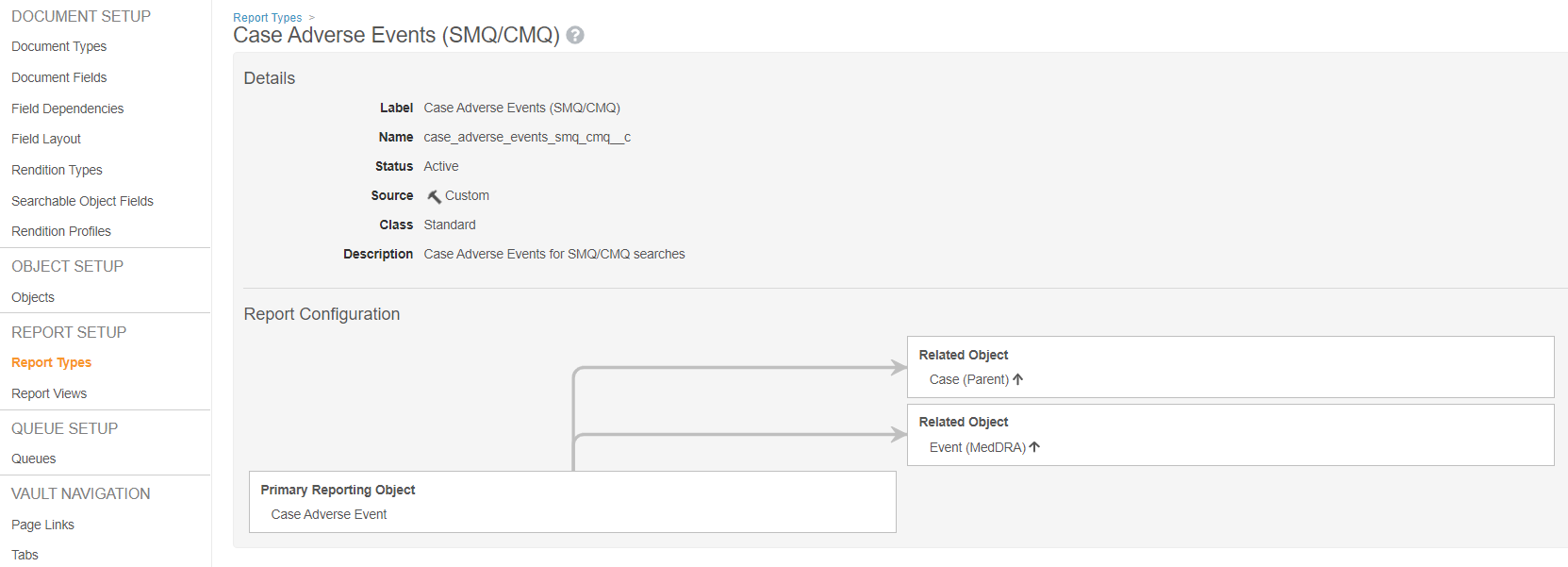
#### Case Adverse Events (SMQ/CMQ)

* **Report Label**: Case Adverse Events (SMQ/CMQ)
* **Description**: Case Adverse Events for SMQ/CMQ searches
* **Primary Reporting Object**: Case Adverse Event
* **Related Objects**: 
    * Case (Parent) ↑
    * Event (MedDRA) ↑

<a href="https://platform.veevavault.help/assets/images/saf-standard_ae-smqcmq_report.png" data-lightbox="saf-standard_ae-smqcmq_report.png" data-title="" data-alt="Case Adverse Events (SMQ/CMQ) Report Type">
  <img class="docimage" src="https://platform.veevavault.help/assets/images/saf-standard_ae-smqcmq_report.png" alt="Case Adverse Events (SMQ/CMQ) Report Type" style="width: 70%;"  />
</a>

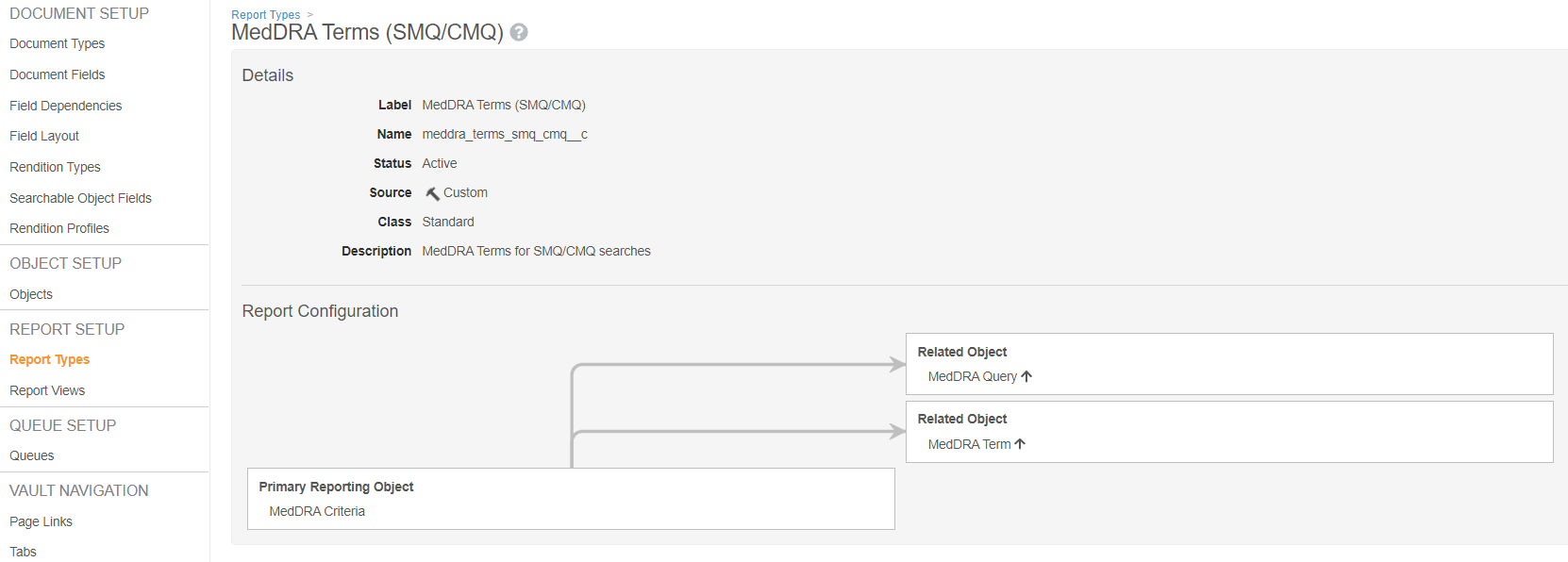
#### MedDRA Terms

* **Report Label**: MedDRA Terms (SMQ/CMQ)
* **Description**: MedDRA Terms for SMQ/CMQ searches
* **Primary Reporting Object**: MedDRA Criteria
* **Related Objects**: 
    * MedDRA Query ↑
    * MedDRA Term ↑
<a href="https://platform.veevavault.help/assets/images/saf-standard_meddraterms_report.png" data-lightbox="saf-standard_meddraterms_report.png" data-title="" data-alt="MedDRA Terms Report Type">
  <img class="docimage" src="https://platform.veevavault.help/assets/images/saf-standard_meddraterms_report.png" alt="MedDRA Terms Report Type" style="width: 70%;"  />
</a>

### Standard Report Views

Configure the following report views on the **Configuration > Report Views** page.

#### Case Adverse Events (SMQ/CMQ)

Add a **Case Adverse Events (SMQ/CMQ)** standard report type with the following settings:

* **Report Label**: Case Adverse Events (SMQ/CMQ)
* **Report Type**: Case Adverse Event
* **Conditional Fields**: N/A
* **Filters**: Case > Case Type in (Case, Imported Case)

#### MedDRA Terms

Add a **MedDRA Terms** standard report type with the following settings:

* **Report Label**: MedDRA Terms (SMQ/CMQ)
* **Report Type**: MedDRA Criteria
* **Conditional Fields**: N/A
* **Filters**: MedDRA Criteria > MedDRA Criteria
<br>Type equals MedDRA Query Criteria

### Multi-Pass Report Type

Configure the following SMQ/CMQ Multi-Pass Report on the **Configuration > Report Types** page:

* **Report View**: Case Adverse Events (SMQ/CMQ)
* **Relationships**: Add a relationship with the following settings:
    * **Select new entity**: MedDRA Terms (SMQ/CMQ)
    * **Match Case Adverse Events (SMQ/CMQ) on**: MedDRA > PT Code
    * **Match new entity on**: MedDRA > PT Code
    * **Join type**: Inner

## Add Reports to Your Vault {#add-reports}

To search for Cases that match SMQs or CMQs, you must add reports to your Vault. 

Go to the **Vault** view, and then add the following reports on the **Reports** tab.

### Search by Product Using Root Query

Add an **SMQ/CMQ Search by Product Using Root Query** report with the following settings:

* **Report Label**: SMQ/CMQ Multi-Pass Report
* **Report Type**: SMQ/CMQ Search
* **Columns**: Add the following columns:
     * Case > Name
     * Case > Serious
     * Case > Expected
     * Case Adverse Event > Event (MedDRA)
     * MedDRA Query > Name
     * MedDRA > Term (Code)
* **Prompts**: Add the following prompts:

<table>
            <thead>
                <tr>
                    <th>Prompt Alias</th>
                    <th>Field</th>
                    <th>Condition</th>
                </tr>
            </thead>
            <tbody>
                <tr>
                    <td>Organization</td>
                    <td>Case > Organization</td>
                    <td>equals</td>
                </tr>
                <tr>
                    <td>Primary Suspect Product</td>
                    <td>Case > Product</td>
                    <td>equals</td>
                </tr>
                <tr>
                    <td>Root-Level SMQ/CMQ</td>
                    <td>MedDRA Query > Root Query</td>
                    <td>equals</td>
                </tr>
                <tr>
                    <td>Query Scope</td>
                    <td>MedDRA Criteria > Scope</td>
                    <td>in</td>
                </tr>
            </tbody>
</table>

### Search by Product Across Multiple Queries

Add an **SMQ/CMQ Search by Product Across Multiple Queries** report with the following settings:

* **Report Type**: SMQ/CMQ Search
* **Columns**: Add the following columns:
    * Case > Name
    * Case > Serious
    * Case > Expected
    * Case Adverse Event > Event (MedDRA)
    * MedDRA Query > Name
    * MedDRA > Term (Code)
* **Prompts**: Add the following prompts:

<table>
            <thead>
                <tr>
                    <th>Prompt Alias</th>
                    <th>Field</th>
                    <th>Condition</th>
                </tr>
            </thead>
            <tbody>
                <tr>
                    <td>Organization</td>
                    <td>Case > Organization</td>
                    <td>equals</td>
                </tr>
                <tr>
                    <td>Primary Suspect Product</td>
                    <td>Case > Product</td>
                    <td>equals</td>
                </tr>
                <tr>
                    <td>SMQs/CMQs</td>
                    <td>MedDRA Criteria > MedDRA Query</td>
                    <td>in</td>
                </tr>
                <tr>
                    <td>Query Scope</td>
                    <td>MedDRA Criteria > Scope</td>
                    <td>in</td>
                </tr>
            </tbody>
</table>

### Search by Study Using Root Query

Add an **SMQ/CMQ Search by Study Using Root Query** report with the following settings:

* **Report Type**: SMQ/CMQ Search
* **Columns**: Add the following columns:
    * Case > Name
    * Case > Serious
    * Case > Expected
    * Case Adverse Event > Event (MedDRA)
    * MedDRA Query > Name
    * MedDRA > Term (Code)
* **Prompts**: Add the following prompts:

<table>
            <thead>
                <tr>
                    <th>Prompt Alias</th>
                    <th>Field</th>
                    <th>Condition</th>
                </tr>
            </thead>
            <tbody>
                <tr>
                    <td>Organization</td>
                    <td>Case > Organization</td>
                    <td>equals</td>
                </tr>
                <tr>
                    <td>Study</td>
                    <td>Case > Study</td>
                    <td>equals</td>
                </tr>
                <tr>
                    <td>Root-Level SMQ/CMQ</td>
                    <td>MedDRA Query > Root Query</td>
                    <td>equals</td>
                </tr>
                <tr>
                    <td>Query Scope</td>
                    <td>MedDRA Criteria > Scope</td>
                    <td>in</td>
                </tr>
            </tbody>
</table>

### Search by Study Across Multiple Queries

Add an **SMQ/CMQ Search by Study Across Multiple Queries** report with the following settings:

* **Report Type**: SMQ/CMQ Search
* **Columns**: Add the following columns:
    * Case > Name
    * Case > Serious
    * Case > Expected
    * Case Adverse Event > Event (MedDRA)
    * MedDRA Query > Name
    * MedDRA > Term (Code)
* **Prompts**: Add the following prompts:

<table>
            <thead>
                <tr>
                    <th>Prompt Alias</th>
                    <th>Field</th>
                    <th>Condition</th>
                </tr>
            </thead>
            <tbody>
                <tr>
                    <td>Organization</td>
                    <td>Case > Organization</td>
                    <td>equals</td>
                </tr>
                <tr>
                    <td>Study</td>
                    <td>Case > Study</td>
                    <td>equals</td>
                </tr>
                <tr>
                    <td>SMQs/CMQs</td>
                    <td>MedDRA Criteria > MedDRA Query</td>
                    <td>in</td>
                </tr>
                <tr>
                    <td>Query Scope</td>
                    <td>MedDRA Criteria > Scope</td>
                    <td>in</td>
                </tr>
            </tbody>
</table>

## Update Permission Sets {#update-permission-sets}

You must update permission sets to grant Admins access to modify MedDRA Queries, and users access to view them.

To edit permission sets, go to **Users & Groups > Permission Sets**. Go to the **Objects** tab on a permission set to modify object permissions. 

### Administrator Permission Set

Update the **Administration** permission set to enable the following permissions for the **MedDRA Criteria > MedDRA Query Criteria** object:

* Read
* Create
* Edit
* Delete

### User Permission Sets

Update the following permission sets to enable the **Read** permission for the **MedDRA Criteria > MedDRA Query Criteria** object:

* Case Distribution Actions
* Case Entry Actions
* Case Intake Actions
* Case Review Actions
* Safety Operations Actions
* Safety Writer
* Submission Actions

## (25R3) Extend Upgrade to Latest Action to Update MedDRA SMQs {#r253-configuration}
To configure your Vault to prevent corrupt MedDRA data:
1. Navigate to **Admin > Configuration > Objects > Dictionary > Actions**.
2. Select the **Import Standard MedDRA Queries** action.
3. Select **Delete** to remove the action from all _Dictionary Lifecycle_ states.

[1]: #configure-meddra-query-object
[2]: #update-meddra-criteria-object
[3]: #configure-reports
[4]: #add-reports
[5]: #update-permission-sets
[6]: #r253-configuration