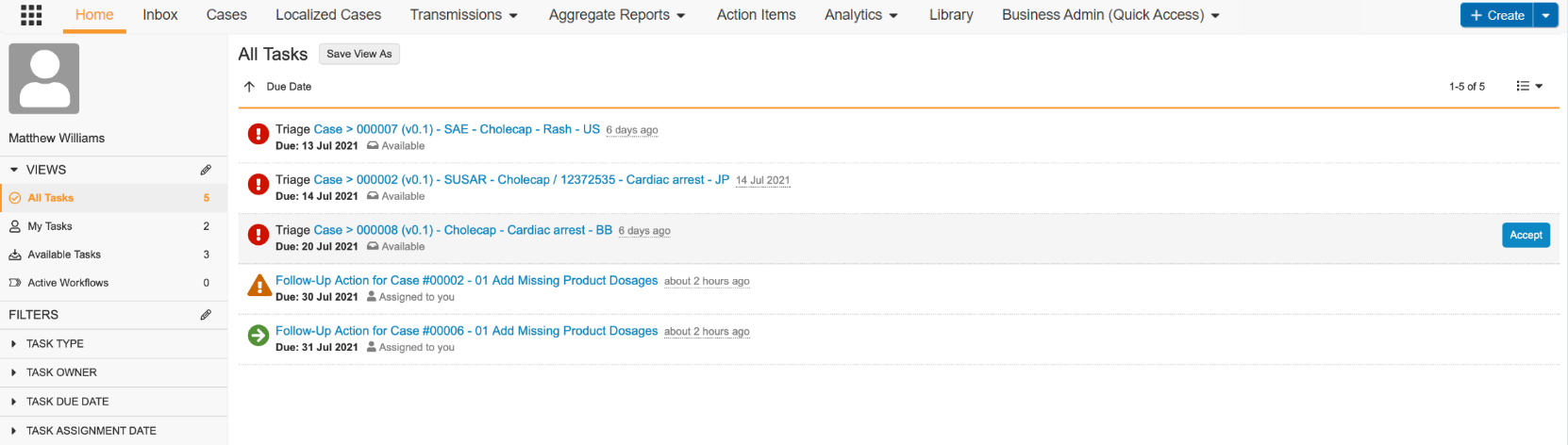
Note: Depending on your Admin’s configuration, your Vault’s object, field, and section labels, lifecycle states, and workflows may differ from the general information in all articles. Refer to your organization’s business processes for guidance.
## Aggregate Reports
Vault supports ICH-compliant aggregate reports, including table generation and collaborative document editing. The **Aggregate Reports** tab is where you author and manage aggregate reports.
 If you do not see the **Aggregate Reports** tab, you may not have permission to participate in aggregate report workflows. By default, only users assigned the **Head of Safety** and **Safety Writer** roles can view and edit aggregate reports.
## Reports
Use reports to generate and analyze information about business operations in your Vault at any point in time. You can use reports to organize, analyze, and share any data related to your Cases, documents, and processes. Create, view, and manage reports from the **Analytics > Reports** tab.
If you do not see the **Aggregate Reports** tab, you may not have permission to participate in aggregate report workflows. By default, only users assigned the **Head of Safety** and **Safety Writer** roles can view and edit aggregate reports.
## Reports
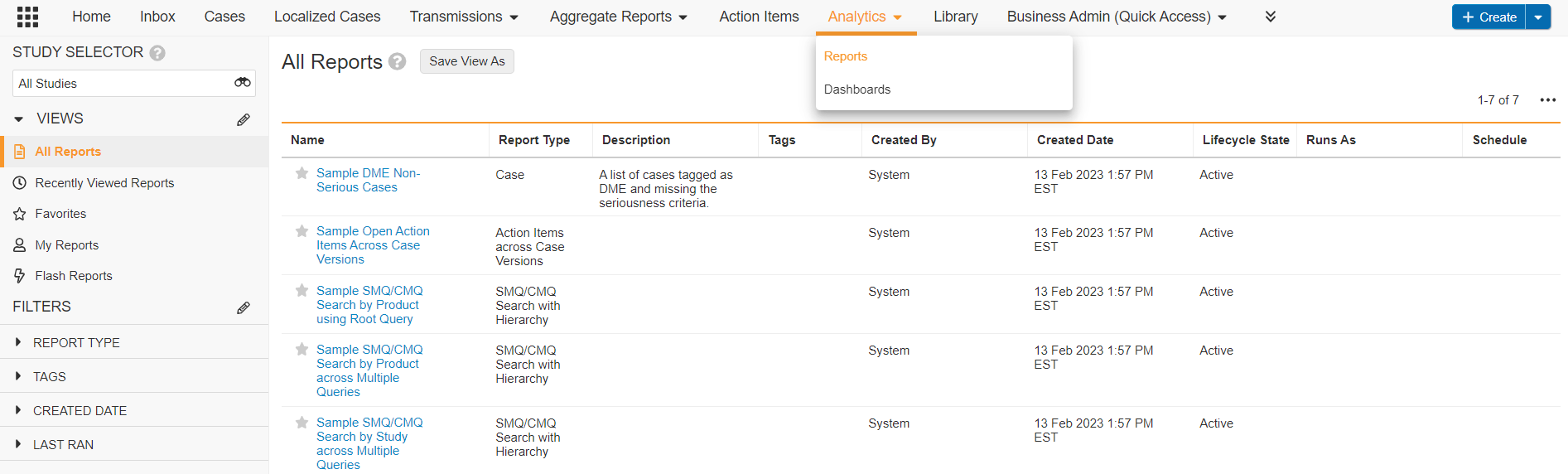
Use reports to generate and analyze information about business operations in your Vault at any point in time. You can use reports to organize, analyze, and share any data related to your Cases, documents, and processes. Create, view, and manage reports from the **Analytics > Reports** tab.
 ## Dashboards
Use dashboards to visualize report data for an at-a-glance understanding of key metrics. Create, view, and manage dashboards from the **Analytics > Dashboards** tab.
## Dashboards
Use dashboards to visualize report data for an at-a-glance understanding of key metrics. Create, view, and manage dashboards from the **Analytics > Dashboards** tab.
 The dashboards you see on the **Dashboards** tab are those that you have created or that another user has created and shared with you.
## Library
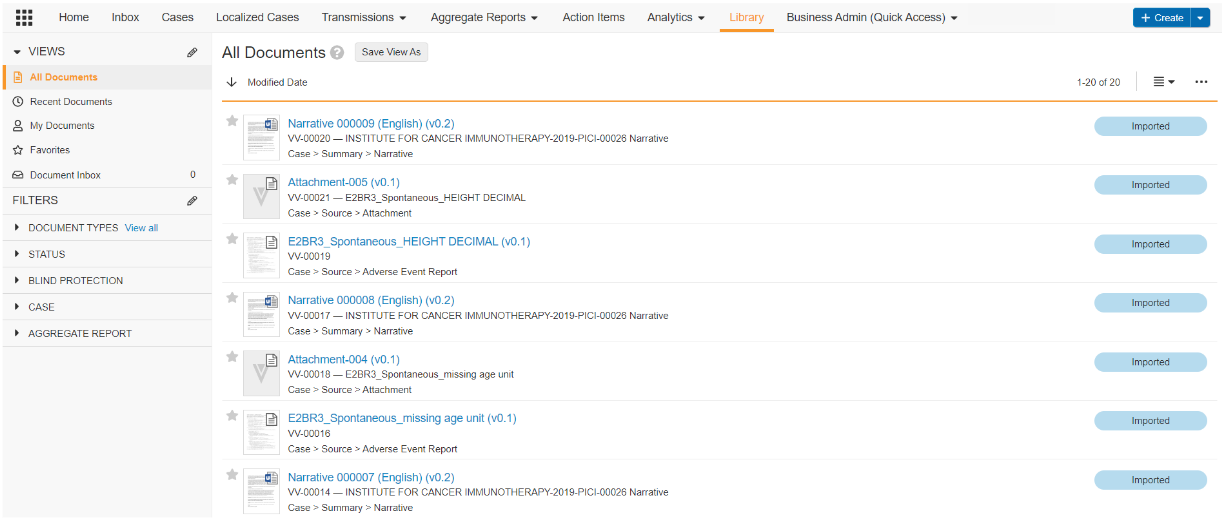
Use the **Library** tab to manage and collaborate on documents, including case narratives, aggregate reports, and case attachments.
The dashboards you see on the **Dashboards** tab are those that you have created or that another user has created and shared with you.
## Library
Use the **Library** tab to manage and collaborate on documents, including case narratives, aggregate reports, and case attachments.
 You can track redacted documents by setting the **Redaction** field to **PII Redacted** for any given document. The Redacted-Unredacted relationship also allows you to relate the redacted documents to the unredacted source documents.
## Case Actions
Use the **Case Actions** tab to assign and manage action items for users. For example, to assign tasks to Case Processors to provide follow-up information.
You can track redacted documents by setting the **Redaction** field to **PII Redacted** for any given document. The Redacted-Unredacted relationship also allows you to relate the redacted documents to the unredacted source documents.
## Case Actions
Use the **Case Actions** tab to assign and manage action items for users. For example, to assign tasks to Case Processors to provide follow-up information.
 ## Business Admin (Quick Access)
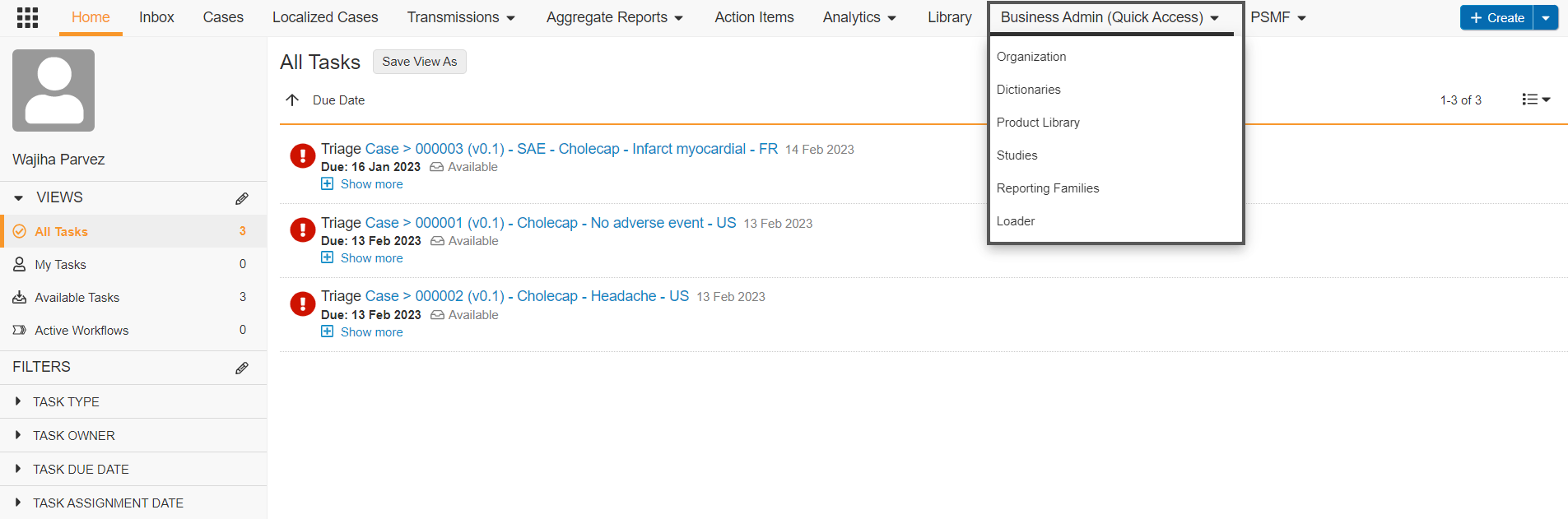
The **Business Admin (Quick Access)** tab only appears for Admins and provides easy access to core Admin actions and areas they need to set up.
## Business Admin (Quick Access)
The **Business Admin (Quick Access)** tab only appears for Admins and provides easy access to core Admin actions and areas they need to set up.
 ## Notifications
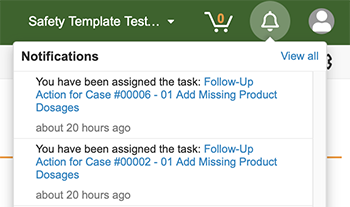
You can access notifications from the toolbar at the top-right section of Vault. Notifications include tasks, assignments, and updates.
## Notifications
You can access notifications from the toolbar at the top-right section of Vault. Notifications include tasks, assignments, and updates.
 ## Tab Views and Filters
The left pane on each Vault tab contains **Views** and **Filters** that you can use to filter the tab to quickly locate records or documents. Certain Filters and Views come preconfigured in Vault. You can also create custom Filters and Views. See Searching Vault for more information.
## Safety Coding Tab Collection {#safety-coding}
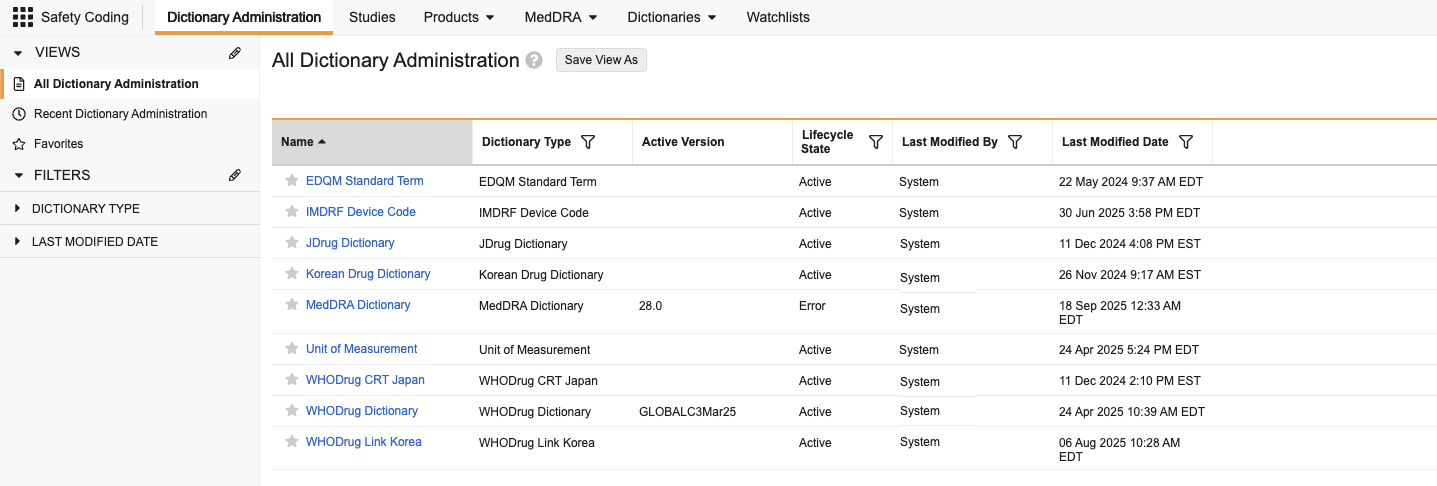
The **Safety Coding** tab collection allows Admins to access:
* _Dictionary_ administration for specific _Dictionaries_, such as the _WHODrug Dictionary_
* _Studies_
* _Products_
* _MedDRA_ objects, such as viewing _MedDRA_ terms and managing _MedDRA Synonyms_
* Dictionary-related objects, such as _Controlled Vocabularies_ and custom _Dose Forms_
* _Watchlists_
## Tab Views and Filters
The left pane on each Vault tab contains **Views** and **Filters** that you can use to filter the tab to quickly locate records or documents. Certain Filters and Views come preconfigured in Vault. You can also create custom Filters and Views. See Searching Vault for more information.
## Safety Coding Tab Collection {#safety-coding}
The **Safety Coding** tab collection allows Admins to access:
* _Dictionary_ administration for specific _Dictionaries_, such as the _WHODrug Dictionary_
* _Studies_
* _Products_
* _MedDRA_ objects, such as viewing _MedDRA_ terms and managing _MedDRA Synonyms_
* Dictionary-related objects, such as _Controlled Vocabularies_ and custom _Dose Forms_
* _Watchlists_
 ## Related Articles
For additional navigation items specific to your Vault's applications, see:
* Navigate Safety
* Navigate Safety Workbench
* Navigate Safety Signal
* Navigate SafetyDocs
## Related Articles
For additional navigation items specific to your Vault's applications, see:
* Navigate Safety
* Navigate Safety Workbench
* Navigate Safety Signal
* Navigate SafetyDocs