# Enable PVA Document Distribution via Email

Learn how to configure your Vault to share documents with partner organizations and track their progress.

## About the Feature

With the 24R1 release, SafetyDocs enables users to distribute documents to assigned recipients via email and track their progress within Vault. Users initiate this process by selecting an action on the applicable _PVA Activity_ or _PVA Action Item_, allowing for an efficient way to share documents and track compliance with PVA mandates. 

For more information, see <a href="/en/gr/659185/">Distribute PVA Documents via Email</a>.

<div class="note-border alert-info">
  <div class="alert alert-info" role="alert">
    <div><i class="far fa-info-circle"></i></div>
    <div class="alert-text">
      <p><strong>Note</strong>: This feature is best used in combination with PVA Document Distribution via Vault Task. We recommend configuring both features together. For more information, see <a href="/en/gr/682082/">Enable PVA Document Distribution via Vault Task</a>.</p>
    </div>
  </div>
</div>


## Configure Layouts

Layouts are managed through **Admin > Configuration > Objects > [Object] > Layouts**.

### PV Agreement Layout

Go to **Objects > PV Agreement  > Layouts > PV Agreement Detail Page Layout** and complete the procedures described in this section to update the **PV Agreement** layout.

#### Insert the PVA Documents for Distribution Section

Complete the following steps to insert this section:

1. On the **PV Agreement Detail Page Layout**, hover over the area where you want to insert a new section and select the **Plus** icon.
2. Select **Insert Section**.
3. In the **Select Section Type** dialog, select **Related Object** and then select **Continue**.
4. In the **Add Related Object Section** dialog, complete the fields as follows:
    * **Related Object**: Select **PVA Document for Distribution**.
    * **Section Label**: Enter "PVA Documents for Distribution".
    * **Section Name**: Enter "pva_documents_for_distribution".
    * **Creation Option**: Select **Create record in pop-up dialog**.
5. Select **Done**.
6. In the **PVA Documents for Distribution** section, select **Edit Default Columns** and ensure the following columns are added:
    * Name
    * Document for Distribution
    * Sent Date (System Managed)
    * Link Expiry Date (System Managed)
7. Select **Save**.

#### Insert the PVA Document Distribution Events Section

Complete the following steps to insert this section:

1. On the **PV Agreement Detail Page Layout**, hover over the area where you want to insert a new section and select the **Plus** icon.
2. In the **Select Section Type** dialog, select **Related Object** and then select **Continue**.
3. In the **Add Related Object Section** dialog, complete the fields as follows:
    * **Related Object**: Select **PVA Document Distribution Event**.
    * **Section Label**: Enter "PVA Document Distribution Events".
    * **Section Name**: Enter "pva_document_distribution_events".
    * **Creation Option**: Select **Prevent record creation**.
4. Select **Done**.
5. In the **PVA Document Distribution Events** section, select **Edit Default Columns** and ensure the following columns are added:
    * Name
    * Event Details
    * Event Time
    * Event Type
    * Recipient
    * Email Message ID
6. Select **Save**.

### PVA Activity Layout

Go to **Objects > PVA Activity  > Layouts > PVA Activity Detail Page Layout** and complete the configuration described in this section.

#### Add Field to the Details Section

On the **PVA Activity Detail Page Layout**, in the **Details** section, add the **Activity Type** field and select **Save**.

#### Insert the Distribution Details Section

Complete the following steps to insert this section:

1. On the **PVA Activity Detail Page Layout**, hover over the area where you want to insert a new section and select the **Plus** icon.
2. Select **Insert Section**.
3. In the **Select Section Type** dialog, select **Detail Form** and then select **Continue**.
4. In the **Add Detail Section** dialog, complete the fields as follows:
    * **Section Label**: Enter "Distribution Details".
    * **Section Name**: Enter "distribution_details".
    * **Section Layout**: Select **Detail Form - One Column**.
5. Select **Done**.
6. In the **Details** section, remove the **Delivery Method** field.
7. In the **Distribution Details** section, select **Add** to add the following fields and select **Save**:
    * **Delivery Method**
    * **Message Subject**
    * **Message Body**

#### Insert the PVA Documents for Distribution Section

Complete the following steps to insert this section:

1. On the **PVA Activity Detail Page Layout**, hover over the area where you want to insert a new section and select the **Plus** icon.
2. Select **Insert Section**.
3. In the **Select Section Type** dialog, select **Related Object** and then select **Continue**.
4. In the **Add Related Object Section** dialog, complete the fields as follows:
    * **Related Object**: Select **PVA Document for Distribution**.
    * **Section Label**: Enter "PVA Documents for Distribution".
    * **Section Name**: Enter "pva_documents_for_distribution".
    * **Creation Option**: Select **Create record in pop-up dialog**.
5. Select **Done**.
6. In the **PVA Documents for Distribution** section, select **Edit Default Columns** and ensure the following columns are added:
    * Name
    * Document for Distribution
    * Sent Date (System Managed)
    * Link Expiry Date (System Managed)
    * PVA Action Item
7. Select **Save**.

#### Insert the PVA Document Distribution Events Section

Complete the following steps to insert this section:

1. On the **PVA Activity Detail Page Layout**, hover over the area where you want to insert a new section and select the **Plus** icon.
2. Select **Insert Section**.
3. In the **Select Section Type** dialog, select **Related Object** and then select **Continue**.
4. In the **Add Related Object Section** dialog, complete the fields as follows:
    * **Related Object**: Select **PVA Document Distribution Event**.
    * **Section Label**: Enter "PVA Document Distribution Events".
    * **Section Name**: Enter "pva_document_distribution_events".
    * **Creation Option**: Select **Prevent record creation**.
5. Select **Done**.
6. In the **PVA Document Distribution Events** section, select **Edit Default Columns** and ensure the following columns are added:
    * Name
    * Event Time
    * Event Type
    * Recipient
7. Select **Save**.

#### Add PVA Activity Layout Rules

On the **PVA Activity Detail Page Layout**, select **Layout Rules** and then select **Create** to create the following rules:

**Inbound Activity**

Complete the fields as follows and select **Save**:

* **Label**: Inbound Activity
* **Name**: inbound_activity
* **IF this Layout Rule Expression is TRUE**: 
```activity_type__v = Picklist.pva_distribution_type__v.inbound__v```
* **Apply the following display effects**:
<table>
    <thead>
        <tr>
            <th>Effect</th>
            <th>Type</th>
            <th>Values</th>
        </tr>
    </thead>
    <tbody>
        <tr>
            <td>Hide</td>
            <td>Sections</td>
            <td>Distribution Details, PVA Documents for Distribution, PVA Document Distribution Events</td>
        </tr>
    </tbody>
</table>

**Outbound Activity**

Complete the fields as follows and select **Save**:

* **Label**: Outbound Activity
* **Name**: outbound_activity
* **IF this Layout Rule Expression is TRUE**: 
```activity_type__v = Picklist.pva_distribution_type__v.outbound__v```
* **Apply the following display effects**:
<table>
    <thead>
        <tr>
            <th>Effect</th>
            <th>Type</th>
            <th>Values</th>
        </tr>
    </thead>
    <tbody>
        <tr>
            <td>Display As Required</td>
            <td>Fields</td>
            <td>Delivery Method</td>
        </tr>
    </tbody>
</table>

**Email Outbound**

Complete the fields as follows and select **Save**:

* **Label**: Email Outbound
* **Name**: email_outbound
* **IF this Layout Rule Expression is TRUE**: 
```delivery_method__v = Picklist.pva_communication_method__v.email__v```
* **Apply the following display effects**:
<table>
    <thead>
        <tr>
            <th>Effect</th>
            <th>Type</th>
            <th>Values</th>
        </tr>
    </thead>
    <tbody>
        <tr>
            <td>Display As Required</td>
            <td>Fields</td>
            <td>Message Subject, Message Body</td>
        </tr>
    </tbody>
</table>

**Non-Email Outbound**

Complete the fields as follows and select **Save**:

* **Label**: Non-Email Outbound
* **Name**: nonemail_outbound
* **IF this Layout Rule Expression is TRUE**: 
```delivery_method__v != Picklist.pva_communication_method__v.email__v```
* **Apply the following display effects**:
<table>
    <thead>
        <tr>
            <th>Effect</th>
            <th>Type</th>
            <th>Values</th>
        </tr>
    </thead>
    <tbody>
        <tr>
            <td>Hide</td>
            <td>Sections</td>
            <td>PVA Document Distribution Events</td>
        </tr>
        <tr>
            <td>Hide</td>
            <td>Fields</td>
            <td>Message Subject, Message Body</td>
        </tr>
    </tbody>
</table>

### PVA Action Item Layout

Go to **Objects > PVA Action Item  > Layouts > PVA Action Item Detail Page Layout** and complete the configuration described in this section.

#### Add Field to the Details Section

On the **PVA Action Item Detail Page Layout**, in the **Details** section, add the **Activity Type** field and select **Save**.

#### Insert the Distribution Details Section

Complete the following steps to insert this section:

1. On the **PVA Action Item Detail Page Layout**, hover over the area where you want to insert a new section and select the **Plus** icon.
2. Select **Insert Section**.
3. In the **Select Section Type** dialog, select **Detail Form** and then select **Continue**.
4. In the **Add Detail Section** dialog, complete the fields as follows:
    * **Section Label**: Enter "Distribution Details".
    * **Section Name**: Enter "distribution_details".
    * **Section Layout**: Select **Detail Form - One Column**.
5. Select **Done**.
6. In the **Distribution Details** section, select **Add** to add the following fields and select **Save**:
    * **Message Subject**
    * **Message Body**

#### Insert the PVA Documents for Distribution Section

Complete the following steps to insert this section:

1. On the **PVA Action Item Detail Page Layout**, hover over the area where you want to insert a new section and select the **Plus** icon.
2. Select **Insert Section**.
3. In the **Select Section Type** dialog, select **Related Object** and then select **Continue**.
4. In the **Add Related Object Section** dialog, complete the fields as follows:
    * **Related Object**: Select **PVA Document for Distribution**.
    * **Section Label**: Enter "PVA Documents for Distribution".
    * **Section Name**: Enter "pva_documents_for_distribution".
    * **Creation Option**: Select **Create record in pop-up dialog**.
5. Select **Done**.
6. In the **PVA Documents for Distribution** section, select **Edit Default Columns** and ensure the following columns are added:
    * Name
    * Document for Distribution
    * Sent Date (System Managed)
    * Link Expiry Date (System Managed)
7. Select **Save**.

#### Insert the PVA Document Distribution Events Section

Complete the following steps to insert this section:

1. On the **PVA Action Item Detail Page Layout**, hover over the area where you want to insert a new section and select the **Plus** icon.
2. Select **Insert Section**.
3. In the **Select Section Type** dialog, select **Related Object** and then select **Continue**.
4. In the **Add Related Object Section** dialog, complete the fields as follows:
    * **Related Object**: Select **PVA Document Distribution Event**.
    * **Section Label**: Enter "PVA Document Distribution Events".
    * **Section Name**: Enter "pva_document_distribution_events".
    * **Creation Option**: Select **Prevent record creation**.
5. Select **Done**.
6. In the **PVA Document Distribution Events** section, select **Edit Default Columns** and ensure the following columns are added:
    * Name
    * Event Time
    * Event Type
    * Recipient

#### Add PVA Action Item Layout Rules

On the **PVA Action Item Detail Page Layout**, select **Layout Rules** and then select **Create** to create the following rules:

**Inbound Activity**

Complete the fields as follows and select **Save**:

* **Label**: Inbound Activity
* **Name**: inbound_activity
* **IF this Layout Rule Expression is TRUE**: 
```activity_type__v= Picklist.pva_distribution_type__v.inbound__v```
* **Apply the following display effects**:
<table>
    <thead>
        <tr>
            <th>Effect</th>
            <th>Type</th>
            <th>Values</th>
        </tr>
    </thead>
    <tbody>
        <tr>
            <td>Hide</td>
            <td>Sections</td>
            <td>Distribution Details, PVA Documents for Distribution, PVA Document Distribution Events</td>
        </tr>
    </tbody>
</table>

**Email Outbound**

Complete the fields as follows and select **Save**:

* **Label**: Email Outbound
* **Name**: email_outbound
* **IF this Layout Rule Expression is TRUE**: 
```activity_type__v= Picklist.pva_distribution_type__v.outbound__v && contact_communication_method__c = Picklist.pva_communication_method__v.email__v```
* **Apply the following display effects**:
<table>
    <thead>
        <tr>
            <th>Effect</th>
            <th>Type</th>
            <th>Values</th>
        </tr>
    </thead>
    <tbody>
        <tr>
            <td>Display As Required</td>
            <td>Fields</td>
            <td>Message Subject, Message Body</td>
        </tr>
    </tbody>
</table>

**Non-Email Outbound**

Complete the fields as follows and select **Save**:

* **Label**: Non-Email Outbound
* **Name**: nonemail_outbound
* **IF this Layout Rule Expression is TRUE**: 
```activity_type__v= Picklist.pva_distribution_type__v.outbound__v && contact_communication_method__c != Picklist.pva_communication_method__v.email__v```
* **Apply the following display effects**:
<table>
    <thead>
        <tr>
            <th>Effect</th>
            <th>Type</th>
            <th>Values</th>
        </tr>
    </thead>
    <tbody>
        <tr>
            <td>Hide</td>
            <td>Fields</td>
            <td>Message Subject, Message Body</td>
        </tr>
    </tbody>
</table>

### PVA Document for Distribution Layout

Go to **Objects > PVA Document for Distribution > Layouts > PVA Document for Distribution Detail Page Layout** and complete the configuration described in this section.

#### Add Fields to the Details Section

On the **PVA Document for Distribution Detail Page Layout**, in the **Details** section, add the following fields and select **Save**:

* **Document for Distribution** 
* **PV Agreement**
* **PVA Activity**
* **PVA Action Item** 

#### Insert the System Section

Complete the following steps to insert this section:

1. On the **PVA Document for Distribution Detail Page Layout**, hover over the area where you want to insert a new section and select the **Plus** icon.
2. Select **Insert Section**.
3. In the **Select Section Type** dialog, select **Detail Form** and then select **Continue**.
4. In the **Add Detail Section** dialog, complete the fields as follows:
    * **Section Label**: Enter "System".
    * **Section Name**: Enter "system".
    * **Section Layout**: Select **Detail Form - Two Columns**.
5. Select **Done**.
6. In the **System** section, select **Add** to add the following fields and select **Save**:
    * **Created By**
    * **Created Date**
    * **Token (System Managed)**
    * **Sent Date (System Managed)**
    * **Last Modified By**
    * **Last Modified Date**
    * **Link Expiry Date (System Managed)**
    * **Email Message ID**

### PVA Document Distribution Event Layout

Go to **Objects > PVA Document Distribution Event > Layouts > PVA Document Distribution Event Detail Page Layout** and complete the configuration described in this section.

#### Add Fields to the Details Section

On the **PVA Document Distribution Event Detail Page Layout**, in the **Details** section, add the following fields and select **Save**:

* **PVA Activity**
* **PVA Action Item**
* **Recipient**
* **Event Type**
* **Event Time**
* **Event Details**

#### Insert the System Section

Complete the following steps to insert this section:

1. On the **PVA Document Distribution Event Detail Page Layout**, hover over the area where you want to insert a new section and select the **Plus** icon.
2. Select **Insert Section**.
3. In the **Select Section Type** dialog, select **Detail Form** and then select **Continue**.
4. In the **Add Detail Section** dialog, complete the fields as follows:
    * **Section Label**: Enter "System".
    * **Section Name**: Enter "system".
    * **Section Layout**: Select **Detail Form - Two Columns**.
5. Select **Done**.
6. In the **System** section, select **Add** to add the following fields and select **Save**:
    * **Created By**
    * **Created Date**
    * **Status**
    * **PV Agreement**
    * **Last Modified By**
    * **Last Modified Date**
    * **Email Message ID**

## Add the Distribute PVA Document(s) Action

Complete the following steps to add an action to the **PVA Activity** and **PVA Action Item** objects:

1. Go to **Configuration > Objects > PVA Activity**.
2. In the **Actions** tab, select **Create**.
3. In the **Create Action** dialog, select **Distribute PVA Document(s)** and then select **Continue**.
4. On the **Create Action** page, complete the fields as follows and select **Save**:
    * **Label**: Enter "Distribute PVA Document(s)".
    * **Name**: Enter "distribute_pva_documents".
5. Repeat these steps for the **PVA Action Item** object.

## Add Default Values to Objects

Complete the following steps to add default values for the **Message Subject** and **Message Body** fields on the **PVA Activity** and **PVA Action Item** objects:

<div class="note-border alert-info">
  <div class="alert alert-info" role="alert">
    <div><i class="far fa-info-circle"></i></div>
    <div class="alert-text">
      <p><strong>Note</strong>: The following default values are only recommendations. Make sure to edit them based on your organization’s verbiage and processes for PVA distributions.</p>
    </div>
  </div>
</div>


1. Go to **Configuration > Objects > PVA Activity**.
2. In the **Fields** tab, select **Message Subject**.
3. Select **Edit**.
4. In the **Default Value** section, enter `"PVA Document Distribution"`.
5. Select **Save**.
6. Return to the **Fields** tab and select **Message Body**.
7. Select **Edit**.
8. In the **Default Value** section, enter the following message:
    `"Dear ${Custom.RecipientName},<br> <br>
        You have been sent documents under the terms of a pharmacovigilance agreement.<br>
    Document(s) can be accessed here: ${Custom.AccessLink} <br>
        This link will be active until ${Custom.AccessLinkExpiry}.<br><br>
    Please reply to acknowledge receipt.<br>
    Thank you!"`
9. Select **Save**.
10. Repeat these steps for the **PVA Action Item** object.

## Add Custom Sharing Rule on the PVA Document for Distribution Object

Complete the following steps to add a custom sharing rule to allow PVA Documents to be shared with users with the Editor role:

1. Go to **Admin > Configuration > Objects > PVA Document for Distribution**.
2. In the **Sharing Rules** tab, select **Create**.
3. On the **New Sharing Rule** page, in the **Label** field, enter "All PVA Distributions" and select **Save**.
4. In the **Roles** section, select **Add**.
5. In the **Add Manual Assignment** dialog, complete the fields as follows and select **Save**:
    * **Role**: Select **Editor**.
    * **Users and Groups**: Select **PVA Users**.

## Update the PVA Actions Permission Set

Complete the following steps to update permissions and grant access to this feature:

1. Go to **Admin > Users & Groups > Permission Sets > PVA Actions**.
2. On the **Objects** tab, select **Edit** and grant permissions as follows:
<table>
    <thead>
        <tr>
            <th>Object</th>
            <th>Permissions</th>
        </tr>
    </thead>
    <tbody>
        <tr>
            <td>PVA Document for Distribution</td>
            <td>Read, Create, Edit, Delete</td>
        </tr>
<tr>
            <td>PVA Document Distribution Event</td>
            <td>Read</td>
        </tr>
    </tbody>
</table>

## Update the PVA Activity Outbound Workflow

See <a href="/en/gr/682082/#update-the-pva-activity-outbound-workflow">Enable PVA Document Distribution via Vault Task</a> for information on how to set up this workflow for document distribution procedures. Use the instructions as a guide but configure the workflow according to your organization's requirements.

## Configure Object Lifecycles

Use the procedures in this section to update object lifecycles as needed for this feature.

### Configure Settings on the PVA Activity Lifecycle

Go to **Configuration > Object Lifecycles > PVA Activity Lifecycle** and complete the configuration described in this section.

#### Update Role Permissions

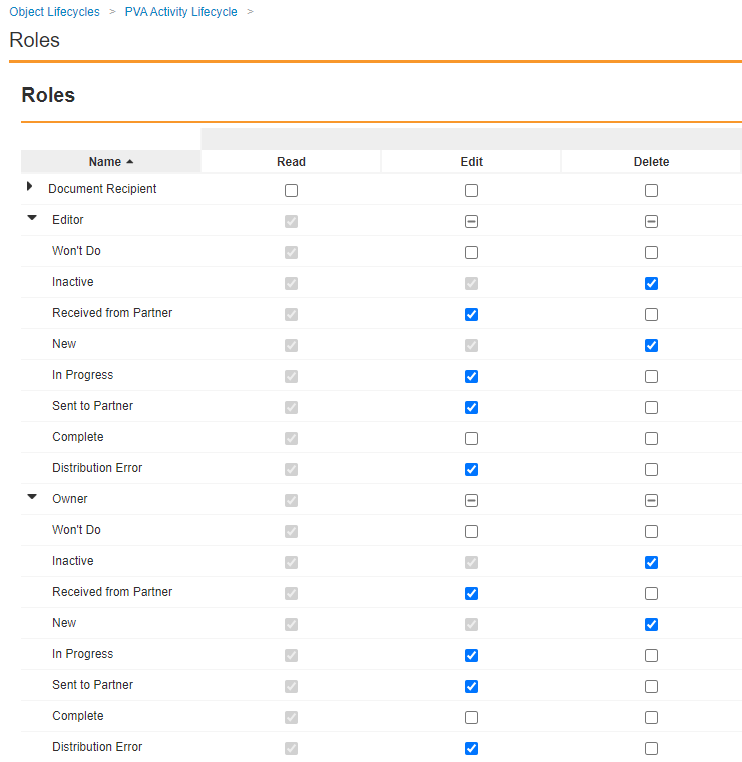
In the **Roles** section, grant **Edit** permissions to the **Editor** and **Owner** roles on the following states:

* Received From Partner
* In Progress
* Sent to Partner
* Distribution Error
<br>
<a href="https://platform.veevavault.help/assets/images/saf-24r1-pva-activity-lc-permissions-email.png" data-lightbox="images" data-title="" data-alt="Updated PVA Activity Lifecycle Role Permissions">
  <img class="docimage" src="https://platform.veevavault.help/assets/images/saf-24r1-pva-activity-lc-permissions-email.png" alt="Updated PVA Activity Lifecycle Role Permissions" style="max-width: 100%;width: 700px;"  />
</a>

#### Create User Actions on the Distribution Error State

Complete the following steps to create user actions on this state:

1. In the **States** section, select **Distribution Error**.
2. On the **Distribution Error** page, in the **User Actions** section, select **Edit**.
3. Select **Create Rule** and create the following rules:

**Rule 1: Retry Document Distribution via Email**

* **Perform with conditions > If** Activity Type > equals > Outbound
* **Add condition > If** > Delivery Method > equals > Email
* **Allow the following actions** > Distribute PVA Document(s)
* **Action Label**: Enter "Retry Document Distribution via Email"

**Rule 2: Cancel Activity or Mark Complete**

* **Always > Allow the following actions** > Change State to > Won't Do
* **Action Label**: Enter "Cancel Activity"
* **Add Action > Change State to** > Complete
* **Action Label**: Enter "Mark Complete"

### Configure Settings on the PVA Action Item Lifecycle

Go to **Configuration > Object Lifecycles > PVA Action Item Lifecycle** and complete the configuration described in this section.

#### Update Role Permissions

Complete the following steps to update access for relevant roles:

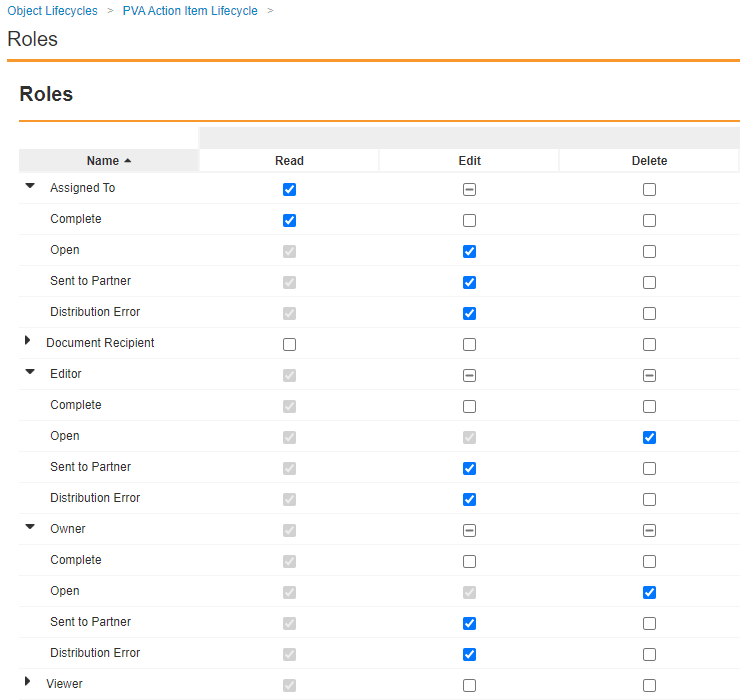
1. In the **Roles** section, grant **Edit** permissions to the **Assigned To**, **Editor**, and **Owner** roles on the following states:
    * Open
    * Sent to Partner
    * Distribution Error
2. Remove **Edit** and **Delete** permissions for the **Assigned To**, **Editor**, and **Owner** roles on the **Complete** state.
<br>
<a href="https://platform.veevavault.help/assets/images/saf-24r1-pva-action-item-lc-permissions-email.png" data-lightbox="images" data-title="" data-alt="Updated PVA Action Item Lifecycle Role Permissions">
  <img class="docimage" src="https://platform.veevavault.help/assets/images/saf-24r1-pva-action-item-lc-permissions-email.png" alt="Updated PVA Action Item Lifecycle Role Permissions" style="max-width: 100%;width: 700px;"  />
</a>

#### Create a User Action on the Open State

Complete the following steps to create a user action on this state:

1. In the **States** section, select **Open**.
2. On the **Open** page, in the **User Actions** section, select **Edit**.
3. Select **Create Rule** and create the following rule:
    * **Perform with conditions > If** Contact Communication Method > equals > Email
    * **Allow the following actions** > Distribute PVA Document(s)
    * **Action Label**: Enter "Send Document(s) via Email"

#### Create User Actions on the Distribution Error State

Complete the following steps to create user actions on this state:

1. In the **States** section, select **Distribution Error**.
2. On the **Distribution Error** page, in the **User Actions** section, select **Edit**.
3. Select **Create Rule** and create the following rules:

**Rule 1: Retry Email Distribution**

* **Perform with conditions > If** Contact Communication Method > equals > Email
* **Allow the following actions** > Distribute PVA Document(s)
* **Action Label**: Enter "Retry Email Distribution"

**Rule 2: Mark Complete or Back to Open**

* **Always > Allow the following actions** > Change State to > Complete
* **Action Label**: Enter "Mark Complete"
* **Add Action > Change State to** > Open
* **Action Label**: Enter "Back to Open"

#### Create a User Action on the Sent to Partner State

Complete the following steps to create a user action on this state:

1. In the **States** section, select **Sent to Partner**.
2. On the **Sent to Partner** page, in the **User Actions** section, select **Edit**.
3. Select **Create Rule** and create the following rule:
    * **Always > Allow the following actions** > Change State to > Complete
    * **Action Label**: Enter "Mark Complete"
