# Enable Aggregate Report Management

Learn how to configure your Vault to support aggregate reporting features in SafetyDocs.

## About the Feature

With the 24R1 release, SafetyDocs supports managing the end-to-end process of aggregate report authoring. You can divide your reports into Sections based on deliverables to different Aggregate Report Destinations and track their authoring progress in your Vault. These sections can also be created from default or customizable templates to increase the efficiency of your authoring process.

This page covers the enablement instructions for the following Aggregate Reporting features:

* <a href="/en/gr/680414/">Aggregate Report Authoring</a>
* <a href="/en/gr/680414/#generate-aggregate-report-sections">Aggregate Report Template Management</a>
* <a href="/en/gr/681192/">Aggregate Reporting: Extract Report to Document</a>

To configure the Aggregate Reporting: Combine Tabulations and Authoring feature, see <a href="/en/gr/681603/">Enable Generating Tabulations Using Aggregate Report Sections</a>.

## Overview
To configure Aggregate Report Management in your Vault, you must:

* <a href="#configure-aggregate-report-sections">Configure Aggregate Report Sections</a>
* <a href="#configure-aggregate-report-destinations">Configure Aggregate Report Destinations</a>
* <a href="#configure-aggregate-report-templates">Configure Aggregate Report Templates</a>
* <a href="#configure-aggregate-report-template-items">Configure Aggregate Report Template Items</a>
* <a href="#configure-aggregate-reports">Configure Aggregate Reports</a>
* <a href="#configure-security">Configure Security</a>
* <a href="#configure-reports">Configure Reports</a>

## Configure Aggregate Report Sections

The following sections explain how to set up Aggregate Report Sections in your Vault.

### Update Labels

Starting in 24R1, Aggregate Report Tasks are called Aggregate Report Sections. Complete the following steps to update this label across your Vault:

1. Go to **Admin > Configuration > Objects > Aggregate Report Task**.
2. Select **Edit** and update the fields as follows:
    * **Object Label**: Enter "Aggregate Report Section"
    * **Object Plural Label**: Enter "Aggregate Report Sections"
3. Select **Save**.
4. On the **Object Types** tab, select **Authoring Task**.
5. Select **Edit** and update the fields as follows:
    * **Label**: Enter "Authoring Section"
    * **Plural Label**: Enter "Authoring Sections"
6. Select **Save**.
7. On the **Fields** tab, select **Aggregate Report Task Type**.
8. Select **Edit** and in the **Label** field, enter "Aggregate Report Section Type".
9. Select **Save**.
10. On the **Fields** tab, select **Task Order**.
11. Select **Edit** and in the **Label** field, enter "Section Order".
12. Select **Save**.
13. Go to  **Admin > Configuration > Object Lifecycles > Aggregate Report Task**.
14. Select **Edit** and in the **Label** field, enter "Aggregate Report Section".
15. Select **Save**.

### Configure the Aggregate Report Section Layout

Go to **Admin > Configuration > Objects > Aggregate Report Section > Layouts > Aggregate Report Section Detail Page Layout** and configure the sections on this layout as follows:

#### Details Section

In the **Details** section, add the following fields:

* **Name**
* **Aggregate Report**
* **Aggregate Report Section Type**
* **Aggregate Report Destination**
* **Description**
* **Source Report**
* **Report Format**
* **Source Report Prompt**
* **Report Document**
* **Assigned To**
* **Due Date**
* **Complete**
* **Completion Date**

#### Documents Section

Complete the following steps to add and configure this section:

1. Under the **Details** section, select the **Plus** icon and select **Insert Section**.
1. In the **Select Section Type** dialog, select **Related Documents** and then select **Continue**.
2. On the **Add Related Document Section** dialog, complete the fields as follows and then select **Done**:
    * **Referencing Document Field**: Select **Aggregate Report Section**
    * **Section Label**: Enter "Documents"
    * **Section Name**: Enter "documents"

#### System Section

Complete the following steps to add and configure this section:

1. Under the **Documents** section, select the **Plus** icon and select **Insert Section**.
2. In the **Select Section Type** dialog, select **Detail Form** and then select **Continue**.
3. On the **Add Detail Section** dialog, complete the fields as follows and then select **Done**:
    * **Section Label**: Enter "System"
    * **Section Name**: Enter "system"
    * **Section Layout**: Select **Detail Form - Two Columns**
4. In the new **System** section, add the following fields:
    * **Created By**
    * **Created Date**
    * **Last Modified By**
    * **Last Modified Date**
5. Move the existing **Document to Generate** field from the **Details** section to this section.

### Configure Action to Generate Vault Report Document

Complete the following steps to configure an action on the **Aggregate Report Section** object to generate documents from Vault reports:

1. Go to **Admin > Configuration > Objects > Aggregate Report Section > Actions** and select **Create**.
2. In the **Create Action** dialog, select **Generate Vault Report Document** and then select **Continue**.
3. On the **Create Action** page, enter a **Label** and **Name** for the action.
4. Select **Save**.

#### Add Action to the Vault Report Object Type

Complete the following steps to associate this action with the **Vault Report** object type of the **Aggregate Report Section** object. This enables users to initiate the action from **Vault Report** type Sections. 

1. In the **Aggregate Report Section** object, go to the **Object Types** tab.
2. In the top-right corner, select **Actions**.
3. From the **Actions** menu, select **Edit Object Type Actions**.
4. For the **Vault Report** object type, select the **Generate Vault Report Document** checkbox.
5. For all other object types, clear the  **Generate Vault Report Document** checkbox.
6. Select **Save**.

### Configure the Aggregate Report Section Assignment Workflow

Complete the following steps to configure a workflow for assigning **Aggregate Report Sections**. Use these steps as a starting point, but configure your workflows according to your business processes:

1. Go to **Admin > Configuration > Workflows** and select **Create**.
2. In the **Create Workflow** dialog, select **Object Workflow** and then select **Continue**.
3. On the **Create Workflow** page, complete the fields as follows:    
    * **Label**: Enter "Aggregate Report Section Assignment"
    * **Lifecycle**: Select **Aggregate Report Section Lifecycle**
4. Select **Save**.
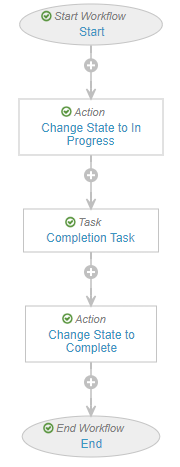
5. Use the following image and the sections below as a guide to configure the workflow and then select **Make configuration active**.

<a href="https://platform.veevavault.help/assets/images/saf-24r1-ar-section-assignment-workflow.png" data-lightbox="saf-24r1-ar-section-assignment-workflow.png" data-title="Aggregate Report Section Assignment Workflow" data-alt="Aggregate Report Section Assignment Workflow">
  <img class="docimage" src="https://platform.veevavault.help/assets/images/saf-24r1-ar-section-assignment-workflow.png" alt="Aggregate Report Section Assignment Workflow" style=""  />
</a>

#### Start Workflow: Start Step

In the **Start Options** section, select **Add Control** to add the following controls:

* Control 1: Instructions

    * In the **Instructions** field, enter text to explain to users that starting this workflow will assign the related Aggregate Report Section to the person responsible for completing it.

* Control 2: Participants

    * In the **Participant Label** field, enter "Assigned To".
    * Select the **Use roles as participants** option.
        * In the **Roles allowed to participate** field, select **Assigned To**.

* Control 3: Date

    * In the **Label** field, enter "Due Date".
    * Configure the **Default Value** according to your organization's requirements.

#### Action: Change State to In Progress Step

Select **Create Rule** to add the following rule:
* **Always >** Change State > In Progress

#### Task: Completion Task Step 

In the **General Settings** section, complete the fields as follows:

* **Task Label**: Enter "Complete Aggregate Report Section".
* **Assign Task To**: Select **Assigned To**.
    * Select the **Assign to all users in participant group** option.
* **Instructions**: Enter task instructions.
* **Task Requirement**: Select **Required**.

In the **Due Date** section, complete the following field:

* **Due Date**: Select **Due Date + 0 Days**

#### Action: Change State to Complete Step

Select **Create Rule** to add the following rule:

* **Always >**
    * Update field > Complete >
        **Set to Value**: `TRUE`
    * Update field > Completion Date >
        **Set to Value**: `today()`
    * Change State > Complete

### Update the Aggregate Report Section Object Lifecycle

Go to **Admin > Configuration > Object Lifecycles > Aggregate Report Section Lifecycle** and make the following updates.

#### Update State Type

Complete the following steps to change the state associated with the **Initial State** state type from **Active** to **Open**:

1. In the **State Types** section, select **Initial State**. 
2. Select **Edit**.
3. In the **State** field, select **Open** and then select **Save**.

#### Add User Actions

Complete the following steps to add user actions to different lifecycle states:

1. Go to the **User Actions** section of each lifecycle state mentioned in the table below and select **Edit > Create Rule**.
2. Configure user actions according to the following table and then select **Save**:

<table>
    <thead>
        <tr>
            <th>Lifecycle State</th>
            <th>User Action</th>
        </tr>
    </thead>
    <tbody>
        <tr>
            <td>Open</td>
            <td><ul>
                    <li><strong>Always ></strong> Change State to > In Progress</li>
                    <li><strong>Always ></strong> Change State to > Inactive</li>
                    <li><strong>All conditions met ></strong> Assigned To > is not blank > Workflow > Aggregate Report Section Assignment</li>
                    <li><strong>All conditions met ></strong> Aggregate Report Section Type >
                    equals > Vault Report > Generate Vault Report Documents</li>
            </ul></td>
        </tr>
        <tr>
            <td>In Progress</td>
            <td><ul>
                    <li><strong>Always ></strong> Change State to > Complete</li>
                    <li><strong>Always ></strong> Change State to > Open</li>
                    <li><strong>All conditions met ></strong> Aggregate Report Section Type >
                    equals > Vault Report > Generate Vault Report Documents</li>
            </ul></td>
        </tr>
        <tr>
            <td>Inactive</td>
            <td><ul>
                    <li><strong>Always ></strong> Change State to > Open</li>
                    <li><strong>Always ></strong> Change State to > In Progress</li>
            </ul></td>
        </tr>
    </tbody>
</table>

#### Add Entry Actions

Complete the following steps to add entry actions to the **Complete** lifecycle state:

1. In the **States** section, go to **Complete**.
2. In the **Entry Actions** section, select **Edit > Create Entry Action**.
3. Create the following actions and select **Save**:
    * **Always >** Update field > Complete > `TRUE`
    * **Always >** Update field > Completion Date > `today()`
    * **Always >** Change related document lifecycle state > Report Document > Steady State

#### Update Role Permissions 

Complete the following steps to grant permissions on various roles within this lifecycle. This is a recommendation only. Configure permissions according to your organization's business processes.

1. In the **Roles** section, select **Edit**.
2. Grant permissions as follows:
    * **Aggregate Report Writer**
        * **In Progress**: Read, Edit
        * **Open**: Read, Edit, Delete
        * **Complete**: Read
        * **Inactive**: Read, Edit
        * **Active**: Read, Edit
    * **Assigned To**: Same permissions as the **Editor** role. We recommend the following:
        * **In Progress**: Read, Edit
        * **Open**: Read, Edit, Delete
        * **Complete**: Read
        * **Inactive**: Read, Edit, Delete
        * **Active**: Read, Edit, Delete
    * **Owner**
        * **In Progress**: Read, Edit, Delete
        * **Open**: Read, Edit, Delete
        * **Complete**: Read
        * **Inactive**: Read, Edit, Delete
        * **Active**: Read, Edit, Delete
3. Select **Save**.

### Configure Lifecycle Stage Groups

The following sections describe how to create lifecycle stage groups for this object and associate them with states.

#### Create the Aggregate Report Section - Authoring Section Stage Group

Complete the following steps to create this group and associate its stages with states:

1. Go to **Admin > Configuration > Lifecycle Stage Groups** and select **Create**.
2. In the **Create Lifecycle Stage Group** dialog, select **Object Stage Group** and then select **Continue**.
3. On the **Create Lifecycle Stage Group** page, complete the fields as follows and select **Save**:
    * **Stage Group Label**: Enter "Aggregate Report Section - Authoring Section"
    * **Object Lifecycle**: Select **Aggregate Report Section Lifecycle**
    * **Object Type**: Select **Authoring Section**
4. Select **Save**.
5. On the **Aggregate Report Section - Authoring Section** page, in the **Stages** section, select **Create** and create the following stages in order:
    * Open
    * In Progress
    * Complete
6. Add states to each stage according to the table below. To add a state, go to **[Stage] > States** and select **Add**. Then select the **Plus** icon next to the state you want to add and select **OK**.

<table>
    <thead>
        <tr>
            <th>Stage</th>
            <th>State to Add</th>
        </tr>
    </thead>
    <tbody>
        <tr>
            <td>Open</td>
            <td>Open</td>
        </tr>
        <tr>
            <td>In Progress</td>
            <td>In Progress</td>
        </tr>
        <tr>
            <td>Complete</td>
            <td>Complete</td>
        </tr>
    </tbody>
</table>

#### Configure the Aggregate Report Section - Vault Report Stage Group

Complete the following steps to create this group and associate its stages with states:

1. Go to **Admin > Configuration > Lifecycle Stage Groups** and select **Create**.
2. In the **Create Lifecycle Stage Group** dialog, select **Object Stage Group** and then select **Continue**.
3. On the **Create Lifecycle Stage Group** page, complete the fields as follows and select **Save**:
    * **Stage Group Label**: Enter "Aggregate Report Section - Vault Report"
    * **Object Lifecycle**: Select **Aggregate Report Section Lifecycle**
    * **Object Type**: Select **Vault Report**
4. Select **Save**.
5. On the **Aggregate Report Section - Vault Report** page, in the **Stages** section, select **Create** and create the following stages in order:
    * Open
    * In Progress
    * Complete
6. Add states to each stage according to the table below. To add a state, go to **[Stage] > States** and select **Add**. Then select the **Plus** icon next to the state you want to add and select **OK**.

<table>
    <thead>
        <tr>
            <th>Stage</th>
            <th>States to Add</th>
        </tr>
    </thead>
    <tbody>
        <tr>
            <td>Open</td>
            <td>Open, Active</td>
        </tr>
        <tr>
            <td>In Progress</td>
            <td>In Progress</td>
        </tr>
        <tr>
            <td>Complete</td>
            <td>Complete</td>
        </tr>
    </tbody>
</table>

### Update the Default Object Type

Complete the following steps to update this object's default object type to **Authoring Section**: 

1. Go to **Admin > Configuration > Objects > Aggregate Report Section > Details**.
2. Select **Edit**.
3. In the **Default Object Type** field, select **Authoring Section**.
4. Select **Save**.

### Inactivate the Base Aggregate Report Section Object Type

Complete the following steps to inactivate this object type so that your Vault is updated with the new functionality:

1. Go to **Admin > Configuration > Objects > Aggregate Report Section > Object Types**.
2. Select **Base Aggregate Report Section**.
3. Select **Edit**.
4. In the **Status** field, select **Inactive**.
5. Select **Save**.

### Add Field VQL

Complete the following steps to add Criteria VQL to the **Report Document** fields on this object:

1. Go to **Admin > Configuration > Objects > Aggregate Report Section > Fields > [Field]** and select **Edit**.
2. Populate the **Criteria VQL** of each field according to the table below and select **Save**:

<table>
    <thead>
        <tr>
            <th>Field</th>
            <th>Criteria VQL</th>
        </tr>
    </thead>
    <tbody>
        <tr>
            <td>Report Document</td>
            <td><code>type__v = 'Aggregate Reports'</code></td>
        </tr>
        <tr>
            <td>Report Document (Masked)</td>
            <td><code>type__v = 'Aggregate Reports' AND subtype__v = 'Summary Tabulation' AND classification__v != 'Log'</code></td>
        </tr>
        <tr>
            <td>Report Document (Log)</td>
            <td><code>type__v = 'Aggregate Reports' AND subtype__v = 'Summary Tabulation' AND classification__v = 'Log'</code></td>
        </tr>
    </tbody>
</table>

## Configure Aggregate Report Destinations

The following sections explain how to set up Aggregate Report Destinations in your Vault.

### Update Field Label

Complete the following steps to update the label of the **Health Authority Approval Date** field to more accurately reflect its purpose:

1. Go to **Admin > Configuration > Objects > Aggregate Report Destination > Fields**.
2. Select **Health Authority Approval Date**.
3. Select **Edit**.
4. In the **Label** field, enter "Health Authority Received Date".
5. Optionally, enter the following text in the **Help Content** field: "Date the aggregate report was received by the respective health authority".
6. Select **Save**.

### Update Lifecycle State Label

Complete the following steps to update the label of the **HA Approved** lifecycle state to more accurately reflect its purpose:

1. Go to **Admin > Configuration > Object Lifecycles > Aggregate Report Destination Lifecycle**.
2. In the **States** section, select **HA Approved**.
3. In the **Details** section, Select **Edit**.
4. In the **State Label** field, enter "HA Received" and select **Save**.

### Configure the Aggregate Report Destination Layout

Go to **Admin > Configuration > Objects > Aggregate Report Destination > Layouts > Aggregate Report Destination Detail Page Layout** and configure the sections on this layout as follows:

#### Details Section

In the **Details** section, add the following fields:

* **Name**
* **Aggregate Report**
* **Applicable Market**
* **Health Authority**
* **Planned Submission Date**
* **Actual Submission Date**
* **Health Authority Received Date**
* **Health Authority Decision Date**

#### System Section

Complete the following steps to add and configure this section:

1. Under the **Details** section, select the **Plus** icon and select **Insert Section**.
2. In the **Select Section Type** dialog, select **Detail Form** and then select **Continue**.
3. On the **Add Detail Section** dialog, complete the fields as follows and then select **Done**:
    * **Section Label**: Enter "System"
    * **Section Name**: Enter "system"
    * **Section Layout**: Select **Detail Form - Two Columns**
4. In the new **System** section, add the following fields:
    * **Created By**
    * **Created Date**
    * **Last Modified By**
    * **Last Modified Date**

### Update the Aggregate Report Destination Object Lifecycle

Go to **Admin > Configuration > Object Lifecycles > Aggregate Report Destination Lifecycle** and make the following updates.

#### Update State Type

Complete the following steps to change the state associated with the **Initial State** state type from **Active** to **Open**:

1. In the **State Types** section, select **Initial State**. 
2. Select **Edit**.
3. In the **State** field, select **Open** and then select **Save**.

#### Add User Actions

Complete the following steps to add user actions to different lifecycle states:

1. Go to the **User Actions** section of each lifecycle state mentioned in the table below and select **Edit > Create Rule**.
2. Configure user actions according to the following table and then select **Save**:

<table>
    <thead>
        <tr>
            <th>Lifecycle State</th>
            <th>User Action</th>
        </tr>
    </thead>
    <tbody>
        <tr>
            <td>Open</td>
            <td><ul>
                    <li><strong>Always ></strong> Change State to > In Progress</li>
                   <li><strong>Always ></strong> Change State to > Inactive</li>
            </ul></td>
        </tr>
        <tr>
            <td>In Progress</td>
            <td><ul>
                    <li><strong>Always ></strong> Change State to > Open</li>
                    <li><strong>Always ></strong> Change State to > Deferred</li>
                    <li><strong>Always ></strong> Change State to > Complete</li>
            </ul></td>
        </tr>
        <tr>
            <td>Complete</td>
            <td><ul>
                    <li><strong>Always ></strong> Change State to > Submitted</li>
                   <li><strong>Always ></strong> Change State to > Deferred</li>
            </ul></td>
        </tr>
        <tr>
            <td>Submitted</td>
            <td><ul>
                    <li><strong>Always ></strong> Change State to > HA Received</li>
                   <li><strong>Always ></strong> Change State to > Deferred</li>
            </ul></td>
        </tr>
        <tr>
            <td>Deferred</td>
            <td><ul>
                    <li><strong>Always ></strong> Change State to > In Progress</li>
                   <li><strong>Always ></strong> Change State to > Inactive</li>
            </ul></td>
        </tr>
        <tr>
            <td>Inactive</td>
            <td><ul>
                    <li><strong>Always ></strong> Change State to > In Progress</li>
            </ul></td>
        </tr>
    </tbody>
</table>

#### Add Entry Action

Complete the following steps to add an entry action to the **HA Received** lifecycle state:

1. In the **States** section, go to **HA Received**.
2. In the **Entry Actions** section, select **Edit > Create Entry Action**.
3. Create the following action:
    * **Perform with conditions >** Health Authority Received Date > is blank  
        * Update field > Health Authority Received Date > `today()`
4. Select **Save**.

### Configure the Aggregate Report Destination Stages Stage Group

Complete the following steps to create this group and associate its stages with states:

1. Go to **Admin > Configuration > Lifecycle Stage Groups** and select **Create**.
2. In the **Create Lifecycle Stage Group** dialog, select **Object Stage Group** and then select **Continue**.
3. On the **Create Lifecycle Stage Group** page, complete the fields as follows and select **Save**:
    * **Stage Group Label**: Enter "Aggregate Report Destination Stages"
    * **Object Lifecycle**: Select **Aggregate Report Destination Lifecycle**
    * **Object Type**: Select **Base Aggregate Report Destination**
4. Select **Save**.
5. On the **Aggregate Report Section - Authoring Section** page, in the **Stages** section, select **Create** and create the following stages in order:
    * Open
    * In Progress
    * Submitted
    * HA Received
6. Add states to each stage according to the table below. To add a state, go to **[Stage] > States** and select **Add**. Then select the **Plus** icon next to the state you want to add and select **OK**.

<table>
    <thead>
        <tr>
            <th>Stage</th>
            <th>States to Add</th>
        </tr>
    </thead>
    <tbody>
        <tr>
            <td>Open</td>
            <td>Open</td>
        </tr>
        <tr>
            <td>In Progress</td>
            <td>In Progress, Complete</td>
        </tr>
        <tr>
            <td>Submitted</td>
            <td>Submitted</td>
        </tr>
        <tr>
            <td>HA Received</td>
            <td>HA Received</td>
        </tr>
    </tbody>
</table>

### Add Field VQL

Complete the following steps to add Criteria VQL to the **Health Authority** field:

1. Go to **Admin > Configuration > Objects > Aggregate Report Destination > Fields > Health Authority** and select **Edit**.
2. In the **Criteria VQL** field, enter `object_type__vr.api_name__v = 'agency__v'`
3. Select **Save**.

## Configure Aggregate Report Templates

The sections below describe how to set up _Aggregate Report Templates_ in your Vault.

### Configure the Global Aggregate Report Template Layout

Complete the following steps to set up the layout for the **Global Aggregate Report Template** object type:

1. Go to **Admin > Configuration > Objects > Aggregate Report Template > Layouts**.
2. Select **Create**.
3. On the **Add Layout** dialog, complete the fields as follows and select **Done**:
    * **Object Type**: Select **Global Aggregate Report Template**
    * **Layout Label**: Enter "Global Aggregate Report Template Detail Page Layout"
    * **Layout Name**: Enter "global_aggregate_report_template_detail"
4. Configure sections on the **Global Aggregate Report Template Detail Page Layout** as follows and select **Save**.

#### Details Section

In the **Details** section, add the following fields:

* **Name**
* **Aggregate Report Type**
* **Aggregate Report Template Type**

#### Aggregate Report Template Items Section

Complete the following steps to add and configure this section:

1. Under the **Details** section, select the **Plus** icon and select **Insert Section**.
2. In the **Select Section Type** dialog, select **Related Object** and then select **Continue**.
3. On the **Add Related Object Section** dialog, complete the fields as follows and then select **Done**:
    * **Related Object**: Select **Aggregate Report Template Item**
    * **Section Label**: Enter "Aggregate Report Template Items"
    * **Section Name**: Enter "aggregate_report_template_items"
4. Ensure the following columns are added to the new **Aggregate Report Template Items** section:
    * Name
    * Item Order
    * Aggregate Report Section Type
    * Document Template

#### Local Aggregate Report Templates Section

Complete the following steps to add and configure this section:

1. Under the **Aggregate Report Template Items** section, select the **Plus** icon and select **Insert Section**.
2. In the **Select Section Type** dialog, select **Related Object** and then select **Continue**.
3. On the **Add Related Object Section** dialog, complete the fields as follows and then select **Done**:
    * **Related Object**: Select **Aggregate Report Template**
    * **Section Label**: Enter "Local Aggregate Report Templates"
    * **Section Name**: Enter "local_aggregate_report_templates"
4. Ensure the following columns are added to the new **Local Aggregate Report Templates** section:
    * Name
    * Core Template
    * Applicable Market
    * Health Authority

#### System Section

Complete the following steps to add and configure this section:

1. Under the **Local Aggregate Report Templates** section, select the **Plus** icon and select **Insert Section**.
2. In the **Select Section Type** dialog, select **Detail Form** and then select **Continue**.
3. On the **Add Detail Section** dialog, complete the fields as follows and then select **Done**:
    * **Section Label**: Enter "System"
    * **Section Name**: Enter "system"
    * **Section Layout**: Select **Detail Form - Two Columns**
4. In the new **System** section, add the following fields:
    * **Status**
    * **Created By**
    * **Created Date**
    * **Last Modified By**
    * **Last Modified Date**
    * **Vault Safety UUID**

### Configure the Local Aggregate Report Template Layout

Complete the following steps to set up the layout for the **Local Aggregate Report Template** object type:

1. Go to **Admin > Configuration > Objects > Aggregate Report Template > Layouts**.
2. Select **Create**.
3. On the **Add Layout** dialog, complete the fields as follows and select **Done**:
    * **Object Type**: Select **Local Aggregate Report Template**
    * **Layout Label**: Enter "Local Aggregate Report Template Detail Page Layout"
    * **Layout Name**: Enter "local_aggregate_report_template_detail"
4. Configure sections on the **Local Aggregate Report Template Detail Page Layout** as follows and select **Save**.

#### Details Section

In the **Details** section, add the following fields:

* **Name**
* **Aggregate Report Type**
* **Aggregate Report Template Type**
* **Applicable Market**
* **Core Template**
* **Health Authority**

#### Aggregate Report Template Items Section

Complete the following steps to add and configure this section:

1. Under the **Details** section, select the **Plus** icon and select **Insert Section**.
2. In the **Select Section Type** dialog, select **Related Object** and then select **Continue**.
3. On the **Add Related Object Section** dialog, complete the fields as follows and then select **Done**:
    * **Related Object**: Select **Aggregate Report Template Item**
    * **Section Label**: Enter "Aggregate Report Template Items"
    * **Section Name**: Enter "aggregate_report_template_items"
4. Ensure the following columns are added to the new **Aggregate Report Template Items** section:
    * Name
    * Item Order
    * Aggregate Report Section Type
    * Document Template

#### System Section

Complete the following steps to add and configure this section:

1. Under the **Aggregate Report Template Items** section, select the **Plus** icon and select **Insert Section**.
2. In the **Select Section Type** dialog, select **Detail Form** and then select **Continue**.
3. On the **Add Detail Section** dialog, complete the fields as follows and then select **Done**:
    * **Section Label**: Enter "System"
    * **Section Name**: Enter "system"
    * **Section Layout**: Select **Detail Form - Two Columns**
4. In the new **System** section, add the following fields:
    * **Status**
    * **Created By**
    * **Created Date**
    * **Last Modified By**
    * **Last Modified Date**
    * **Vault Safety UUID**

### Update the Default Object Type

Complete the following steps to update this object's default object type to **Global Aggregate Report Template**: 

1. Go to **Admin > Configuration > Objects > Aggregate Report Template > Details**.
2. Select **Edit**.
3. In the **Default Object Type** field, select **Global Aggregate Report Template**.
4. Select **Save**.

### Inactivate the Base Aggregate Report Template Object Type

Complete the following steps to inactivate this object type so that your Vault is updated with the new functionality:

1. Go to **Admin > Configuration > Objects > Aggregate Report Template > Object Types**.
2. Select **Base Aggregate Report Template**.
3. Select **Edit**.
4. In the **Status** field, select **Inactive**.
5. Select **Save**.

## Configure Aggregate Report Template Items

The sections below describe how to set up _Aggregate Report Template Items_ in your Vault.

### Configure the Aggregate Report Template Item Layout

Go to **Admin > Configuration > Objects > Aggregate Report Template Item > Layouts > Aggregate Report Template Item Detail Page Layout** and configure the sections on this layout as follows:

#### Details Section

In the **Details** section, add the following fields:

* **Name**
* **Parent Template**
* **Aggregate Report Type**
* **Aggregate Report Section Type**
* **Item Order**
* **Report Format**
* **Source Report**
* **Source Report Prompt**
* **Document Template**

#### System Section

Complete the following steps to add and configure this section:

1. Under the **Details** section, select the **Plus** icon and select **Insert Section**.
2. In the **Select Section Type** dialog, select **Detail Form** and then select **Continue**.
3. On the **Add Detail Section** dialog, complete the fields as follows and then select **Done**:
    * **Section Label**: Enter "System"
    * **Section Name**: Enter "system"
    * **Section Layout**: Select **Detail Form - Two Columns**
4. In the new **System** section, add the following fields:
    * **Status**
    * **Created By**
    * **Created Date**
    * **Last Modified By**
    * **Last Modified Date**
    * **Vault Safety UUID**
5. Move the existing **Document to Generate** field from the **Details** section to this section.

### Update the Default Object Type

Complete the following steps to update this object's default object type to **Authoring Section**: 

1. Go to **Admin > Configuration > Objects > Aggregate Report Template Item > Details**.
2. Select **Edit**.
3. In the **Default Object Type** field, select **Authoring Section**.
4. Select **Save**.

### Inactivate the Base Aggregate Report Template Item Object Type

Complete the following steps to inactivate this object type so that your Vault is updated with the new functionality:

1. Go to **Admin > Configuration > Objects > Aggregate Report Template Item > Object Types**.
2. Select **Base Aggregate Report Template Item**.
3. Select **Edit**.
4. In the **Status** field, select **Inactive**.
5. Select **Save**.

## Configure Aggregate Reports

The following sections explain how to update the Aggregate Report object in your Vault.

### Add Fields to All Object Types

Complete the following steps to add fields to all the object types on the **Aggregate Report** object. This will ensure that the fields appear on all **Aggregate Report Type** records.

1. Go to **Admin > Configuration > Objects > Aggregate Report > Object Types**.
2. From the **Actions** menu, select **Edit Object Type Fields**.
3. Ensure that the following fields are added to all the available object types:
    * **Earliest Submission Date**
    * **External ID**
4. Select **Save**.

### Configure the Aggregate Report Layout

Go to **Admin > Configuration > Objects > Aggregate Report > Layouts > Aggregate Report Detail Page Layout** and configure the sections on this layout as follows:

#### Details Section

Complete the following steps to configure this section:

1. In the **Details** section, add the following fields:
    * **Aggregate Report Template**
    * **Earliest Submission Date**
1. Remove the **Documents to Generate** field because this has been moved to the **Aggregate Report Section** object.

#### Aggregate Report Destinations Section

Complete the following steps to add and configure this section:

1. Under the **Details** section, select the **Plus** icon and select **Insert Section**.
2. In the **Select Section Type** dialog, select **Related Object** and then select **Continue**.
3. On the **Add Related Object Section** dialog, complete the fields as follows and then select **Done**:
    * **Related Object**: Select **Aggregate Report Destinations**
    * **Section Label**: Enter "Aggregate Report Destinations"
    * **Section Name**: Enter "aggregate_report_destinations"
4. Ensure the following columns are added to the new **Aggregate Report Destinations** section:
    * Name
    * Applicable Market
    * Health Authority
    * Planned Submission Date
    * Actual Submission Date
    * Health Authority Received Date

#### Aggregate Report Sections Section

Complete the following steps to add and configure this section:

1. Under the **Aggregate Report Destinations** section, select the **Plus** icon and select **Insert Section**.
1. In the **Select Section Type** dialog, select **Related Object** and then select **Continue**.
2. On the **Add Related Object Section** dialog, complete the fields as follows and then select **Done**:
    * **Related Object**: Select **Aggregate Report Section**
    * **Section Label**: Enter "Aggregate Report Sections"
    * **Section Name**: Enter "aggregate_report_sections"
3. Ensure the following columns are added to the new **Aggregate Report Sections** section:
    * Name
    * Section Order
    * Assigned To
    * Due Date
    * Aggregate Report Section Type
    * Aggregate Report Destination
    * Report Document
    * Completion Date

### Configure Action to Generate Sections

Complete the following steps to configure an action on the **Aggregate Report** object to generate Aggregate Report Sections:

1. Go to **Admin > Configuration > Objects > Aggregate Report > Actions** and select **Create**.
2. In the **Create Action** dialog, select **Generate Aggregate Report Sections** and then select **Continue**.
3. On the **Create Action** page, set a **Label** and **Name** for the action.
4. Select **Save**.

#### Add Action to All Object Types

Complete the following steps to add this action to all the object types on the **Aggregate Report** object. This enables users to initiate the action from any Aggregate Report Type. 

1. Go to **Admin > Configuration > Objects > Aggregate Report > Object Types**.
2. In the top-right corner, select **Actions**.
3. From the **Actions** menu, select **Edit Object Type Actions**.
4. Ensure that the **Generate Aggregate Report Sections** action is enabled on all the available object types.
5. Select **Save**.

### Update the Aggregate Report Object Lifecycle

Go to **Admin > Configuration > Object Lifecycles > Aggregate Report Lifecycle** and make the following updates.

#### Update State Type

Complete the following steps to change the state associated with the **Initial State** state type from **Pending** to **Open**:

1. In the **State Types** section, select **Initial State**. 
2. Select **Edit**.
3. In the **State** field, select **Open** and then select **Save**.

#### Update State Labels

Complete the following steps to update state labels to more accurately reflect their purpose:

1. Go to the **States** section and select **Completed**. 
2. In the **Details** section, select **Edit**.
3. In the **State Label** field, enter "Complete" and then select **Save**.
4. Return to the **States** section and select **HA Approved**. 
5. In the **Details** section, select **Edit**.
6. In the **State Label** field, enter "HA Received" and then select **Save**.

#### Add User Actions

Complete the following steps to add user actions to different lifecycle states:

1. Go to the **User Actions** section of each lifecycle state mentioned in the table below and select **Edit > Create Rule**.
2. Configure user actions according to the following table and then select **Save**.

<table>
    <thead>
        <tr>
            <th>Lifecycle State</th>
            <th>User Action</th>
        </tr>
    </thead>
    <tbody>
        <tr>
            <td>Open</td>
            <td><ul>
                    <li><strong>Always ></strong> Change State to > In Progress</li>
                    <li><strong>Always ></strong> Change State to > Inactive</li>
                    <li><strong>Perform with conditions ></strong> Aggregate Report Template > is not blank > Generate Aggregate Report Sections</li>
            </ul></td>
        </tr>
        <tr>
            <td>In Progress</td>
            <td><ul>
                    <li><strong>Always ></strong> Change State to > Complete</li>
                    <li><strong>Always ></strong> Change State to > Open</li>
                    <li><strong>Always ></strong> Change State to > Deferred</li>
                    <li><strong>Perform with conditions ></strong> Aggregate Report Template > is not blank > Generate Aggregate Report Sections</li>
                    <li><strong>Perform with conditions ></strong> Aggregate Report Destinations - Lifecycle State > All records include > HA Received, Submitted, Inactive, Complete, Deferred
                        <ul><li><strong>Add Condition ></strong> Aggregate Report Sections - Lifecycle State > All records include > Inactive, Complete</li>
                            <ul><li>Change State to > Complete</li></ul></ul></li>
            </ul></td>
        </tr>
        <tr>
            <td>Complete</td>
            <td><ul>
                    <li><strong>Always ></strong> Change State to > Submitted</li>
                    <li><strong>Always ></strong> Change State to > Deferred</li>
                    <li><strong>Perform with conditions ></strong> Aggregate Report Destinations - Lifecycle State > All records include > HA Received, Submitted, Inactive, Deferred
                        <ul><li>Change State to > Submitted</li></ul></li>
            </ul></td>
        </tr>
        <tr>
            <td>Submitted</td>
            <td><ul>
                    <li><strong>Always ></strong> Change State to > HA Received</li>
                   <li><strong>Always ></strong> Change State to > Deferred</li>
                    <li><strong>Perform with conditions ></strong> Aggregate Report Destinations - Lifecycle State > All records include > HA Received, Inactive, Deferred
                        <ul><li>Change State to > Deferred</li></ul></li>
            </ul></td>
        </tr>
        <tr>
            <td>Deferred</td>
            <td><ul>
                    <li><strong>Always ></strong> Change State to > In Progress</li>
                   <li><strong>Always ></strong> Change State to > Inactive</li>
            </ul></td>
        </tr>
        <tr>
            <td>Inactive</td>
            <td><ul>
                    <li><strong>Always ></strong> Change State to > Open</li>
            </ul></td>
        </tr>
    </tbody>
</table>

#### Add Entry Criteria

Complete the following steps to add entry criteria to different lifecycle states:

1. Go to the **Entry Criteria** section of each lifecycle state mentioned in the table below and select **Edit > Create Rule**.
2. Configure entry criteria according to the following table and then select **Save**.

<table>
    <thead>
        <tr>
            <th>Lifecycle State</th>
            <th>Entry Criteria</th>
        </tr>
    </thead>
    <tbody>
        <tr>
            <td>Complete</td>
            <td><ul>
                <li><strong>Always > Validate that ></strong> State of Related Record > Aggregate Report Destinations > All records include > Complete, HA Received, Submitted, Deferred, Inactive</li>
                <li><strong>Always > Validate that ></strong> State of Related Record > Aggregate Report Sections > All records include > Complete, Inactive</li>
            </ul></td>
        </tr>
        <tr>
            <td>Submitted</td>
            <td><ul>
                <li><strong>Always > Validate that ></strong> State of Related Record > Aggregate Report Destinations > All records include > HA Received, Submitted, Deferred, Inactive</li>
            </ul></td>
        </tr>
    </tbody>
</table>

#### Update Role Permissions

Complete the following steps to grant permissions on various roles within this lifecycle. This is a recommendation only. Configure permissions according to your organization's business processes.

1. In the **Roles** section, select **Edit**.
2. Grant permissions as follows:
    * **Aggregate Report Writer**
        * **Pending**: Read
        * **Open**: Read, Edit, Delete
        * **Deferred**: Read, Edit, Delete
        * **In Progress**: Read, Edit
        * **Submitted**: Read, Edit
        * **Inactive**: Read, Edit, Delete
        * **HA Received**: Read
        * **Complete**: Read
    * **Owner**
        * **Pending**: Read, Edit
        * **Open**: Read, Edit, Delete
        * **Generated**: Read
        * **Generating**: Read
        * **Submission**: Read
        * **Deferred**: Read, Edit, Delete
        * **In Progress**: Read, Edit, Delete
        * **Submitted**: Read, Edit
        * **Inactive**: Read, Edit, Delete
        * **Error**: Read
        * **HA Received**: Read
        * **Active**: Read, Edit, Delete
        * **Complete**: Read, Edit
3. Select **Save**.

### Configure Aggregate Report Lifecycle Stage Groups

The following sections describe how to configure lifecycle stage groups for this object and associate them with states.

#### Create the PMDA Post-Market Stages Group

Complete the following steps to create this group and associate its stages with states:

1. Go to **Admin > Configuration >  Lifecycle Stage Groups** and select **Create**.
2. In the **Create Lifecycle Stage Group** dialog, select **Object Stage Group** and then select **Continue**.
3. On the **Create Lifecycle Stage Group** page, complete the fields as follows:
    * **Stage Group Label**: Enter "PMDA Post-Market Stages"
    * **Object Lifecycle**: Select **Aggregate Report**
    * **Object Type**: Select **PMDA Post-Market**
4. Select **Save**.
5. In the **Stages** section, select **Create** and create the following stages in order:
    * Open
    * In Progress
    * Complete
    * Submitted
    * HA Received
6. Add states to each stage according to the table below. To add a state, go to **[Stage] > States** and select **Add**. Then select the **Plus** icon next to the state you want to add and select **OK**.

<table>
    <thead>
        <tr>
            <th>Stage</th>
            <th>State to Add</th>
        </tr>
    </thead>
    <tbody>
        <tr>
            <td>Open</td>
            <td>Open</td>
        </tr>
        <tr>
            <td>In Progress</td>
            <td>In Progress</td>
        </tr>
        <tr>
            <td>Complete</td>
            <td>Complete</td>
        </tr>
        <tr>
            <td>Submitted</td>
            <td>Submitted</td>
        </tr>
        <tr>
            <td>HA Received</td>
            <td>HA Received</td>
        </tr>
    </tbody>
</table>

#### Update Other Aggregate Report Lifecycle Stage Groups

Make the updates described in this section for each of the following lifecycle stage groups:

* DSUR Stages
* PADER Stages
* PBRER Stages
* PSUR Stages

1. Go to **Admin > Configuration >  Lifecycle Stage Groups > [Lifecycle Stage Group]**.
2. In the **Stages** section, delete the following stages. To delete a stage, go to **[Stage]**, and from the **Actions** menu, select **Delete**.
    * Pending
    * Authorship
    * Submission
3. In the **Stages** section, select **Create** and create the following stages in order:
    * Open
    * In Progress
    * Complete (this stage may already be configured in your Vault)
    * Submitted
    * HA Received
4. Add states to each stage according to the table below. To add a state, go to **[Stage] > States** and select **Add**. Then select the **Plus** icon next to the state you want to add and select **OK**.

<table>
    <thead>
        <tr>
            <th>Stage</th>
            <th>State to Add</th>
        </tr>
    </thead>
    <tbody>
        <tr>
            <td>Open</td>
            <td>Open</td>
        </tr>
        <tr>
            <td>In Progress</td>
            <td>In Progress</td>
        </tr>
        <tr>
            <td>Complete</td>
            <td>Complete</td>
        </tr>
        <tr>
            <td>Submitted</td>
            <td>Submitted</td>
        </tr>
        <tr>
            <td>HA Received</td>
            <td>HA Received</td>
        </tr>
    </tbody>
</table>

### Update the Aggregate Report Document Lifecycle

Complete the following steps to grant permissions to the **Assigned To** role for each lifecycle state:

1. Go to **Admin > Configuration > Document Lifecycles > Aggregate Report**.
2. In the **States** section, select **Draft > Security Settings**.
3. Select **Edit**.
4. Grant the same permissions to the **Assigned To** role that you have granted to the **Editor** role. 
5. Select **Save**.

### Add Field VQL

Complete the following steps to add Criteria VQL to the **Aggregate Report Template** field so that your Vault is updated with the new functionality:

1. Go to **Admin > Configuration > Objects > Aggregate Report > Fields > Aggregate Report Template** and select **Edit**.
2. In the **Criteria VQL** field, enter `object_type__vr.name__v = 'Global Aggregate Report Template'`
3. Select **Save**.

## Configure Security

Add security settings to grant access to the aggregate report management features. Use the following settings as a starting point, but configure access according to your organization's requirements.

<div class="note-border alert-info">
  <div class="alert alert-info" role="alert">
    <div><i class="far fa-info-circle"></i></div>
    <div class="alert-text">
      <p><strong>Note</strong>: Vaults deployed prior to 23R2 that use Dynamic Access Control for Aggregate Report documents may require <strong>User Role Setup</strong> records for all users who need access to Aggregate Report document types.</p>
    </div>
  </div>
</div>


### Update Permission Sets

Permission sets are managed through **Admin > Users & Groups > Permission Sets**. The following sections describe how to update various permission sets in your Vault to grant access to aggregate reporting features:

#### Administration Actions

1. Go to the **Administration Actions** permission set.
2. In the **Objects** tab, select **Edit**.
3. Grant **Read**, **Create**, and **Edit** permissions on the following objects:
    * Aggregate Report Template: 
        * Global Aggregate Report Template
        * Local Aggregate Report Template
    * Aggregate Report Template Item:
        * Authoring Section
4. Grant **Read** permissions on the following objects:
    * Aggregate Report Section:
        *  Vault Report
    * Aggregate Report Template Item:
        * Vault Report
5. Select **Save**.

#### Aggregate Report Writer

1. Go to the **Aggregate Report Writer** permission set.
2. In the **Objects** tab, select **Aggregate Report Section**.
3. In the **Object Action Permissions** section, select **Edit**.
4. Grant **View** and **Execute** permissions on all the actions and select **Save**.
5. Return to the **Objects** tab and select **Edit**.
6. Grant **Read**, **Create**, **Edit**, and **Delete** permissions on the following objects:
    * **Aggregate Report**:
        * PSUR
        * CIOMS II
    * **Aggregate Report Destination**
    * **Aggregate Report Section**:
        * Authoring Section
        * Vault Report
    * **Aggregate Report Template**: 
        * Global Aggregate Report Template
        * Local Aggregate Report Template
    * **Aggregate Report Template Item**:
        * Authoring Section
7. Grant **Read**, **Create**, and **Edit** permissions on the following object:
    * **Aggregate Report Template Item**:
        *  Vault Report
8. Select **Save**.

#### Safety Operations Actions

1. Go to the **Safety Operations Actions** permission set.
2. In the **Objects** tab, select **Edit**.
3. Grant **Read**, **Create**, and **Edit** permissions on the following objects:
    * Aggregate Report Section:
        * Authoring Section
        * Vault Report
    * Aggregate Report Template: 
        * Global Aggregate Report Template
        * Local Aggregate Report Template
    * Aggregate Report Template Item: 
        * Authoring Section
        * Vault Report
    * Aggregate Report Destination
4. Select **Save**. 

### Configure Custom Sharing Rule

Complete the following steps to configure a custom sharing rule for the **Aggregate Report Writer** role. This rule is a recommendation only. Configure sharing rules according to your Vault's security configuration and role permissions.

1. Go to **Admin > Configuration > Objects > Aggregate Report Section > Sharing Rules** and select **Create**.
2. On the **New Sharing Rule** page, in the **Label** field, enter "Aggregate Reporting".
3. Select **Save**.
4. In the **Roles** section, select **Add** and complete the fields in the **Add Manual Assignment** dialog as follows:
    * **Role**: Select **Aggregate Report Writer**
    * **Users and Groups**: Select **Aggregate Reporting**
5. Select **Save**.

## Configure Reports

The following sections describe how to create a new report type and sample reports to generate data for aggregate reports. 

### Create Report Type

Complete the following steps to create a report type for aggregate reporting:

1. Go to **Admin > Configuration > Report Types**.
2. Select **Create**.
3. On the **Create Report Type** page, complete the fields as follows:
    * **Label**: Enter "Aggregate Report with Destinations and Sections"
    * **Name**: Enter "aggregate_report_destination_section"
    * **Primary Reporting Object**: Select **Aggregate Report**
4. Select **Add Related Object** and add the following objects under **Aggregate Report**:
    * Aggregate Report Destinations (Child)
    * Aggregate Report Sections (Child)
5. Select **Save**.

### Create the Aggregate Reports in Flight Sample Report

On the user side of your Vault, complete the following steps to set up a sample report for in-flight aggregate reports:

1. Go to **Analytics > Reports** and select **Create**. 
2. On the **Create Report** page, in the **Report Type** sidebar, select **Aggregate Report > Aggregate Report with Destinations and Sections**.
3. In the **Name** field, enter "Aggregate Reports in Flight" and select **Continue**.
4. Configure the **Filters** section as follows:
    * Field: Select **Aggregate Report > Lifecycle State**
    * Condition: Select **in**
    * Lifecycle States: Select **Open**, **In Progress**, **Complete**, and **Submitted**
5. In the **Group rows by** field, select **Aggregate Report > Aggregate Report Type**.
6. Select **Edit Columns** to configure the columns as follows and select **Save**:

<table>
    <thead>
        <tr>
            <th>Section</th>
            <th>Columns</th>
        </tr>
    </thead>
    <tbody>
        <tr>
            <td>Aggregate Report</td>
            <td><ul>
                <li>Aggregate Report Type</li>
                <li>Earliest Submission Date</li>
                <li>Lifecycle State</li>
            </ul></td>
        </tr>
        <tr>
            <td>Aggregate Report Destination</td>
            <td><ul>
                <li>Applicable Market</li>
                <li>Health Authority</li>
                <li>Planned Submission Date</li>
                <li>Actual Submission Date</li>
            </ul></td>
        </tr>
        <tr>
            <td>Aggregate Report Section</td>
            <td><ul>
                <li>Aggregate Report Section Type</li>
                <li>Assigned To</li>
                <li>Complete</li>
                <li>Report Document</li>
                <li>Lifecycle State</li>
            </ul></td>
        </tr>
    </tbody>
</table>