# Enable PVA Document Distribution via Vault Task

Learn how to set up your Vault to share PVA documents with partner organizations.

## About the Feature

With the 24R1 release, SafetyDocs supports distributing PVA documents to other users in your Vault, providing an efficient and secure way of sharing PVA documents without needing to depend on an external system. This allows users to: 
- Provide partner organization employees with a _User_ record with access to _PVA Activities_ and _PVA Action Items_, and their associated documents
- Assign tasks to _Users_ to confirm document receipt or review

For more information, see <a href="/en/gr/682078/">Distribute PVA Documents via Vault Task</a>.

<div class="note-border alert-info">
  <div class="alert alert-info" role="alert">
    <div><i class="far fa-info-circle"></i></div>
    <div class="alert-text">
      <p><strong>Note</strong>: This feature is best used in combination with PVA Document Distribution via Email. We recommend configuring both features together. For more information, see <a href="/en/gr/659186/">Enable PVA Document Distribution via Email</a>.</p>
    </div>
  </div>
</div>


## Configure Layouts

Layouts are managed through **Admin > Configuration > Objects > [Object] > Layouts**. 

### Update the PVA Activity Layout

Complete the following steps to add the **Partner Access** field and a layout rule to hide it when the Delivery Method is not **Vault Task**:

1. On the **PVA Activity** object, go to **Layouts > PVA Activity Detail Page Layout**.
2. In the **Distribution Details** section, select **Add** and add the **Partner Access** field.
3. From the top-right, select **Layout Rules > Create**.
4. On the **Create Layout Rule** page, complete the fields as follows:
    * **Label**: Enter "Non-Vault Task Outbound"
    * **IF this Layout Rule Expression is TRUE**: Enter `delivery_method__v != Picklist.pva_communication_method__v.vault_task__v `
    * **Apply the following display effects**:
        * **Effect**: Select **Hide**
        * **Type**: Select **Fields**
        * **Values**: Select **Partner Access**
5. Select **Save**.

### Update the PVA Action Item Layout

Complete the following steps to add the **Partner Access** field and a layout rule to hide it when the associated Activity Type is not outbound and the Delivery Method is not **Vault Task**:

1. On the **PVA Action Item** object, go to **Layouts > PVA Action Item Detail Page Layout**.
2. In the **Distribution Details** section, select **Add** and add the **Partner Access** field.
3. From the top-right, select **Layout Rules > Create**.
4. On the **Create Layout Rule** page, complete the fields as follows:
    * **Label**: Enter "Non-Vault Task Outbound"
    * **IF this Layout Rule Expression is TRUE**: Enter `activity_type__v != Picklist.pva_distribution_type__v.outbound__v || contact_communication_method__c != Picklist.pva_communication_method__v.vault_task__v `
    * **Apply the following display effects**:
        * **Effect**: Select **Hide**
        * **Type**: Select **Fields**
        * **Values**: Select **Partner Access**
5. Select **Save**.

## Configure Object Lifecycles

Object lifecycles are managed through **Admin > Configuration > Object Lifecycles**.

### Configure the PVA Activity Lifecycle

Go to **Object Lifecycles > PVA Activity Lifecycle** and make the following updates:

#### Update Permissions

Complete the following steps to update permissions for the **Document Recipient** role:

1. In the **Roles** section, select **Edit**.
2. Grant permissions on the **Document Recipient** role as follows:
    * **Sent to Partner**: Read, Edit
    * **Complete**: Read
3. Select **Save**. 

#### Update Atomic Security

Complete the following steps to hide the **Partner Access** field in the **New**, **In Progress**, and **Received from Partner** states:

1. In the **States** section, select **New**.
2. In the **Atomic Security: Fields** section, select **Edit**.
3. Set Atomic Security for the **Partner Access** field to **Hide**.
4. Select **Save**.
5. Repeat steps 2-4 for the **In Progress** and **Received from Partner** states.

### Configure the PVA Action Item Lifecycle

Go to **Object Lifecycles > PVA Action Item Lifecycle** and make the following updates:

#### Update Permissions

Complete the following steps to update permissions for the **Document Recipient** role:

1. In the **Roles** section, select **Edit**.
2. Grant permissions on the **Document Recipient** role as follows:
    * **Sent to Partner**: Read, Edit
    * **Complete**: Read
3. Select **Save**. 

#### Update Atomic Security

Complete the following steps to hide the **Partner Access** field in the **Open** state:

1. In the **States** section, select **Open**.
2. In the **Atomic Security: Fields** section, select **Edit**.
3. Set Atomic Security for the **Partner Access** field to **Hide**.
4. Select **Save**.

#### Add User Action

Complete the following steps to add a user action to the **Open** state:

1. In the **States** section, select **Open**.
2. In the **User Actions** section, select **Edit > Create Rule** and create the following rule:
    * **Perform with conditions >** Contact Communication Method > equals > Vault Task
        * Change State to > Sent to Partner
3. Select **Save**.

#### Add Entry Action

Complete the following steps to add an entry action to the **Sent to Partner** state:

1. In the **States** section, select **Sent to Partner**.
2. In the **Entry Actions** section, select **Edit > Create Entry Action** and create the following action:
    * **Perform with conditions >** Contact Communication Method > equals > Vault Task
        * Update field > Partner Access
        * **Set to Value**: `Picklist.pva_access_granted__v.access_granted__v `
3. Select **Save**.

### Configure the PVA Document Distribution Lifecycle

Go to **Object Lifecycles > PVA Document Distribution Lifecycle** and make the following update:

#### Update Permissions

Complete the following steps to update permissions for the **Document Recipient** role:

1. In the **Roles** section, select **Edit**.
2. On the **Document Recipient** role, grant **Read** permission to the **Active** state.
3. Select **Save**. 

## Update the PVA Activity Outbound Workflow

Go to **Admin > Configuration > Workflows > PVA Activity Outbound Workflow** and complete the procedures described in this section. Use these steps as a starting point, but configure your workflows according to your business processes:

### Add Controls to the Start Step

Go to the **Start** step and in the **Start Options** section, select **Add Control** to add controls and complete fields as follows:

* Control 1: Instructions
    * **Instructions**: Enter "Please select the task owner for ${Object.name__v}"

* Control 2: Prompt for Fields
    * **Fields**: Select **Due Date** and set it as required

* Control 3: Participants
    * **Participant Label**: Enter "Task Owner"
    * **Add Participants**: Select **Allow workflow initiator to select participants**
    
* Control 4: Participants
    
    * **Participant Label**: Enter "Document Recipient"
    * **Add Participants**: Select **Use roles as participants**
        * **Roles allowed to participate**: Select **Document Recipient**

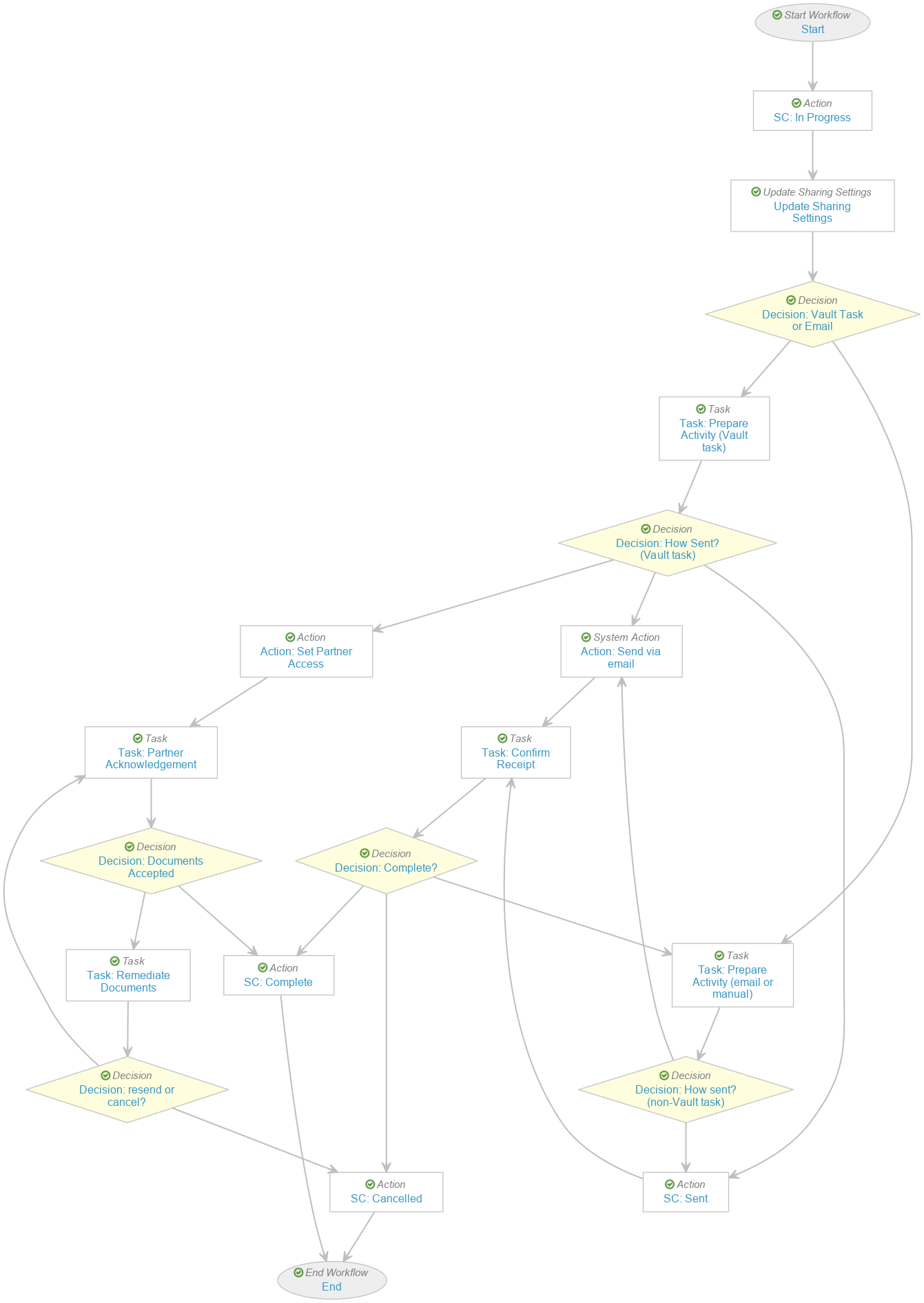
### Configure Workflow

Update the rest of the workflow to set up branches for document distribution procedures. Use the following image as a guide but configure the workflow according to your organization's requirements:

<a href="https://platform.veevavault.help/assets/images/saf-24r1-updated-pva-activity-outbound-workflow.png" data-lightbox="images" data-title="PVA Activity Outbound Workflow" data-alt="PVA Activity Outbound Workflow">
  <img class="docimage" src="https://platform.veevavault.help/assets/images/saf-24r1-updated-pva-activity-outbound-workflow.png" alt="PVA Activity Outbound Workflow" style="max-width: 75%;"  />
</a>

## Add Notification Template

Complete the following steps to add a template for notifications sent to users when documents are distributed:

1. Go to **Admin > Configuration > Notification Templates** and select **Create**.
2. In the **Create Message** dialog, select **Object > PVA Activity** and then select **Continue**.
3. On the **Create Notification Template** page, complete the fields as follows:
    * **Label**: Enter "PVA Activity Document Recipient"
    * **Email Preferences**: Select **Every Occurrence**
    * **Notification Category**: Select **Send As Link**
    * **Subject**: Enter "You have been sent documents"
    * **Notification Text**: Enter the following text:

        "You have been sent one or more documents from your partner under the terms of the PVA ${Object.pv_agreement__v}.

        Documents are available here: ${Object.name__v}

        Please confirm the receipt of these documents."

    * **Email Body**: Enter the following text:

        "You have been sent one or more documents from your partner under the terms of the PVA ${Object.pv_agreement__v}.

        Documents are available here: ${Object.name__v}

        Please confirm the receipt of these documents.

        Additional Comments: ${Object.activity_comments__v}"

4. Select **Save**.

## Configure Security

Add security settings to grant access to this feature. Use the following instructions as a starting point, but configure access according to your business processes.

### Add the PVA Recipient Actions Permission Set

Complete the following steps to add this permission set:

1. Go to **Admin > Users & Groups > Permission Sets**.
2. Select **Create**.
3. In the **Name** field, enter "PVA Recipient Actions".
4. Select **Save**.

### Grant Permissions

Complete the following steps to ensure your permission sets are granted the appropriate level of access to application actions, objects, and tabs.

#### Application Permissions

On the **PVA Recipient Actions** permission set, go to the **Application** tab and select **Edit**. Grant permissions as follows:

* **Workflow**: Start, Participate, eSignature
* **Document**: Download Document, Download Rendition
* **User**: View User Profile

#### Object Permissions

On the **PVA Recipient Actions** permission set, go to the **Objects** tab and select **Edit**. Grant permissions as follows:

1. Grant **Read** permissions on the following objects:
    * Country
    * Document Lifecycle Stage Label
    * Document Lifecycle State-Stage
    * Document Type Detail
    * Language
    * Object Lifecycle Stage Label
    * Object Lifecycle State-Stage
    * Organization
        * Partner
        * Sponsor
    * Person
        * Base Person
        * Study Person
        * Email Person
        * Receiver Person
    * Product
        * Product
        * Biologic
        * Drug
        * Device
        * Combination Product
        * Vaccine
        * Company Product
    * PV Agreement
    * PVA Contact
    * PVA Document for Distribution
    * PVA Obligation
    * PVA-Country
    * PVA-Product
    * PVA-Study
    * Relationship
    * Study
    * Tab Group
    * Workflow
2. Grant **Read** and **Edit** permissions on the following objects:
    * PVA Action Item
    * PVA Activity
3. Select **Save**.

#### Tab Permissions

On the **PVA Recipient Actions** permission set, go to the **Tabs** tab and select **Edit**. Grant **View** permissions as follows:

* Home
* PVAs
    * PV Agreements
    * Open PVA Actions

### Add the PVA Recipient (External) Security Profile

Complete the following steps to create a new security profile and associate it with the **PVA Recipient Actions** permission set:

1. Go to **Admin > Users & Groups > Security Profiles**.
2. Select **Create**.
3. In the **Name** field, enter "PVA Recipient (External)" and select **Save**.
4. On the **Security Profiles** page, select the **PVA Recipient (External)** security profile you just created.
5. In the **Permission Sets** section, select **Add > Existing Permission Set**.
6. Select **PVA Recipient Actions** from the picklist, and then select **OK**.

#### Add the Security Profile to the External Users Group

Complete the following steps to add the new **PVA Recipient (External)** security profile to the External Users Group:

1. Go to **Admin > Users & Groups > Groups > External Users**.
2. Select **Edit**.
3. In the **Included Security Profiles** field, add **PVA Recipient (External)**.
4. Select **Save**.