# Set Up the Workbench Report Layout

When you generate a report, Vault structures the data in the output according to the _Workbench Report_ _Layout_ section. By default, the fields (columns) available in the layout depend on the <a href="/en/gr/752978/#workbench-view-columns">_Workbench View Columns_</a> of the selected safety view and any views dependent on the selected safety view. You can customize the _Workbench Report_ layout by removing fields or restructuring this section. 

Navigate to **Workbench > Ad Hoc Reports > [report]**. Select the **Edit** icon and expand the _Layout_ section to make updates.

To define the tabular structure of report data by uploading an Excel template file instead of setting up the _Workbench Report_ layout, see <a href="/en/gr/752973/">Use Custom Templates for Workbench Reports</a>.

## Select Layout Fields

To add, remove, and reorder the field data that displays in the layout:
1. Select **Select Fields**. 
2. In the _Select Fields to Display_ window, add, remove, and reorder the fields as appropriate. \
    If you added [full-width columns (fields)][3], the _Selected Fields_ section displays _Columns_ and _Full-Width Columns_. You cannot add or reorder the full-width fields in this window. Some fields require the use of _Dynamic Views_. A single _Workbench Report_ can reference up to 15 _Dynamic Views_; this includes any <a href="/en/gr/752968/#how-to-add-filters">filters</a> you add and <a href="/en/gr/936862/#configure-dynamic-views">view columns</a> you select in the _Layout_. 
3. Select **Ok**. 

You can also reorder the data by dragging and dropping the field columns directly on the layout. 

**Result**

Vault updates the _Workbench Report_ layout with your field changes. 

## Add Full-Width Fields

For long-text fields that include many characters, for example, _Case_ Narrative Previews, you can identify the field as a full-width field.

To identify a field as full-width: 
1. Select **Expand all full-width columns**. 
2. Drag and drop the respective fields to this section. Vault maintains any setup associated with this field (for example, aliases and aggregate functions) in the full-width section.
3. Add, remove, and reorder fields as appropriate. 

The following considerations apply to full-width fields:
* You cannot sort the report by full-width fields.
* In order to use a full-width field, your report must contain two (2) or more columns.
* You can add a maximum of ten (10) full-width fields.

## Set Column Aliases

Setting a column alias allows you to rename a column in the report layout and in the downloaded report results. 

To set, remove, or change a column alias: 
1. Select the _Enter Header Alias_ area above or beside the column to which you want to add an alias. 
2. Enter, clear, or edit the column alias. 
3. Select an area outside the field to set the alias. 
4. Repeat the above steps for all desired columns. 

**Result**

When Vault generates the report, column headers use column aliases.

## Add Groups 

Use groups to organize your data by a specific field. You can also add aggregate functions for fields. 

Before you can add groups, ensure the field by which you are grouping data has been [added][1] to the _Workbench Report_ layout and <a href="/en/gr/752978/#workbench-view-objects">configured</a> by your Admin. 

To add a group and define functions: 
1. Add the field you want to group by to the layout.
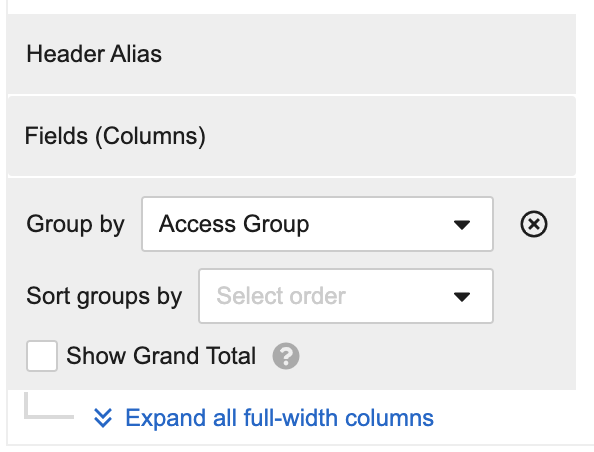
2. In the **Group by** drop-down, select the field. Vault organizes the _Workbench Report_ layout fields by the selected field. Aggregate functions appear under each field except the _Group by_ field. You cannot group fields by a [full-width field][3] or a field of the _Multi-Value Picklist_ column type.
3. Under each layout field, select the aggregate function drop-down to define a function. See the [Functions on Fields][2] section for more information about each function. \
    Vault assigns the first function in the list by default. 
4. Select **Save**.

Selecting a different _Group by_ value resets the aggregate functions to default. 

Vault inactivates grouping when you <a href="/en/gr/752973/">upload an Excel template</a> to the _Workbench Report_ or when you've associated the selected view with a <a href="/en/gr/936862/">_Dynamic View_</a>. 

### Functions on Fields

If you group rows in the _Workbench Report_ layout, you can add several aggregate functions on text, number, and date fields. You can select only one (1) function per field. Safety Workbench does not support aggregate functions on long or rich text fields.

The following table displays the available aggregate functions: 

<table>
    <thead>
        <tr>
            <th>Aggregate Function</th>
            <th>Definition</th>
            <th>Notes</th>
        </tr>
    </thead>
    <tbody>
        <tr>
            <td><em>List</em></td>
            <td>Returns concatenated text of all row values in a group, separated by a delimiter and space</td>
            <td><ul>
                    <li>Available for text, date, and multi-value picklist fields</li>
                    <li>Truncated after 1,024 characters</li>
                </ul>
            </td>
        </tr>
        <tr>
            <td><em>Count</em></td>
            <td>Counts all values in the set and returns a number</td>
            <td><ul>
                    <li>Available for text fields</li>
                </ul>
            </td>
        </tr>
        <tr>
            <td><em>Sum</em></td>
            <td>Returns the sum of the set</td>
            <td><ul>
                    <li>Available for number fields</li>
                </ul>
            </td>
        </tr>
        <tr>
            <td><em>Max</em></td>
            <td>Returns the largest number in the set (number field) or the newest date (date field)</td>
            <td><ul>
                    <li>Available for number and date fields</li>
                </ul>
            </td>
        </tr>
        <tr>
            <td><em>Min</em></td>
            <td>Returns the smallest number in the set (number field) or the oldest date (date field)</td>
            <td><ul>
                    <li>Available for number and date fields</li>
                </ul>
            </td>
        </tr>
        <tr>
            <td><em>Avg</em></td>
            <td>Returns the average of the set</td>
            <td><ul>
                    <li>Available for number fields</li>
                </ul>
            </td>
        </tr>
    </tbody>
</table>

## Add Sorting

To sort by a specific field, you must first [add][5] it to the _Workbench Report_ layout. You can sort data using the following methods:
* {: #follow-view-sort-order} Select the **Follow View Sort Order** checkbox to follow your Admin's <a href="/en/gr/752978/#follow-view-sort-order-checkbox">sorting parameters configured</a> on the safety view. When you select this checkbox, Vault makes the _Sort_ menu inactive.
* {: #sort-groups-by} Use the [_Sort groups by_][4] drop-down to sort grouped data. \
    <a href="https://platform.veevavault.help/assets/images/saf-sort-groups-by-drop-down.png" data-lightbox="saf-sort-groups-by-drop-down.png" data-title="" data-alt="sort-groups-by-drop-down">
  <img class="docimage" src="https://platform.veevavault.help/assets/images/saf-sort-groups-by-drop-down.png" alt="sort-groups-by-drop-down" style="max-width: 300px;"  />
</a>
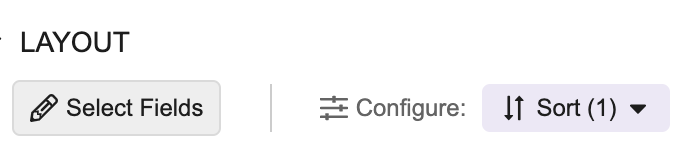
* {: #sort-menu} Use the [_Sort_][8] menu to sort data within a column. If the data is [grouped][7], for fields using the _List_ [aggregate function][2], Vault uses your specified sort option to sort the order of values in the resulting list. When you use the _Sort_ menu, Vault makes the _Follow View Sort Order_ checkbox inactive. \
<a href="https://platform.veevavault.help/assets/images/saf-sort-menu.png" data-lightbox="saf-sort-menu.png" data-title="" data-alt="sort-menu">
  <img class="docimage" src="https://platform.veevavault.help/assets/images/saf-sort-menu.png" alt="sort-menu" style="max-width: 400px;"  />
</a>

<div class="note-border alert-info">
  <div class="alert alert-info" role="alert">
    <div><i class="far fa-info-circle"></i></div>
    <div class="alert-text">
      <p><strong>Note</strong>: A field can only be used in one (1) sort method. For example, when sorting groups by <em>Age</em>, you cannot sort by <em>Age</em> in the <em>Sort</em> menu.</p>
    </div>
  </div>
</div>


### Sort Grouped Data

To sort the grouped data:
1. Select the **Sort groups by** drop-down and select a [sort option][6]. This field appears only when you populate [_Group by_][7]. 
2. To sort a different field, select another field in the **Group by** drop-down.

### Sort Column Data

To sort data within a column:
1. Select the **Sort** menu. When you first [add][5] layout fields, Vault populates the left-most one as the first _Sort_ menu field. Vault will prioritize sorting by this field first.
2. In the **Sort by** drop-down, select a field.
3. Select a [sort option][6] in the drop-down that appears next to the _Sort by_ field.
4. To sort by more fields, select **Add Sort** and repeat steps 2 and 3. You can add up to ten (10) fields in the _Sort_ menu. Vault displays a **Configure** ( <img class="inline" src="https://platform.veevavault.help/assets/images/saf-configure-icon.png" alt="configure-icon" style="" /> ) icon above a column header to indicate that the field was added to the _Sort_ menu.
5. To remove sorting by a specific field, select the **x** icon.
6. To re-prioritize the fields by which you want to sort, select the **All Actions** menu next to the field and then select **Move up** or **Move down**.
7. To clear field sorting, select **Clear**.

### Sort Options

The sorting options depend on the column type of the selected field in the [_Sort groups by_][4] drop-down and the [_Sort_][8] menu. The following table displays the sorting options for each column type:

| Column Type| Sorting Options|
| ------------------- | -------------- |
| _Text_, _Object_, _Picklist_, _Multi-Value Picklist_ | Alphabetical (_A-Z_ or _Z-A_) |
| _Number_ | _Smallest - Largest_ or _Largest - Smallest_ |
| _DateTime_ | _Oldest First_ or _Newest First_ |
| _Yes/No_ | _No - Yes_ or _Yes - No_ |

## Display Totals for Grouped Data

To include a Grand Total row in the last row of the report output, select the **Show Grand Total** checkbox. The Grand Total row summarizes each column's data using the [aggregate functions][2], for example, setting the aggregate function of _Age_ to _Min_ will generate the minimum age of this data set in the Grand Total row for the _Age_ column.

The _Show Grand Total_ checkbox appears only when you populate [_Group by_][7]. For the _Group by_ field, the Grand Total row also displays a count in brackets, for example, if the _Group by_ field is _Case Number_ and there are 100 _Case Numbers_ in the report output, the last row displays Grand Total (100).

<div class="note-border alert-info">
  <div class="alert alert-info" role="alert">
    <div><i class="far fa-info-circle"></i></div>
    <div class="alert-text">
      <p><strong>Note</strong>: Grand Totals do not support full-width fields or the <em>List</em> aggregate function.</p>
    </div>
  </div>
</div>


The default formatting for the Grand Total row is bold styling. See <a href="/en/gr/752973/#customize-sample-template">Use Custom Templates for Workbench Reports</a> to learn how to apply custom formatting to this row.

## Show Links in Report Output {#show-links-in-output}

To display fields as links to the respective <a href="/en/gr/44069/#detail_page">object record detail page</a> in the Excel output of the _Workbench Report_, select the **Show links in export** checkbox. The output only displays links for <a href="/en/gr/752978/#workbench-view-columns">_Object_ and _MedDRA_ field types</a>. If the report data is [grouped by a field][7], Vault only displays links for the _Group by_ field. When you <a href="/en/gr/827412/">upload</a> the Excel output as a _Workbench Report_ document to the Vault Library, Vault displays links for the PDF rendition. This feature also applies when you create _Workbench Report_ documents from <a href="/en/gr/860557/#schedule-workbench-report-sets">_Workbench Report Set_ scheduling</a> and <a href="/en/gr/01242/#pva-scheduling">PVA scheduling</a>.

You cannot display links for CSV outputs.

[1]: #select-layout-fields
[2]: #functions-on-fields
[3]: #add-full-width-fields
[4]: #sort-grouped-data
[5]: #select-layout-fields
[6]: #sort-options
[7]: #add-groups
[8]: #sort-column-data