# Add Safety View Filters in Safety Signal
Learn how to apply filters on safety views.
## About Safety View Filters
You can add filters on safety views for a more specific data output.
You can only add safety view filters if the _View Columns_ section is populated in the associated _Principal View_. The fields you can filter on the safety view depend on the fields specified in the _View Columns_ for the _Principal View_. To ensure data consistency across calculations, you must add filters only on the _Principal View_, with the following exceptions:
* The _Product Family_ filter must be defined on each _Filter View_ (interval and cumulative). \
For this filter, select the [**Available on report**, **Editable**, and **Required** checkboxes][1] and set the [operator][2] to **equals**.
* To restrict data to a particular interval, the review period start date (for example, the _Case New Info Date_) must be set only on the respective interval _Filter View_. \
For this filter, select the **Available on report**, **Editable**, and **Required** checkboxes and set the operator to **is after**. The _is after_ operator ensures that Vault will return only _Cases_ with a _New Info Date_ greater than or equal to the filter value.
For more information about _Principal Views_, _Filter Views_ and _Signal Views_, see Configure Safety Views in Safety Signal.
Any filters you add to the _Principal View_ and _Filter View_ must be populated on the _Signal Calculation Run_ before running calculations.
## How to Add Filters
To add filters to the safety view:
1. Navigate to **Business Admin > Objects > Workbench Views** and select a view.
2. In the _Filters_ section of the safety view, select a field from the dropdown.
3. Select an [operator][1].
4. Enter or select a field value, if applicable.
5. Set the **Available on report**, **Editable**, and **Required** checkboxes as needed. For more information about these options, see the [section below][2].
6. (Optional) Add more filters by selecting the **Plus** (**+**) icon to the right.
7. (Optional) Delete a filter by selecting the **Minus** (**-**) icon.
Each _Signal View_ and _Filter View_ must be dependent on one (1) unique _Principal View_, as the _Principal View_ determines the available filter fields you can select for this _Signal_ and _Filter View_. Although a _Signal View_ may not always include a _Principal View_ in the _Dependent Views_ section, a _Signal View_ must ultimately be associated with one (1) unique _Principal View_ through other dependent views. If you cannot select a field to filter on, ensure the current view is dependent on one (1) unique _Principal View_.
### Set the Available on Report, Editable & Required Checkboxes
After adding a safety view filter, there are additional configuration options available:
* [Available on report][3]
* [Editable][4]
* [Required][5]
 #### Available on Report
Select the **Available on report** checkbox beside a filter to automatically make the filter available on any _Signal Calculation Runs_ using this safety view.
If you select only the _Available on report_ checkbox for a filter, users cannot edit any of the filter's components on the _Signal Calculation Run_.
These filters display in their own filter group, named after the respective safety view.
#### Editable
Select the **Editable** checkbox so that users can edit the field operator and value on the _Signal Calculation Run_. Users cannot edit the filtered field.
You can only select the **Editable** checkbox if you first select the **Available on report** checkbox.
#### Required
Select the **Required** checkbox to ensure that if the filter operator and value are blank on the _Signal Calculation Run_, Vault will return a validation error when users save the _Signal Calculation Run_. Users cannot edit the filtered field.
You can only select the **Required** checkbox if you first select the **Available on report** and **Editable** checkboxes.
### Operators
When Vault parses for data using filters, filter values are case-sensitive. The sections below describe filtering behavior for each operator.
The operators available for selection on a filter depend on the filter's field type. Field types include the following:
* _Text_
* _Date_ and _DateTime_
* _Number_
* _Yes/No_
* _Object_
* _Picklist_
* _Multi-Value Picklist_
* _MedDRA_
#### Equals
Returns results where all filter values are in the field.
**Example filter**: (Field) _Case > Patient Initials_ (operator) _equals_ (value) _AD_
#### Is Not Equal To
Returns results where the field does not contain any of the filter values.
**Example filter**: (Field) _Case > Patient Initials_ (operator) _is not equal to_ (value) _AD_
#### Is Blank
Returns results where the field contains no field value.
**Example filter**: (Field) _Case > Study Arm_ (operator) _is blank_
#### Is Not Blank
Returns results where the field contains a field value.
**Example filter**: (Field) _Case > Study Arm_ (operator) _is not blank_
#### Starts With
For the _Text_ field type only, you can enter any value up to 50 characters. Vault returns results that start with this value.
**Example filter**: (Field) _Lot Number_ (operator) _starts with_ (value) _123abc_
#### Contains (Sensitive and Insensitive)
For the _Text_ field type only, you can enter any value up to 50 characters. Vault returns results that contain this value. You can select whether this filter value is case-sensitive or case-insensitive.
**Example filters**:
* (Field) _Lot Number_ (operator) _contains (sensitive)_ (value) _123abc_
* (Field) _Lot Number_ (operator) _contains (insensitive)_ (value) _123abc_
#### In
For the _Picklist_, _Multi-Value Picklist_, and _Object_ field types only. For multi-value picklists, the _in_ operator returns results that include at least one (1) of the filter values.
**Example filter**: (Field) _Case > Lifecycle State_ (operator) _in_ (value) _Open In Progress Complete_
#### Not In
For the _Picklist_, _Object_, and _MedDRA_ field types only, returns results that do not include the filter values.
**Example filter**: (Field) _Case > Lifecycle State_ (operator) _not in_ (value) _Closed_
#### Is After
For the _Date_ and _DateTime_ field types only, returns results that succeed the filter value.
**Example filter**: (Field) _Case > Event Onset (Normalized)_ (operator) _is after_ (value) _01 Apr 2024_
#### Is Before
For the _Date_ and _DateTime_ field types only, returns results that precede the filter value.
**Example filter**: (Field) _Case > Event Onset (Normalized)_ (operator) _is before_ (value) _01 Apr 2024_
#### Is in the Range
For the _Date_ and _DateTime_ field types only, returns results that include date values that fall within the set date range.
#### Is Greater Than
For the _Number_ field type only, returns results that are larger than the filter value.
**Example filter**: (Field) _Case > Age_ (operator) _is greater than_ (value) _18_
#### Is Less Than
For the _Number_ field type only, returns results that are smaller than the filter value.
**Example filter**: (Field) _Case > Age_ (operator) _is less than_ (value) _18_
#### Is Greater Than or Equal To
For the _Number_ field type only, returns results that are larger than or equal to the filter value.
**Example filter**: (Field) _Case > Age_ (operator) _is greater than or equal to_ (value) _18_
#### Is Less Than or Equal To
For the _Number_ field type only, returns results that are smaller than or equal to the filter value.
**Example filter**: (Field) _Case > Age_ (operator) _is less than or equal to_ (value) _18_
#### Relative Dates
Vault supports a number of filter operators that are relative to the current date for the _Date_ and _DateTime_ field types. For more information about relative filters and to see the complete list of supported relative date filter operators (with the exception of _Is in the last full_), see Using Report Filters.
When running a _Workbench Report_ that contains a filter with a relative operator, consider the following:
* For _is in the last_, _is in the next_, and _is not in the last_ operators:
* A month is 30 days.
* A year is 365 days.
* For all relative operators:
* A start date starts at 00:00 (midnight) and an end date ends at 23:59:59.
* The date and time is based on the following priority order:
1. The _Timezone_ specified in the _Workbench Report_
2. The _Timezone_ in the _User Profile_ of the user who configured the schedule that ran the _Workbench Report_
**Example**
A user configures a report to show completed cases for their product. They apply a filter to the report to show only cases in the last calendar month. If a user runs this report on August 2, Vault returns cases from July 1 to July 31; if a user runs this report on October 10, Vault returns cases from Sept 1 to Sept 30.
#### Equals Query
For the _MedDRA_ field type only, users can select a filter value from any standard MedDRA query (SMQ) or custom MedDRA query (CMQ). If the query contains higher level MedDRA terms, such as System Organ Class (SOC), the query will expand to the Lower Level Terms (LLTs) included within the SOC. These LLTs are matched against the _Event (LLT)_ field on _Case Adverse Events_ in your Safety Vault. Returned results include _Case Adverse Events_ that match any LLT within the expanded query.
**Example filter**: (Field) _Event (LLT)_ (operator) _equals query_ (value) [_Custom MedDRA Query_]
### Advanced Logic
For information about adding advanced logic, see Using Report Filters. The advanced logic option becomes available when there are at least two (2) filters in the group. If you use a filter in the advanced logic without populating the filter value, Vault ignores this filter when querying the data.
Advanced logic numbers appear next to the filters, as displayed in the following image:
#### Available on Report
Select the **Available on report** checkbox beside a filter to automatically make the filter available on any _Signal Calculation Runs_ using this safety view.
If you select only the _Available on report_ checkbox for a filter, users cannot edit any of the filter's components on the _Signal Calculation Run_.
These filters display in their own filter group, named after the respective safety view.
#### Editable
Select the **Editable** checkbox so that users can edit the field operator and value on the _Signal Calculation Run_. Users cannot edit the filtered field.
You can only select the **Editable** checkbox if you first select the **Available on report** checkbox.
#### Required
Select the **Required** checkbox to ensure that if the filter operator and value are blank on the _Signal Calculation Run_, Vault will return a validation error when users save the _Signal Calculation Run_. Users cannot edit the filtered field.
You can only select the **Required** checkbox if you first select the **Available on report** and **Editable** checkboxes.
### Operators
When Vault parses for data using filters, filter values are case-sensitive. The sections below describe filtering behavior for each operator.
The operators available for selection on a filter depend on the filter's field type. Field types include the following:
* _Text_
* _Date_ and _DateTime_
* _Number_
* _Yes/No_
* _Object_
* _Picklist_
* _Multi-Value Picklist_
* _MedDRA_
#### Equals
Returns results where all filter values are in the field.
**Example filter**: (Field) _Case > Patient Initials_ (operator) _equals_ (value) _AD_
#### Is Not Equal To
Returns results where the field does not contain any of the filter values.
**Example filter**: (Field) _Case > Patient Initials_ (operator) _is not equal to_ (value) _AD_
#### Is Blank
Returns results where the field contains no field value.
**Example filter**: (Field) _Case > Study Arm_ (operator) _is blank_
#### Is Not Blank
Returns results where the field contains a field value.
**Example filter**: (Field) _Case > Study Arm_ (operator) _is not blank_
#### Starts With
For the _Text_ field type only, you can enter any value up to 50 characters. Vault returns results that start with this value.
**Example filter**: (Field) _Lot Number_ (operator) _starts with_ (value) _123abc_
#### Contains (Sensitive and Insensitive)
For the _Text_ field type only, you can enter any value up to 50 characters. Vault returns results that contain this value. You can select whether this filter value is case-sensitive or case-insensitive.
**Example filters**:
* (Field) _Lot Number_ (operator) _contains (sensitive)_ (value) _123abc_
* (Field) _Lot Number_ (operator) _contains (insensitive)_ (value) _123abc_
#### In
For the _Picklist_, _Multi-Value Picklist_, and _Object_ field types only. For multi-value picklists, the _in_ operator returns results that include at least one (1) of the filter values.
**Example filter**: (Field) _Case > Lifecycle State_ (operator) _in_ (value) _Open In Progress Complete_
#### Not In
For the _Picklist_, _Object_, and _MedDRA_ field types only, returns results that do not include the filter values.
**Example filter**: (Field) _Case > Lifecycle State_ (operator) _not in_ (value) _Closed_
#### Is After
For the _Date_ and _DateTime_ field types only, returns results that succeed the filter value.
**Example filter**: (Field) _Case > Event Onset (Normalized)_ (operator) _is after_ (value) _01 Apr 2024_
#### Is Before
For the _Date_ and _DateTime_ field types only, returns results that precede the filter value.
**Example filter**: (Field) _Case > Event Onset (Normalized)_ (operator) _is before_ (value) _01 Apr 2024_
#### Is in the Range
For the _Date_ and _DateTime_ field types only, returns results that include date values that fall within the set date range.
#### Is Greater Than
For the _Number_ field type only, returns results that are larger than the filter value.
**Example filter**: (Field) _Case > Age_ (operator) _is greater than_ (value) _18_
#### Is Less Than
For the _Number_ field type only, returns results that are smaller than the filter value.
**Example filter**: (Field) _Case > Age_ (operator) _is less than_ (value) _18_
#### Is Greater Than or Equal To
For the _Number_ field type only, returns results that are larger than or equal to the filter value.
**Example filter**: (Field) _Case > Age_ (operator) _is greater than or equal to_ (value) _18_
#### Is Less Than or Equal To
For the _Number_ field type only, returns results that are smaller than or equal to the filter value.
**Example filter**: (Field) _Case > Age_ (operator) _is less than or equal to_ (value) _18_
#### Relative Dates
Vault supports a number of filter operators that are relative to the current date for the _Date_ and _DateTime_ field types. For more information about relative filters and to see the complete list of supported relative date filter operators (with the exception of _Is in the last full_), see Using Report Filters.
When running a _Workbench Report_ that contains a filter with a relative operator, consider the following:
* For _is in the last_, _is in the next_, and _is not in the last_ operators:
* A month is 30 days.
* A year is 365 days.
* For all relative operators:
* A start date starts at 00:00 (midnight) and an end date ends at 23:59:59.
* The date and time is based on the following priority order:
1. The _Timezone_ specified in the _Workbench Report_
2. The _Timezone_ in the _User Profile_ of the user who configured the schedule that ran the _Workbench Report_
**Example**
A user configures a report to show completed cases for their product. They apply a filter to the report to show only cases in the last calendar month. If a user runs this report on August 2, Vault returns cases from July 1 to July 31; if a user runs this report on October 10, Vault returns cases from Sept 1 to Sept 30.
#### Equals Query
For the _MedDRA_ field type only, users can select a filter value from any standard MedDRA query (SMQ) or custom MedDRA query (CMQ). If the query contains higher level MedDRA terms, such as System Organ Class (SOC), the query will expand to the Lower Level Terms (LLTs) included within the SOC. These LLTs are matched against the _Event (LLT)_ field on _Case Adverse Events_ in your Safety Vault. Returned results include _Case Adverse Events_ that match any LLT within the expanded query.
**Example filter**: (Field) _Event (LLT)_ (operator) _equals query_ (value) [_Custom MedDRA Query_]
### Advanced Logic
For information about adding advanced logic, see Using Report Filters. The advanced logic option becomes available when there are at least two (2) filters in the group. If you use a filter in the advanced logic without populating the filter value, Vault ignores this filter when querying the data.
Advanced logic numbers appear next to the filters, as displayed in the following image:
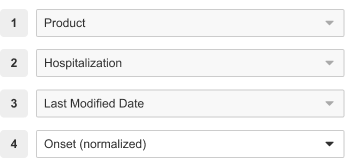 While advanced logic is turned on, you can add filters but cannot edit them. Vault copies the _Available on report_, _Editable_, and _Required_ settings from the previous filter to the newly added filter. To edit the filters, you can turn advanced logic off.
[1]: #operators
[2]: #set-the-available-on-report-editable--required-checkboxes
[3]: #available-on-report
[4]: #editable
[5]: #required
[1]: #set-the-available-on-report-editable--required-checkboxes
[2]: #operators
While advanced logic is turned on, you can add filters but cannot edit them. Vault copies the _Available on report_, _Editable_, and _Required_ settings from the previous filter to the newly added filter. To edit the filters, you can turn advanced logic off.
[1]: #operators
[2]: #set-the-available-on-report-editable--required-checkboxes
[3]: #available-on-report
[4]: #editable
[5]: #required
[1]: #set-the-available-on-report-editable--required-checkboxes
[2]: #operators