# Sort Data on Workbench Dashboards
You can sort _Workbench Dashboard_ data by a single or multiple fields.
## About Sorting on Workbench Dashboards
When adding or editing a _Workbench Dashboard Component_, you can sort the data by a single or multiple fields using the _Sort_ menu in the _Layout_ section.
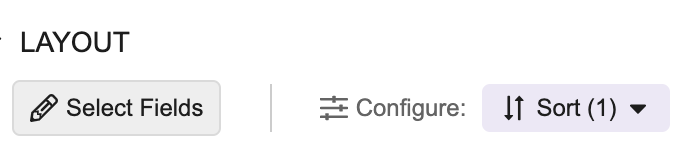 To sort by a field, you must first add it to the component's _Layout_ section.
## Sort Data
To apply sorting on _Workbench Dashboard Component_ data, you can use the _Sort_ menu. Alternatively, you can choose to follow the associated safety view's sort order configured by your Admin.
## View Sorted Data
For a _Workbench Dashboard Component_, if the data is sorted by a single field, Vault highlights the respective column header by which the data is sorted. If you sort the data by multiple fields, Vault does not highlight any column headers. For a quick glance at the fields used to sort the data, select **Multi-level sort applied**. A hovercard appears listing the sort fields and the order of priority.
If you select a column header, Vault sorts the data by this field column, overriding the sorting parameters set in the _Sort_ menu. To undo the override, refresh the browser or exit the dashboard.
To sort by a field, you must first add it to the component's _Layout_ section.
## Sort Data
To apply sorting on _Workbench Dashboard Component_ data, you can use the _Sort_ menu. Alternatively, you can choose to follow the associated safety view's sort order configured by your Admin.
## View Sorted Data
For a _Workbench Dashboard Component_, if the data is sorted by a single field, Vault highlights the respective column header by which the data is sorted. If you sort the data by multiple fields, Vault does not highlight any column headers. For a quick glance at the fields used to sort the data, select **Multi-level sort applied**. A hovercard appears listing the sort fields and the order of priority.
If you select a column header, Vault sorts the data by this field column, overriding the sorting parameters set in the _Sort_ menu. To undo the override, refresh the browser or exit the dashboard.