 ### Row Order
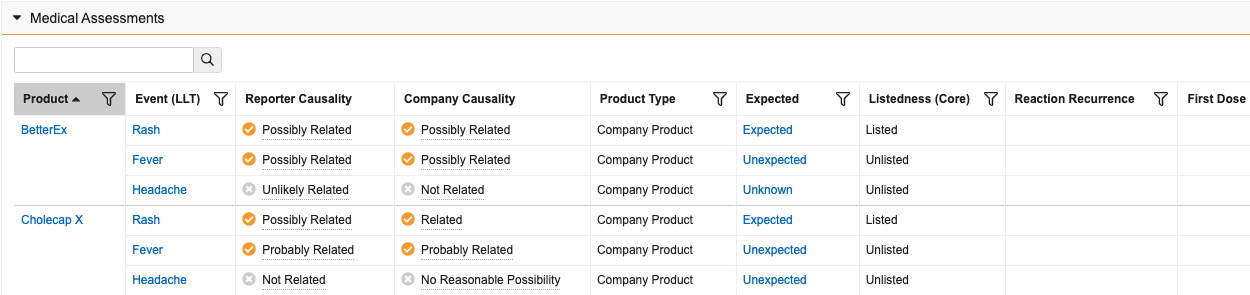
Vault sorts the _Medical Assessments_ grid by _Product Type_ in the following order:
1. _Study Products_
2. _Company Products_
3. _External Products_
Within each _Product Type_, Vault sorts based on _Case Products_ and _Case Adverse Events_ in the following order:
1. The primary _Case Product_ with the primary _Case Adverse Event_ first, followed by all other _Case Adverse Events_ ordered by _Rank_ and then alphabetically
2. _Case Products_ in rank order with the primary _Case Adverse Event_ first, followed by all other _Case Adverse Events_ ordered by _Rank_ and then alphabetically
3. _Case Products_ in alphabetical order with the primary _Case Adverse Event_ first, followed by all other _Case Adverse Events_ ordered by _Rank_ and then alphabetically
4. Alphabetical order
Vault displays up to 25 records per page. If more than 25 records exist, you can use the **Next Page** (>) and **Previous Page** (<) icons to move through the pages within the section. When assessments for a _Case Product_ and _Case Adverse Event_ pair appear on multiple pages, Vault displays assessments from earlier pages on the subsequent pages, so you can reference all information at once. For example, when _Case Product 1_ and _Case Adverse Event 1_ have _Assessment 1_ on page 1 and _Assessment 2_ on page 2, Vault displays _Assessment 1_ at the top of page 2 so you can evaluate it with _Assessment 2_ in the same view.
### Row Order
Vault sorts the _Medical Assessments_ grid by _Product Type_ in the following order:
1. _Study Products_
2. _Company Products_
3. _External Products_
Within each _Product Type_, Vault sorts based on _Case Products_ and _Case Adverse Events_ in the following order:
1. The primary _Case Product_ with the primary _Case Adverse Event_ first, followed by all other _Case Adverse Events_ ordered by _Rank_ and then alphabetically
2. _Case Products_ in rank order with the primary _Case Adverse Event_ first, followed by all other _Case Adverse Events_ ordered by _Rank_ and then alphabetically
3. _Case Products_ in alphabetical order with the primary _Case Adverse Event_ first, followed by all other _Case Adverse Events_ ordered by _Rank_ and then alphabetically
4. Alphabetical order
Vault displays up to 25 records per page. If more than 25 records exist, you can use the **Next Page** (>) and **Previous Page** (<) icons to move through the pages within the section. When assessments for a _Case Product_ and _Case Adverse Event_ pair appear on multiple pages, Vault displays assessments from earlier pages on the subsequent pages, so you can reference all information at once. For example, when _Case Product 1_ and _Case Adverse Event 1_ have _Assessment 1_ on page 1 and _Assessment 2_ on page 2, Vault displays _Assessment 1_ at the top of page 2 so you can evaluate it with _Assessment 2_ in the same view.
Note: If more than 800 assessments exist, Vault pins the primary Case Product and primary Case Adverse Event to the top of the grid and orders all other assessments alphabetically by Case Product and then Case Adverse Event.
 ### Icons
Icons beside _Reporter Causality_ and _Company Causality_ values provide relatedness information at a glance:
* A checkmark (
### Icons
Icons beside _Reporter Causality_ and _Company Causality_ values provide relatedness information at a glance:
* A checkmark ( ) indicates relatedness
* An x (
) indicates relatedness
* An x ( ) indicates unrelatedness
### Searching, Filtering and Sorting
Use the _Search_ bar at the top of the section to find specific data across all of the assessments. For example, enter an adverse event to return all rows with that event or enter an ID to return a specific row.
The header of all filterable columns includes a filter () icon. Apply filters to narrow your view of assessments. To the right of the _Search_ bar, hover over **Filters** to see a list of current filters. To remove a filter from a column, select the icon and select **Clear Filter**. To remove all filters from the section at once, to the right of the _Search_ bar, select **Clear All Filters**.
Only the _Product_ column is sortable. Whether you sort the column in ascending or descending order, the primary _Case Product_ with its _Case Adverse Events_ remains at the top within its _Product Type_ group.
### Expectedness
In the _Expectedness_ column of the _Medical Assessments_ grid, Vault displays the rolled-up expectedness for each _Case Product_ and _Case Adverse Event_. For a more detailed view, select the _Expected_ column value. Vault opens an _Expectedness_ window showing _Case Assessment Expectedness_ for each associated _Datasheet_.
## Working with Medical Assessments
If you have the required permissions, you can edit and save changes directly in the _Medical Assessments_ grid. For example, you can:
* Confirm the _Assessment Result_ of the _Reporter_ is correct.
* Enter the _Assessment Result_ of the _Company_.
* Review and update _Controlled Vocabulary_ mapping and _Reaction Recurrence_ values.
* Edit and save values in Text, Yes/No, Number, and Date fields.
While reviewing data, you can select links in the _Name_ column to open related _Case Assessments_ for more information.
### Delete Medical Assessments
You can delete a _Medical Assessment_ from the grid. In the _Event (LLT)_ column of the assessment you want to delete, select the **Actions** menu and then **Delete Assessment**.
When you delete a _Medical Assessment_ on a global _Case_, Vault maps the update to any _Localized Cases_.
) indicates unrelatedness
### Searching, Filtering and Sorting
Use the _Search_ bar at the top of the section to find specific data across all of the assessments. For example, enter an adverse event to return all rows with that event or enter an ID to return a specific row.
The header of all filterable columns includes a filter () icon. Apply filters to narrow your view of assessments. To the right of the _Search_ bar, hover over **Filters** to see a list of current filters. To remove a filter from a column, select the icon and select **Clear Filter**. To remove all filters from the section at once, to the right of the _Search_ bar, select **Clear All Filters**.
Only the _Product_ column is sortable. Whether you sort the column in ascending or descending order, the primary _Case Product_ with its _Case Adverse Events_ remains at the top within its _Product Type_ group.
### Expectedness
In the _Expectedness_ column of the _Medical Assessments_ grid, Vault displays the rolled-up expectedness for each _Case Product_ and _Case Adverse Event_. For a more detailed view, select the _Expected_ column value. Vault opens an _Expectedness_ window showing _Case Assessment Expectedness_ for each associated _Datasheet_.
## Working with Medical Assessments
If you have the required permissions, you can edit and save changes directly in the _Medical Assessments_ grid. For example, you can:
* Confirm the _Assessment Result_ of the _Reporter_ is correct.
* Enter the _Assessment Result_ of the _Company_.
* Review and update _Controlled Vocabulary_ mapping and _Reaction Recurrence_ values.
* Edit and save values in Text, Yes/No, Number, and Date fields.
While reviewing data, you can select links in the _Name_ column to open related _Case Assessments_ for more information.
### Delete Medical Assessments
You can delete a _Medical Assessment_ from the grid. In the _Event (LLT)_ column of the assessment you want to delete, select the **Actions** menu and then **Delete Assessment**.
When you delete a _Medical Assessment_ on a global _Case_, Vault maps the update to any _Localized Cases_.