# Pasting Data in Multi-Value Fields

Multi-value fields in Vault support the ability to copy and paste data from applications outside of Vault, such as Excel spreadsheets and Google Sheets, into fields that support multiple values. You can accomplish this functionality either through using standard paste keyboard shortcuts (**Ctrl** + **V** on Windows and **Cmd** + **V** on Mac), or you can paste data directly from your clipboard using the _Paste_ icon (<i class="far fa-clipboard"></i>) on the multi-value field.

This functionality reduces manual effort and the possibility of errors when users manually enter data in multi-value fields.

<div class="note-border alert-info">
  <div class="alert alert-info" role="alert">
    <div><i class="far fa-info-circle"></i></div>
    <div class="alert-text">
      <p><strong>Note</strong>: Pasting data into multi-value fields is supported in bulk editing, inline editing, and bulk starting workflows.</p>
    </div>
  </div>
</div>


### Demo: Excel Copy/Paste {#excel-copy-paste-demo}


Users can paste multiple values from spreadsheet applications into fields that support multiple values. This video demonstrates how to use Excel Copy/Paste.
<video controls width=860 height =504 poster="https://platform.veevavault.help/assets/images/posters/2026-excel-copy-paste.png" preload="metadata">
    <source src="https://platform.veevavault.help/108e9b1d-559c-4d48-918b-1e4c5b5a533c/9d957fe7-e2bd-481b-8200-984c5c1b37b7/9d957fe7-e2bd-481b-8200-984c5c1b37b7_source__v.mp4" type="video/mp4" >
    
    <track
    label="English"
    kind="subtitles"
    srclang="en"
    src="/en/gr/assets/captions/excel_copy_paste.vtt"
    default />
    </video>

<a href="/en/gr/676840/">Details</a>


## Pasting Data {#pasting-data}

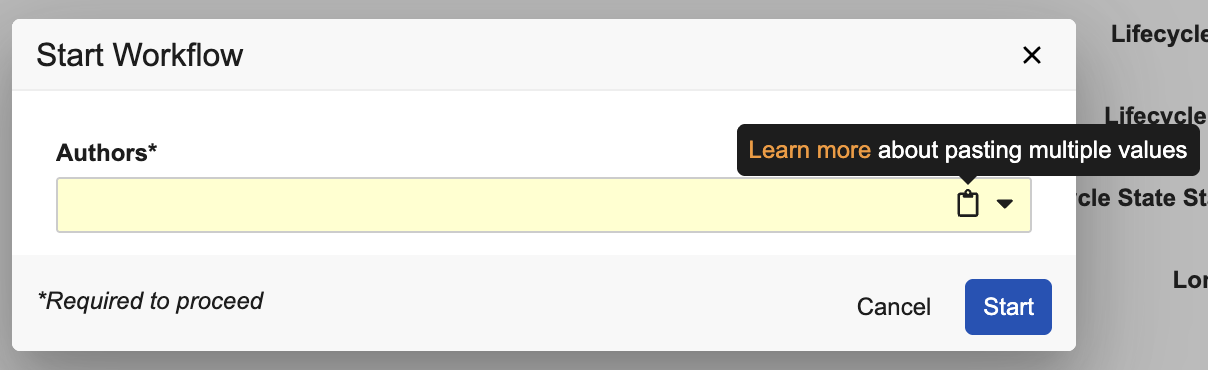
When pasting data into a multi-value field, Vault performs a check to ensure the values are available for selection in the field. For example, when adding participants at the start of a workflow, you could copy a list of usernames from an Excel spreadsheet and paste them into the Start Workflow dialog. You can paste using the standard keyboard shortcuts or the _Paste_ icon (<i class="far fa-clipboard"></i>).

<a href="https://platform.veevavault.help/assets/images/paste-icon-workflow-dialog.png" data-lightbox="paste-icon-workflow-dialog.png" data-title="" data-alt="Paste Icon">
  <img class="docimage" src="https://platform.veevavault.help/assets/images/paste-icon-workflow-dialog.png" alt="Paste Icon" style="width: 400px;"  />
</a>

You may need to grant permission to the clipboard on your computer to use the _Paste_ icon. If you do not  grant permission to the clipboard, you can use the right-click context menu or keyboard shortcuts instead. If you deny clipboard permission after your browser window is displayed, the _Paste_ icon will not function.

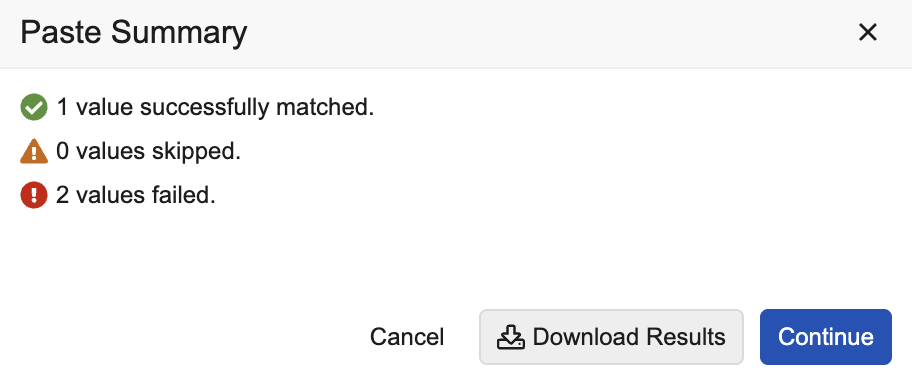
Once you paste the data, Vault displays a **Paste Summary** dialog. This dialog displays the number of values that were successfully copied, skipped, and failed. You can also download a CSV of the paste results by clicking **Download Results**. The CSV includes additional details on each pasted value which you can use to cross reference with the source data. Click **Continue** to paste the copied values.
<a href="https://platform.veevavault.help/assets/images/paste-summary-dialog.png" data-lightbox="paste-summary-dialog.png" data-title="" data-alt="Paste Summary Dialog">
  <img class="docimage" src="https://platform.veevavault.help/assets/images/paste-summary-dialog.png" alt="Paste Summary Dialog" style="width: 400px;"  />
</a>

If there are no failed or skipped values, Vault displays a green banner with the number of successful values instead of the **Paste Summary** dialog. Pasting fails if the value is not available for selection in the field or if Vault cannot auto-select a value due to discovering multiple matches. Duplicate pasted values and previously selected values are skipped.

If multiple matches are discovered for a single value, you can try pasting the value by itself in the multi-value field. A drop-down displays allowing you to select the appropriate value.

<div class="note-border alert-info">
  <div class="alert alert-info" role="alert">
    <div><i class="far fa-info-circle"></i></div>
    <div class="alert-text">
      <p><strong>Note</strong>: You can only paste up to 250 values per multi-value field.</p>
    </div>
  </div>
</div>


## Supported Values & Fields {#supported-values-fields}

Vault supports pasting the following values into multi-value fields:

* User IDs
* Usernames
* Email addresses
* User's full name
* User group _Name_ and _Label_
* Object record ID and _Name_
* Picklist _Name_ and _Label_

Vault supports pasting values into the following multi-value fields:

* Multi-select object reference fields
* Multi-value picklists
* _Add Recipients_ field in the <a href="/en/gr/4754/">Send as Link</a> workflow
* Workflow fields that point to a user, such as workflow participants fields in the **Start Workflow** dialog and the _Recipients_ field in the **Email Participants** dialog


<div class="note-border alert-info">
  <div class="alert alert-info" role="alert">
    <div><i class="far fa-info-circle"></i></div>
    <div class="alert-text">
      <p><strong>Note</strong>: <a href="/en/gr/33550/#verdict">Object</a> and <a href="/en/gr/50498/#prompt-for-doc-field-controls">document</a> workflow field prompts do not support copying and pasting values.</p>
    </div>
  </div>
</div>

