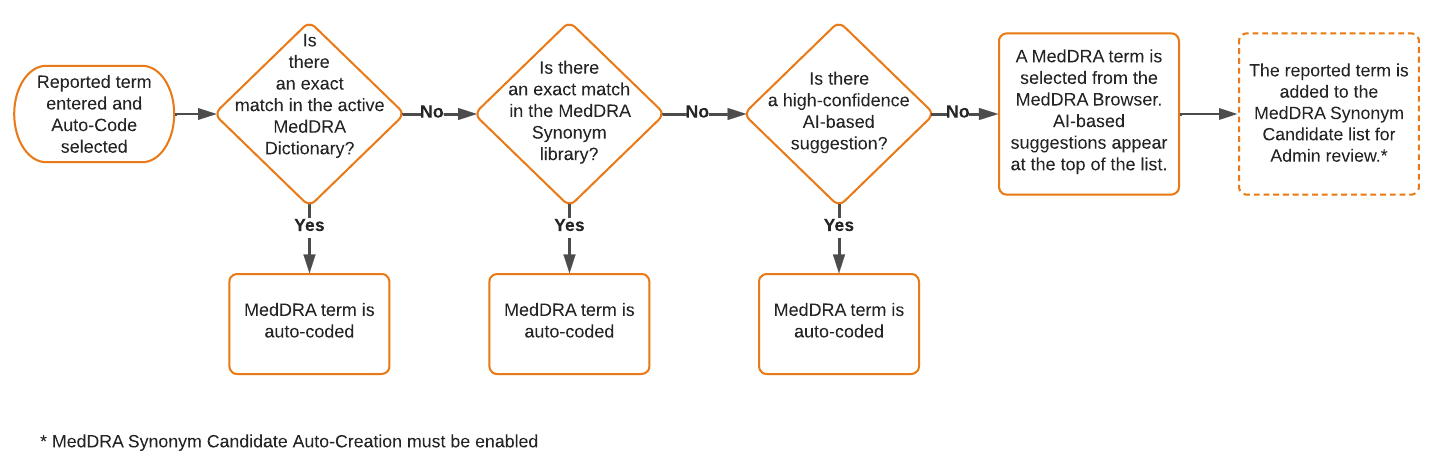
 If your Admin has not configured MedDRA Suggestions, Vault uses the following logic to code:
 ### Supported Fields {#supported}
Vault supports MedDRA coding for various processes, including [_Inbox Item_ and _Case_ processing][14], [defining MedDRA criteria][13], and [defining study indications][15].
#### Inbox Items & Cases {#inbox-items-cases}
For _Inbox Items_ and _Cases_, reported and coded terms display in both English and, when applicable, the selected local language. You can code MedDRA terms for the following fields:
* _Inbox Items_
* _Products_ section: _Indication_1
* _Events_ section: _Event_1
* _Cases_
* _Case Products_: _Indication (Reported)_1
* _Case Adverse Events_: _Event (Reported)_
* _Case Diagnosis_: _Name (MedDRA)_2
* _Case Cause of Death_: _Cause (Reported)_
* _Case Medical History_: _Condition/Procedure_
* _Case Drug History_: _Indication (LLT)_ and _Reaction (LLT)_
* _Case Test Results_: _Test Name (Reported)_
1. For [multilingual MedDRA coding][10] in a supported local language, the language drop-down defaults to the _Localization_ value of the _Inbox Item_ and cannot be changed. For _Events_ on _Inbox Items_, this only applies to _Medical History & Concurrent Conditions_ types.
2. For [multilingual MedDRA coding][10], the _Name (MedDRA)_ field value for _Case Diagnoses_ displays only in English and not the local language.
#### MedDRA Criteria {#criteria}
You can code MedDRA terms in the following fields when defining MedDRA criteria:
* The _MedDRA Criteria_ field on _Datasheet Criteria_ for _Datasheets_ to determine expectedness
* The _MedDRA Criteria_ field on _Watchlist Criteria_ for _Watchlists_ to monitor Adverse Events of Special Interest (AESI)
* The _MedDRA Term_ field on _MedDRA Criteria_ for non-hierarchical _MedDRA Queries_ and sub-queries
#### Study Indications {#studies}
You can code MedDRA terms in the following fields when defining study indications:
* The _Indication_ field on _Study Arms_
* The _Indication_ field on _Study Indications_
## Prerequisites
Before you can use this feature in your Vault, your Admin must complete the following:
* To match reported terms to MedDRA synonyms, your Admin must enable MedDRA Synonyms and define synonyms.
* Optional: Enable MedDRA Synonym Field Exclusion and Candidate Auto-Creation.
* To utilize automation-based coding, your Admin must enable MedDRA Suggestions.
* To code multilingual MedDRA terms:
* Your Admin must enable Multilingual MedDRA and set up the MedDRA dictionary.
* Your Vault must use the centralized MedDRA dictionary.
## Code a MedDRA Term {#code}
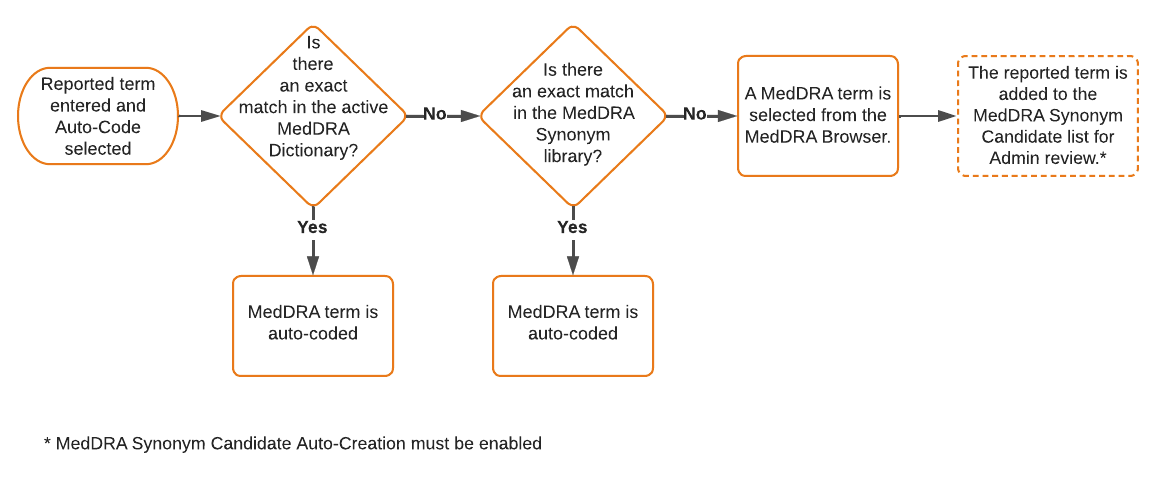
You can code MedDRA terms [automatically][4] or use the [_MedDRA Browser_][1] to find a term. When Vault finds a match to the entered term or any predefined synonym, the MedDRA term and code appear below the field, and Vault displays a message indicating that the auto-code was successful. If you coded a term under its primary SOC, Vault displays an asterisk (*) next to the selected term. Otherwise, Vault displays a _NON-PRIMARY_ (
### Supported Fields {#supported}
Vault supports MedDRA coding for various processes, including [_Inbox Item_ and _Case_ processing][14], [defining MedDRA criteria][13], and [defining study indications][15].
#### Inbox Items & Cases {#inbox-items-cases}
For _Inbox Items_ and _Cases_, reported and coded terms display in both English and, when applicable, the selected local language. You can code MedDRA terms for the following fields:
* _Inbox Items_
* _Products_ section: _Indication_1
* _Events_ section: _Event_1
* _Cases_
* _Case Products_: _Indication (Reported)_1
* _Case Adverse Events_: _Event (Reported)_
* _Case Diagnosis_: _Name (MedDRA)_2
* _Case Cause of Death_: _Cause (Reported)_
* _Case Medical History_: _Condition/Procedure_
* _Case Drug History_: _Indication (LLT)_ and _Reaction (LLT)_
* _Case Test Results_: _Test Name (Reported)_
1. For [multilingual MedDRA coding][10] in a supported local language, the language drop-down defaults to the _Localization_ value of the _Inbox Item_ and cannot be changed. For _Events_ on _Inbox Items_, this only applies to _Medical History & Concurrent Conditions_ types.
2. For [multilingual MedDRA coding][10], the _Name (MedDRA)_ field value for _Case Diagnoses_ displays only in English and not the local language.
#### MedDRA Criteria {#criteria}
You can code MedDRA terms in the following fields when defining MedDRA criteria:
* The _MedDRA Criteria_ field on _Datasheet Criteria_ for _Datasheets_ to determine expectedness
* The _MedDRA Criteria_ field on _Watchlist Criteria_ for _Watchlists_ to monitor Adverse Events of Special Interest (AESI)
* The _MedDRA Term_ field on _MedDRA Criteria_ for non-hierarchical _MedDRA Queries_ and sub-queries
#### Study Indications {#studies}
You can code MedDRA terms in the following fields when defining study indications:
* The _Indication_ field on _Study Arms_
* The _Indication_ field on _Study Indications_
## Prerequisites
Before you can use this feature in your Vault, your Admin must complete the following:
* To match reported terms to MedDRA synonyms, your Admin must enable MedDRA Synonyms and define synonyms.
* Optional: Enable MedDRA Synonym Field Exclusion and Candidate Auto-Creation.
* To utilize automation-based coding, your Admin must enable MedDRA Suggestions.
* To code multilingual MedDRA terms:
* Your Admin must enable Multilingual MedDRA and set up the MedDRA dictionary.
* Your Vault must use the centralized MedDRA dictionary.
## Code a MedDRA Term {#code}
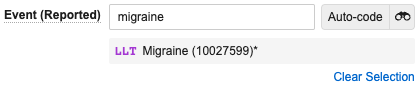
You can code MedDRA terms [automatically][4] or use the [_MedDRA Browser_][1] to find a term. When Vault finds a match to the entered term or any predefined synonym, the MedDRA term and code appear below the field, and Vault displays a message indicating that the auto-code was successful. If you coded a term under its primary SOC, Vault displays an asterisk (*) next to the selected term. Otherwise, Vault displays a _NON-PRIMARY_ ( ) tag next to the term. You can select **Clear Selection** to remove the field value and coded term.
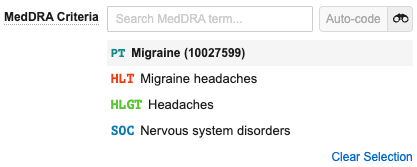
 When coding [MedDRA criteria][13], the matched term and level appear in bold and all of the less specific hierarchical levels are listed below.
 Once saved, Vault displays the coded MedDRA term. Hover over the underlined term to view details in a hovercard.
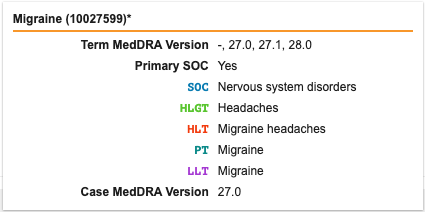
Note: When coding MedDRA criteria, the hovercard displays the primary SOC only if you coded at the LLT or PT level. If you coded any other level of the hierarchy, the hovercard does not display the primary SOC.
 ) or single (
 ) green chevron icons next to suggested terms indicate the confidence level for the suggestion.
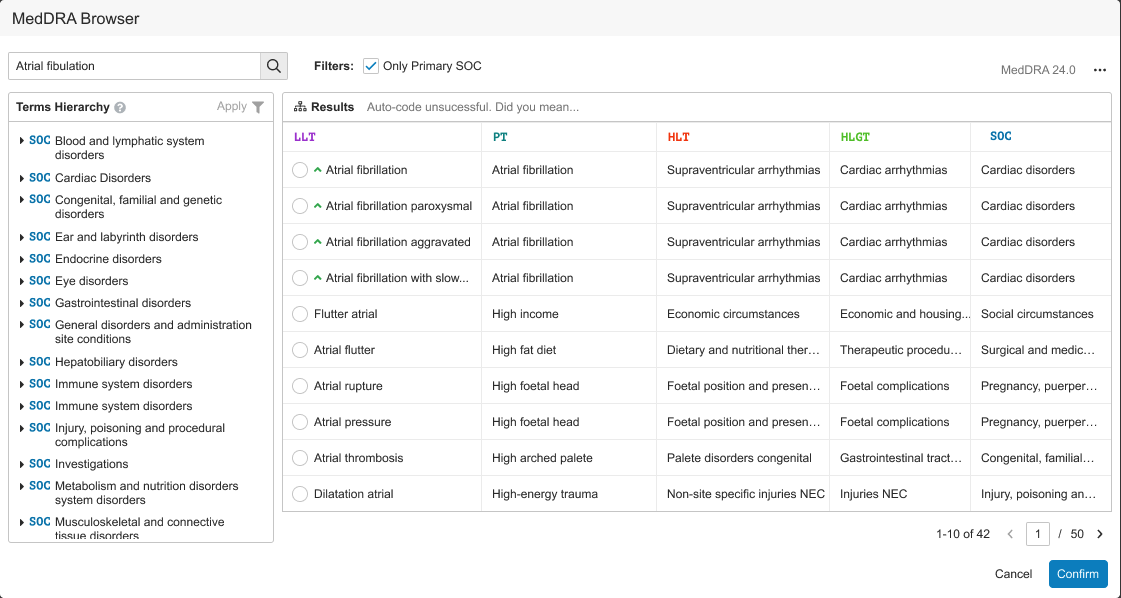
Note: If configured by your Admin, when you select and confirm a MedDRA coding suggestion, Vault adds the reported term to the synonym candidate list.
 ) icon to open the _MedDRA Browser_.
2. In the browser, you can do any of the following to search for the applicable term:
* Browse the MedDRA hierarchy using the _Terms Hierarchy_ pane to navigate through the levels.
* When coding [MedDRA criteria][13], use the hierarchy level drop-down (
) icon to open the _MedDRA Browser_.
2. In the browser, you can do any of the following to search for the applicable term:
* Browse the MedDRA hierarchy using the _Terms Hierarchy_ pane to navigate through the levels.
* When coding [MedDRA criteria][13], use the hierarchy level drop-down ( ) to the left of the search bar to filter the results by the selected level.
* Filter terms by any level in the hierarchy. Select a term in the pane and then select **Apply**. Defined filters display at the top of the browser.
* To change the filter, select another term and select **Apply** again.
* To clear the filter, select the **X** icon next to the filter.
* Filter results to include only terms that are part of a primary SOC by selecting the **Only Primary SOC** checkbox.
* Search for a specific term by entering some or all of the term in the search bar and then select the **Search** (
) to the left of the search bar to filter the results by the selected level.
* Filter terms by any level in the hierarchy. Select a term in the pane and then select **Apply**. Defined filters display at the top of the browser.
* To change the filter, select another term and select **Apply** again.
* To clear the filter, select the **X** icon next to the filter.
* Filter results to include only terms that are part of a primary SOC by selecting the **Only Primary SOC** checkbox.
* Search for a specific term by entering some or all of the term in the search bar and then select the **Search** ( ) icon.
* Page through the results using the **Next Page** (**>**) and **Previous Page** (**<**) icons at the bottom-right of the browser.
3. Select the term you want to code.
4. Select **Confirm**.
) icon.
* Page through the results using the **Next Page** (**>**) and **Previous Page** (**<**) icons at the bottom-right of the browser.
3. Select the term you want to code.
4. Select **Confirm**.
Note: The browser displays up to 5,000 search results.
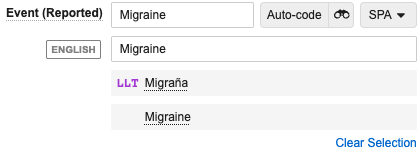 You cannot auto-code unsupported languages. If you selected an unsupported language, Vault displays a question mark (
 ) icon to indicate that the selected language is not supported by MedDRA and the _Meddra Browser_ defaults to English.
### How to Code a Multilingual Term
To code terms in any supported language:
1. Navigate to the [supported field][5].
2. From the language drop-down, select a supported language. For certain fields1, the drop-down defaults to the _Localization_ value of the _Inbox Item_ and cannot be changed.
3. Enter the reported event in the applicable field:
* In the supported field, enter the term in the selected language.
* In the **ENGLISH** (
) icon to indicate that the selected language is not supported by MedDRA and the _Meddra Browser_ defaults to English.
### How to Code a Multilingual Term
To code terms in any supported language:
1. Navigate to the [supported field][5].
2. From the language drop-down, select a supported language. For certain fields1, the drop-down defaults to the _Localization_ value of the _Inbox Item_ and cannot be changed.
3. Enter the reported event in the applicable field:
* In the supported field, enter the term in the selected language.
* In the **ENGLISH** ( ) field below the supported field, enter the English translation. You must enter a value here if you selected an unsupported language.
4. Select **Auto-code**. This button is inactive if you selected an unsupported language and did not enter a term in the _English_ field.
Vault searches for the reported term within the MedDRA dictionary in the applicable language. If Vault finds a match, the MedDRA term and code appear below the field. If the match corresponds to a non-current Japanese term, Vault displays the Japanese term differently depending on the object on which the field is coded:
* **Inbox Item**: Displays a dash (`-`)
* **Case**: Displays the Japanese term
In both instances, Vault displays a _NON-CURRENT_ (
) field below the supported field, enter the English translation. You must enter a value here if you selected an unsupported language.
4. Select **Auto-code**. This button is inactive if you selected an unsupported language and did not enter a term in the _English_ field.
Vault searches for the reported term within the MedDRA dictionary in the applicable language. If Vault finds a match, the MedDRA term and code appear below the field. If the match corresponds to a non-current Japanese term, Vault displays the Japanese term differently depending on the object on which the field is coded:
* **Inbox Item**: Displays a dash (`-`)
* **Case**: Displays the Japanese term
In both instances, Vault displays a _NON-CURRENT_ ( ) tag next to the value. The equivalent non-English term and code are still active in the MedDRA dictionary.
If Vault does not find a match, you can use the multilingual _MedDRA Browser_ to find the term:
1. Select the **Advanced Search** () icon to open the [_MedDRA Browser_][9]. When the browser opens, it displays terms in the selected supported language or English, depending on the field in which you entered the term and [your language settings][16].
* If you selected **Japanese** from the language drop-down and entered a Japanese term, the **Only Current Terms** checkbox is selected when you open the browser, which displays only current Japanese MedDRA terms. You can unselect the checkbox to include non-current terms. When you do this, a _NON-CURRENT_ () tag displays next to non-current LLT terms, regardless of the term's Japanese MedDRA version. However, you must select a current term to confirm your selection and code the term.
2. Optional: To change the _MedDRA Browser_ language to display terms in English or the selected supported language:
* Select the browser's **Actions** menu, then select the applicable language to display the equivalent term in the selected language.
* To always open the multilingual _MedDRA Browser_ in English, select the **Default to English** checkbox. When selected, Vault opens the multilingual _MedDRA Browser_ in English for any [supported _Case_ fields][14].
3. Use the [_MedDRA Browser_][9] to code the term.
) tag next to the value. The equivalent non-English term and code are still active in the MedDRA dictionary.
If Vault does not find a match, you can use the multilingual _MedDRA Browser_ to find the term:
1. Select the **Advanced Search** () icon to open the [_MedDRA Browser_][9]. When the browser opens, it displays terms in the selected supported language or English, depending on the field in which you entered the term and [your language settings][16].
* If you selected **Japanese** from the language drop-down and entered a Japanese term, the **Only Current Terms** checkbox is selected when you open the browser, which displays only current Japanese MedDRA terms. You can unselect the checkbox to include non-current terms. When you do this, a _NON-CURRENT_ () tag displays next to non-current LLT terms, regardless of the term's Japanese MedDRA version. However, you must select a current term to confirm your selection and code the term.
2. Optional: To change the _MedDRA Browser_ language to display terms in English or the selected supported language:
* Select the browser's **Actions** menu, then select the applicable language to display the equivalent term in the selected language.
* To always open the multilingual _MedDRA Browser_ in English, select the **Default to English** checkbox. When selected, Vault opens the multilingual _MedDRA Browser_ in English for any [supported _Case_ fields][14].
3. Use the [_MedDRA Browser_][9] to code the term.
Note: If you select an English term that corresponds to a non-current Japanese term, Vault displays the Japanese term as non-current.
 ) tag displays next to it in the _Events_ section of the _Inbox Item_. You can browse for a new term in the [_MedDRA Browser_][1] to recode the term. The term that requires recoding appears at the top of the results list in the browser with a _RECODE_ tag.
### Bulk Recode MedDRA-Coded Terms on Cases
When a new central MedDRA dictionary is activated in your Vault, hierarchy changes to MedDRA-coded terms are immediately reflected on active _Cases_ and _Inbox Items_. In addition, Vault supports fast and accurate bulk recoding of non-current MedDRA-coded terms on _Cases_. For more information, see Bulk Recode MedDRA-Coded Terms.
[1]: #browse-for-a-meddra-term
[3]: #japanese-terms
[4]: #auto-code
[5]: #supported
[6]: #about
[9]: #meddra-browser
[10]: #multilingual-meddra
[12]: #code
[13]: #criteria
[14]: #inbox-items-cases
[15]: #studies
[16]: #language-settings
) tag displays next to it in the _Events_ section of the _Inbox Item_. You can browse for a new term in the [_MedDRA Browser_][1] to recode the term. The term that requires recoding appears at the top of the results list in the browser with a _RECODE_ tag.
### Bulk Recode MedDRA-Coded Terms on Cases
When a new central MedDRA dictionary is activated in your Vault, hierarchy changes to MedDRA-coded terms are immediately reflected on active _Cases_ and _Inbox Items_. In addition, Vault supports fast and accurate bulk recoding of non-current MedDRA-coded terms on _Cases_. For more information, see Bulk Recode MedDRA-Coded Terms.
[1]: #browse-for-a-meddra-term
[3]: #japanese-terms
[4]: #auto-code
[5]: #supported
[6]: #about
[9]: #meddra-browser
[10]: #multilingual-meddra
[12]: #code
[13]: #criteria
[14]: #inbox-items-cases
[15]: #studies
[16]: #language-settings