# Use MedDRA Queries

Veeva Safety supports Standardised MedDRA Queries (SMQs), custom _MedDRA Queries_ (CMQs), and _MedDRA Query Building Blocks_, allowing you to use queries to find patterns in previously processed _Cases_ and discover new adverse events. The following table describes the MedDRA queries available in your Vault:

<table>    
    <thead>
        <tr>
            <th>Query Type</th>
            <th>Description</th>
        </tr>
    </thead>
    <tbody>
    <tr>
        <td><a id="smq"></a>Standardised MedDRA Query (SMQ)</td> 
        <td><p>Standardised MedDRA Queries (SMQs) are defined by MedDRA and can be <a href="/en/lr/01189/#import-standard-meddra-queries">imported into your Vault</a>, but cannot be modified. Each SMQ is a group of <a href="/en/lr/01164/#about">MedDRA Preferred Terms (PTs)</a> for a medical condition or area of interest.</p>
            <p>To view the SMQs loaded in your Vault, navigate to <strong>Business Admin > Objects > MedDRA Queries</strong>. SMQs are labeled with <code>(SMQ)</code> in the <em>MedDRA Query</em> name.</p></td>
    </tr>
    <tr>
        <td><a id="cmq"></a>Custom <em>MedDRA Query</em> (CMQ)</td> 
        <td>Custom <em>MedDRA Queries</em> (CMQs) are <a href="/en/lr/01189/#configure-meddra-queries">defined by your organization</a>. CMQs can include <a href="/en/lr/01189/#add-sub-query"><em>Sub-Queries</em></a>, which support creating a parent-child relationship between different CMQs.</td>
    </tr>
    <tr>
        <td><em>MedDRA Query Building Block</em></td>
        <td>
          <p><em>MedDRA Query Building Blocks</em> are <a href="/en/lr/01189/#add-meddra-query-building-block">defined by your organization</a>. <em>MedDRA Query Building Blocks</em> can combine SMQs, CMQs, and <a href="/en/lr/01164/">MedDRA terms</a> at any level of the hierarchy. They can be applied to multiple <em>Datasheets</em> and <em>Watchlists</em> that have the same list of expected and unexpected adverse events.</p>
          <p><em>Building Blocks</em> differ from CMQs in that they can reference other <em>MedDRA Queries</em> to create a single query. This supports easier maintenance of <em>Datasheets</em> and <em>Watchlists</em>. When a <em>MedDRA Query Building Block</em> is updated, you can apply the changes to all <em>Datasheets</em> and <em>Watchlists</em> that reference it using <a href="/en/lr/01189/#updating-datasheet-and-watchlist-terms">a single action</a>.</p>
        </td>
    </tr>
  </tbody>
</table>

Learn more about [running a _MedDRA Query_][1] to search for _Cases_.

## Prerequisites

* You must be a Business Admin to manage _MedDRA Queries_.
* Ensure that your Vault has the configuration required to support the following features, as needed:
  * <a href="/en/lr/01424/">Enable Support for MedDRA Queries in Submission Rules</a>
  * <a href="/en/lr/01370/">Enable Standardized and Custom MedDRA Queries</a>
  * <a href="/en/lr/01448/">Enable MedDRA Query Building Blocks</a>
  * <a href="/en/lr/678794/">Enable Datasheet Expectedness by Age and Sex</a>

## Import Standardised MedDRA Queries {#import-standard-meddra-queries}

Vault updates SMQs when the <a href="/en/lr/01187/#download">_Upgrade to Latest Version_ action</a> runs on the _MedDRA Dictionary_. You can manually import earlier versions of SMQs, provided the MedDRA ZIP file version matches your Vault's current <a href="/en/lr/01187/#update-active-meddra-version">active MedDRA version</a>:

1. Navigate to **Business Admin > Objects > Dictionaries**.
2. On the _MedDRA Dictionary_ page, expand the **Attachments** section, then select **Upload**.
3. Browse to the MedDRA ZIP file, select the file, then select **Open**.
4. In the **Details** section, enter the license key for the MedDRA ZIP file.
5. Select **Save**.
6. From the **All Actions** menu, select **Import Standard MedDRA Queries**.

<div class="note-border alert-info">
  <div class="alert alert-info" role="alert">
    <div><i class="far fa-info-circle"></i></div>
    <div class="alert-text">
      <p><strong>Note</strong>: Vault supports importing only English SMQs.</p>
    </div>
  </div>
</div>


Vault imports the SMQs and their associated terms. In Vaults deployed before the 24R1 release, imported SMQs referenced <a href="/en/lr/01164/#about">MedDRA Lowest Level Terms (LLTs)</a>. Importing in 24R1 and later updates SMQs to reference MedDRA Preferred Terms (PTs).

## Run a MedDRA Query {#run-query}

Safety includes a number of pre-configured MedDRA SMQ/CMQ <a href="/en/lr/55007/">multi-pass reports</a>. Reports can contain a Root Query (only for a query with multiple subqueries) or Multiple Queries (only for searching across queries with no nested subqueries). Run these reports to search for _Cases_ that match one or more SMQs/CMQs. 

* **SMQ/CMQ Search by Study Using Root Query Report**: Search for Cases under a certain Study and with an Adverse Event that matches a given root query's hierarchy.
* **SMQ/CMQ Search by Study Across Multiple Queries Report**: Search for Cases under a certain Study and with an Adverse Event that matches one or more given queries.
* **SMQ/CMQ Search by Product Using Root Query Report**: Search for Cases with a certain Product and an Adverse Event that matches a given root query's hierarchy.
* **SMQ/CMQ Search by Product Across Multiple Queries Report**: Search for Cases with a certain Product and an Adverse Event that matches one or more given queries.

You can run these reports as-needed, schedule flash reports, or set up dashboards to monitor SMQs and CMQs. <a href="/en/lr/01278/">Manage Reports</a> provides more information on using reports.

## Configure MedDRA Queries

You can configure custom _MedDRA Queries_ (CMQs) and _MedDRA Query Building Blocks_ to meet your organization's adverse event monitoring needs. Custom _MedDRA Queries_ can be set up as non-hierarchical or hierarchical, as follows:

* Non-hierarchical _MedDRA Queries_:
  * _MedDRA Terms_ can be added at any level of the MedDRA hierarchy
  * _MedDRA Query Building Blocks_ can be defined, including multiple SMQs and CMQs
* Hierarchical _MedDRA Queries_:
  * _Sub-Queries_ can be added, which support creating a parent-child relationship between different CMQs

### Add a Custom MedDRA Query

To add a custom _MedDRA Query_:

1. Navigate to **Business Admin > Objects > MedDRA Queries**.
2. Select **Create**.
3. On the _Create MedDRA Query_ page, complete the following fields:
    * **Organization**: Select the organization that should have access to the query.
    * **Name**: Enter a name to label the query.
    * **Description**: Enter a description.
    * **Hierarchical**: To create a hierarchical CMQ that contains _Sub-Queries_, select **Yes**. To create a regular Medical Query that includes a combination of _MedDRA Terms_ and _Building Blocks_, select **No**. If you create a hierarchical CMQ, you cannot add _MedDRA Terms_ to the parent CMQ. You can add the _MedDRA Terms_ to the _Sub-Queries_.
    * **Submission Rule Scope**: If using MedRA query parameters in a reporting rule, select one or both scopes for the _MedDRA Query_:
        * Select **Broad** to query _MedDRA Terms_ where the _Scope_ field is set to _Broad_.
        * Select **Narrow** to query _MedDRA Terms_ where the _Scope_ field is set to _Narrow_. To learn more, see <a href="/en/lr/01250/">Reporting Rule Parameter Reference</a>.
4. Select **Save**.

After adding a custom _MedDRA Query_, add [_MedDRA Terms_][3] and [_MedDRA Query Building Blocks_][5] or [_Sub-Queries_][2], as required.

### Add a Sub-Query {#add-sub-query}

You can add _Sub-Queries_ to hierarchical _MedDRA Queries_:

1. On a hierarchical _MedDRA Query_ page, expand **Sub-Queries**, and then select **Create**.
2. Complete the _Create MedDRA Query_ window, and then select **Save**.
3. Add additional _Sub-Queries_, as required.

### Add a MedDRA Term {#add-meddra-term}

You can add _MedDRA Terms_ to non-hierarchical _MedDRA Queries_ and _Sub-Queries_: 

1. On a non-hierarchical _MedDRA Query_ or _Sub-Query_ page, expand **MedDRA Terms**, and then select **Create**.
2. In the _Create MedDRA Criteria_ window, complete the applicable [fields][4].
3. Add additional _MedDRA Terms_, as required.

#### MedDRA Criteria Fields {#meddra-criteria-fields}

<table>
    <thead>
        <tr>
            <th>Field</th>
            <th>Description</th>
        </tr>
    </thead>
    <tbody>
    <tr>
        <td>MedDRA Term</td>
        <td>Enter the reported term in the text field to <a href="/en/lr/01164/">code the MedDRA term</a></td> 
    </tr>
    <tr>
        <td>Scope</td>
        <td><p>Select whether the terms in the <em>MedDRA Query</em> record are narrow, broad, or both.</p>
        <p> Select <em>Narrow</em> or <em>Broad</em> to pull in values with the corresponding scope applied on the SMQ or CMQ term. Leave blank to pull in all values.</p></td>
    </tr>
  </tbody>
</table>

### Add a MedDRA Query Building Block {#add-meddra-query-building-block}

You can add _MedDRA Query Building Blocks_ to non-hierarchical _MedDRA Queries_:

1. On a non-hierarchical _MedDRA Query_ or _Sub-Query_ page, expand **MedDRA Query Building Blocks** and then select **Create**.
2. In the **MedDRA Query** field, select an SMQ or CMQ and then select **Save**. You can also select **Save + Create** to immediately add another SMQ or CMQ to your _Building Block_.
3. Add additional _Building Blocks_, as required.

## Apply MedDRA Queries to Datasheets and Watchlists

When you create a _MedDRA Query_, you can apply it to _Datasheets_ and _Watchlists_ when managing individual <a href="/en/lr/01198/">_Datasheets_</a> or <a href="/en/lr/01192/">_Watchlists_</a>. You can also add _MedDRA Queries_ to [_Datasheets_][6] and [_Watchlists_ ][8]from within _MedDRA Queries_.

### Add MedDRA Queries to a Datasheet {#add-queries-datasheet}

To add a _MedDRA Query_ to a _Datasheet_:

1. Select a _MedDRA Query_ and expand the **Datasheet MedDRA Queries** section.
2. Select **Create**.
3. Complete the applicable [fields][7].
1. Select **Save**.

#### Datasheet MedDRA Queries Fields {#meddra-queries-fields}

<table>
  <thead>
    <tr>
        <th class="uk-width-1-5">Field</th>
        <th class="uk-width-4-5">Description</th>
      </tr>
  </thead>
  <tbody>
    <tr>
      <td>Datasheet</td>
      <td>Select a Datasheet from the dropdown list.</td>
    </tr>
    <tr>
        <td>Scope</td>
        <td><p>Select whether the terms in the <strong>MedDRA Query</strong> record are Narrow, Broad, or both.</p> 
        <p>Select Narrow or Broad to pull in values with the corresponding scope applied on the SMQ or CMQ term. Leave blank to pull in all values.</p></td>
      </tr>
      <tr>
        <td>Expectedness</td>
        <td>Select whether all the terms in the MedDRA Query are Expected or Unexpected.</td>
      </tr>
      <tr>
        <td>Seriousness Exclusion</td>
        <td><p>To define conditions for which the listed events are always Unexpected, select one or more seriousness criteria.</p>
        <p>When this field is defined, if Vault Safety evaluates Expectedness for a Case Adverse Event with any of the <strong>MedDRA Query</strong> record terms and one or more matching Seriousness values, the system populates Expectedness as "No" (Unexpected).</p>
        <p>If you populate this field, the system ignores the <strong>Unexpected Seriousness Criteria</strong> setting on the Datasheet for these terms.</p></td>
      </tr>
      <tr>
          <td>Active Date Start</td>
          <td><p>To specify when the terms were approved to be listed on the Datasheet, enter the date of approval. The date is inclusive. This field applies only to Clinical Trial Study Cases.</p> 
          <p>This setting impacts expectedness evaluation in aggregate reports (DSUR, PBRER, and PSUR). <a href="/en/lr/01198/#active-range-aggregates">Active Range for Expectedness in Aggregate Reports</a> provides more information.</p></td>
      </tr>
      <tr>
          <td>Active Date End</td>
          <td><p>Optionally, to specify the last day when the terms were approved to be listed on the Datasheet, enter the end date. The date is inclusive. This field applies only to Clinical Trial Study Cases.</p> 
            <p>The day after the Active Date End is the first day the terms are considered unlisted and unexpected. If you don't specify an end date, the term is considered actively approved and expected.</p>
            <p>This setting impacts expectedness evaluation in aggregate reports (DSUR, PBRER, and PSUR). <a href="/en/lr/01198/#active-range-aggregates">Active Range for Expectedness in Aggregate Reports</a> provides more information.</p></td>
      </tr>
      <tr>
        <td>Description</td>
        <td>Enter a description of the expected adverse events.</td>
      </tr>
      <tr>
          <td>Age Range Start</td>
          <td><p>Specify the earliest patient age for which a term is expected or unexpected.</p>
          <p>Enter a number and unit. The date is inclusive.</p>
          <p>Specifying an Age Range Start, but not an Age Range End, means the term applies to patients of a minimum age.</p>
          </td>
      </tr>
      <tr>
         <td>Age Range End</td>
         <td><p>Specify the latest patient age for which a term is expected or unexpected.</p>
         <p>Enter a number and unit. The date is inclusive.</p>
         <p>Specifying an Age Range End, but not an Age Range Start, means the term applies to patients up to a maximum age.</p></td>
      </tr>
      <tr>
        <td>Sex</td>
        <td><p>Specify the sex for which a term is expected or unexpected.</p>
        <p>Select an option from the picklist or leave blank to include all sexes.</p>
        </td>
      </tr>
    </tbody>
</table>

### Add MedDRA Queries to a Watchlist {#add-queries-watchlist}

To add a _MedDRA Query_ to a _Watchlist_:

1. Select the _MedDRA Query_ and expand the **Watchlist MedDRA Queries** section.
2. Select **Create**, then complete the following fields:
   * **Watchlist:** Select a _Watchlist_ from the dropdown list.
   * **Scope:** Select whether the terms in the _MedDRA Query_ are narrow, broad, or both. Select _Narrow_ or _Broad_ to pull in values with the corresponding scope applied on the SMQ or CMQ term. Leave blank to pull in all values.
3. Select **Save**.

## Updating Datasheet and Watchlist Terms

Adding or changing a _MedDRA Query_ does not apply the terms to linked _Datasheets_ and _Watchlists_ automatically. When you are ready to make the changes available for use during _Case_ processing, go to the **All Actions** menu and then select **Update Datasheet and Watchlist Terms**. The changes are then applied and available for use by Case Processors.

## Copy a MedDRA Query

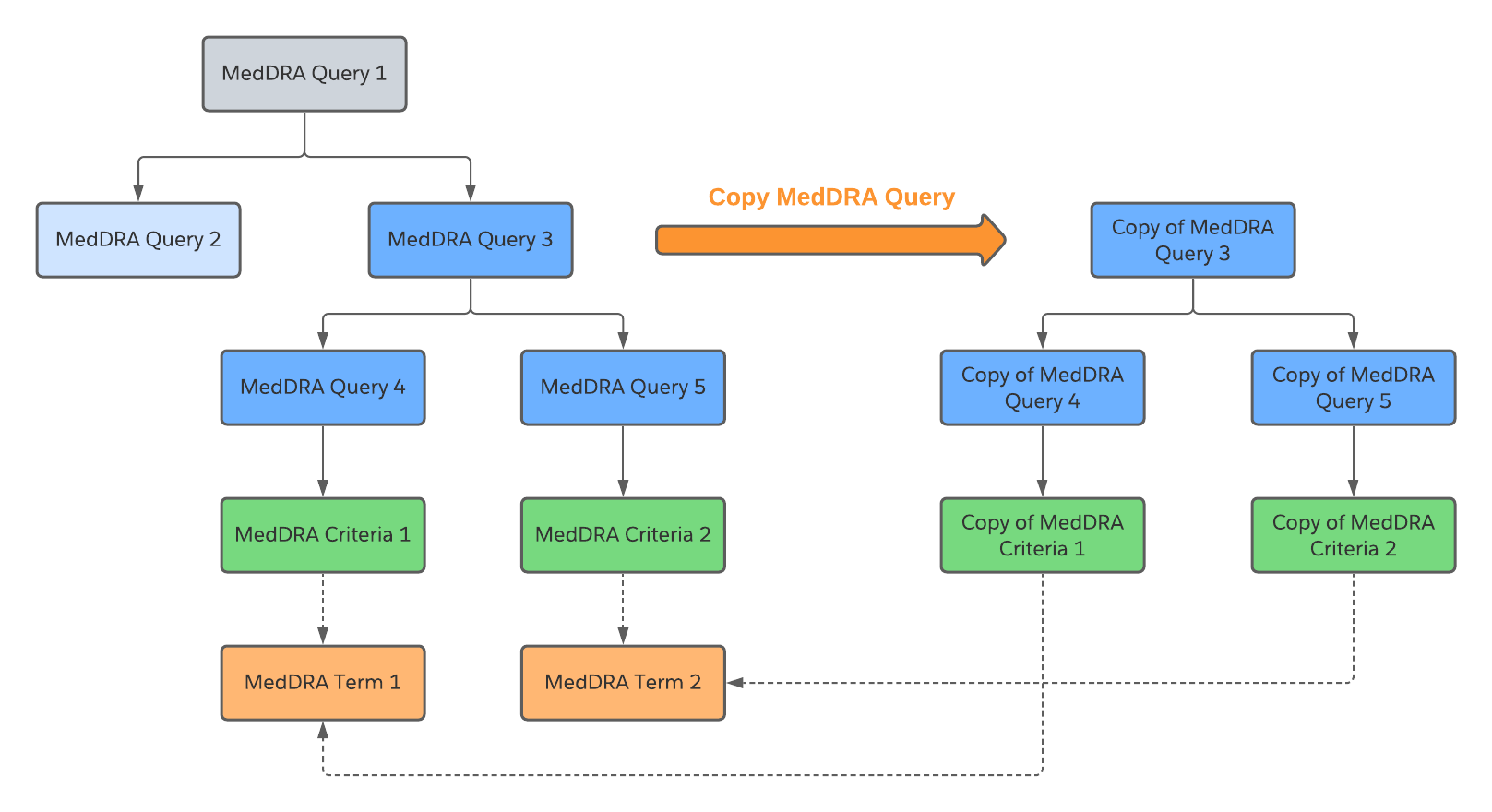
To perform a deep copy of a _MedDRA Query_ to create a duplicate of the _MedDRA Query_ and all its associated records, such as the _MedDRA Criteria_:

1. Navigate to **Business Admin > Objects > MedDRA Queries**. 
2. Select **Actions** beside a _MedDRA Query_. 
3. Select **Copy MedDRA Query**. 

Vault copies the _MedDRA Query_ and its associated _MedDRA Criteria_. Both the copy and original query are linked to the respective _MedDRA Term_. 

<div class="note-border alert-info">
  <div class="alert alert-info" role="alert">
    <div><i class="far fa-info-circle"></i></div>
    <div class="alert-text">
      <p><strong>Note</strong>: When you copy a <em>MedDRA Query</em> with <em>MedDRA Query Building Blocks</em>, the <em>MedDRA Query</em> do not appear on the new <em>MedDRA Query</em>. However, all of the <em>MedDRA Terms</em> within the <em>Building Blocks</em> appear in the <em>MedDRA Terms</em> section of the new <em>MedDRA Query</em>. This is a known limitation that will be addressed in a future release.</p>
    </div>
  </div>
</div>


The following diagram shows the _MedDRA Query_ deep copy process: 

<a href="https://platform.veevavault.help/assets/images/saf-deep-copy-meddra-query.png" data-lightbox="saf-deep-copy-meddra-query.png" data-title="" data-alt="Deep Copy of MedDRA Query">
  <img class="docimage" src="https://platform.veevavault.help/assets/images/saf-deep-copy-meddra-query.png" alt="Deep Copy of MedDRA Query" style=""  />
</a>

The Copy of _MedDRA Query_ 3 does not have a Parent or Root query but it is the Parent/Root query for the Copy of _MedDRA Query_ 4 and 5.

[1]: #run-query
[2]: #add-sub-query
[3]: #add-meddra-term
[4]: #meddra-criteria-fields
[5]: #add-meddra-query-building-block
[6]: #add-queries-datasheet
[7]: #meddra-queries-fields
[8]: #add-queries-watchlist