# Configure Narrative Templates

Configure narrative templates  to customize how Vault generates <a href="/en/lr/01167/">narrative documents</a> for _Cases_. Using custom narrative templates saves case processing time by generating a narrative document with only case-specific details. When users open a _Case_, Vault generates a narrative document using a <a href="/en/lr/5509/">document template</a> and includes details based on the _Case's_ details. You can configure custom templates for any combination of _Organization_, _Report Type_, _Study Type_, _Study_, and _Localization_. 

## Prerequisites

Before configuring this feature in your Vault, you must complete the following:

* <a href="/en/lr/01372/">Enable Narrative Templates for Report Types and Studies</a>.
* To use [custom templates][2]:
  * Configure <a href="/en/lr/46025/">controlled document templates</a>.
  * Ensure the _Narrative Template Type_ field value is _Override Template_ for the applicable <a href="/en/lr/01202/">_Transmission Profiles_</a>.

In Vaults using Veeva AI for Safety, you can <a href="/en/lr/994270/">enable the Narrative Agent</a> to allow users to <a href="/en/lr/01167/#narrative-agent">run the agent</a> on narrative documents.

## Narrative Template Types {#types}

When generating narrative documents on a _Case_, Vault determines which <a href="/en/lr/5509/">document template</a> to use for narrative generation based on the template type. Vault provides the following types:

* **Default**: Generates the narrative document for all _Cases_ manually entered by a user and _Cases_ promoted from an _Inbox Item_, except _Cases_ matched to any [custom templates][2].
* **Blinded**: Generates the narrative document for blinded study _Cases_. If your Vault does not include an active _Blinded_ template, Vault applies the _Default_ template. Blinded study _Cases_ imported from E2B files use the _E2B Import_ template. 
* **E2B Import**: Generates the narrative document for _Cases_ created from an imported E2B file and _Cases_ created from the Import Narrative Vault API.

You can [add a blinded template][3], [update templates][6], and [create custom templates][2] as needed.

### Add a Blinded Template {#blinded}

If a blinded template does not already exist in your Vault, you can add one: 

1. Navigate to **Business Admin > Templates**.
2. In the _Template Location_ tree, expand **Template > Narrative (Template) > Default**.
3. Select **Create > Document Template**.
4. On the _Create Document Template_ page, enter the following details:
    * **Type**: Select **Basic Document Template**.
    * **Label**: Enter `Narrative Template Blinded`.
    * **Name**: Ensure the name is `narrative_template_blinded__c`.
5. In the _More Information_ section, select **Upload File**.
6. Select **Save**.

<div class="note-border alert-info">
  <div class="alert alert-info" role="alert">
    <div><i class="far fa-info-circle"></i></div>
    <div class="alert-text">
      <p><strong>Note</strong>: Do not include sensitive information in your blinded template, such as product name <a href="#merge-fields">merge field</a> tokens. Vault does not mask product information in blinded <em>Distributions</em>. We recommend creating a dedicated blinded narrative template without any sensitive tokens.</p>
    </div>
  </div>
</div>


## Update Templates {#update}

You can update narrative <a href="/en/lr/5509/">document templates</a> from the <a href="/en/lr/7613/">_Document & Binder Template_ page</a>:

1. Navigate to **Business Admin > Templates**.
2. In the _Template Location_ tree, expand **Template > Narrative (Template)** and select the template you want to update.
3. Select **Edit**.
4. In the _More Information_ section, select **Upload File**.
5. In the dialog, open the applicable DOCX file.
6. Select **Save**.

## Create Custom Narrative Templates {#custom-narrative-templates}

You can create custom <a href="/en/lr/46018/">controlled document templates</a> to fit the specific needs of your organization, which Vault uses as the source file for the template. 

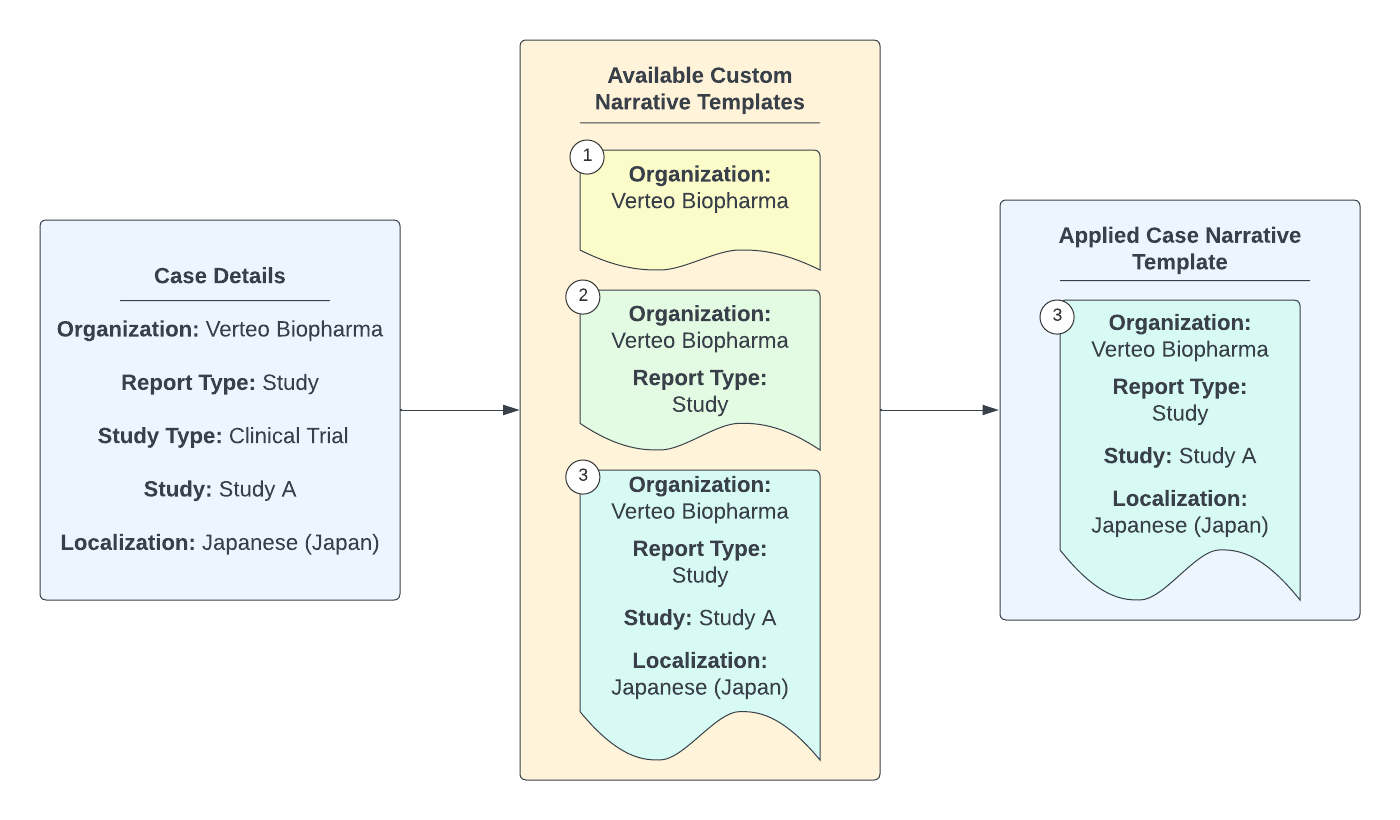
Vault applies custom templates during E2B import or _Case_ promotion. Vault applies the narrative template that shares the most details with the _Case_. If no custom template details match, Vault applies a system-provided narrative template. When you create a domestic _Case_, Vault generates a localized narrative document using a localized template, if available. Otherwise, Vault applies the global narrative template. When generating narrative documents on a _Case_, Vault applies custom templates based on the record's details, including:

* _Case Type_ (_E2B_ or _Manual_)
* _Organization_
* _Report Type_
* _Study Type_
* _Study_ (_Blinded_ or _Unblinded_)
* _Localization_

<a href="https://platform.veevavault.help/assets/images/saf-narrative-template-applied.png" data-lightbox="saf-narrative-template-applied.png" data-title="" data-alt="Vault Applies the Most Specific Narrative Template">
  <img class="docimage" src="https://platform.veevavault.help/assets/images/saf-narrative-template-applied.png" alt="Vault Applies the Most Specific Narrative Template" style="max-width: 75%;"  />
</a>

To create a custom document template:

1. Ensure the _Template > Narrative (Template)_ <a href="/en/lr/618/#EnablingDocTypes">document type</a> is active.
2. On the _Upload Files (Step 1)_ page, <a href="/en/lr/15085/">upload</a> the applicable DOCX file and classify the [type][1] as appropriate:
  * For a default template, select **Template > Narrative (Template) > Default**.
  * For an E2B import template, select **Template > Narrative (Template) > E2B Import**.
3. Select **Next**.
4. Enter a **Name** to identify the template. We recommend that you include the organization in the name. For example, `Narrative Template - Default - Verteo BioPharma`.
5. Select the [**Template Document Type**][1] depending on how you classified the uploaded document.
6. On the _Upload Files (Step 2)_ page, populate the applicable details to specify the parameters under which Vault applies the template:
    * [**Organization**][4]
    * **Localization**
    * **Study Type**
    * **Report Type**
    * **Study**
7. Add values for any other optional fields, as applicable.
8. Select **Save**.
9. From the document's **Workflow Actions** menu, select **Make Active** to activate the template.
10. In the _Change Document Status_ dialog, select **Yes**.

The new template will now appear on the <a href="/en/lr/7613/">_Document & Binder Template_ page</a> in the _Case > Summary > Narrative_ section of the _Template Location_ tree.

### Organization-Specific Templates {#organization}

For Vaults with _Cases_ across multiple _Organizations_, you can create _Organization_-specific narrative document templates. Vault applies a sponsor's template to generate the narrative document for every _Case_ associated with that _Organization_. _Organization_-specific templates use controlled document templates, which point to a _Steady_-state Vault document, referred to as a template document, as the source file for the template. 

You can only configure one default organization-specific template. You cannot upload both a standard default template and a blinded template for the same organization. Controlled document narrative templates do not support both regular and blinded templates. If your organization handles blinded study data, do not upload a template with tokens for sensitive data that should be blind-protected.

## Configure Merge Fields for Templates {#merge-fields}

You can configure <a href="/en/lr/30965/">Merge Fields</a> to include _Case_ field values in the template, which Vault populates based on token resolution with values from the _Case_ record. <a href="/en/lr/30965/">Add Merge Fields</a> to auto-populate generated narrative documents with details such as product name, organization, and receipt date. Because narratives are transmitted as plain text in submissions, we recommend that you use merge fields with caution and keep templates with merge fields very basic. We do not recommend including tables or images in your template. 

<div class="note-border alert-info">
  <div class="alert alert-info" role="alert">
    <div><i class="far fa-info-circle"></i></div>
    <div class="alert-text">
      <p><strong>Note</strong>: If any merge field tokens in a narrative document cannot resolve, Vault will not resolve any tokens with the same filter, including any tokens without a filter. For example, if the unresolved token has no filter, Vault cannot resolve any tokens without a filter. This is a known issue that will be fixed in a future release.</p>
    </div>
  </div>
</div>


[1]: #types
[2]: #custom-narrative-templates
[3]: #blinded
[4]: #organization
[5]: #add
[6]: #update