# Configure Reasons Omitted

The Reason Omitted object controls which Reasons Omitted, or nullFlavor, options are available for data entry.

## About the Reasons Omitted Object

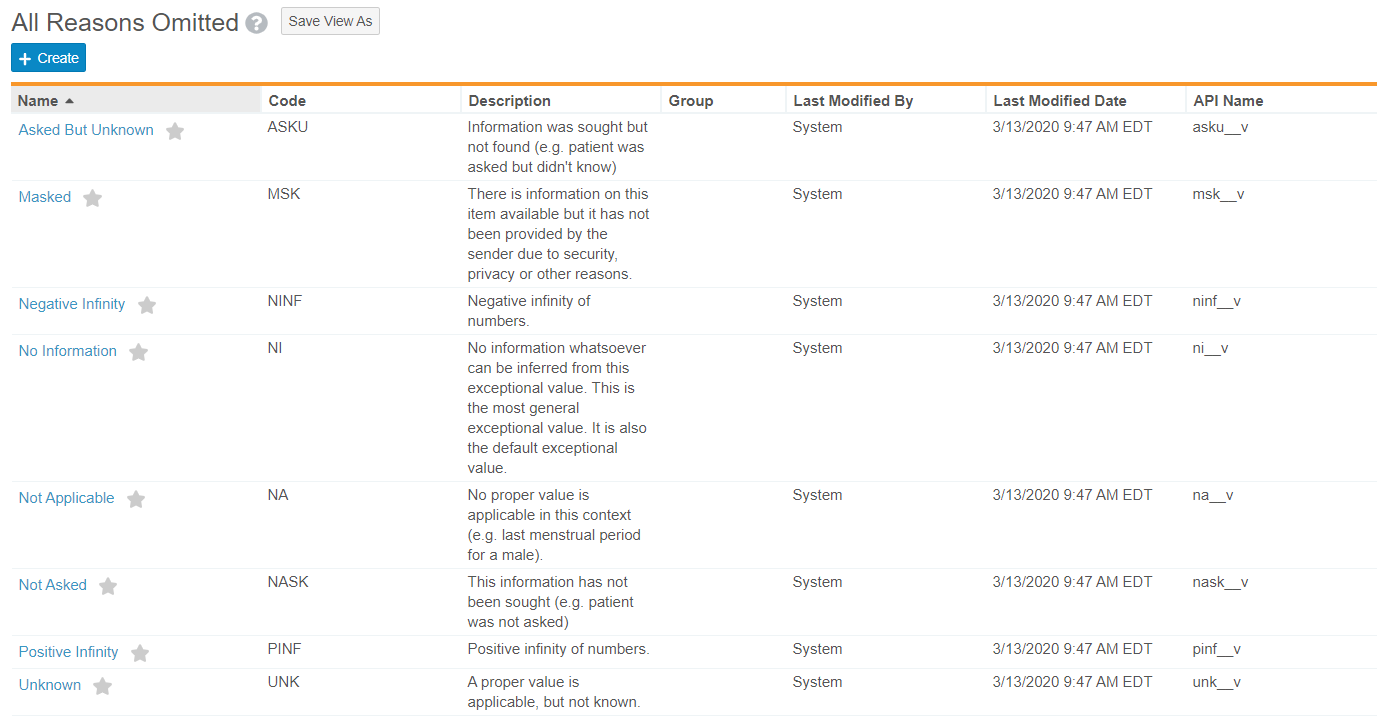
Vault Safety comes with the following standard Reasons Omitted values:

* No Information
* Masked
* Unknown
* Not Applicable
* Asked But Unknown
* Not Asked
* Negative Infinity
* Positive Infinity
* Other

Each of the above system-provided Reason Omitted values correspond to a standard E2B nullFlavor code. The above system-provided standard records are protected from changes that may cause issues with E2B compliance.


<div class="note-border alert-info">
  <div class="alert alert-info" role="alert">
    <div><i class="far fa-info-circle"></i></div>
    <div class="alert-text">
      <p><strong>Note</strong>:  According to E2B specifications, valid <em>Reason Omitted</em> values for <em>Medical History Text</em> include <em>Not Asked</em>, <em>Unknown</em>, <em>Masked</em>, and <em>Asked But Unknown</em>. To support compliant E2B submissions, you can <a href="#update-medical-history">configure</a> the <em>Medical History Text</em> control field with the <strong>Slider</strong> (<img class="inline" src="https://platform.veevavault.help/assets/images/saf-app-control.png" alt="app-control" style="" />) icon, which includes only these values.</p>
    </div>
  </div>
</div>


Business Admins can edit the **Name** and **Description** of these standard records but can make no other changes to the system-provided records. However, Business Admins can configure additional **Reason Omitted** records if your organization requires custom options.

<div class="note-border alert-info">
  <div class="alert alert-info" role="alert">
    <div><i class="far fa-info-circle"></i></div>
    <div class="alert-text">
      <p><strong>Note</strong>: You can tell the difference between standard and custom <strong>Reasons Omitted</strong> records by looking at the API Name. Standard Reasons Omitted have API Names ending with <code class="language-plaintext highlighter-rouge">__v</code>. You cannot create a custom <strong>Reasons Omitted</strong> record with an <code class="language-plaintext highlighter-rouge">__v</code> API Name.</p>
    </div>
  </div>
</div>


<a href="https://platform.veevavault.help/assets/images/saf-reasons-omitted-business-admin.png" data-lightbox="saf-reasons-omitted-business-admin.png" data-title="Standard Reasons Omitted" data-alt="Standard Reasons Omitted">
  <img class="docimage" src="https://platform.veevavault.help/assets/images/saf-reasons-omitted-business-admin.png" alt="Standard Reasons Omitted" style="max-width: 70%;"  />
</a>

## Configure Reasons Omitted

1. Go to **Business Admin > Objects > Reasons Omitted**.
2. On the **Reasons Omitted** page, perform one of the following actions:
   * To add a new **Reasons Omitted** record, select **Create**.
   * To edit an existing **Reasons Omitted** record, open the record, and then select **Edit**.
3. Complete the **Create Reasons Omitted** page.
4. Save the page.

## Reasons Omitted Fields

The following table describes the default Reasons Omitted fields:

<table>
    <thead>
        <tr>
            <th>Field Name</th>
            <th>Description</th>
        </tr>
    </thead>
    <tbody>
        <tr>
            <td>Name</td>
            <td>The label for the <strong>Reasons Omitted</strong> record. The label determines how this option will appear in Reason Omitted fields during data entry.</td>
        </tr>
        <tr>
            <td>Code</td>
            <td><p>The E2B Code specifies the E2B value that a <strong>Reasons Omitted</strong> record maps to for E2B transmissions. You should always populate this field with an ICH-compliant nullFLavor code to ensure your E2B exports contain the valid mapping for your custom Reasons Omitted.</p>
                <p>You cannot edit this field on records with an API Name ending in <code>__v</code>.</p></td>
        </tr>
        <tr>
            <td>Group</td>
            <td><p>(Optional) To add this <strong>Reasons Omitted</strong> record to a Reason Omitted Group, select the group. Reason Omitted Groups are described below.</p></td>
        </tr>
        <tr>
            <td>Description</td>
            <td><p>(Optional) A description of the <strong>Reasons Omitted</strong> record.</p></td>
        </tr>
        <tr>
            <td>Status</td>
            <td><p>The <strong>Status</strong> field determines whether a <strong>Reasons Omitted</strong> record is active or inactive. Inactive records are not available for use.</p>
                <p>You cannot modify this field in the edit view. You can only edit the Status through a user action on the <strong>Reasons Omitted</strong> object.</p></td>
        </tr>
        <tr>
            <td>API Name</td>
            <td><p>The system name for the record. You can tell whether a record is standard or custom from the API name. If the name ends with <code>__c</code>, it is a custom record. If the name ends with <code>__v</code>, it is a standard record.</p> 
                <p>You cannot edit this field for records with an API Name ending in <code>__v</code>. You cannot add an API Name ending in <code>__v</code> for a custom record.</p></td>
        </tr>
    </tbody>
</table>

## Managing Reason Omitted Groups 

According to ICH E2B guidelines, not all reasons omitted values are allowed on all data types. You can use Reason Omitted Groups to manage which reasons omitted values show up for certain Case fields.

With Reason Omitted Groups, you can group together Reasons Omitted options that should be available for a certain data type, and then constrain that field's picklist to display only the options available based on that group.

### Add a Group

1. Go to **Business Admin > Picklists > Reason Omitted Groups**.
2. Select **Edit**.
3. In the new field box under **Picklist values**, enter a group name, and then select the **Add Picklist Item** (<img class="inline" src="https://platform.veevavault.help/assets/images/saf-plus-button-picklist.png" alt="Add Picklist Item Icon" style="" />) icon.
4. Select **Save**.
5. Make note of the group API name, you will need this later.

### Add Reasons Omitted to a Group

Perform the following steps for each Reason Omitted value that you want to add to the group.

1. Go to **Business Admin > Objects > Reasons Omitted**.
2. On the **Reasons Omitted** page, open the **Reasons Omitted** record to which you want to add to the group.
3. Select **Edit**.
4. In the **Group** field, select the Reason Omitted Group.
5. Select **Save**.

### Update a Picklist to Use a Reasons Omitted Group

1. Go to **Configuration > Objects**.
2. Open the object containing the field that you want to update.
3. Go to the **Fields** tab.
4. Open the field to which you want to filter by the Reason Omitted Group. Search for `reason_omitted__v` to quickly find Reason Omitted fields.
5. Select **Edit**.
6. Under **Constrain Records in Referenced Object**, in the **Criteria VQL** field, add the following VQL:<br>
        <code>group__v = '<em>group_name__c</em>'</code>
        <br>Where `group_name__c` is the Reason Omitted Group API Name.
7. Select **Save**.

**Result**

The options available in this **Reason Omitted** picklist are filtered to only include the options in the Reason Omitted Group.

## Update the Case Layout for Reasons Omitted for Medical History Text {#update-medical-history}

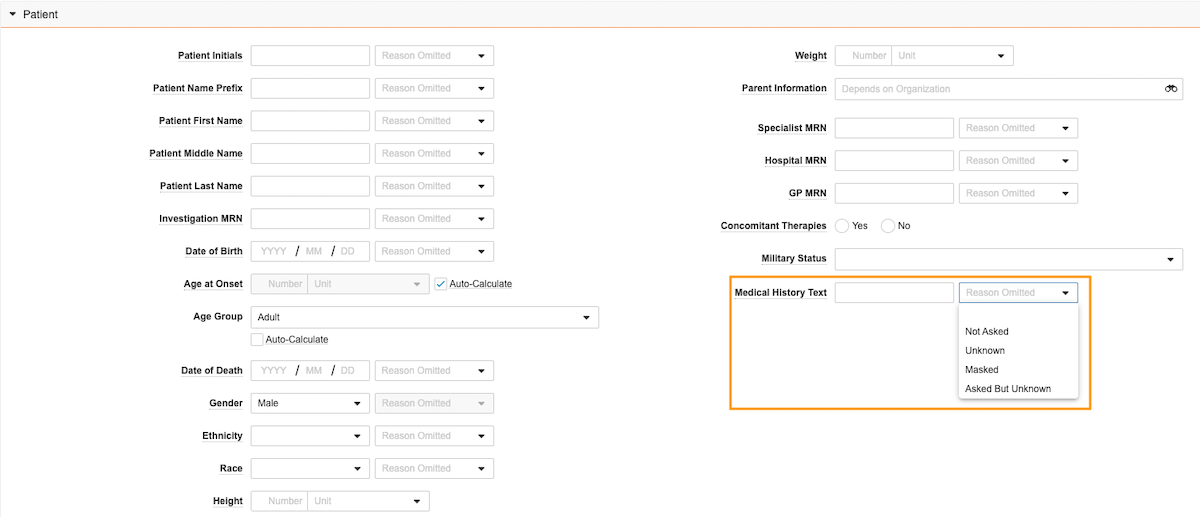
To support compliant E2B submissions, Vault Safety includes a **Medical History Text** field with filtered values for the **Reason Omitted** field. The available values are as follows:

* Not Asked
* Unknown
* Masked
* Asked But Unknown

This field must be added to Case layouts. If you have the deprecated **Medical History\*** field in existing layouts, use the steps in the following section to delete it and then add the **Medical History Text** field.

### Configure the Medical History Text Field

Complete the following steps to configure the E2B-compliant **Medical History Text** field in your Vault:

1. Go to **Configuration > Objects > Case > Layouts**.
2. On all applicable Case layouts, complete the following steps:
   1. Remove the <img class="inline" src="https://platform.veevavault.help/assets/images/saf-app-control.png" alt="Slider" style="" /> **Medical History\*** control field.
   2. Add the <img class="inline" src="https://platform.veevavault.help/assets/images/saf-app-control.png" alt="Slider" style="" /> **Medical History Text** control field.
3. Select **Save**.

**Result**

The **Medical History Text Reason Omitted** field includes only those values that are valid for E2B submissions.

<a href="https://platform.veevavault.help/assets/images/saf-medical-history-text-config.png" data-lightbox="saf-medical-history-text-config.png" data-title="Medical History Text Control Field on a Case Patient Record" data-alt="Medical History Text Control Field on a Case Patient Record">
  <img class="docimage" src="https://platform.veevavault.help/assets/images/saf-medical-history-text-config.png" alt="Medical History Text Control Field on a Case Patient Record" style="max-width: 90%;"  />
</a>