# Manage Partner Distribution Lists

A Partner Distribution List is a type of Reporting Family that Admins can configure to automatically generate and assign Case Distributions for each partner or site with which you must transmit ICSRs.

When you create a Partner Distribution List, you specify the Origin and Destination pair. You must assign a <a href="/en/lr/01252/">Reporting Rule Set</a>, which defines the Reporting Rules, or scenarios, for which a Distribution is generated and the due date. Once you save the Partner Distribution List, you can add Reporting Family Members to specify the Products, Studies, Registrations, and Jurisdictions to which the list applies.

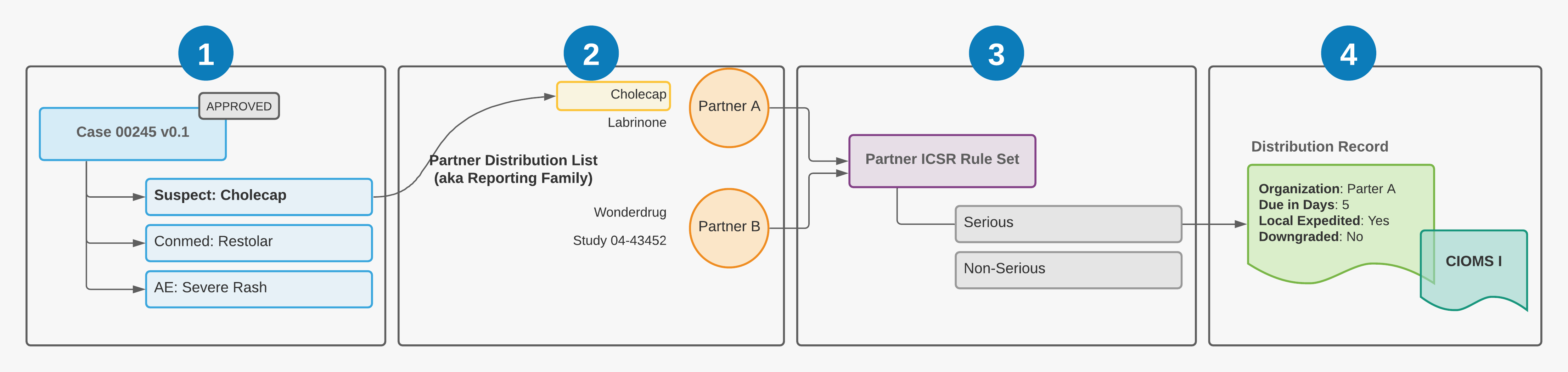
The following illustration shows how Vault Safety evaluates a Partner Distribution List:

<a href="https://platform.veevavault.help/assets/images/saf-reporting-rules-partner-distributions.png" data-lightbox="saf-reporting-rules-partner-distributions.png" data-title="Evaluating Partner Distribution Rules for a Case" data-alt="Evaluating Partner Distribution Rules for a Case">
  <img class="docimage" src="https://platform.veevavault.help/assets/images/saf-reporting-rules-partner-distributions.png" alt="Evaluating Partner Distribution Rules for a Case" style="max-width: 80%;"  />
</a>

<img class="inline" src="https://platform.veevavault.help/assets/images/saf-icon1.png" alt="1" style="" /> Case 00245 is entered and approved. The Case contains the reportable Case Product _Cholecap_. The Case triggers the reporting rules engine by moving to the Approved state.

<img class="inline" src="https://platform.veevavault.help/assets/images/saf-icon2.png" alt="2" style="" /> The reportable Case Product _Cholecap_ is part of a preconfigured Partner Distribution Reporting Family with a Destination Organization of _Partner A_.

<img class="inline" src="https://platform.veevavault.help/assets/images/saf-icon3.png" alt="3" style="" /> The Partner Distribution Reporting Family is assigned a custom _Partner ICSR Rule Set_ (provisioned by Veeva Support), which the reporting rules engine uses to match the Case with the appropriate reporting rule and create the Distribution.

<img class="inline" src="https://platform.veevavault.help/assets/images/saf-icon4.png" alt="4" style="" /> Vault generates a Distribution record for the Case and populates the due date and other fields on the Submission according to the reporting rule. Vault generates the transmission document in the appropriate format, based on the <a href="/en/lr/01458/">Transmission Profile</a> for the origin-destination pair.

## Prerequisites

* You must be an Admin to manage Partner Distribution Lists.
* You must have already configured any <a href="/en/lr/01215/">Products</a>, <a href="/en/lr/01216/">Studies</a>, and Registrations for which the Distribution List will apply.
* You must have already configured a Transmission Profile for the origin and destination pair. You can configure one of the following types of Transmission Profile:
    * <a href="/en/lr/01458/#create-as2-gateway-transmission-profile">AS2 Gateway Transmission Profile</a>
    * <a href="/en/lr/01204/">Email Transmission Profile</a>
    * <a href="/en/lr/01202/">Manual Transmission Profile</a>

<table>
    <thead>
        <tr>
            <th>If the Case is matched by...</th>
            <th>Potential Eligible Products and Assessments are selected by...</th>
        </tr>
    </thead>
    <tbody>
        <tr>
            <td>
                <ul>
                    <li>Study,</li>
                    <li>Study Registration,</li>
                    <li>All Studies</li>
                </ul>
            </td>
            <td>
                <p>
                    Queries all suspect or interacting study products in a Case.
                </p>
                <p>
                    If Extend Suspect Definition to Include Drug Not Administered is enabled, Vault queries all suspect,
                    interacting, or Drug-Not-Administered study products in a Case.
                </p>
            </td>
        </tr>
        <tr>
            <td>
                <ul>
                    <li>Product,</li>
                    <li>Product Registration,</li>
                    <li>Product Family,</li>
                    <li>All Products</li>
                </ul>
            </td>
            <td>
                Queries all suspect or interacting non-external products in a Case which are defined in the Partner
                Distribution List based on the product, product registration, and/or product family which matches.
            </td>
        </tr>
        <tr>
            <td>
                Substances
            </td>
            <td>
                Select the Substance based on the Partner Distribution List's <strong><a href="#distribution-substance-lookup-method">Distribution Substance Lookup Method</a></strong>.
            </td>
        </tr>
    </tbody>
</table>

## Create a Partner Distribution List

Complete the following steps to create a new Partner Distribution List.

1. Go to **Business Admin > Objects > Reporting Families**.
2. On the **Reporting Families** page, select **Create**.
3. In the **Create Reporting Family** window, select **Partner Distribution List**, and then select **Next**.
4. On the **Create Partner Distribution List** page, complete [these fields][1].
5. Save the record.

<table>
    <thead>
        <tr>
            <th><a id="partner-dist-page-fields"></a>Field</th>
            <th>Description</th>
        </tr>
    </thead>
    <tbody>
        <tr>
            <td>Name</td>
            <td>Enter a name for the Partner Distribution List.</td>
        </tr>
        <tr>
            <td>Organization</td>
            <td>Select the origin Organization that will coordinate outgoing Distributions.</td>
        </tr>
        <tr>
            <td>Distribution Rules</td>
            <td>Select which Reporting Rule Set to assign to this Distribution List.
                <p><a href="/en/lr/01252/">Standard Reporting Rule Sets</a> provides more information on the available rule sets. You can change the assigned rule set at any time after you create the Partner Distribution List.</p></td>
        </tr>
        <tr>
            <td>Destination Organization</td>
            <td>Select the destination Organization that will receive Distributions.</td>
        </tr>
        <tr>
            <td>Patient Content Protection</td>
            <td>(Optional) To mask patient data in Distributions, select a masking option.
                <p><a href="/en/lr/01225/#patient-content-protection">Mask Personal Identifiable Information (PII)</a> describes the data masked by each option.</p></td>
        </tr>
        <tr>
            <td>Exceptions to Patient Content Protection</td>
            <td>(Optional) To leave certain information unmasked when using <em>Patient Content Protection</em>, select one (1) or more fields to unmask.
                <p><a href="/en/lr/01225/#exceptions-to-patient-content-protection">Exceptions to Patient Content Protection</a> describes the data unmasked by this option.</p></td>
        </tr>
        <tr>
            <td>Study Content Protection</td>
            <td>(Optional) To protect unblinded study data in Distributions, select <strong>Mask Unblinded Content</strong>.
                <p><a href="/en/lr/01225/#study-content-protection">Study Content Protection</a> describes the data masked by this option.</p></td>
        </tr>
        <tr>
            <td>All Products<sup>1</sup></td>
            <td>
                <p>
                    Select this checkbox for Vault to evaluate the Distribution Rules for all Cases that contain any of the Products in your Product Library.
                </p>
                <p>
                    If you select this option, Vault automatically includes any Product you add to your Product Library in any subsequent evaluations for this Distribution List.
                </p>
            </td>
        </tr>
        <tr>
            <td>All Studies<sup>1</sup></td>
            <td>
                <p>
                    Select this checkbox for Vault to evaluate the Distribution Rules for all Cases that contain any of the Studies in your Study Library.
                </p>
                <p>
                    If you select this option, Vault automatically includes any Study you add to your Study Library in any subsequent evaluations for this Distribution List.
                </p>
            </td>
        </tr>
        <tr>
            <td><a id="distribution-substance-lookup-method"></a>Distribution Substance Lookup Method<sup>1</sup></td>
            <td>
                <p>
                    Select the Substance matching method that you want Vault to use when considering whether a Case contains one or more of the <a href="#add-substance">specified Substances</a>:
                </p>
                <ul>
                    <li>
                        <strong>Subset Match</strong>: All of the Substances in a Case Product are contained within the list of Substances configured in the Reporting Family, even if the Reporting Family has more Substances than are listed in the Case Product.
                    </li>
                    <li>
                        <strong>Exact Match</strong>: The list of Substances in a Case Product matches exactly with the list of Substances configured in the Reporting Family.
                    </li>
                    <li>
                        <strong>Partial Match</strong>: At least one of the Substances in a Case Product matches one of the Substances configured in the Reporting Family.
                    </li>
                </ul>
            </td>
        </tr>
    </tbody>
    <tfoot>
        <tr>
            <td colspan="2">
                <ol>
                   <li>
                       Your Admin must enable the <a href="/en/lr/714898/">Reporting Family Configuration Scenarios</a> feature for this field to appear in your Vault.
                   </li>
                </ol>
            </td>
        </tr>
    </tfoot>
</table>

**Next Steps**

To indicate when Vault Safety should apply this ruleset, add Reporting Family Members.

## Add Reporting Family Members

Once you have created a Partner Distribution List, add Reporting Family Members to specify which Studies, Products and Product Families, Registrations, Substances, and Jurisdictions this list applies to.

* **Study**: Apply the Distribution List when a Case is linked to the Study. This includes all registrations under the Study.
* **Study Registration**: Apply the Distribution List when a Case is linked to the Study and includes the specific Study Registration.
* **Product**: Apply the Distribution List when a Case Product links to this Product. This includes all registrations under the Product.
* **Product Family**: Apply the Distribution List when the Case Product is a member of the specified Product Family.
* **Product Registration**: Apply the Distribution List when a Case Product links to this Product Registration.
* **Substance**: Apply the Distribution List when the Case Product contains the specified Substances as defined by the <a href="#distribution-substance-lookup-method">Distribution Substance Lookup Method</a>.
* **Distribution Jurisdiction**: Apply the Distribution List when a Case occurs in the specified jurisdiction. When specified, the Partner Distribution List will evaluate the <a href="/en/lr/01250/#ae-in-jurisdiction">AE in Jurisdiction reporting rule parameter</a> using the jurisdictions specified on the Partner Distribution List.

### Add Study

1. On the **Partner Distribution List** page, expand **Studies for Distribution**, and then select **Create**.
2. In the **Create Reporting Family Member** window, select **Study**.
3. In the **Study** field, select the Study that you want the Distribution List to evaluate. Vault populates the **Organization** and **Reporting Organization** fields automatically.
4. Select **Save**.

### Add Study Registration

<div class="note-border alert-info">
  <div class="alert alert-info" role="alert">
    <div><i class="far fa-info-circle"></i></div>
    <div class="alert-text">
      <p><strong>Note</strong>: Vault generates a Distribution to the target organization regardless of the registration country on the Case Product or Study Registration.</p>
    </div>
  </div>
</div>


1. On the **Partner Distribution List** page, expand **Studies for Distribution**, and then select **Create**.
2. In the **Create Reporting Family Member** window, select **Study Registration**.
3. On the **Create Study Registration** page, complete the following fields:
    * **Study**: Select the Study
    * **Study Registration**: Select the Study Registration you want the Distribution List to evaluate.
    * Vault populates the **Organization** and **Reporting Organization** fields automatically.
4. Select **Save**.

### Add Product

1. On the **Partner Distribution List** page, expand **Products for Distribution**, and then select **Create**.
2. In the **Create Reporting Family Member** window, select **Product**.
3. In the **Product** field, select the Product you want the Distribution List to evaluate. Vault populates the **Organization** and **Reporting Organization** fields automatically.
4. (Optional) Based on Product Registration-type Reporting Rules, Transmission Product Type can be defined in the Product Reporting Family Member.
5. Select **Save**.

### Add Product Family

1. On the **Partner Distribution List** page, expand **Products for Distribution**, and then select **Create**.
2. In the **Create Reporting Family Member** window, select **Product Family**.
3. In the **Product Family** field, select the Product Family you want the Distribution List to evaluate.
4. Select **Save**.

### Add Product Registration

<div class="note-border alert-info">
  <div class="alert alert-info" role="alert">
    <div><i class="far fa-info-circle"></i></div>
    <div class="alert-text">
      <p><strong>Note</strong>: Vault generates a Distribution to the target organization regardless of the registration country on the Case Product or Study Registration.</p>
    </div>
  </div>
</div>


1. On the **Partner Distribution List** page, expand **Products for Distribution**, and then select **Create**.
2. In the **Create Reporting Family Member** window, select **Product Registration**.
3. On the **Create Product Registration** page, complete the following fields:
    * **Product**: Select the Product.
    * **Product Registration**: Select the Product Registration you want the Distribution List to evaluate. \
    Vault populates the **Organization** and **Reporting Organization** fields automatically.
    * **Coded Product Registration Only**: Select this checkbox if you want the Product Registration selected on the Case Product to be the only Product Registration that Vault considers for distribution.
4. Select **Save**.

### <a id="add-substance"></a> Add Substance

1. On the **Partner Distribution List** page, expand **Substances for Distribution**, and then select **Create**.
2. In the **Create Reporting Family Member** window, select **Substance**.
3. In the **Substance** field, select the Substance you want the Distribution List to evaluate.
4. Select **Save**.

### Add Distribution Jurisdiction


<div class="note-border alert-info">
  <div class="alert alert-info" role="alert">
    <div><i class="far fa-info-circle"></i></div>
    <div class="alert-text">
      <p><strong>Note</strong>: 
If you do not see the <strong>Distribution Jurisdiction (Countries)</strong> section in your Vault, your Admin may need to <a href="/en/lr/01415/">enable this functionality</a>.</p>
    </div>
  </div>
</div>


1. On the **Partner Distribution List** page, expand **Distribution Jurisdiction (Countries)**, and then select **Add**.
2. In the **Search: Country** window, select the countries required, then select **OK**.

**Result**

The selected countries are added to the Distribution Jurisdiction list.

[1]: #partner-dist-page-fields