# Withdraw Submissions and Distributions

In Safety's out-of-box configuration, all _Transmission_ records (_Submissions_ and _Distributions_) linked to a _Case_ must be in the _Completed_ state before you can close the associated _Case_. If a _Submission_ or _Distribution_ was created in error or must be removed for another reason, you can withdraw the record, which will enable _Distribution Manager_ users to <a href="/en/lr/01161/">close the _Case_</a>. 

## Withdraw a Transmission

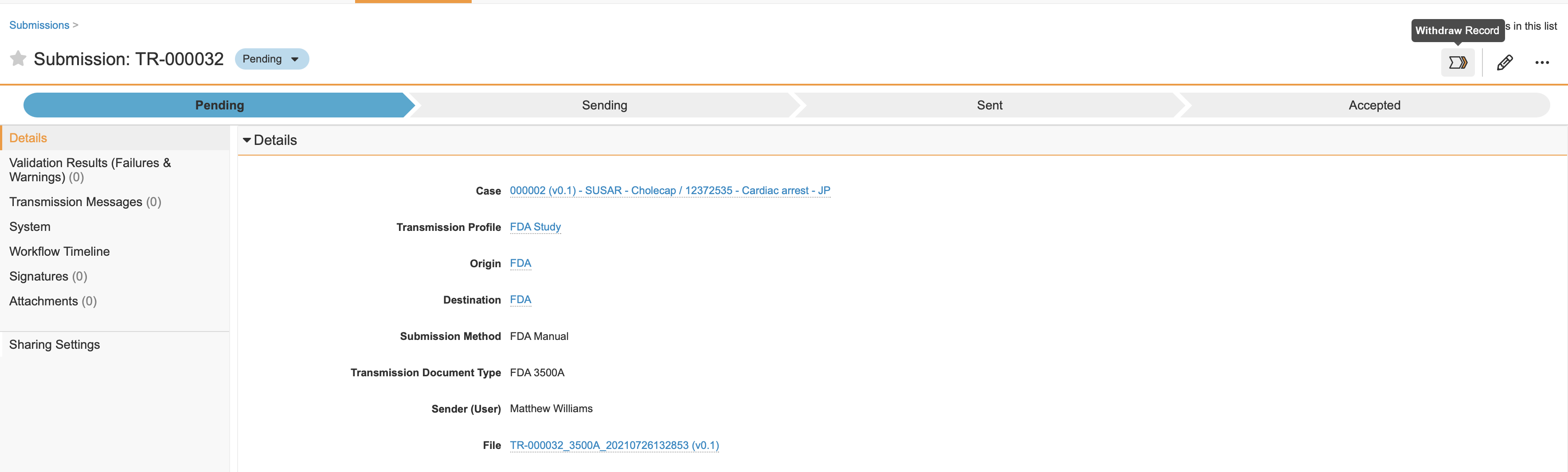
To withdraw a Transmission record, an administrator must first add the user action. Once the user action is configured, you can change a Transmission record's state by selecting **Withdraw Record** from the Workflow State Change Menu (<img class="inline" src="https://platform.veevavault.help/assets/images/saf-workflow-state-change.png" alt="Workflow-State-Button" style=" width: 2.5rem;" />) on the Action Bar.

<a href="https://platform.veevavault.help/assets/images/saf-change-state-to-withdraw.png" data-lightbox="saf-change-state-to-withdraw.png" data-title="Change State to Withdraw" data-alt="Change State to Withdraw Action">
  <img class="docimage" src="https://platform.veevavault.help/assets/images/saf-change-state-to-withdraw.png" alt="Change State to Withdraw Action" style="max-width: 80%;"  />
</a>

## Add User Actions to Change the Record State

<div class="note-border alert-info">
  <div class="alert alert-info" role="alert">
    <div><i class="far fa-info-circle"></i></div>
    <div class="alert-text">
      <p><strong>Note</strong>: You must have Administrator access to add user actions.</p>
    </div>
  </div>
</div>


### Add a User Action to Withdraw a Record

1. In the **Admin** area, go to **Configuration > Object Lifecycles**.
2. Open the **Transmission Lifecycle**.
3. Under **States**, open the **Pending** state.
4. On the **Pending** page, beside **User Actions**, select **Edit**.
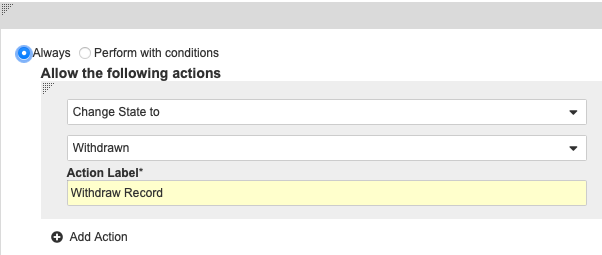
5. Select **Add Action**, and then add an action to **Change State to Withdraw**.
6. Select **Save**.

<a href="https://platform.veevavault.help/assets/images/saf-change-state-to-withdraw-action.png" data-lightbox="saf-change-state-to-withdraw-action.png" data-title="Change State to Withdraw through User Action" data-alt="Change State to Withdraw User Action">
  <img class="docimage" src="https://platform.veevavault.help/assets/images/saf-change-state-to-withdraw-action.png" alt="Change State to Withdraw User Action" style=""  />
</a>

### Add a User Action to Reactivate a Record

1. In the **Admin** area, go to **Configuration > Object Lifecycles**.
2. Open the **Transmission Lifecycle**.
3. Under **States**, open the **Withdrawn** state.
4. On the **Withdrawn** page, beside **User Actions**, select **Edit**.
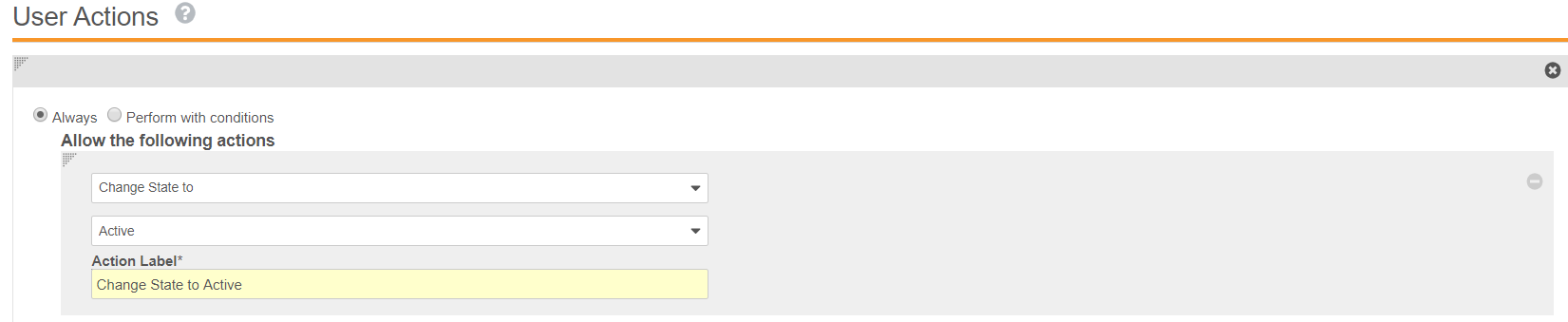
5. Select **Add Action**, and then add an action to **Change State to Active**.
6. Select **Save**.
<a href="https://platform.veevavault.help/assets/images/saf-change-state-to-active-action.png" data-lightbox="saf-change-state-to-active-action.png" data-title="Change State to Active through User Action" data-alt="Change State to Active User Action">
  <img class="docimage" src="https://platform.veevavault.help/assets/images/saf-change-state-to-active-action.png" alt="Change State to Active User Action" style="max-width: 80%;"  />
</a>