# Enable Adverse Event Watchlists

Learn how to update your Vault's configuration to enable the adverse event watchlists feature.

## About the Feature

Adverse event watchlists were added in Veeva Safety 19R3.2 Limited Release, and 20R1 General Release. Upgraded Vaults must perform the <a href="#20r1-watchlist-enablement">following configuration</a> to enable this feature. 

An additional watchlist feature was added to Vault Safety in 22R1 to allow Admins to configure seriousness criteria on a watchlist and configure watchlists independent of Products or Studies. You must <a href="#22r1-watchlist-enablement">perform these configurations</a> to enable this feature. 

Once you have enabled this feature, <a href="/en/lr/01192/">Configure Adverse Event Watchlists</a> provides more information about how to use it.

## <a id="configuration-checks-for-all-vaults"></a>Configuration Checks for All Vaults

Go to **Configuration > Objects > Watchlist**. From the **Layouts** tab, open the **Watchlist Detail Page Layout**.

Ensure the Watchlist Detail Page Layout matches the settings and order described in the following table that lists the fields or columns each section should have. Add/remove fields or columns to match the list.

<table>
    <thead>
        <tr>
            <th>Section</th>
            <th>Settings</th>
            <th>Fields/Columns</th>
        </tr>
    </thead>
    <tbody>
        <tr>
            <td>Details</td>
            <td>
                <ul>
                    <li>Type: Detail Form</li>
                    <li>Section Label: Details</li>
                    <li>Section Name: <code>details__c</code></li>
                    <li>Section Layout: Detail Form - One Column</li>
                </ul>
            </td>
            <td>
                <ul>
                    <li>Organization</li>
                    <li>Name</li>
                    <li>Watchlist Tag</li>
                    <li>Study</li>
                    <li>Study Product</li>
                    <li>Product</li>
                    <li>MedDRA Version</li>
                    <li><em>space</em></li>
                </ul>
            </td>
        </tr>
        <tr>
            <td>Updates to Case Fields</td>
            <td>
                <ul>
                    <li>Type: Detail Form</li>
                    <li>Section Label: Updates to Case Fields</li>
                    <li>Section Name: <code>updates_to_case_fields__c</code></li>
                    <li>Section Layout: Detail Form - One Column</li>
                </ul>
            </td>
            <td>
                <ul>
                    <li>Expedited</li>
                    <li>Default Seriousness</li>
                </ul>
            </td>
        </tr>
        <tr>
            <td>MedDRA Terms</td>
            <td>
                <ul>
                    <li>Type: Related Object </li>
                    <li>Related Object: MedDRA Criteria</li>
                    <li>Section Label: MedDRA Terms</li>
                    <li>Section Name: <code>meddra_criteria__c</code></li>
                    <li>Creation Option: Create record in pop-up dialog</li>
                    <li>Criteria VQL:<br><code>object_type__vr.api_name__v = 'watchlist_criteria__v'</code></li>
                </ul>
            </td>
            <td>
                <ul>
                    <li>Name</li>
                    <li>MedDRA Term</li>
                    <li>Description</li>
                </ul>
            </td>
        </tr>
        <tr>
            <td>Workflow Timeline</td>
            <td>Default Settings</td>
            <td></td>
        </tr>
        <tr>
            <td>System Information</td>
            <td>
                <ul>
                    <li>Type: Detail Form</li>
                    <li>Section Label: System Information</li>
                    <li>Section Name: <code>system_information__c</code></li>
                    <li>Section Layout: Detail Form - Two Columns</li>
                </ul>
            </td>
            <td>
                <ul>
                    <li>Last Modified Date</li>
                    <li>Last Modified By</li>
                    <li><em>Space</em></li>
                    <li>Created Date</li>
                    <li>Created By</li>
                    <li>API Name</li>
                </ul>
            </td>
        </tr>
    </tbody>
</table>

## <a id="20r1-watchlist-enablement"></a>(20R1) Enable Adverse Event Watchlists

You must update the fields, <a href="#configuration-checks-for-all-vaults">layout</a>, and layout rules for the Watchlist object.

### Update the Watchlist Object

To edit the Watchlist object, in the Admin area, go to **Configuration > Objects > Watchlist**.

#### Fields 

On the **Watchlist > Fields** tab, update the following fields:

<table>
    <thead>
        <tr>
            <th>Field</th>
            <th>Changes</th>
        </tr>
    </thead>
    <tbody>
        <tr>
            <td>Expedited</td>
            <td>Select <strong>Display in default lists and hovercards</strong>.</td>
        </tr>
        <tr>
            <td>MedDRA Version</td>
            <td>Select <strong>Display in default lists and hovercards</strong>.</td>
        </tr>
        <tr>
            <td>Organization</td>
            <td>Select <strong>Display in default lists and hovercards</strong>.</td>
        </tr>
        <tr>
            <td>Product</td>
            <td>
                <ul>
                    <li>Select <strong>Display in default lists and hovercards</strong>.</li>
                    <li>Under <strong>Constrain Records in Referenced Object</strong>, add the VQL criteria<br><code>organization__v = {{this.organization__v}}</code></li>
                </ul></td>
        </tr>
        <tr>
            <td>Study</td>
            <td>
                <ul>
                    <li>Select <strong>Display in default lists and hovercards</strong>.</li>
                    <li>Under <strong>Constrain Records in Referenced Object</strong>, add the VQL criteria<br><code>organization__v = {{this.organization__v}}</code></li>
                </ul></td>
        </tr>
        <tr>
            <td>Study Product</td>
            <td>Select <strong>Display in default lists and hovercards</strong>.</td>
        </tr>
        <tr>
            <td>Watchlist Tag</td>
            <td>Select <strong>Display in default lists and hovercards</strong>.</td>
        </tr>
    </tbody>
</table>

#### List Layout

On the **Watchlist > List Layout** tab, edit the List Layout to match the following order:

* Organization
* Product
* Study
* Study Product
* Expedited
* Watchlist Tag
* MedDRA Version

#### Detail Page Layout Rules

Go to **Watchlist > Layouts > Watchlist Detail Page Layout > Layout Rules**, and then add the following layout rules:

<table>
    <thead>
        <tr>
            <th>Rule Label</th>
            <th>Hide the following Layout Items</th>
            <th>IF this Layout Rule Expression is TRUE</th>
        </tr>
    </thead>
    <tbody>
        <tr>
            <td>Product Selected</td>
            <td><ul>
                    <li><strong>Type</strong>: Fields</li>
                    <li><strong>Values</strong>: Study, Study Product</li>
                </ul></td>
            <td><code>not(isBlank(product__vr.name__v))</code></td>
        </tr>
        <tr>
            <td>Study Selected</td>
            <td><ul>
                    <li><strong>Type</strong>: Fields</li>
                    <li><strong>Values</strong>: Product</li>
                </ul></td>
            <td><code>not(isBlank(study__vr.name__v)) </code></td>
        </tr>
    </tbody>
</table>

### Update the Case Entry Workflow

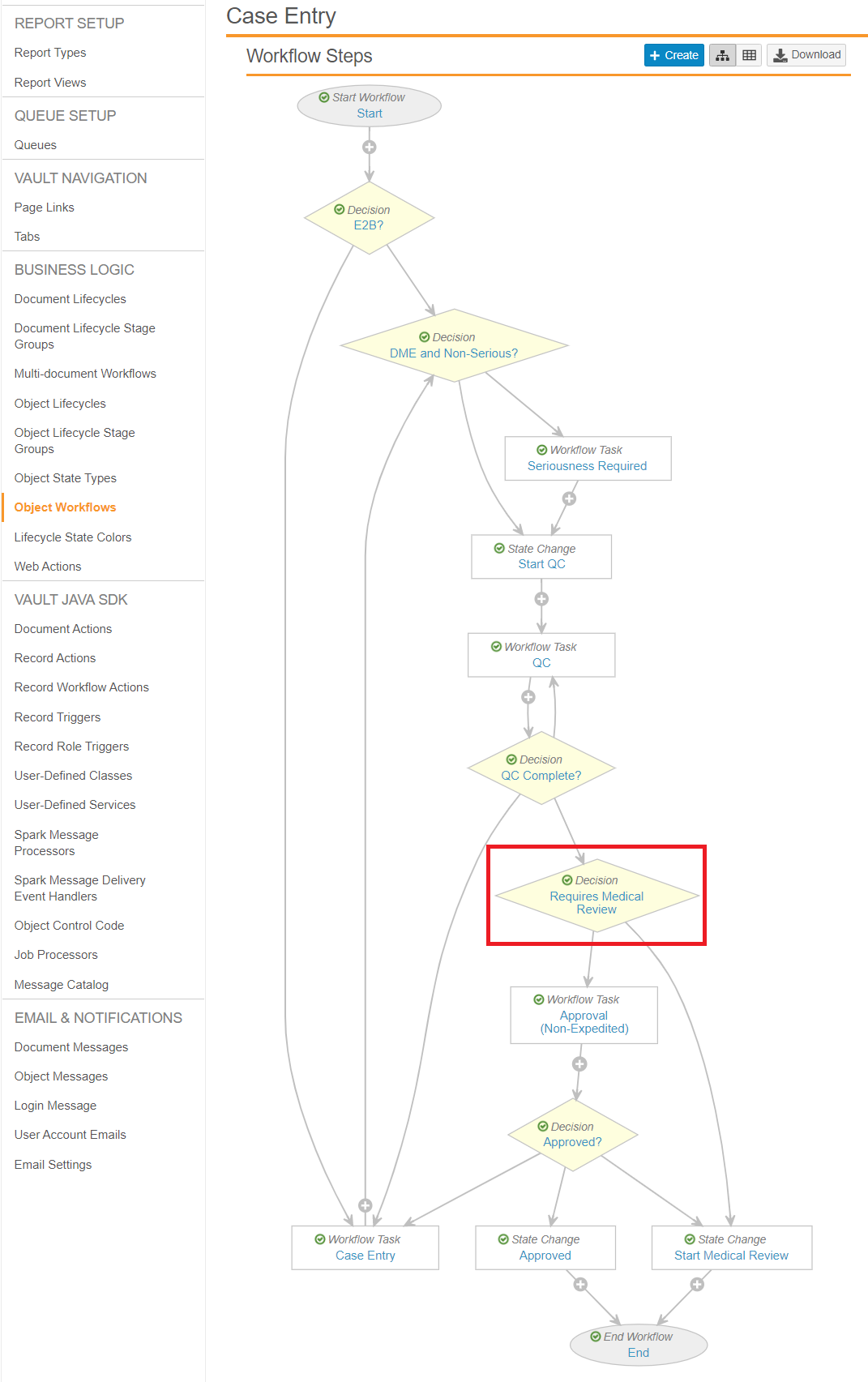
Go to **Object Workflows > Case Entry**, and then update the **Requires Medical Review** workflow step to match the following settings:

* **Type**: Decision
* **Next Steps**: Determined by the rules below
* **Rule 1**: _If_ Expedited = Yes _then_ Start Medical Review    
* **Else Rule 2**: _If_ Watchlist Tags includes AESI _then_ Start Medical Review
* **Else**: Approval (Non-Expedited)

<a href="https://platform.veevavault.help/assets/images/saf-case-entry-workflow.png" data-lightbox="saf-case-entry-workflow.png" data-title="" data-alt="Medical Review Decision in Case Entry Workflow">
  <img class="docimage" src="https://platform.veevavault.help/assets/images/saf-case-entry-workflow.png" alt="Medical Review Decision in Case Entry Workflow" style="max-width: 60%;"  />
</a>

## <a id="22r1-watchlist-enablement"></a>(22R1) Enable Always Serious and Product or Study-Independent Watchlists

You must update the <a href="#configuration-checks-for-all-vaults"> layout</a> and validation rules for the Watchlist object.

### Update the Validation Rules for the Watchlist Object

To edit the Watchlist object, in the Admin area, go to **Configuration > Objects > Watchlist**.

1. Navigate to **Admin > Configuration > Objects > Watchlist Validation Rules > Product or Study is Mandatory**.
2. Update the **Validation Expression** field to the following expression:<br>
`(not(isBlank(product__vr.name__v)) && (isBlank(study__vr.name__v)) ||`<br>
`((isBlank(product__vr.name__v))) && not(isBlank(study__vr.name__v)) ||`<br>
`((isBlank(product__vr.name__v))) && (isBlank(study__vr.name__v)))`