# Enable Case Level Relatedness and Automatic SUSAR/SAE Tagging

Learn how to update your Vault's configuration to enable the Case-level relatedness and SUSAR/SAE tags feature.

## About the Feature

Case-level relatedness was added in Veeva Safety 20R1. 

This feature introduces the ability to view the Relatedness for the primary assessment at the Case-level.

In addition, new and revised Case Assessments and Cases that meet the appropriate seriousness criteria are automatically tagged as a SUSAR or SAE to aid in ad-hoc reports and data analysis.

Once this feature is enabled, for more information about this feature, refer to the following pages:
<ul>
    <li><a href="/en/lr/01287/#details-section-fields">Case Field Reference</a> describes the <em>Relatedness</em> field and the new SUSAR and SAE tags.</li>
    <li><a href="/en/lr/01172/#case-assessments">Enter a Case Assessment</a> describes how the <em>Causality Established</em> field on the Assessment Result object rolls up to the Case <em>Relatedness</em> field.</li>
</ul>

### 25R3 Update: Tag Only Clinical Trial Study Cases as SUSAR {#r253}

With the 25R3 release, you can configure your Vault to <a href="/en/lr/01156/#susar-tag">assign _SUSAR_ tags</a> to _Case Assessments_ only on clinical trial study _Cases_. If enabled, Vault: 

* Applies this logic to new _Case Assessment_ tag assignments.
* Does not update records created before this feature was introduced.
* Reevaluates _Assessment Tags_ on existing _Case Assessments_ if follow-up information is merged into a _Case_.

If you do not enable this feature, Vault applies the _SUSAR_ tag to any study _Case_ that meets the SUSAR criteria, regardless of the study type. To configure your Vault for the updated feature, see [(25R3) Tag Only Clinical Trial Study Cases as SUSAR][1].

## Update the Case Layout

Follow the instructions below to update the **Case Page Layout** with control sections. Control sections are denoted by the **Slider** (<img class="inline" src="https://platform.veevavault.help/assets/images/saf-app-control.png" alt="Slider Icon" style="" />) icon.

1. Navigate to **Admin > Configuration > Objects > Case > Case Page Layout**.
2. In the **Details** section, add the **Relatedness** field.
3. If not already present on the layout, insert the **Case Assessments** control section with the following information: 
    * **Section Label**: Assessments
    * **Section Name**: case_assessment_control
4. Select **Done**. 
5. If not already present on the layout, insert the **Case Assessment Results** control section with the following information: 
    * **Section Label**: Assessment Results
    * **Section Name**: case_assessment_result_control
6. Select **Done**. 
7. Select **Save**. 

### Display Relatedness in Case Hovercard

1. Go to <strong>Objects > Case > Fields</strong>, and then open the <strong>Relatedness</strong> field.
2. Make sure the <strong>Display in default lists and hovercards</strong> option is enabled.

## Update Controlled Vocabularies

<ol>
    <li><a href="/en/lr/01435/">Enable Controlled Vocabulary User Actions</a> to be able to activate and deactivate Controlled Vocabulary records.</li>
    <li>Deactivate any records with the <strong>E2B Default Values</strong> field set to <strong>No</strong> or Null, for the following Controlled Vocabularies types: 
        <ul>
            <li>Case Assessment Method</li>
            <li>Case Assessment Result</li>
            <li>Case Assessment Source</li>
        </ul>
    </li>
</ol>

<div class="note-border alert-info">
  <div class="alert alert-info" role="alert">
    <div><i class="far fa-info-circle"></i></div>
    <div class="alert-text">
      <p><strong>Note</strong>: Deactivating non-E2B default Controlled Vocabularies is optional and may vary between Vaults, depending on each customer’s preferred configuration. The Controlled Vocabularies with the <strong>E2B Default Values</strong> field set to <strong>Yes</strong> should not be modified.</p>
    </div>
  </div>
</div>


<a href="/en/lr/01195/">Configure Controlled Vocabularies</a> provides more information on managing Controlled Vocabulary records.

## Update Triage Workflows

In Veeva Safety 19R3 and earlier, the SUSAR and SAE tags were set through Triage workflows. In 20R1 and later, Vault updates the SUSAR and SAE tags automatically when a Case meets SUSAR or SAE criteria. However, you must update your Vault's workflow configuration to make this change visible. 

Go to **Configuration > Object Workflows**, and then perform the following steps on the **Case Triage** and **Case Triage (Follow-Up)** workflows.

<ol>
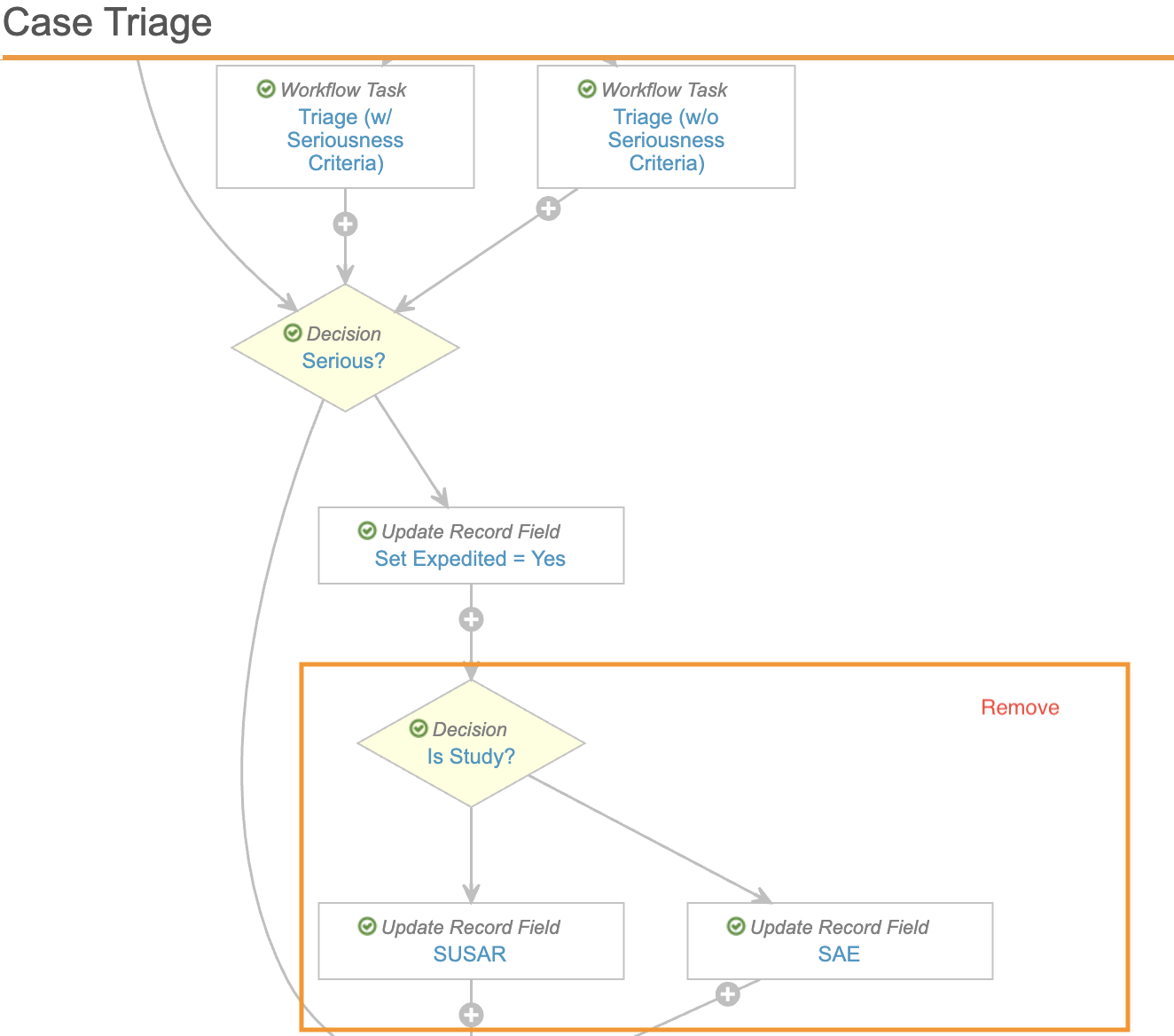
    <li>In both the <strong>Case Triage</strong> and <strong>Case Triage (Follow-Up)</strong> workflows, remove the following workflow steps:
        <ul>
            <li>Decision: Is Study?</li>
            <li>Update Record Field: SUSAR</li>
            <li>Update Record Field: SAE</li>
        </ul><br>
        <a href="https://platform.veevavault.help/assets/images/saf-triage-workflow-susar-sae-field-updates.png" data-lightbox="saf-triage-workflow-susar-sae-field-updates.png" data-title="" data-alt="Case Triage Steps for Removal">
  <img class="docimage" src="https://platform.veevavault.help/assets/images/saf-triage-workflow-susar-sae-field-updates.png" alt="Case Triage Steps for Removal" style="max-width: 60%;"  />
</a>
    </li>
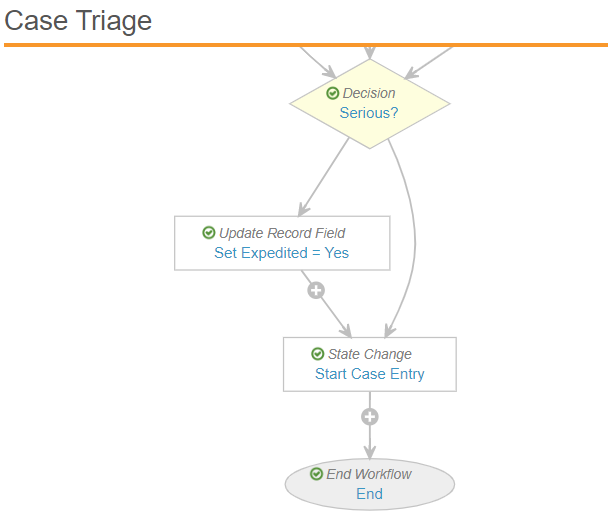
    <li>Link the steps that were before and after the deleted steps to make sure the workflow is valid.
        <br>For example, in the <strong>Case Triage</strong> workflow you may need to update the <strong>Set Expedited</strong> step to set the next step to <strong>Start Case Entry</strong>.<br>
        <a href="https://platform.veevavault.help/assets/images/saf-triage-workflow-relinked.png" data-lightbox="saf-triage-workflow-relinked.png" data-title="" data-alt="Case Triage Steps After Removal">
  <img class="docimage" src="https://platform.veevavault.help/assets/images/saf-triage-workflow-relinked.png" alt="Case Triage Steps After Removal" style="max-width: 60%;"  />
</a></li>
</ol>

## (25R3) Tag Only Clinical Trial Study Cases as SUSAR {#ct-study-only}

To configure your Vault to populate _SUSAR_ in the _Assessment Tag_ field on _Case Assessments_ only on clinical trial study _Cases_:

1. Navigate to **Admin > Settings > Safety General Settings**.
2. Select **Edit**.
3. In the _Auto-calculation Settings_ section, select the **Only Case Assessments associated with a Clinical Trial study type will be tagged as SUSAR** checkbox.
4. Select **Save**.

[1]: #ct-study-only