# Using Library & Document Tab Layouts
Vault offers four different layout options in the Library tab and any custom document type tabs: [Detail View][1], [Thumbnail View][2], [Compact View][3], and [Grid View][4]. Use the layout selector to switch between views. Once you've selected a layout option, Vault remembers it until you select a different layout.
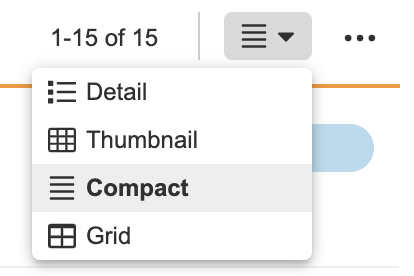 For each layout option, Vault displays a count in the upper-right corner of documents matching your selected filters. When there are more than 5,000 documents, Vault displays an estimated count, for example, **about 6025**.
 ## Detail View {#detail}
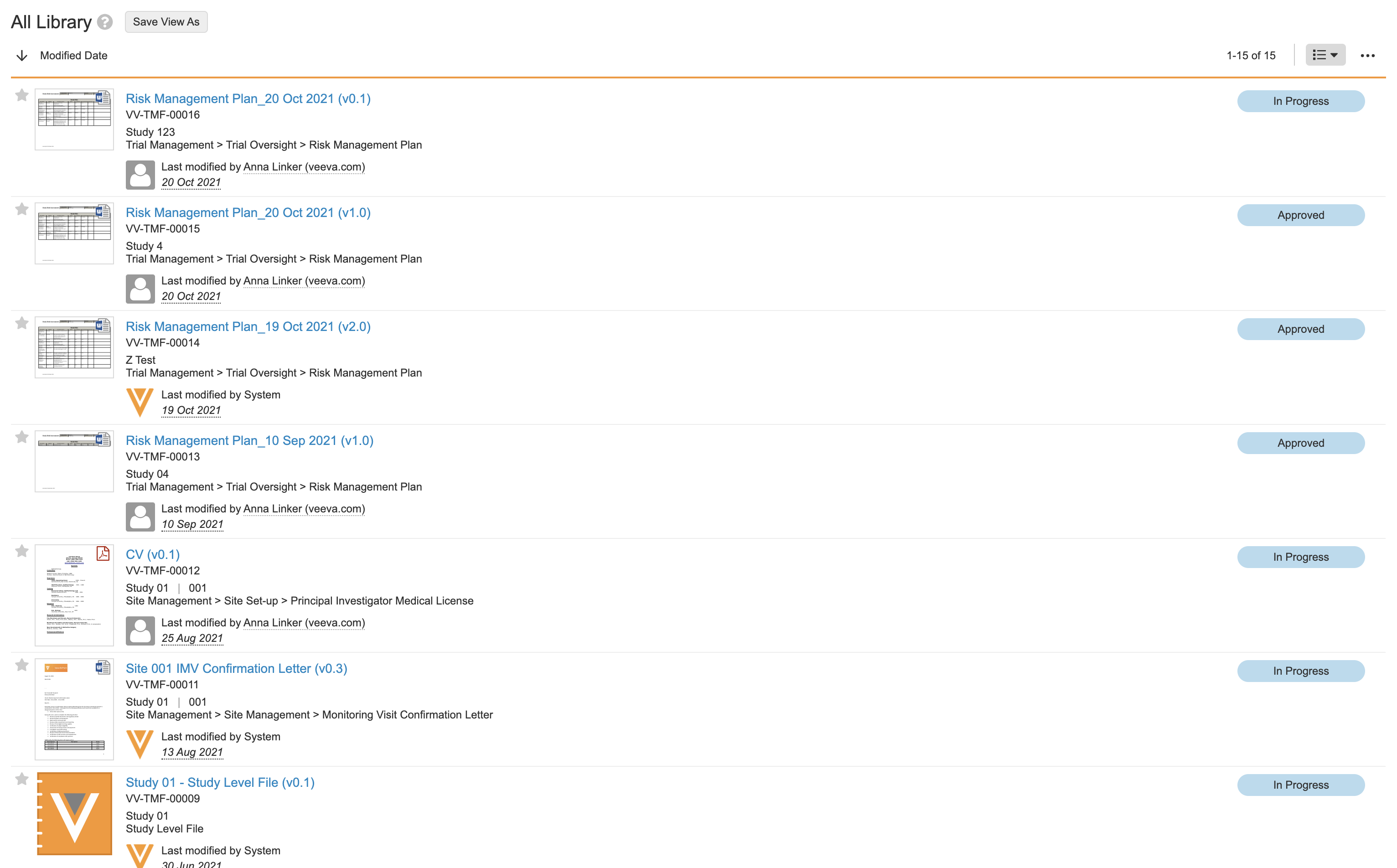
**Detail View** lists documents in rows. Each row shows a thumbnail of the document and important document fields.
## Detail View {#detail}
**Detail View** lists documents in rows. Each row shows a thumbnail of the document and important document fields.
 ## Thumbnail View {#tile}
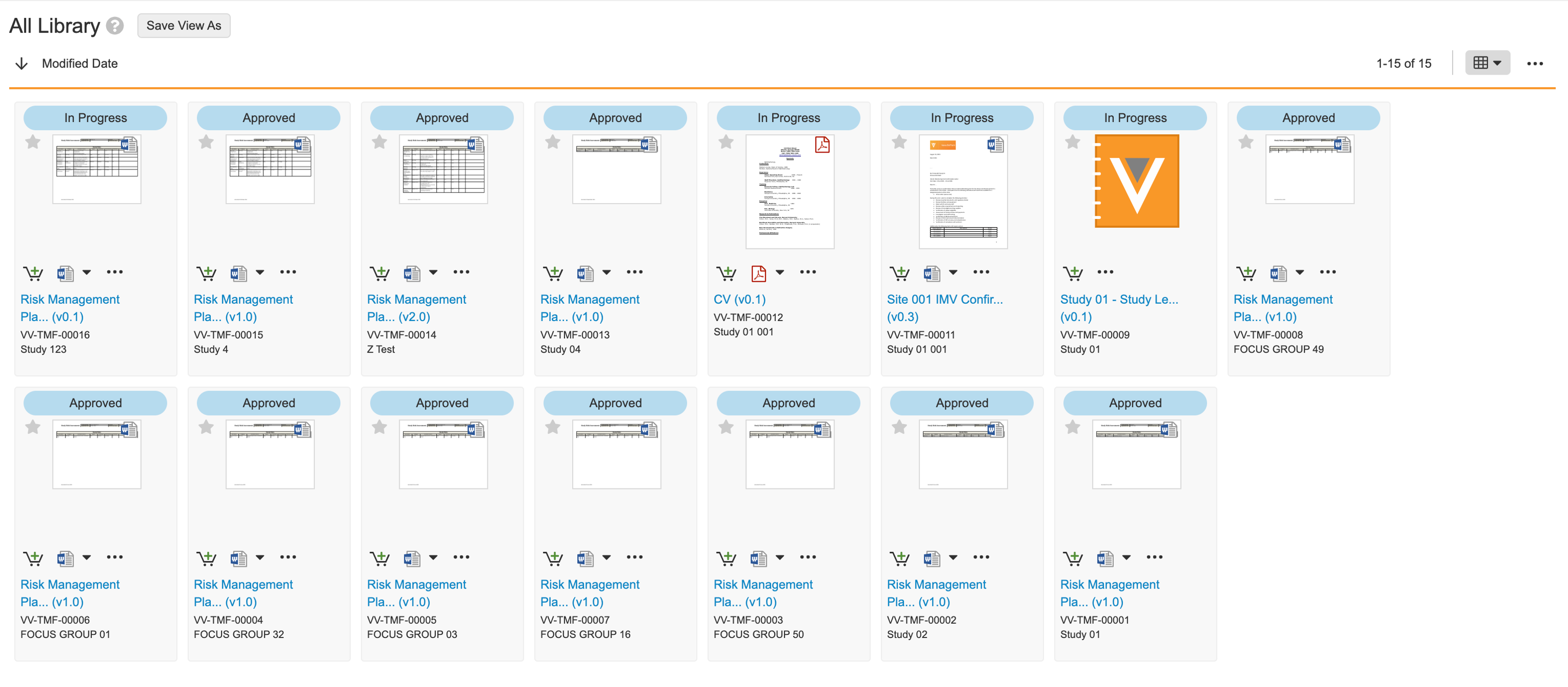
**Thumbnail View** organizes documents into columns and rows. Each tile shows the document thumbnail and important document fields.
## Thumbnail View {#tile}
**Thumbnail View** organizes documents into columns and rows. Each tile shows the document thumbnail and important document fields.
 ## Compact View {#compact}
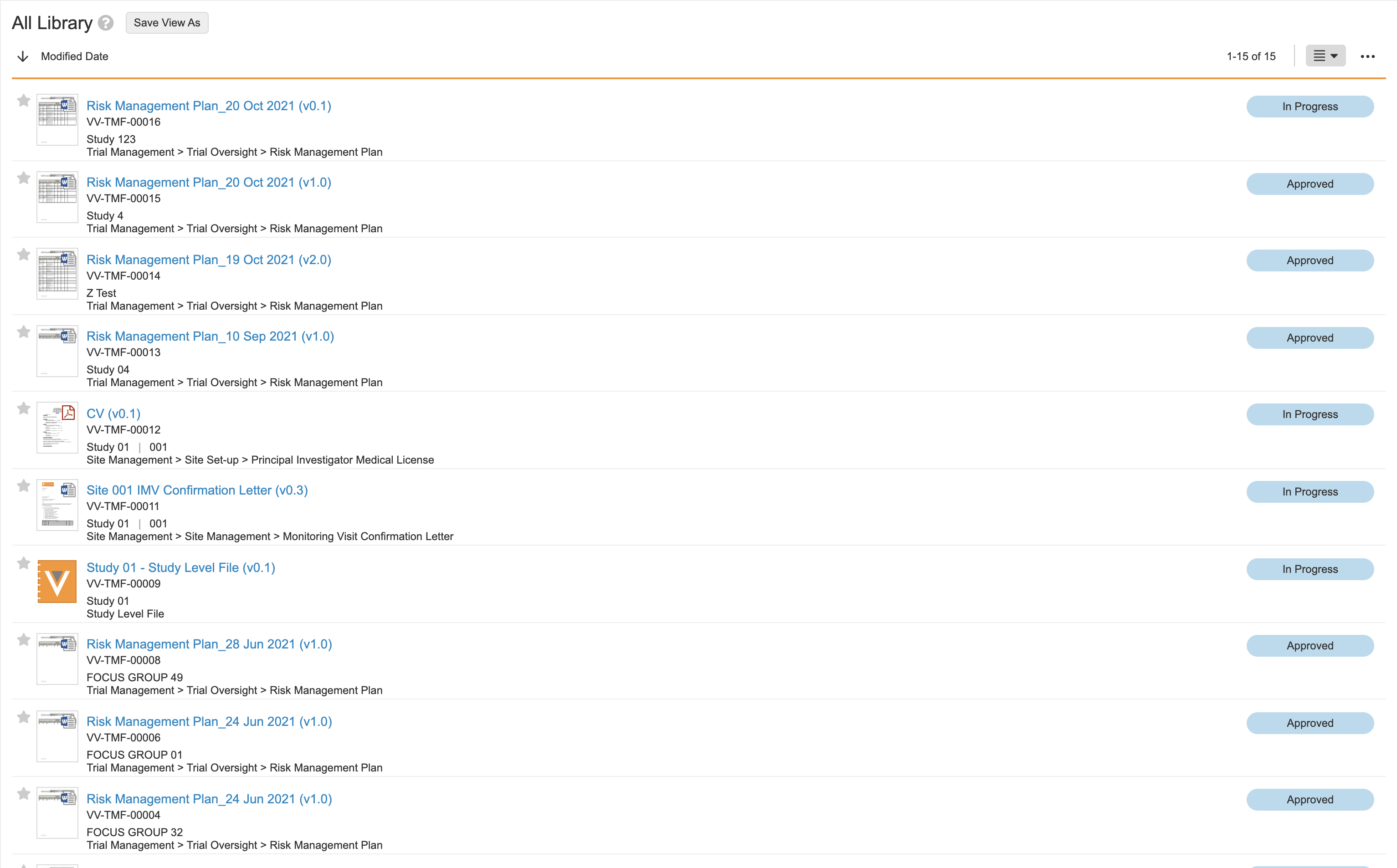
**Compact View** (default option) organizes documents into rows and displays a small thumbnail.
## Compact View {#compact}
**Compact View** (default option) organizes documents into rows and displays a small thumbnail.
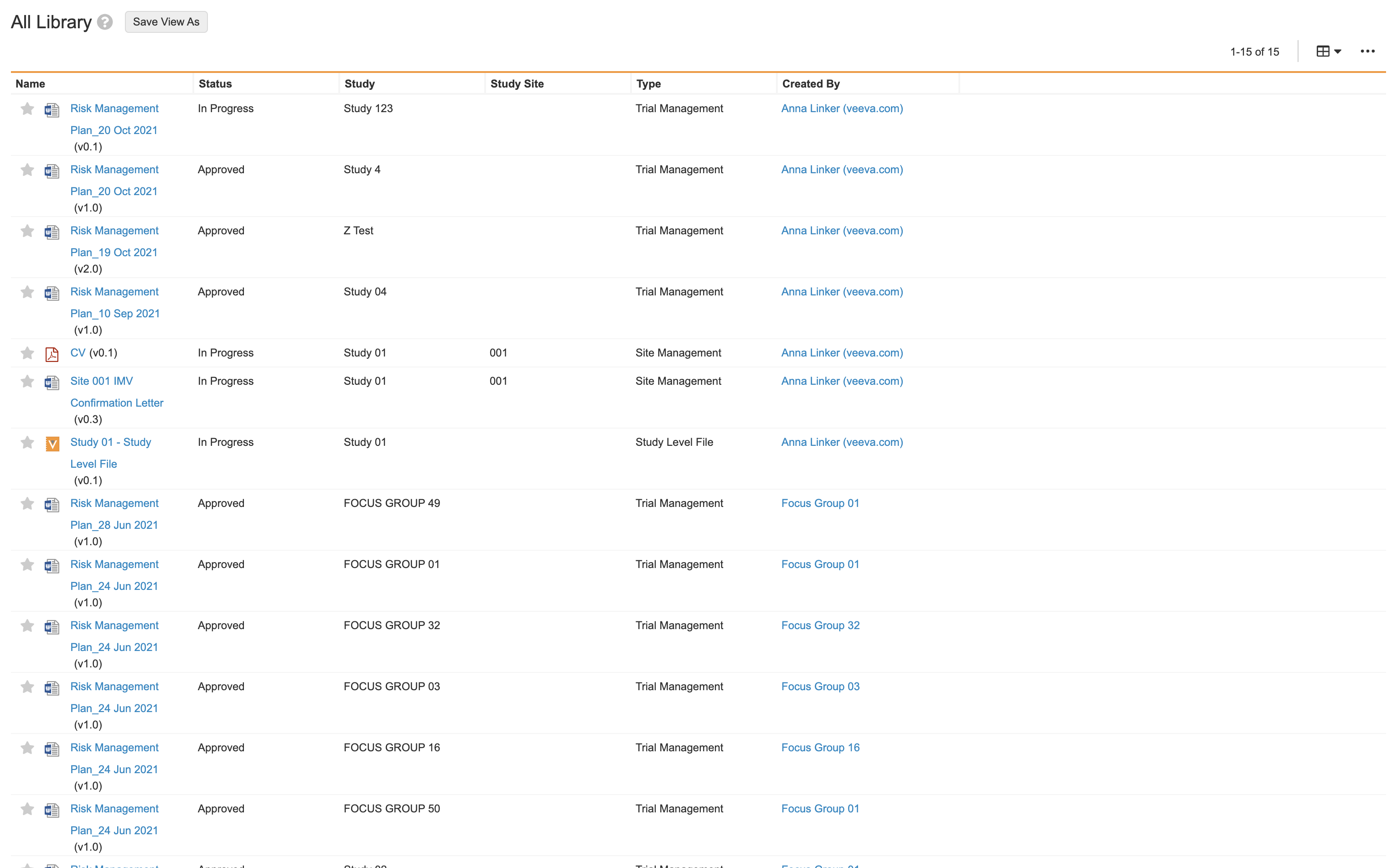
 ## Grid View {#tabular}
**Grid View** functions like a spreadsheet. You can rearrange or resize columns, add custom columns, sort by column values, and export your document metadata.
## Grid View {#tabular}
**Grid View** functions like a spreadsheet. You can rearrange or resize columns, add custom columns, sort by column values, and export your document metadata.
 [1]: #detail
[2]: #tile
[3]: #compact
[4]: #tabular
[1]: #detail
[2]: #tile
[3]: #compact
[4]: #tabular