Note: Vault Loader processes records in batches of 500 per Create, Update, and Delete action. For example, if you upload 502 records when using the Create action, the first 500 records are processed in the first batch while the next two (2) records are processed in a second batch.
Note: The CSV output file may contain an event field for Upsert operations or an id_param_value if an idparam body parameter is provided during object record load. For example, if idparam=external_id__v, the id_param_value returned is the same as the record’s external ID.
### Searching & Filtering Columns
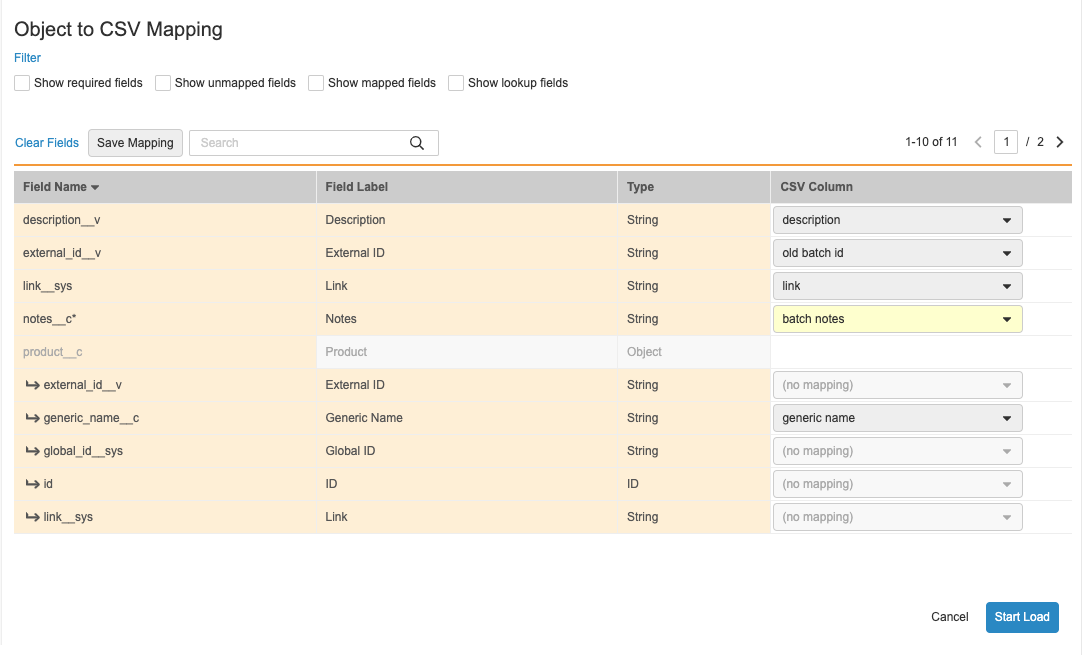
You can choose to show only certain types of fields in the field mapping grid by selecting one or more checkboxes in the _Filter_ section. You can enter a page number above the field mapping grid to jump to a specific page, or use the navigation arrows. Use the **Search** box to search for a specific field.
### Setting the CSV Column
Vault automatically maps CSV column headers to similar field names. To change these mappings, select a column header from the applicable **CSV Column** drop-down list to map that column to the desired object field. Select **(no mapping)** to remove a mapping and make the field blank in the newly created or updated record. Click **Clear Fields** to remove all mappings, or click **Save Mapping** to save the current field mapping for future use.
### Mapping Object Reference Fields
Vault maps object reference fields using a lookup field on the referenced object. In the example above, the _Product_ (`product__c`) field is populated by mapping the `product__c.generic_name__c` field to the _generic name_ CSV column. You can only map one lookup field per object reference field, and only unique fields are available for mapping. If all lookup fields are set to _(no mapping)_ for an object reference field, it will be blank in the newly created or updated records or, if the object reference field is required, the load will fail.
### Auto-Formatting {#auto_map}
Since Vault requires certain fields to be in a specific format, Loader uses auto-formatting to convert field values to Vault's standard format before completing a load. Loader uses auto-formatting for the following field types:
* Boolean: Loader ensures that all boolean field values are either _True_ or _False_ prior to loading
* Picklist: When mapping data to a picklist, Loader uses the picklist name (public key) for lookup prior to loading. If you don't provide a public key for the picklist, Loader can also use the picklist label for lookup.
### Additional Details
* Vault uses yellow highlighting for required CSV columns.
* The drop-down lists in the CSV column displays _(no mapping)_ for available columns of the CSV.
* Already mapped fields are unavailable in the field mapping grid.
## Changing Object Types {#changing-object-types}
You can change an object record's object type using _Update_ and _Upsert_ actions by selecting the **Change Object Type** checkbox. This action is only available for objects that have object types enabled. The CSV must include both the `id` and `object_type__v` columns. You can also specify the updated object type using the object type's _API Name_ (`object_type__v.api_name__v`) or _Name_ (`object_type__v.name__v`).
When changing the object type, you must use [field mapping][3] to map the ID and the object type.
## How to Delete Object Records {#delete}
To delete with Vault Loader, you will upload a CSV input file that lists the records you wish to delete. CSVs for delete actions only require the ID field. The rest of the process works as described in [Loading Object Records][8]. You cannot delete _User_ object records, but you can make user accounts inactive in one or more individual Vaults by setting the user's Vault membership to false. Learn more about Vault membership assignments.
### Cascade Delete {#cascade-delete}
When deleting records for certain objects, Vault can cascade delete an entire hierarchy of related records. When deleting records for an object that uses the cascade deletion setting, you can only delete one record (and its related records) in a single load. This means you cannot use the cascade delete setting on multiple object records.
You cannot use the cascade delete option when bulk deleting records.
### How to Log Object Record Deletions
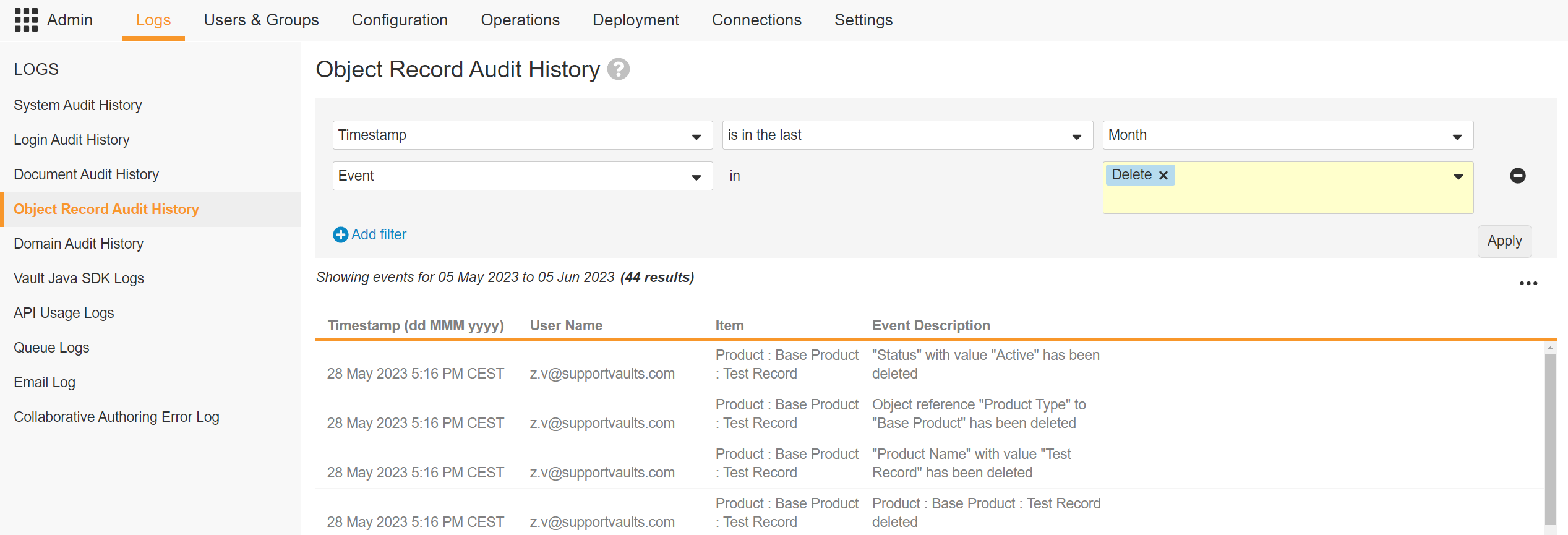
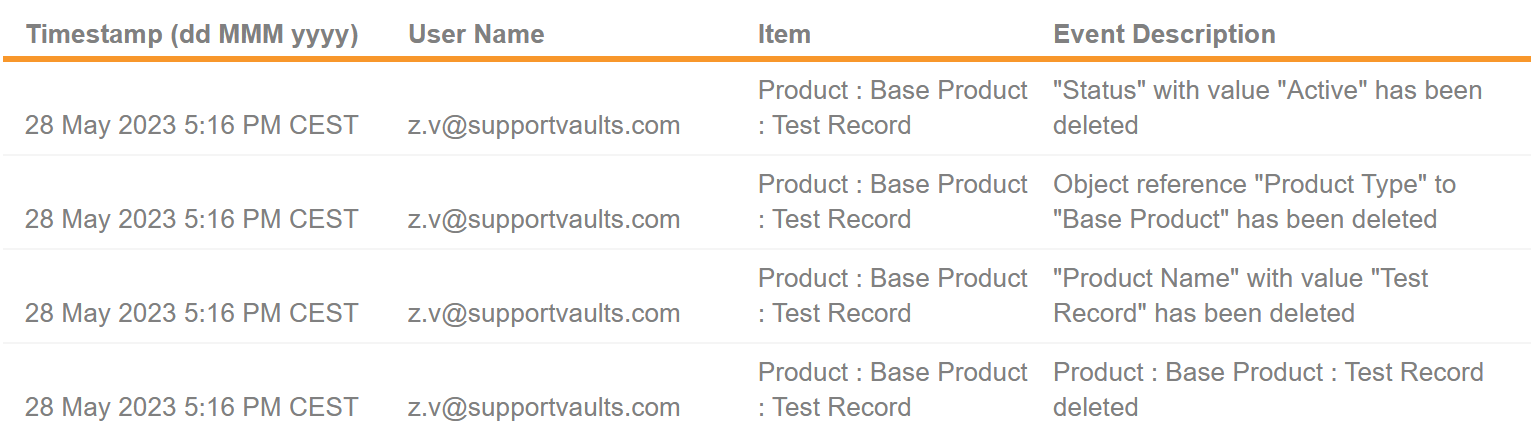
Object record deletions may be reviewed by navigating to **Admin > Logs > Object Record Audit History**. This tab displays the date and time of the deletion, the username which performed the deletion, the record, and the event of the deletion.
The **Delete** action permanently deletes an **Object Record**. When a user deletes an object record, the object record audit history captures information about deleted records, such as their object type and field values. Filters may be applied to narrow down the results further.
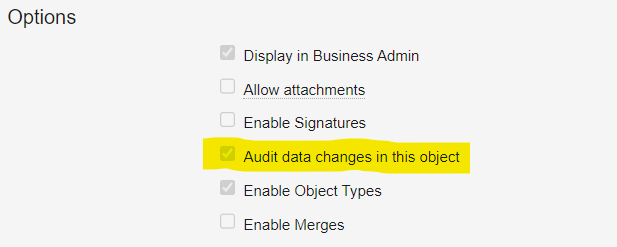
In the event the Audit Trail is not turned on in the **Options** section of the Vault object, the **Delete** event action will not appear in the _Object Record Audit History_, as the Audit Events are not captured on the object.
 The following shows the _Delete_ action which is the equivalent of deleting an object record. When a user deletes an **Object Record**, the _Object Record Audit History_ captures information about deleted records, such as their _Object Type_ and _Field_ values. Filters may be applied to narrow down the results further.
 ### How to Retrieve Object Records
It is not possible to retrieve deleted **Object Records** and their related references. Object Record related Attachments cannot be restored.
### Object Record Deletion Limitations
**Object**, **Object Record**, **Object Relationship**, and **Object Field** restoration are not possible in Vault. In the event any of these Vault elements are deleted, they become inaccessible.
## Create Records in a Specific Lifecycle State {#record-migration-mode}
Vault Loader allows you to specify a lifecycle state when creating or updating object records. When preparing your CSV file, you can specify a lifecycle state (`state__v`) or state type (`state_label`) field value to import records in the specified state using the _Create_, _Update_, and _Upsert_ actions.
To create or update a record in a specific lifecycle state, select the **Record Migration Mode** checkbox before loading your CSV. Vault executes minimal validation when creating or updating records in migration mode. You must have the _Vault Owner Actions: Record Migration_ permission to import records in a specific state.
## Preparing CSV Input Files {#prepare}
Fields vary between objects. The following list includes the fields that are always or usually required, as well as several sample fields that cover the different field types. We recommend using Loader to extract column headers and basing your CSV input on that file. Use **Record Migration Mode** to relax certain constraints when creating and updating object records.
| Column Header | Field | Example Value | Notes |
| --- | --- | --- | --- |
| `id` | ID | 00P000000000101 | Required for updating or deleting records. In update and delete actions, this is required for all rows. In upsert actions, you can leave this blank for new records but must fill it in for existing records. To set the `id` in create actions, enable **Record Migration Mode**. |
| `name__v` | Name | WonderDrug | Required for record creation unless the object uses auto-naming. |
| `object_type__v` | Object Type | 00P000000000304 | Sets or changes the object type using the object field name (`object_type__v`) as the column header and the ID value of the object record. For _Create_ actions, if this field is left blank, the object record will use the "base" type, for example, **Base Product**. |
| `object_type__vr.api_name__v` | Object Type > Name | `pharmaceutical__v` | Sets the object type using the relationship name (`object_type__vr`) plus object field name (`api_name__v`) as the column header and the object type name value (not label); if left blank, the object record will use the "base" type, for example, **Base Product**. |
| `campaign__c` | Campaign | 00P000000000101 | References an object record using the object field name (`campaign__c`) as the column header and the ID value of the record. Learn more about [loading object reference fields][18]. |
| `campaign__c.name__v` | Campaign > Name | Rise Above | References a related object record using the field on the object you're updating (`campaign__c`) plus the name field on the related object (`name__v`) as the column header. When creating object records with Vault Loader, you cannot reference related object field values to create values for fields that use a Lookup type field in a dynamic reference constraint. Instead, you must use the reference object field name as a column header and provide record IDs as values as shown in the above example for `camapign__c`. |
| `doc_reference__c` | Document Reference Field (Versioned) | 1457_0_1 | References a field on a specific version of a document. |
| `doc_reference_unbound__c` | Document Reference Field (Unversioned) | 1457 | References a field on the latest version of a document. Learn more about unbound document fields. |
| `family__c` | Product Family (picklist) | Wonder | References a picklist option using the picklist value name or label. |
| `generic_avail__c` | Generic Available | false | Indicates "No" for a Yes/No type field. |
| `date_approved__c` | Date Approved | 2017-01-29 | Dates must be formatted as YYYY-MM-DD. |
| `datetime_approved__c` | DateTime Approved | 2017-08-04T19:53:00.000Z | DateTime values must be formatted as `{YYYY-MM-DD}T{HH:MM:SS.SSS}Z` and use 24-hour time. Time must be in UTC, not in your time zone. DateTimes must end with the `.000Z` UTC expression; the zeros may be any number. |
| `rich_text__c` | Rich Text Field | `Veeva Website` | Rich Text fields support up to 32,000 plaintext characters, with an additional 32,000 characters reserved for HTML markup. In the Vault UI, users can only enter HTML markup through the buttons in the Rich Text Editor, however, manual HTML is supported in Vault Loader CSV input files. Tables are not supported in Rich Text fields. You can download a list of supported HTML tags and attributes here. |
| `state__v` | Lifecycle State | `draft_state__c` | Specifies the lifecycle state of the record. Only available for _Create_, _Update_, and _Upsert_ actions with _Record Migration Mode_ enabled. You can also provide object lifecycle state labels to the `state__v` column and Loader will look up the public key name given that the state labels are unique. |
| `state_label` | Lifecycle State Type | `base:object_lifecycle:initial_state_type` | Specifies the lifecycle state type of the record. When providing both a state and state type, the `state_label` value must map to the provided `state__v` value. For example, if the `state__v` value is set to `draft_state__c`, the state_label value must already be set to draft in the destination Vault. Only available for _Create_, _Update_, and _Upsert_ actions with _Record Migration Mode_ enabled. |
See example inputs:
* Create records
* Update records
* Upsert Records
### How to Load Object Reference Fields {#load-object-reference-fields}
You can reference an object record using any object field, for which the value must be unique. Do not include more than one column header for each object reference, or use [field mapping][3] to select a single column. If your CSV contains a blank value for an object reference field, the field will be blank in the newly created or updated record or, if the object reference field is required, loading the record will fail.
### How to Load User Records {#load_users}
You can use Vault Loader to [create and update _User_ records][10] with the `user__sys` object. This allows you to update custom fields on _User_ records, as well as standard fields such as _Manager_. Because Vault synchronizes _User_ records with Legacy User accounts, Vault automatically updates Legacy User accounts when you create or update _User_ records. For example, if you update the `language__sys` field on a _User_ record for John Smith, Vault also updates the same field for John Smith's Legacy User account.
It is recommended to use Vault Loader to create and update users by creating, updating, and deleting _User_ object records. However, if you are creating cross-domain or VeevaID users, or creating users without assigning Vault membership, it is recommended to use Vault Loader to update and create Legacy User accounts.
### How to Retrieve Object Records
It is not possible to retrieve deleted **Object Records** and their related references. Object Record related Attachments cannot be restored.
### Object Record Deletion Limitations
**Object**, **Object Record**, **Object Relationship**, and **Object Field** restoration are not possible in Vault. In the event any of these Vault elements are deleted, they become inaccessible.
## Create Records in a Specific Lifecycle State {#record-migration-mode}
Vault Loader allows you to specify a lifecycle state when creating or updating object records. When preparing your CSV file, you can specify a lifecycle state (`state__v`) or state type (`state_label`) field value to import records in the specified state using the _Create_, _Update_, and _Upsert_ actions.
To create or update a record in a specific lifecycle state, select the **Record Migration Mode** checkbox before loading your CSV. Vault executes minimal validation when creating or updating records in migration mode. You must have the _Vault Owner Actions: Record Migration_ permission to import records in a specific state.
## Preparing CSV Input Files {#prepare}
Fields vary between objects. The following list includes the fields that are always or usually required, as well as several sample fields that cover the different field types. We recommend using Loader to extract column headers and basing your CSV input on that file. Use **Record Migration Mode** to relax certain constraints when creating and updating object records.
| Column Header | Field | Example Value | Notes |
| --- | --- | --- | --- |
| `id` | ID | 00P000000000101 | Required for updating or deleting records. In update and delete actions, this is required for all rows. In upsert actions, you can leave this blank for new records but must fill it in for existing records. To set the `id` in create actions, enable **Record Migration Mode**. |
| `name__v` | Name | WonderDrug | Required for record creation unless the object uses auto-naming. |
| `object_type__v` | Object Type | 00P000000000304 | Sets or changes the object type using the object field name (`object_type__v`) as the column header and the ID value of the object record. For _Create_ actions, if this field is left blank, the object record will use the "base" type, for example, **Base Product**. |
| `object_type__vr.api_name__v` | Object Type > Name | `pharmaceutical__v` | Sets the object type using the relationship name (`object_type__vr`) plus object field name (`api_name__v`) as the column header and the object type name value (not label); if left blank, the object record will use the "base" type, for example, **Base Product**. |
| `campaign__c` | Campaign | 00P000000000101 | References an object record using the object field name (`campaign__c`) as the column header and the ID value of the record. Learn more about [loading object reference fields][18]. |
| `campaign__c.name__v` | Campaign > Name | Rise Above | References a related object record using the field on the object you're updating (`campaign__c`) plus the name field on the related object (`name__v`) as the column header. When creating object records with Vault Loader, you cannot reference related object field values to create values for fields that use a Lookup type field in a dynamic reference constraint. Instead, you must use the reference object field name as a column header and provide record IDs as values as shown in the above example for `camapign__c`. |
| `doc_reference__c` | Document Reference Field (Versioned) | 1457_0_1 | References a field on a specific version of a document. |
| `doc_reference_unbound__c` | Document Reference Field (Unversioned) | 1457 | References a field on the latest version of a document. Learn more about unbound document fields. |
| `family__c` | Product Family (picklist) | Wonder | References a picklist option using the picklist value name or label. |
| `generic_avail__c` | Generic Available | false | Indicates "No" for a Yes/No type field. |
| `date_approved__c` | Date Approved | 2017-01-29 | Dates must be formatted as YYYY-MM-DD. |
| `datetime_approved__c` | DateTime Approved | 2017-08-04T19:53:00.000Z | DateTime values must be formatted as `{YYYY-MM-DD}T{HH:MM:SS.SSS}Z` and use 24-hour time. Time must be in UTC, not in your time zone. DateTimes must end with the `.000Z` UTC expression; the zeros may be any number. |
| `rich_text__c` | Rich Text Field | `Veeva Website` | Rich Text fields support up to 32,000 plaintext characters, with an additional 32,000 characters reserved for HTML markup. In the Vault UI, users can only enter HTML markup through the buttons in the Rich Text Editor, however, manual HTML is supported in Vault Loader CSV input files. Tables are not supported in Rich Text fields. You can download a list of supported HTML tags and attributes here. |
| `state__v` | Lifecycle State | `draft_state__c` | Specifies the lifecycle state of the record. Only available for _Create_, _Update_, and _Upsert_ actions with _Record Migration Mode_ enabled. You can also provide object lifecycle state labels to the `state__v` column and Loader will look up the public key name given that the state labels are unique. |
| `state_label` | Lifecycle State Type | `base:object_lifecycle:initial_state_type` | Specifies the lifecycle state type of the record. When providing both a state and state type, the `state_label` value must map to the provided `state__v` value. For example, if the `state__v` value is set to `draft_state__c`, the state_label value must already be set to draft in the destination Vault. Only available for _Create_, _Update_, and _Upsert_ actions with _Record Migration Mode_ enabled. |
See example inputs:
* Create records
* Update records
* Upsert Records
### How to Load Object Reference Fields {#load-object-reference-fields}
You can reference an object record using any object field, for which the value must be unique. Do not include more than one column header for each object reference, or use [field mapping][3] to select a single column. If your CSV contains a blank value for an object reference field, the field will be blank in the newly created or updated record or, if the object reference field is required, loading the record will fail.
### How to Load User Records {#load_users}
You can use Vault Loader to [create and update _User_ records][10] with the `user__sys` object. This allows you to update custom fields on _User_ records, as well as standard fields such as _Manager_. Because Vault synchronizes _User_ records with Legacy User accounts, Vault automatically updates Legacy User accounts when you create or update _User_ records. For example, if you update the `language__sys` field on a _User_ record for John Smith, Vault also updates the same field for John Smith's Legacy User account.
It is recommended to use Vault Loader to create and update users by creating, updating, and deleting _User_ object records. However, if you are creating cross-domain or VeevaID users, or creating users without assigning Vault membership, it is recommended to use Vault Loader to update and create Legacy User accounts.
Note: You can create an inactive user with Record Migration Mode enabled. To create an inactive user, ensure the status__v value is inactive__v and the state__v value is inactive_state__sys. You can set the username__sys value to a new or existing inactive domain user, or an existing active domain user.