# Configuring Layout Rules

Layout rules streamline the data entry process by dynamically hiding irrelevant fields, sections, pages, and layouts on an <a href="/en/lr/26387/">object record detail page</a> based on business needs. For example, a veterinary clinic could hide all fields and sections related to feline medicine on the patient record page if the patient is a dog.

Layout rules use Boolean expressions to hide or show fields and sections. You can configure up to 50 rules for each layout. Each layout rule can hide one or more fields, sections, pages, controls, layouts, or all of the above.

You can hide layouts when a user is assigned multiple layouts but only one is relevant at a certain point, such as during a lifecycle state. For example, if a record is in a _Draft_ state, use a layout rule to hide all other layouts that aren't relevant to the _Draft_ state. Used in conjunction with the _Focus On_ rule, the user would only see the layout relevant to the _Draft_ state.


### Demo: Configuring Action Layout Rules {#configuring-action-layout-rules-demo}


This video details how to configure and edit action layout rules.
<video controls width=860 height =504 poster="https://platform.veevavault.help/assets/images/posters/action-layouts-layout-rules.png" preload="metadata">
    <source src="https://platform.veevavault.help/108e9b1d-559c-4d48-918b-1e4c5b5a533c/f5cfb994-7cc0-45fb-b25b-0f802bfb068c/f5cfb994-7cc0-45fb-b25b-0f802bfb068c_source__v.mp4" type="video/mp4" >
    
    <track
    label="English"
    kind="subtitles"
    srclang="en"
    src="/en/lr/assets/captions/26r1-action-layout-rules.vtt"
    default />
    </video>

<a href="/en/lr/676774/">Details</a>


## Accessing Layout Rules

You can access the _Layout Rules_ list page in two ways:

* Navigate to **Business Admin > Objects** and select an object. From the object record detail page, click the **All Actions** menu and select **Configure Layout**. Then click **Layout Rules**.
* Navigate to **Admin > Configuration > Objects > [Object] >** **Layouts** and select an object layout. Then, click **Layout Rules**.

## Creating Layout Rules

To create a new layout rule:

1. From the **Layout Rules** list page, click **Create**.
2. Enter a **Label** for the layout rule. The **Name** field auto-populates with the value entered in the Label field.
3. Select **Active** or **Inactive** from the **Status** drop-down menu.
4. Optional: Enter a brief description in the **Description** field.
5. Enter the **Layout Rule Expression**, which must be a Boolean (true/false) expression. You can use the **Fields**, **Functions**, and **Operators** tabs to search a list of options.
6. Click **Check Syntax**. If no errors occur, the layout expression rule is valid.
7. Select **Hide**, **Display as Required**, **Display as Read-Only** or **Focus On** from the **Effect** drop-down.
8. If **Hide** is selected, select the **Type** of item to hide. You can hide individual fields, sections, pages, controls, or the entire layout.
9. If **Display as Required** or **Display as Read-Only** is selected, **Field** is automatically selected from the **Type** drop-down.
10. If **Focus On** is selected, the **Type** drop-down is set to **Layout**.
11. Select the field, section, page, or control from the **Values** drop-down. Type an item in the **Values** field to search for it in the drop-down menu.
12. Click **Save**.
13. Click **Layout Editor** to return to editing the layout sections and pages.

Layout rules expressions use <a href="/en/lr/52324/">Vault's standard expression grammar</a> and return true/false. Vault hides fields, sections, pages, controls, and layouts when expressions return true. Layout rules support all standard field types supported in Vault expression grammar and use the same syntax as formula fields, validation rules, and other expression-based features.

When hiding controlling fields using layout rules, Vault ensures that all controlled fields are hidden using the same rule by automatically adding them when necessary. This applies to object fields that have explicit controlling fields (such as references to child objects) and object fields that use <a href="/en/lr/1037069/#dynamic-reference-constraints">dynamic reference constraints</a>.

Object type layouts can have rules that are independent of the base object. Layout rules can only use fields from the current object or object type and sections from the current object layout. With the exception of <a href="/en/lr/28740/">object reference fields</a>, you cannot use related object fields in layout rules.

Layout rules can also use fields referencing the logged-in user. You can configure layout rules to hide fields and sections from individual users or groups of users. For example, a medical clinic could prevent non-clinical staff from seeing patients' sensitive medical records.

If a layout rule hides all layouts, sections, or pages on an object, an error message displays asking the user to contact their Admin.

If a layout rule hides a field in a two-column section, the fields will rebalance. For example, if a two-column section contains eight (8) fields (four (4) per column), and two are hidden, both columns will rebalance to show three fields each. In addition, if one field is hidden, the left column will show four fields and the right column will show three. Vault also aligns the fields with each other.

### About Display Effects

Display effects determine how the layout rule will function in the user interface. The available display effects are as follows:

* **Hide**: Allows you to hide layouts, pages, sections, controls, and fields. Use this effect to hide information that is irrelevant to one user but relevant to another. For example, a veterinary clinic could hide a feline distemper vaccine history field if the patient is a canine.
* **Display as Required**: Allows you to show fields as required. Use this effect to make a field required for one user while leaving it unrequired for another. This is not a security feature and only applies to the display of the field on the object record detail page.
* **Display as Read Only**: Allows you to show fields on an object record layout as read-only. Use this effect to prevent users from mistakenly changing existing field values. This is not a security feature and only applies to the display of the field on the object record detail page.
* **Focus On**: Allows you to determine which default layout a user sees when accessing a record detail page. Use This effect when there are multiple layouts on a record and you want a user to see one by default. For example, if a record has a _Draft_ lifecycle state, use _Focus On_ to determine the default layout a user sees when they access the record in its _Draft_ state.

<div class="note-border alert-info">
  <div class="alert alert-info" role="alert">
    <div><i class="far fa-info-circle"></i></div>
    <div class="alert-text">
      <p><strong>Note</strong>: If a <em>Hide: Page</em>, <em>Hide: Layout</em>, or <em>Focus On</em> layout rule is added while a user is editing a record detail page, the rule takes effect only when the user reloads the page, such as by clicking <strong>Save</strong>. For example, if a page is hidden using the <code class="language-plaintext highlighter-rouge">DisplayMode() = 'VIEW'</code> expression, Vault will not hide it until the user clicks <strong>Save</strong>. Then, the page will remain hidden despite the <code class="language-plaintext highlighter-rouge">DisplayMode</code> enabled.
This functionality prevents interrupting users as they complete a record detail page.</p>
    </div>
  </div>
</div>


### Layout Rule Expression Examples

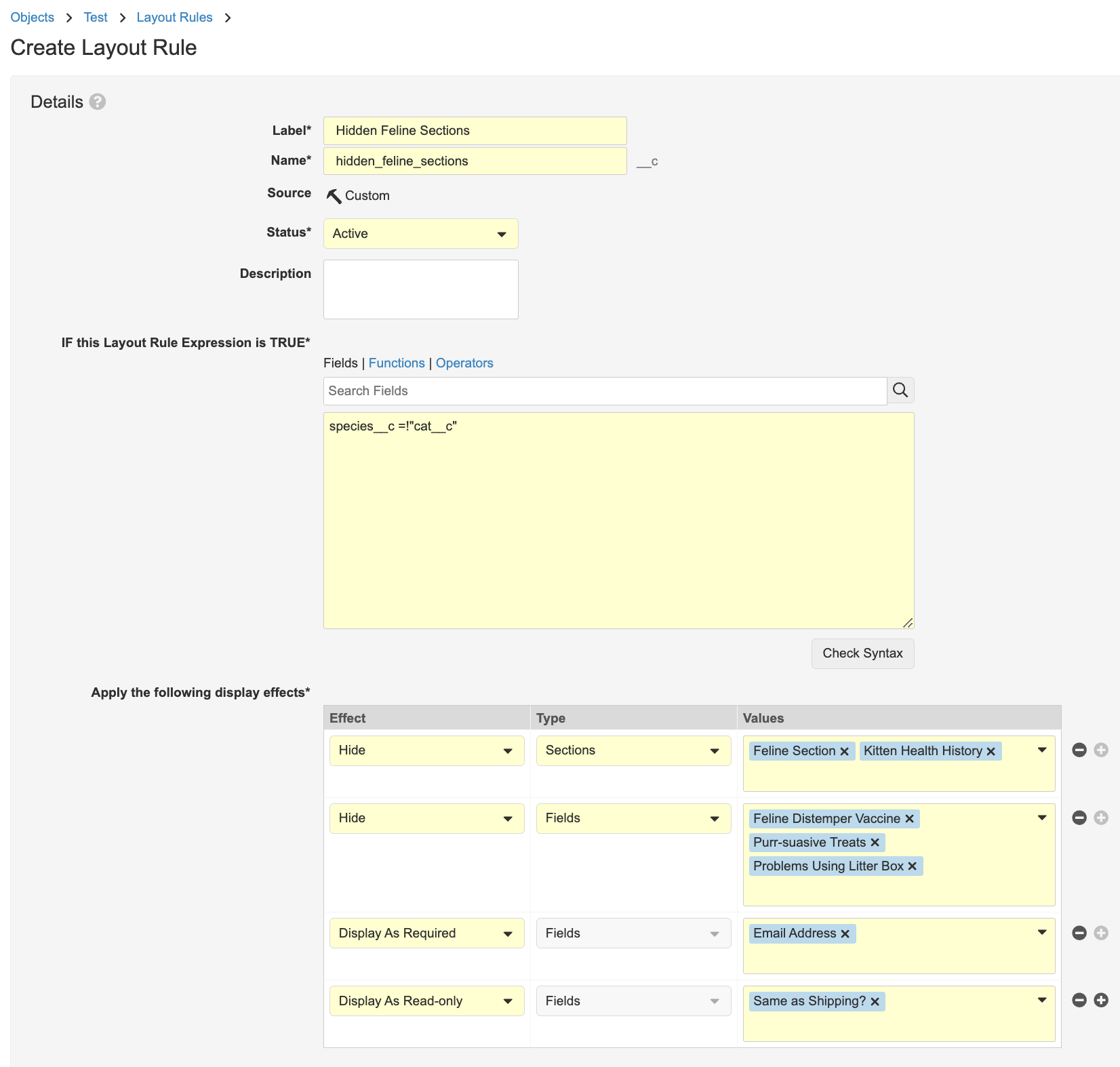
<a href="https://platform.veevavault.help/assets/images/layout-rules-configuration-23r34.png" data-lightbox="images" data-title="" data-alt="Layout Rule Configuration">
  <img class="docimage" src="https://platform.veevavault.help/assets/images/layout-rules-configuration-23r34.png" alt="Layout Rule Configuration" style="max-width: 500px;"  />
</a>

If a layout rule hides all layouts, sections, or pages on an object from a user, an error message will display asking the user to contact their Admin.

If a layout rule is used to hide a field in a two-column section, the fields will rebalance. For example, if a two-column section contains eight (8) fields (four (4) per column), and two are hidden, both columns will rebalance to show three fields each. In addition, if one field is hidden, the left column will show four fields and the right column will show three. Vault also aligns the fields with each other.

|Description|Field & Field Type|Expression|
|--- |--- |--- |
|Hide _Allergy History_ section for patients with no allergies|_Allergies?, Yes/No_|`allergies__c = false`|
|Hide _Drinks Per Week_ field for patients under 21|_Age, Number_|`age__c < 21`|
|Hide _SSN_ field from a non-trusted employee|_User Name, Text_|`@User.name__v = "Kevin"`|
|Hide _Feline_ section, _Kitten Health History_ section, _Feline Distemper Vaccine_ field, _Litter Box Problems_ field, and _Hairball_ field if Veterinary Patient is not a cat|_Species, Picklist_|`species__c != "cat__c"`|
|Require _Email Address_ field for patients who prefer contact by email.|_Preferred Contact Method, Picklist_|`preferred_contact_method__c = "Email"`|
|Display _Billing Address_ field as read only if the patient's billing and shipping address are the same.|_Same as Shipping, Yes/No_|`same_as_shipping__c = true`|
|Hide specific instructions when a record is in View mode and display them when a user creates, edits, or copies a record.|_Notepad Instructions_, _Text_|`DISPLAYMODE() = 'VIEW'`|
|Displays this field only if the user viewing the record is assigned a workflow task in the _Change Control Approval_ workflow to complete the _Execution Summary_ field.|_Execution Summary_, _Text_|`UserHasAssignedTask('change_control_final_approval__c.task_final_approval__c')`|

## Editing & Deleting Layout Rules

To edit or delete a layout rule:

1. Navigate to **Configuration > Objects > [Object] > Layouts**  and select a page layout.
2. Click **Layout Rules**.
3. From a layout rule's **Actions** menu, select **Edit** or **Delete**. You can also click a layout rule to open it, and then click the **Edit** or **Delete** button.

Layout rules can be standard, system, or custom. Only the rule owner can delete and edit certain attributes of standard and system layout rules, for example, _Status_ or _Rule Name_. Deleting a page layout will delete all associated layout rules.

## Configuring the Layout Rules List Page

If an object has multiple layout rules, Vault applies them in the order they appear on the _Layout Rules_ list page. When you create new layout rules, Vault adds them to the bottom of the list. Sections and fields always appear on the object record detail page if the last rule that references them is false. The last layout rule evaluated on a field, section, or layout takes effect. If the last layout rule is false, the hide effect is not applied, even if rules earlier in the list evaluate to true.

To change the order of layout rules, click **Reorder**. Drag and drop a rule to its new position and click **Save**.

## Related Permissions

You can complete all steps in this article with the standard _System Admin_ or _Vault Owner_ <a href="/en/lr/5721/#SecurityProfiles">security profile</a>. If your Vault uses custom security profiles, your profile must grant the following permission:

|Type|Permission Label|Controls|
|--- |--- |--- |
|Security Profile|Admin: Objects: Edit|Ability to edit and configure Vault objects in order to create an object record page layout rule.|
