 ## Snapshot Releases
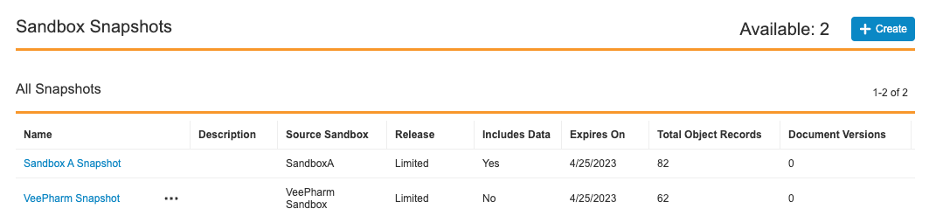
Snapshots can retain details about the Vault's release when the snapshot was created. This information is important to know in the following scenarios:
* When using a General Release snapshot to produce a Limited Release Vault
* When attempting to use a Limited Release snapshot to produce a General Release Vault, which is prohibited
## Snapshot Expiration {#expiration}
Vault assigns a snapshot the same release version as its source sandbox Vault upon creation. However, as time progresses, the snapshot release version will fall behind that of the source sandbox Vault. Automatic snapshot expiration prevents the need for snapshots to be upgraded across multiple releases.
Snapshots expire automatically if unused for a period of time. [Updating][3] or [upgrading][4] a snapshot updates its _Expires On_ date. Vault Owners are notified via email seven (7) days prior to a snapshot's expiration. This warning is also visible on the _Sandbox Snapshots_ page. For example, a snapshot created from a general release sandbox with the version 22R3.0 will expire just prior to the 23R2.0 release. Alternatively, a snapshot created from a limited release sandbox with the version 22R3.2 will expire soon after the 23R1.0 release.
The following table displays the exact dates of snapshot expiration:
| Vault Release | General | Limited |
| - | - | - |
| 1.x | November 14th | August 15th |
| 2.x | April 4th | December 5th |
| 3.x | July 25th | April 25th |
## Creating Snapshots {#create}
To create a new snapshot:
1. From the parent Vault of the sandbox you'd like to take a snapshot of, navigate to **Admin > Deployment > Sandbox Snapshots**.
2. Click **Create**.
3. Click **Select Sandbox** to select a **Source**. In the dialog, choose the name of the desired source Vault. Click **Continue** to return to the _New Snapshot_ page.
4. Enter the **Name** of the snapshot. Snapshot names must follow the same rules for Vault names as sandboxes.
5. Provide a **Description** for the snapshot.
6. Select whether to **Include Data**. If unchecked, the snapshot will only include configuration.
7. Click **Finish**. The build process can take ten (10) minutes to six (6) hours depending on the size of the source sandbox. Users are unable to access the source sandbox while the snapshot is building. Admins receive a Vault and email notification when a snapshot has been successfully built.
## Updating Snapshots {#update}
Updating a snapshot creates a new snapshot to replace an existing one. The new snapshot shares the same _Name_ and _Description_. Similar to refreshing a sandbox, updating a snapshot overwrites its configuration and optional data with the latest from the source sandbox Vault. This action also updates the [expiration date][1] of the snapshot.
How often you can update a snapshot depends on the size of the source sandbox:
* **Small**: Up to five (5) times in a 24-hour period
* **Medium**: Once in a 24-hour period
* **Large**: Once in a 24-hour period
* **Very Large**: Once in a 24-hour period
* **Extra Large**: Once in a 24-hour period
* **Full**: Once in a 24-hour period
### How to Update a Snapshot
To update a snapshot:
1. In the snapshot's source sandbox Vault, navigate to **Admin > Deployment > Sandbox Snapshots**.
2. From the **Actions** menu of the snapshot, select **Update**.
3. A message appears to warn you that a new snapshot will be created to replace the current snapshot. Click **Confirm**. The build process can take ten (10) minutes to six (6) hours depending on the size of the source sandbox. Users are unable to access the source sandbox while the snapshot is building. Admins receive a Vault and email notification when a snapshot has been successfully built.
## Upgrading Snapshots {#upgrade}
Upgrading a snapshot changes the sandbox release version to match that of the source sandbox Vault. This action is only available when the snapshot has an _Upgrade Status_ of "Upgrade Required" or "Upgrade Available". An _Upgrade Status_ of "Expired" indicates the snapshot hasn't been upgraded before its [expiration date][1].
### How to Upgrade a Snapshot
To upgrade a snapshot:
1. In the snapshot's source sandbox Vault, navigate to **Admin > Deployment > Sandbox Snapshots**.
2. From the **Actions** menu of the snapshot, select **Upgrade**.
3. A message appears to inform you that the snapshot will be upgraded to the appropriate release version. Click **Confirm** to start the upgrade process.
This process can take anywhere from one (1) to ten (10) hours depending on the size of your Vault. The snapshot will be unavailable while it's being upgraded. Admins receive a Vault and email notification when a snapshot has been successfully upgraded.
## Deleting Snapshots {#delete}
Existing snapshots can be deleted once they are no longer in use or to increase the total number of available snapshots. You can delete snapshots along with their source sandbox or [retain][7] them for later use. You cannot recover deleted snapshots.
You can delete a snapshot after a certain period depending on the size of the source sandbox:
* **Small**: Anytime after creation
* **Medium**: 24 hours after creation
* **Large**: 24 hours after creation
* **Very Large**: 24 hours after creation
* **Extra Large**: 24 hours after creation
* **Full**: 24 hours after creation
### How to Delete a Snapshot
To delete a snapshot:
1. In the snapshot's source sandbox Vault, navigate to **Admin > Deployment > Sandbox Snapshots**.
2. From the **Actions** menu of the snapshot, select **Delete**.
3. A message appears to inform you that the snapshot will be deleted and it cannot be reverted. Click **Confirm** to start the deletion process. Admins receive a Vault and email notification when a snapshot has been successfully deleted.
## Retaining Snapshots {#retain}
When a sandbox with associated snapshots is deleted, Vault provides the option to move the snapshots to a new source sandbox.
The _Change Source Sandbox_ action allows you to retain snapshots for future use and prevents the need to run multiple obsolete sandboxes. You can select any sandbox that appears in the _Active Sandbox Vault_ section or a parent sandbox as the new source sandbox. Any sandboxes already associated with two snapshots are grayed out for selection.
## Snapshot Releases
Snapshots can retain details about the Vault's release when the snapshot was created. This information is important to know in the following scenarios:
* When using a General Release snapshot to produce a Limited Release Vault
* When attempting to use a Limited Release snapshot to produce a General Release Vault, which is prohibited
## Snapshot Expiration {#expiration}
Vault assigns a snapshot the same release version as its source sandbox Vault upon creation. However, as time progresses, the snapshot release version will fall behind that of the source sandbox Vault. Automatic snapshot expiration prevents the need for snapshots to be upgraded across multiple releases.
Snapshots expire automatically if unused for a period of time. [Updating][3] or [upgrading][4] a snapshot updates its _Expires On_ date. Vault Owners are notified via email seven (7) days prior to a snapshot's expiration. This warning is also visible on the _Sandbox Snapshots_ page. For example, a snapshot created from a general release sandbox with the version 22R3.0 will expire just prior to the 23R2.0 release. Alternatively, a snapshot created from a limited release sandbox with the version 22R3.2 will expire soon after the 23R1.0 release.
The following table displays the exact dates of snapshot expiration:
| Vault Release | General | Limited |
| - | - | - |
| 1.x | November 14th | August 15th |
| 2.x | April 4th | December 5th |
| 3.x | July 25th | April 25th |
## Creating Snapshots {#create}
To create a new snapshot:
1. From the parent Vault of the sandbox you'd like to take a snapshot of, navigate to **Admin > Deployment > Sandbox Snapshots**.
2. Click **Create**.
3. Click **Select Sandbox** to select a **Source**. In the dialog, choose the name of the desired source Vault. Click **Continue** to return to the _New Snapshot_ page.
4. Enter the **Name** of the snapshot. Snapshot names must follow the same rules for Vault names as sandboxes.
5. Provide a **Description** for the snapshot.
6. Select whether to **Include Data**. If unchecked, the snapshot will only include configuration.
7. Click **Finish**. The build process can take ten (10) minutes to six (6) hours depending on the size of the source sandbox. Users are unable to access the source sandbox while the snapshot is building. Admins receive a Vault and email notification when a snapshot has been successfully built.
## Updating Snapshots {#update}
Updating a snapshot creates a new snapshot to replace an existing one. The new snapshot shares the same _Name_ and _Description_. Similar to refreshing a sandbox, updating a snapshot overwrites its configuration and optional data with the latest from the source sandbox Vault. This action also updates the [expiration date][1] of the snapshot.
How often you can update a snapshot depends on the size of the source sandbox:
* **Small**: Up to five (5) times in a 24-hour period
* **Medium**: Once in a 24-hour period
* **Large**: Once in a 24-hour period
* **Very Large**: Once in a 24-hour period
* **Extra Large**: Once in a 24-hour period
* **Full**: Once in a 24-hour period
### How to Update a Snapshot
To update a snapshot:
1. In the snapshot's source sandbox Vault, navigate to **Admin > Deployment > Sandbox Snapshots**.
2. From the **Actions** menu of the snapshot, select **Update**.
3. A message appears to warn you that a new snapshot will be created to replace the current snapshot. Click **Confirm**. The build process can take ten (10) minutes to six (6) hours depending on the size of the source sandbox. Users are unable to access the source sandbox while the snapshot is building. Admins receive a Vault and email notification when a snapshot has been successfully built.
## Upgrading Snapshots {#upgrade}
Upgrading a snapshot changes the sandbox release version to match that of the source sandbox Vault. This action is only available when the snapshot has an _Upgrade Status_ of "Upgrade Required" or "Upgrade Available". An _Upgrade Status_ of "Expired" indicates the snapshot hasn't been upgraded before its [expiration date][1].
### How to Upgrade a Snapshot
To upgrade a snapshot:
1. In the snapshot's source sandbox Vault, navigate to **Admin > Deployment > Sandbox Snapshots**.
2. From the **Actions** menu of the snapshot, select **Upgrade**.
3. A message appears to inform you that the snapshot will be upgraded to the appropriate release version. Click **Confirm** to start the upgrade process.
This process can take anywhere from one (1) to ten (10) hours depending on the size of your Vault. The snapshot will be unavailable while it's being upgraded. Admins receive a Vault and email notification when a snapshot has been successfully upgraded.
## Deleting Snapshots {#delete}
Existing snapshots can be deleted once they are no longer in use or to increase the total number of available snapshots. You can delete snapshots along with their source sandbox or [retain][7] them for later use. You cannot recover deleted snapshots.
You can delete a snapshot after a certain period depending on the size of the source sandbox:
* **Small**: Anytime after creation
* **Medium**: 24 hours after creation
* **Large**: 24 hours after creation
* **Very Large**: 24 hours after creation
* **Extra Large**: 24 hours after creation
* **Full**: 24 hours after creation
### How to Delete a Snapshot
To delete a snapshot:
1. In the snapshot's source sandbox Vault, navigate to **Admin > Deployment > Sandbox Snapshots**.
2. From the **Actions** menu of the snapshot, select **Delete**.
3. A message appears to inform you that the snapshot will be deleted and it cannot be reverted. Click **Confirm** to start the deletion process. Admins receive a Vault and email notification when a snapshot has been successfully deleted.
## Retaining Snapshots {#retain}
When a sandbox with associated snapshots is deleted, Vault provides the option to move the snapshots to a new source sandbox.
The _Change Source Sandbox_ action allows you to retain snapshots for future use and prevents the need to run multiple obsolete sandboxes. You can select any sandbox that appears in the _Active Sandbox Vault_ section or a parent sandbox as the new source sandbox. Any sandboxes already associated with two snapshots are grayed out for selection.
Note: The source sandbox and snapshot must be on the same release. For example, you cannot move a limited release snapshot to a general release sandbox.