# Manage Custom Dose Forms, Routes of Administration, and Units of Measurement

Vault provides a selection of <a href="/en/lr/01147/#dose-forms">dose form terms</a> for intake, case processing, and <a href="/en/lr/01184/">EDQM mapping</a>. You can also add custom _Dose Forms_, _Routes of Administration_, and _Unit of Measurement_ values. Encoded dose forms in E2B reports imported into Vault map using these dictionary entries. You can add, edit, deprecate, and delete custom values. Once loaded, new and updated custom values are immediately available for use. Deprecated values remain in your _Business Admin_ library and on _Cases_ where previously used, but are no longer available for selection in picklists. Deleted values are no longer available in your _Business Admin_ library. You can only delete values that are not referenced by any other standard object.

Managing custom values involves the following steps:

1. [Prepare a CSV file][1]
2. [Attach a CSV file][4]
3. [Upsert][5] or [delete][6] the custom values

## Prerequisite 

To manage custom values, your Admin must first <a href="/en/lr/659149/">enable Manage Custom Dose Forms, Routes of Administration, and Units of Measurement</a>.

## Prepare a CSV File {#prep-a-csv}

To prepare a CSV file with the details of the changes you want to make, you must first [extract][2], then [populate][3] the file. A single file can be used to indicate changes as follows:

* One file to specify which records to add, change, or deprecate
* One file to specify which records to delete

### Extract the CSV File {#extract-csv} 

We recommend using <a href="/en/lr/31536/"> Vault Loader to extract</a> the CSV file for preparation. After extracting the loader file, delete any rows with standard or custom values that you are not changing or deleting. You can add and rearrange columns in the CSV file. Vault ignores additional columns during CSV file upload. Each supported object requires the following columns in the CSV file, which each require certain [minimum required values][8]:

* _Agency Unit of Measurement_ (`agency_unit_of_measurement__v`):
  * `id`
  * `name__v`
  * `agency__v`
  * `code__v`
  * `file_format__v`
* _Dose Forms_ (`dose_form__v`):
  * `id`
  * `name__v`
* _Routes of Administration_ (`route_of_administration__v`):
  * `id`
  * `name__v`
* _Units of Measurement_ (`unit_of_measurement__v`):
  * `id`
  * `term__v`
  * `uom_picklist__v`

### Populate the Custom Value Data {#populate-custom-values}

Populate the CSV file as applicable:

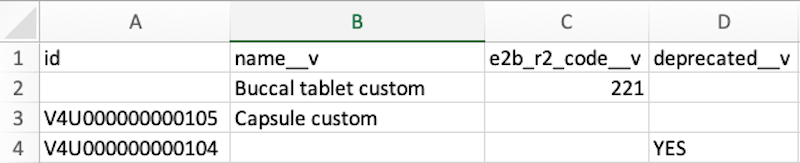
* Add a new custom value: 
  * `id` column: Blank
  * `deprecated__v` column: Blank or enter `No` to make the value available in picklists
  * Enter data in the other columns of the row with [minimum required values][8]
  * During record creation, Vault generates an ID.
* Change a custom value:
  * `id` column: Keep the extracted value
  * `deprecated__v` column: Blank or enter `No` to make the value available in picklists
  * Enter updates to any other columns in the row with [minimum required values][8]
* Deprecate a custom value:
  * `id` column: Keep the extracted value
  *  `deprecated__v` column: Enter `Yes`
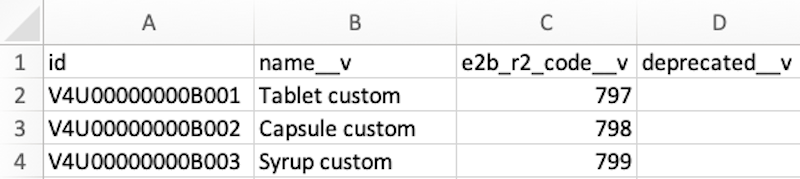
* [Delete a custom value][6]:
  * `id` column: Keep the extracted value
  * Enter updates to any other columns in the row with [minimum required values][8]

#### Sample Dose Forms CSV for Addition, Change, Deprecation {#sample-add}

<a href="https://platform.veevavault.help/assets/images/saf-dose-forms-add.png" data-lightbox="saf-dose-forms-add.png" data-title="" data-alt="Sample CSV file for adding, changing, and deprecating custom values">
  <img class="docimage" src="https://platform.veevavault.help/assets/images/saf-dose-forms-add.png" alt="Sample CSV file for adding, changing, and deprecating custom values" style=""  />
</a>

#### Sample Dose Forms CSV for Deletion {#sample-delete}
<a href="https://platform.veevavault.help/assets/images/saf-dose-forms-delete.png" data-lightbox="saf-dose-forms-delete.png" data-title="" data-alt="Sample CSV file for deleting custom values">
  <img class="docimage" src="https://platform.veevavault.help/assets/images/saf-dose-forms-delete.png" alt="Sample CSV file for deleting custom values" style=""  />
</a>

### Minimum Required Values {#minimum-values}

The following table describes how to populate the minimum required values for a successful CSV upload, depending on the object type:

<table>
    <thead>
        <tr>
            <th>Custom Value Header</th>
            <th>Value Format Rules</th>
            <th>Required for Object Types</th>
         </tr>
      </thead>
      <tbody>
         <tr>
             <td><code>id</code></td>
             <td>This is a Vault-generated value. To create new custom values, leave this cell blank. To change, deprecate, or delete existing custom values, enter the Vault-provided ID. IDs are included in files extracted from Vault Loader.
             </td>
             <td><ul>
                 <li><em>Agency Unit of Measurement</em></li>
                 <li><em>Dose Form</em></li>
                 <li><em>Route of Administration</em></li>
                 <li><em>Unit of Measurement</em></li>
                 </ul>
            </td>
         </tr>
         <tr>
             <td><code>name__v</code></td>
             <td>The label for the custom value. Enter a unique value up to 128 characters.</td>
             <td><ul>
                 <li><em>Agency Unit of Measurement</em></li>
                 <li><em>Dose Form</em></li>
                 <li><em>Route of Administration</em></li>
                 </ul>
            </td>
         </tr>
         <tr>
             <td><code>term__v</code></td>
             <td>The label for the custom value. Enter a unique value up to 128 characters.</td>
             <td><em>Unit of Measurement</em>
            </td>
         </tr>
         <tr>
             <td><code>agency__v</code></td>
             <td>The agency for which the custom value applies, such as <code>V0Z000000000101</code>. Enter this value exactly as it appears in the <code>agency__v</code> column of the extracted Agency Unit of Measurement CSV file.
             </td>
             <td><em>Agency Unit of Measurement</em>
            </td>
         </tr>
         <tr>
             <td><code>code__v</code></td>
             <td>The agency-specific code for the custom value. Enter up to 100 characters.</td>
             <td><em>Agency Unit of Measurement</em>
            </td>
         </tr>
         <tr>
             <td><code>file_format__v</code></td>
             <td>The file format that supports the agency-specific code, such as <code>fda_vaers_e2b_r3__v</code>. Enter these values exactly as they appear in the <code>file_format__v</code> column of the extracted Agency Unit of Measurement CSV file or the <em>Picklist Value Name</em> column on the <em>File Format</em> field of the <em>Agency Unit of Measurement</em> object.
             </td>
             <td><em>Agency Unit of Measurement</em>
            </td>
         </tr>
         <tr>
             <td><code>uom_picklist__v</code></td>
             <td>The unit of measurement for the custom value. Enter these values exactly as they appear in the <em>Picklist Value Name</em> column on the <em>Unit of Measurement Picklist</em> field of the <em>Unit of Measurement</em> object.
             </td>
             <td><em>Unit of Measurement</em>
            </td>
         </tr>
         <tr>
             <td><code>deprecated__v</code></td>
             <td>To make a value active and available in picklists, leave the column blank or enter <code>No</code> or <code>False</code>. To inactivate a value so it remains in your Business Admin library but is not available in picklists, enter <code>Yes</code> or <code>True</code>. Entries in this column are not case sensitive. 
             </td>
             <td>All object types when deprecating values only
            </td>
         </tr>
      </tbody>
</table>

## Attach a CSV File {#attach-a-csv}

The _Dictionary_ object enables you to upload CSV files with custom values, update the records, and troubleshoot any issues. Depending on your Admin's configuration, your Vault may include the following dictionaries:

* _Agency Units of Measurement_
* _Dose Form_
* _Route of Administration_
* _Unit of Measurement_

To attach the CSV file, complete the following steps:

1. Navigate to **Business Admin > Objects > Dictionaries > [Dictionary]**.
2. Expand the **Attachments** section.
3. If any attachments exist, they must be deleted. Select **Delete** from the **Actions** menu and then **Continue**.
4. In the **Attachments** section, select **Upload** and then upload your CSV file.

When you run the _Upsert Records_ and _Delete Records_ user actions, Vault uses the uploaded CSV file for updating the custom values.

## Upsert Custom Values {#upsert-values}

When you are adding, changing, or deprecating custom values, once you have one CSV file in the _Attachments_ section of the dictionary, you are ready to make changes. From the **All Actions** menu of your dictionary, select **Upsert Records**. The state changes to _Importing_. Vault notifies you when the records have successfully loaded and the dictionary state changes to _Active_.

## Delete Custom Values {#delete-values}

When you are deleting custom values, once you have one CSV file in the **Attachments** section of the dictionary, you are ready to make changes. From the **All Actions** menu of your dictionary, select **Delete Records**. The state changes to _Importing_. Vault notifies you when the records are successfully loaded and the dictionary state changes to _Active_.

<div class="note-border alert-info">
  <div class="alert alert-info" role="alert">
    <div><i class="far fa-info-circle"></i></div>
    <div class="alert-text">
      <p><strong>Note</strong>: You cannot delete any custom value referenced by any other standard object.</p>
    </div>
  </div>
</div>


## Troubleshooting Upsert and Delete Errors {#troubleshoot-errors}

Vault notifies you if any errors occur while processing the CSV file. Vault updates the dictionary state to _Error_ and adds an error file to the _Attachments_ section of the dictionary, which you can download the file to assist you with revisions. The `Error message` column in the CSV file indicates any rows for which Vault could not complete the change.

## View Custom Values

You can view standard and custom values by navigating to to **Business Admin > Objects > [Object]** to view both standard and custom values. Optionally, add any of the following columns to the grid view to enable easier filtering of the available values:

* **Created By (dictionary)**: Identifies which user created the custom value.
* **Deprecated**: Indicates whether a value is available in picklists for intake, case processing, and EDQM mapping.  Records with a _Yes_ value are unavailable for use.
* **Last Modified By (dictionary)**: Identifies which user last updated the custom value.
* **System Managed**: Indicates whether a value is Vault-provided or user-created. Records with a _Yes_ value are standard and cannot be changed.

[1]: #prep-a-csv
[2]: #extract-csv
[3]: #populate-custom-values
[4]: #attach-a-csv
[5]: #upsert-values
[6]: #delete-values
[7]: #troubleshoot-errors
[8]: #minimum-values