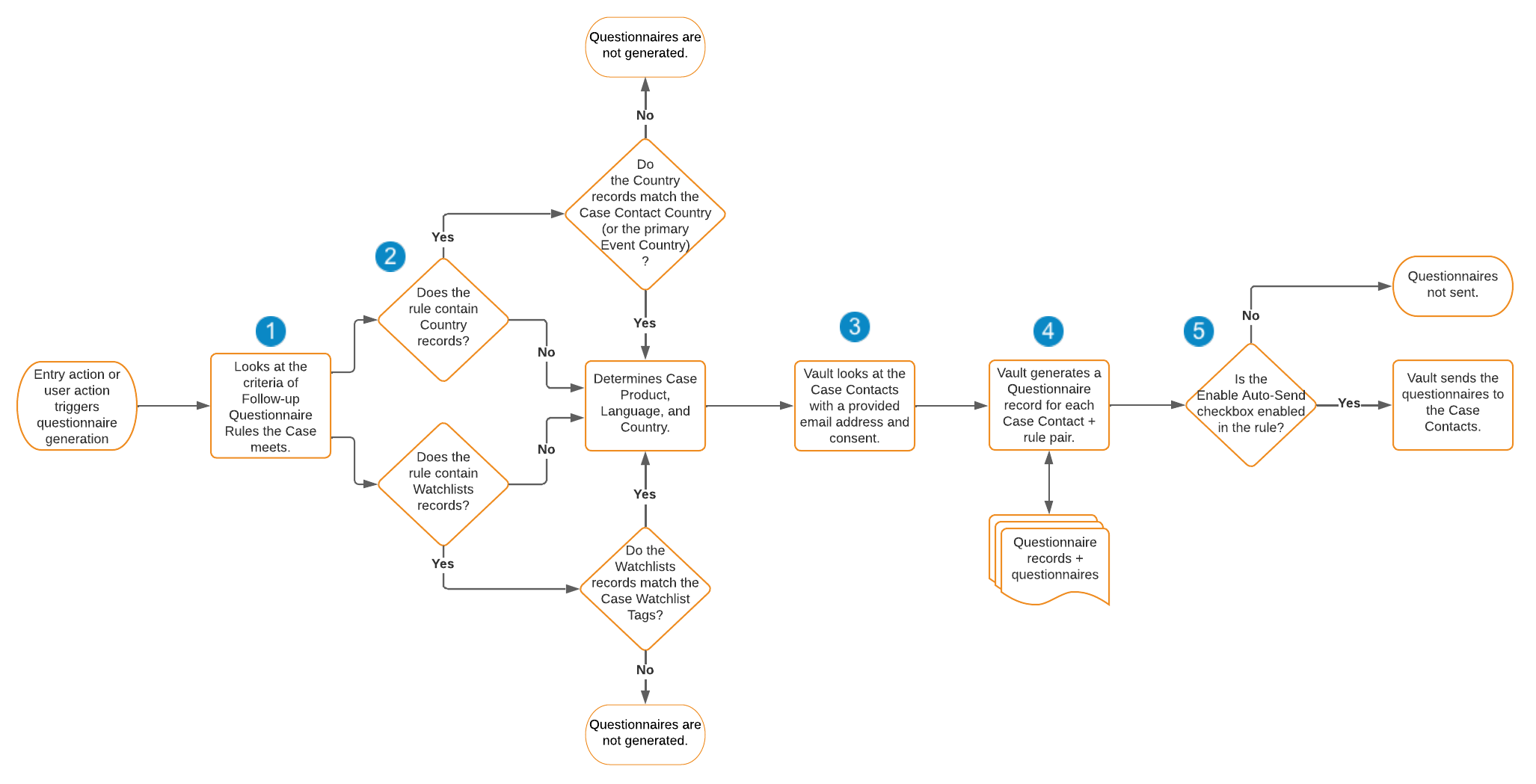
 1. Vault looks at the criteria of the _Follow-up Questionnaire Rules_. Vault selects the _Follow-up Questionnaire Rule_ when:
* The _Case_ meets all the criteria.
* There are no criteria in the rule. When triggered by a user action, the user must also confirm Vault's rule selection.
2. For each selected _Follow-up Questionnaire Rule_ for email correspondence, Vault selects the _Questionnaire Checklist Designs_ that meet the following:
* Does not contain any _Watchlist Designs_ or contains _Watchlist Designs_ that match the _Case Watchlist_ tags.
* Does not contain any _Country Designs_ or contains _Country Designs_ that match the _Case Contact Country_ or, if blank, the primary _Event Country_.
3. Vault looks at the _Case Contacts_ who have provided an email address and consent.
4. For each _Case Contact_ and _Follow-up Questionnaire Rule_ pair, Vault generates a _Questionnaire_ and links the questionnaires for the respective rule.
5. Vault verifies which of the selected _Follow-up Questionnaire Rules_ have selected the _Enable Auto-Send_ checkbox. For these rules, Vault automatically emails the questionnaires to the _Case Contacts_ when the rule is met. Each questionnaire can be accessed using a public access link (PAL).
### Questionnaire Documents {#document}
Users can generate follow-up questionnaire documents based on matching templates, then review the documents before sending them to recipients. The _Correspondence Method_ of the associated _Questionnaire_ type of _Transmission_ determines if users send those documents automatically, through Vault, or manually, outside of your Vault. Vault creates _Case > Correspondence > Questionnaire_ follow-up documents based on the matching document templates when the associated [_Follow-up Questionnaire Rule_][4] meets following criteria:
* The _Generate Document from Template_ and _Distribute Document by Email_ field values are _Yes_.
* Is not linked to any active [_Questionnaire Checklist Designs_][9].
#### How Vault Matches Questionnaire Document Templates {#templates}
Vault matches questionnaire templates based on the _Product_, _Country_, and _Language_ values of the template document and _Case_. For more information, see Set Up Scheduled Follow-Up Questionnaire Emails.
## Prerequisites
Before configuring follow-up questionnaires, you must complete the following:
* Enable follow-up questionnaires.
* To map online questionnaire responses to follow-up _Inbox Items_, configure question field mappings.
* To add questionnaire templates for _Watchlists_ and Adverse Events of Special Interest (AESI), you must configure the _Watchlist_.
## Important Terms
Before you start configuring follow-up questionnaires, it's important to understand the following terms:
* **Case Contact**: The person reporting the adverse event. This may be a medical professional or the patient themselves.
* **Email Consent**: The _Case Contact_ has explicitly provided consent to be contacted about this _Case_ by all methods of communication, which is tracked with the _Email Consent Provided_ checkbox of the _Case Contact_.
* **Questionnaire**: A predefined form with questions and requests for information to be sent to a _Case Contact_.
* **Watchlist**: A specific set of MedDRA terms of special interest for a specific product. This is sometimes referred to as Adverse Events of Special Interest (AESI). Vault does not evaluate the _Case_ against MedDRA Terms for questionnaire documents.
## Overview
Complete the following procedures to configure Follow-Up Questionnaires in your Vault:
1. Create _Questionnaire (Template)_ and _AESI Questionnaire (Template)_ types of documents to use as document-based questionnaire templates, considering the best practices & recommendations.
2. Add reply-to contact emails for applicable _Persons_.
3. Optional: [Create checklists][10] for online questionnaires.
4. Optional: [Create _Auto-Submission Schedules_][12] to define when Vault generates _Inbox Items_ for partially completed questionnaires.
5. [Create _Follow-up Questionnaire Rules_][4] to define the criteria Vault uses to generate questionnaires.
6. Optional: [Customize notification templates][11] Vault sends recipients.
## Create Checklists {#checklists}
To send online questionnaires, you must configure checklists, which Vault sends to recipients.
1. Vault looks at the criteria of the _Follow-up Questionnaire Rules_. Vault selects the _Follow-up Questionnaire Rule_ when:
* The _Case_ meets all the criteria.
* There are no criteria in the rule. When triggered by a user action, the user must also confirm Vault's rule selection.
2. For each selected _Follow-up Questionnaire Rule_ for email correspondence, Vault selects the _Questionnaire Checklist Designs_ that meet the following:
* Does not contain any _Watchlist Designs_ or contains _Watchlist Designs_ that match the _Case Watchlist_ tags.
* Does not contain any _Country Designs_ or contains _Country Designs_ that match the _Case Contact Country_ or, if blank, the primary _Event Country_.
3. Vault looks at the _Case Contacts_ who have provided an email address and consent.
4. For each _Case Contact_ and _Follow-up Questionnaire Rule_ pair, Vault generates a _Questionnaire_ and links the questionnaires for the respective rule.
5. Vault verifies which of the selected _Follow-up Questionnaire Rules_ have selected the _Enable Auto-Send_ checkbox. For these rules, Vault automatically emails the questionnaires to the _Case Contacts_ when the rule is met. Each questionnaire can be accessed using a public access link (PAL).
### Questionnaire Documents {#document}
Users can generate follow-up questionnaire documents based on matching templates, then review the documents before sending them to recipients. The _Correspondence Method_ of the associated _Questionnaire_ type of _Transmission_ determines if users send those documents automatically, through Vault, or manually, outside of your Vault. Vault creates _Case > Correspondence > Questionnaire_ follow-up documents based on the matching document templates when the associated [_Follow-up Questionnaire Rule_][4] meets following criteria:
* The _Generate Document from Template_ and _Distribute Document by Email_ field values are _Yes_.
* Is not linked to any active [_Questionnaire Checklist Designs_][9].
#### How Vault Matches Questionnaire Document Templates {#templates}
Vault matches questionnaire templates based on the _Product_, _Country_, and _Language_ values of the template document and _Case_. For more information, see Set Up Scheduled Follow-Up Questionnaire Emails.
## Prerequisites
Before configuring follow-up questionnaires, you must complete the following:
* Enable follow-up questionnaires.
* To map online questionnaire responses to follow-up _Inbox Items_, configure question field mappings.
* To add questionnaire templates for _Watchlists_ and Adverse Events of Special Interest (AESI), you must configure the _Watchlist_.
## Important Terms
Before you start configuring follow-up questionnaires, it's important to understand the following terms:
* **Case Contact**: The person reporting the adverse event. This may be a medical professional or the patient themselves.
* **Email Consent**: The _Case Contact_ has explicitly provided consent to be contacted about this _Case_ by all methods of communication, which is tracked with the _Email Consent Provided_ checkbox of the _Case Contact_.
* **Questionnaire**: A predefined form with questions and requests for information to be sent to a _Case Contact_.
* **Watchlist**: A specific set of MedDRA terms of special interest for a specific product. This is sometimes referred to as Adverse Events of Special Interest (AESI). Vault does not evaluate the _Case_ against MedDRA Terms for questionnaire documents.
## Overview
Complete the following procedures to configure Follow-Up Questionnaires in your Vault:
1. Create _Questionnaire (Template)_ and _AESI Questionnaire (Template)_ types of documents to use as document-based questionnaire templates, considering the best practices & recommendations.
2. Add reply-to contact emails for applicable _Persons_.
3. Optional: [Create checklists][10] for online questionnaires.
4. Optional: [Create _Auto-Submission Schedules_][12] to define when Vault generates _Inbox Items_ for partially completed questionnaires.
5. [Create _Follow-up Questionnaire Rules_][4] to define the criteria Vault uses to generate questionnaires.
6. Optional: [Customize notification templates][11] Vault sends recipients.
## Create Checklists {#checklists}
To send online questionnaires, you must configure checklists, which Vault sends to recipients.
Note: Using the Visual Checklist Designer provides more information on creating sections, designing a question section, and adding library questions.
Note: You cannot create multiple Questionnaire Checklist Designs with the same Checklist Type.
 ) icon to populate fields and add the following records:
* _Follow-up Questionnaire Rules_
* _Watchlists_
* _Countries_
* _Checklist Design Translations_
* _Question Field Mappings_
* _Section Designs_
* _Questions_
Alternatively, you can [create _Question Designs_][1] as needed.
### Enable Ad Hoc Questions and Sections
You can configure checklists so that users and respondents can add ad hoc questions and sections to checklists. You must grant permissions and update the following fields to _Yes_ on the _Questionnaire Checklist Design_:
* _Ad Hoc Questions Allowed_
* _Ad Hoc Sections Allowed_
#### Add Watchlists and Countries
You can add the applicable _Watchlists_ and _Countries_ to each _Questionnaire Checklist Design_. These help Vault [determine whether to send an online questionnaire][5] to the _Case Contacts_. To do this:
1. Navigate to the applicable _Questionnaire Checklist Design_.
2. Optional: Add _Watchlists_:
1. In the _Watchlist_ section, select **Add**.
2. In the window, select or create the applicable _Watchlists_. You can also use the search bar and filters to refine your search.
3. Select **OK**.
3. Optional: Add _Countries_:
1. In the _Countries_ section, select **Add**.
2. In the window, select or create the applicable _Countries_. You can also use the search bar and filters to refine your search.
3. Select **OK**.
### Create Question Designs {#designs}
A _Question Design_ is a question associated with a section on a _Questionnaire Checklist Design_. To create a _Question Design_:
1. Navigate to **Business Admin > Object > Question Designs**.
2. Select **Create**.
3. Select a question type, and then **Continue**.
4. Complete the information on the _Question Type_ page. The fields on this page vary depending on the question type selected. See Checklist Question & Answer Setup for field information while noting the following differences:
* **Section Design**: Select the _Questionnaire Checklist Design_ and section.
* **Documents Allowed**: Ensure this value is **No**.
* **Documents Required**: Ensure this value is **Not Required**.
5. Select **Save**.
### Create Question Field Mappings
Setting up _Question Field Mappings_ allows Vault to pre-populate questionnaire answers and reduces recipient effort. Vault copies the respective field's source value from the _Case_ to the questionnaire response. When _Question Field Mappings_ reuse the same fields and objects, you can set the _Standard Question Field Mapping_. This allows Vault to map API names of standard fields and their respective objects, instead of requiring manual entry.
_Question Field Mapping_ and _Standard Question Field Mappings_ support the following objects:
* _Case_
* (Primary) _Case Adverse Event_
* (Primary) _Case Product_
* _Case Contact_
When creating _Question Field Mappings_, required fields depend on whether you are selecting a _Standard Question Field Mapping_. To create _Question Field Mappings_:
1. Navigate to **Business Admin > Objects > Question Field Mappings**.
2. Select **Create**.
3. On the _Create Question Field Mapping_ page, enter the following:
* **Field Name**: Enter the API name of the field. If selecting a _Standard Question Field Mapping_, Vault populates this field upon saving the record.
* **Object Name**: Enter the API name of the object. If selecting a _Standard Question Field Mapping_, Vault populates this field upon saving the record.
* **Questionnaire Design**: Select a _Questionnaire Checklist Design_.
* **Question Design**: Select the _Question Design_.
* **Standard Question Field Mapping**: (Optional) Select a _Standard Question Field Mapping_.
4. Select **Save**.
) icon to populate fields and add the following records:
* _Follow-up Questionnaire Rules_
* _Watchlists_
* _Countries_
* _Checklist Design Translations_
* _Question Field Mappings_
* _Section Designs_
* _Questions_
Alternatively, you can [create _Question Designs_][1] as needed.
### Enable Ad Hoc Questions and Sections
You can configure checklists so that users and respondents can add ad hoc questions and sections to checklists. You must grant permissions and update the following fields to _Yes_ on the _Questionnaire Checklist Design_:
* _Ad Hoc Questions Allowed_
* _Ad Hoc Sections Allowed_
#### Add Watchlists and Countries
You can add the applicable _Watchlists_ and _Countries_ to each _Questionnaire Checklist Design_. These help Vault [determine whether to send an online questionnaire][5] to the _Case Contacts_. To do this:
1. Navigate to the applicable _Questionnaire Checklist Design_.
2. Optional: Add _Watchlists_:
1. In the _Watchlist_ section, select **Add**.
2. In the window, select or create the applicable _Watchlists_. You can also use the search bar and filters to refine your search.
3. Select **OK**.
3. Optional: Add _Countries_:
1. In the _Countries_ section, select **Add**.
2. In the window, select or create the applicable _Countries_. You can also use the search bar and filters to refine your search.
3. Select **OK**.
### Create Question Designs {#designs}
A _Question Design_ is a question associated with a section on a _Questionnaire Checklist Design_. To create a _Question Design_:
1. Navigate to **Business Admin > Object > Question Designs**.
2. Select **Create**.
3. Select a question type, and then **Continue**.
4. Complete the information on the _Question Type_ page. The fields on this page vary depending on the question type selected. See Checklist Question & Answer Setup for field information while noting the following differences:
* **Section Design**: Select the _Questionnaire Checklist Design_ and section.
* **Documents Allowed**: Ensure this value is **No**.
* **Documents Required**: Ensure this value is **Not Required**.
5. Select **Save**.
### Create Question Field Mappings
Setting up _Question Field Mappings_ allows Vault to pre-populate questionnaire answers and reduces recipient effort. Vault copies the respective field's source value from the _Case_ to the questionnaire response. When _Question Field Mappings_ reuse the same fields and objects, you can set the _Standard Question Field Mapping_. This allows Vault to map API names of standard fields and their respective objects, instead of requiring manual entry.
_Question Field Mapping_ and _Standard Question Field Mappings_ support the following objects:
* _Case_
* (Primary) _Case Adverse Event_
* (Primary) _Case Product_
* _Case Contact_
When creating _Question Field Mappings_, required fields depend on whether you are selecting a _Standard Question Field Mapping_. To create _Question Field Mappings_:
1. Navigate to **Business Admin > Objects > Question Field Mappings**.
2. Select **Create**.
3. On the _Create Question Field Mapping_ page, enter the following:
* **Field Name**: Enter the API name of the field. If selecting a _Standard Question Field Mapping_, Vault populates this field upon saving the record.
* **Object Name**: Enter the API name of the object. If selecting a _Standard Question Field Mapping_, Vault populates this field upon saving the record.
* **Questionnaire Design**: Select a _Questionnaire Checklist Design_.
* **Question Design**: Select the _Question Design_.
* **Standard Question Field Mapping**: (Optional) Select a _Standard Question Field Mapping_.
4. Select **Save**.
Note: You cannot add more than one Question Field Mapping for a given Question Design.
Note: You can create up to 100 Follow-up Questionnaire Rules.