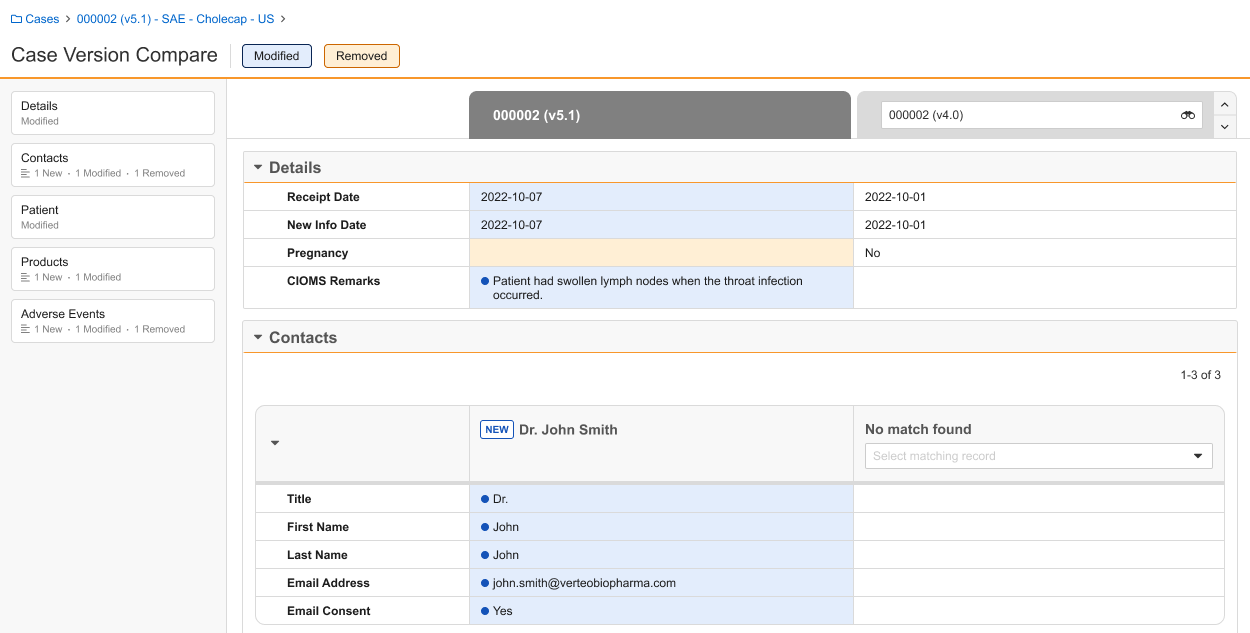
 ) icon. On the page, the left column is the _Case_ on which you ran the action. The right column displays the immediate prior _Case_ version by default. If a previous version does not exist, Vault leaves the right column blank.
Note: Cases containing large amounts of data may take longer to load. Refreshing the page restarts page load.
 ) icon next to each modified field value.
* **Removed**: Displays records and fields that have been removed. The page highlights these fields in orange.
Select both filters to see records and fields that have been added, modified, and removed. Unselect all filters to see all records and fields on each _Case_.
When you select filters, Vault adjusts the [_Summary_ section][1] with updated counts of new, modified, and removed records.
) icon next to each modified field value.
* **Removed**: Displays records and fields that have been removed. The page highlights these fields in orange.
Select both filters to see records and fields that have been added, modified, and removed. Unselect all filters to see all records and fields on each _Case_.
When you select filters, Vault adjusts the [_Summary_ section][1] with updated counts of new, modified, and removed records.
Note: The Case Version Compare page always displays certain non-filterable fields, regardless of your filters, to serve as key identifiers of each record so you can confirm accurate matches.
 ): Indicates new information from the _Inbox Item_ that doesn't exist on the previous _Case_ version.
* **Constituent** (
): Indicates new information from the _Inbox Item_ that doesn't exist on the previous _Case_ version.
* **Constituent** ( ): Indicates a _Combination Product_ constituent.
* **Unknown Formulation** (
): Indicates a _Combination Product_ constituent.
* **Unknown Formulation** ( ): If your Vault uses unknown formulation products, indicates a _Product_ with an unknown formulation.
* **Hidden** (
): If your Vault uses unknown formulation products, indicates a _Product_ with an unknown formulation.
* **Hidden** ( ): Indicates you do not have permission to view the hidden data.
### Blinded Product Matching
When matching a blinded _Product_ record on a _Case_ to another _Case_ record, Vault first tries to match based on the _Study Product Placeholder_. If the _Study Product Placeholder_ on the _Case_ is blank, Vault tries to match based on the _Product (Reported)_ value.
### Compare ID
When comparing _Cases_, if the _Link_ (`link__sys`) field is blank, Vault uses the _Compare ID_ field to compare child records across _Case_ versions. This unique ID links child records, such as _Case Adverse Event_ and _Case Product_, across _Case_ versions to enable fast and exact matching during _Case_ version comparisons. If the _Compare ID_ is blank or does not match, Vault uses standard record matching to locate a match utilizing available object field values.
## Case Selection for Comparison
On the _Case Version Compare_ page, the left column is the _Case_ on which you ran the _Compare Versions_ action. You cannot change the _Case_ in the left column. In the right column, you can select _Case_ versions and _Cases_ for comparison.
There are multiple ways to switch between _Cases_:
* **Drop-down Menu**: From the drop-down menu, select a different _Case_ version or a different _Case_ for comparison.
* **Advanced Search**: Select the **Advanced Search** icon. In the _Search: Case_ window that appears, apply filters to narrow down your search for _Cases_.
* **Toggle**: Beside the right column header, select the up or down arrow to toggle between _Case_ versions. The up arrow switches to the immediate following _Case_ version whereas the down arrow switches to the prior _Case_ version.
### Case Access Security
During _Case_ selection for comparison, Vault respects your Admin's Case Access Group and Dynamic Access Control (DAC) configuration. If you do not have access to certain _Cases_, Vault does not display them in the drop-down menu or advanced search window and does not allow you to toggle between them.
When Isolate Blinded Clinical Trial Information and Case Access Groups are enabled in your Vault, the following _Case_ access security applies:
* For blinded and unblinded _Cases_ with blind protection, you cannot see unblinded records if you do not belong to the Case Access Group.
* For blinded and unblinded _Case_ without blind protection, you can see all _Case_ records regardless of your Case Access Group.
* Vault prevents you from selecting a _Case_ if the _Blinding Type_ does not match that of the _Case_ on which you ran the action.
## Limitations {#limits}
The record limit in a given section on the _Case Version Compare_ page is 1,500. If a section exceeds this limit, Vault does not display the records. If either the _Case Product_ or _Case Adverse Event_ child section exceeds the 1,500 records, Vault does not display the _Case Assessment_ section. Vault displays only the first 500 records in a section.
[1]: #summary-section
): Indicates you do not have permission to view the hidden data.
### Blinded Product Matching
When matching a blinded _Product_ record on a _Case_ to another _Case_ record, Vault first tries to match based on the _Study Product Placeholder_. If the _Study Product Placeholder_ on the _Case_ is blank, Vault tries to match based on the _Product (Reported)_ value.
### Compare ID
When comparing _Cases_, if the _Link_ (`link__sys`) field is blank, Vault uses the _Compare ID_ field to compare child records across _Case_ versions. This unique ID links child records, such as _Case Adverse Event_ and _Case Product_, across _Case_ versions to enable fast and exact matching during _Case_ version comparisons. If the _Compare ID_ is blank or does not match, Vault uses standard record matching to locate a match utilizing available object field values.
## Case Selection for Comparison
On the _Case Version Compare_ page, the left column is the _Case_ on which you ran the _Compare Versions_ action. You cannot change the _Case_ in the left column. In the right column, you can select _Case_ versions and _Cases_ for comparison.
There are multiple ways to switch between _Cases_:
* **Drop-down Menu**: From the drop-down menu, select a different _Case_ version or a different _Case_ for comparison.
* **Advanced Search**: Select the **Advanced Search** icon. In the _Search: Case_ window that appears, apply filters to narrow down your search for _Cases_.
* **Toggle**: Beside the right column header, select the up or down arrow to toggle between _Case_ versions. The up arrow switches to the immediate following _Case_ version whereas the down arrow switches to the prior _Case_ version.
### Case Access Security
During _Case_ selection for comparison, Vault respects your Admin's Case Access Group and Dynamic Access Control (DAC) configuration. If you do not have access to certain _Cases_, Vault does not display them in the drop-down menu or advanced search window and does not allow you to toggle between them.
When Isolate Blinded Clinical Trial Information and Case Access Groups are enabled in your Vault, the following _Case_ access security applies:
* For blinded and unblinded _Cases_ with blind protection, you cannot see unblinded records if you do not belong to the Case Access Group.
* For blinded and unblinded _Case_ without blind protection, you can see all _Case_ records regardless of your Case Access Group.
* Vault prevents you from selecting a _Case_ if the _Blinding Type_ does not match that of the _Case_ on which you ran the action.
## Limitations {#limits}
The record limit in a given section on the _Case Version Compare_ page is 1,500. If a section exceeds this limit, Vault does not display the records. If either the _Case Product_ or _Case Adverse Event_ child section exceeds the 1,500 records, Vault does not display the _Case Assessment_ section. Vault displays only the first 500 records in a section.
[1]: #summary-section