Note: Do not edit a safety view referenced by a Signal Calculation record. Any changes you make to the safety view will not be reflected in the Signal Calculation Run records referencing this safety view.
 ) icon to use filters and refine your search.
* **View Tag**: Select a tag from the picklist to organize this safety view. Add values to the _Workbench View Tag_ picklist as needed.
* Optional: **Signal Case Series Enabled**: This checkbox appears only for the _Signal View_ type and is for creating _Signal Case Series_-enabled views.
## Dependent Views {#dependent-views}
When creating a new _Filter View_ or _Signal View_, this section appears only after saving.
_Signal Views_ and _Filter Views_ are always dependent on another safety view, meaning they derive their data and configuration parameters from the specified safety view. The safety view on which the _Signal_ or _Filter View_ is dependent is known as a dependent view. A _Signal View_ is usually dependent on a _Principal View_, a _Filter View_, or both. A _Signal View_ can also be dependent on other _Signal Views_ and multiple _Filter Views_. A _Filter View_ is always dependent on a _Principal View_.
_Principal Views_ are the basis for _Filter_ and _Signal Views_ to add filters and configuration and, therefore, are not dependent on any views.
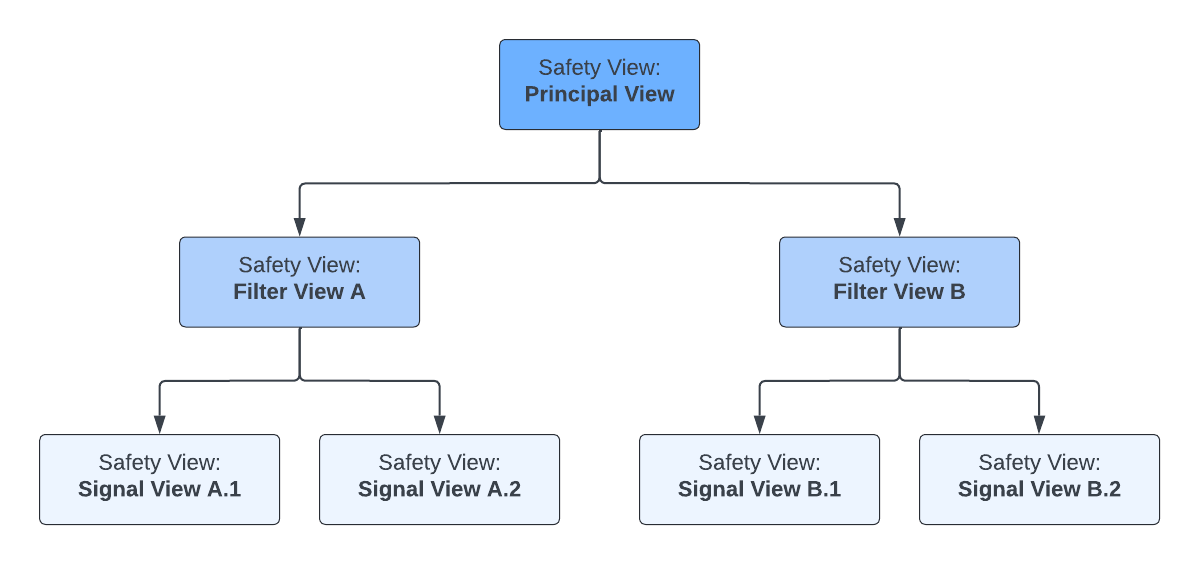
The following illustration demonstrates an example of a safety view hierarchy. The hierarchy always starts with a _Principal View_. In this example, a _Principal View_ leads into two (2) _Filter Views_. Each _Filter View_ subsequently leads into two (2) _Signal Views_.
Although a _Signal View_ may not always include a _Principal View_ in the _Dependent Views_ section, a _Signal View_ must ultimately be associated with one (1) unique _Principal View_ through other dependent views. In the above example, _Signal Views_ A.1 and A.2 are not directly associated with the _Principal View_ but are associated with it through _Filter View_ A. If a safety view is not associated with any or is associated with more than one (1) _Principal View_, Vault prevents you from adding filters to the safety view.
### Create a Dependent View {#create-a-dependent-view}
To add a dependent view to a safety view:
1. In the _Dependent Views_ section of the safety view, select **Create**.
2. In the _Create Workbench View Dependency_ dialog, select a dependent view.
3. Select **Save** or **Save + Create** to add another dependent view.
**Result**
Vault adds the selected views to the _Dependent Views_ section and generates a name for each.
The current view is now dependent on these selected safety views.
## SQL Editor {#sql-editor}
SQL offers elaborate queries for parsing through data. You or your Veeva Representative can provide and input queries in the _SQL Editor_ section. The queries are based on Amazon Redshift SQL, which is a subset of PostgreSQL 9.x. For more information on the available SQL functions, refer to Amazon Redshift and PostgreSQL. You can enlarge the _SQL Editor_ section by selecting the **Full Screen** (
) icon to use filters and refine your search.
* **View Tag**: Select a tag from the picklist to organize this safety view. Add values to the _Workbench View Tag_ picklist as needed.
* Optional: **Signal Case Series Enabled**: This checkbox appears only for the _Signal View_ type and is for creating _Signal Case Series_-enabled views.
## Dependent Views {#dependent-views}
When creating a new _Filter View_ or _Signal View_, this section appears only after saving.
_Signal Views_ and _Filter Views_ are always dependent on another safety view, meaning they derive their data and configuration parameters from the specified safety view. The safety view on which the _Signal_ or _Filter View_ is dependent is known as a dependent view. A _Signal View_ is usually dependent on a _Principal View_, a _Filter View_, or both. A _Signal View_ can also be dependent on other _Signal Views_ and multiple _Filter Views_. A _Filter View_ is always dependent on a _Principal View_.
_Principal Views_ are the basis for _Filter_ and _Signal Views_ to add filters and configuration and, therefore, are not dependent on any views.
The following illustration demonstrates an example of a safety view hierarchy. The hierarchy always starts with a _Principal View_. In this example, a _Principal View_ leads into two (2) _Filter Views_. Each _Filter View_ subsequently leads into two (2) _Signal Views_.
Although a _Signal View_ may not always include a _Principal View_ in the _Dependent Views_ section, a _Signal View_ must ultimately be associated with one (1) unique _Principal View_ through other dependent views. In the above example, _Signal Views_ A.1 and A.2 are not directly associated with the _Principal View_ but are associated with it through _Filter View_ A. If a safety view is not associated with any or is associated with more than one (1) _Principal View_, Vault prevents you from adding filters to the safety view.
### Create a Dependent View {#create-a-dependent-view}
To add a dependent view to a safety view:
1. In the _Dependent Views_ section of the safety view, select **Create**.
2. In the _Create Workbench View Dependency_ dialog, select a dependent view.
3. Select **Save** or **Save + Create** to add another dependent view.
**Result**
Vault adds the selected views to the _Dependent Views_ section and generates a name for each.
The current view is now dependent on these selected safety views.
## SQL Editor {#sql-editor}
SQL offers elaborate queries for parsing through data. You or your Veeva Representative can provide and input queries in the _SQL Editor_ section. The queries are based on Amazon Redshift SQL, which is a subset of PostgreSQL 9.x. For more information on the available SQL functions, refer to Amazon Redshift and PostgreSQL. You can enlarge the _SQL Editor_ section by selecting the **Full Screen** ( ) icon.
Only _Principal Views_ and _Signal Views_ contain SQL. When previewing a _Filter View_, this view inherits queries from the associated _Principal View_.
The SQL query provides references for the fields specified in the safety view's [_Workbench View Columns_][1] section. If you [run a preview][2] of the safety view without any _Workbench View Columns_, all fields returned by the SQL query will be displayed in the preview.
The safety view can also leverage another safety view by referencing the safety view's _API Name_ in the _SQL Editor_ section, for example, `select * from ${safety_view_api_name__c}`. You must also [create a dependent view][3] for the safety view you are referencing.
Consider the following SQL limitations and restrictions:
* Vault does not perform timeout checks when running SQL. Long-running queries will be terminated by Amazon Redshift. Related performance issues are identified through logged server errors.
* The query size limit is 32,000 characters.
### SQL Editor Search Panel {#search-panel}
Before you can access _SQL Editor_ keyboard shortcuts and the search panel, you must configure _SQL Editor_ enhancements. After performing the necessary configuration, you can open the _SQL Editor_ search panel by using the **Ctrl + f** or **Cmd + f** keyboard shortcut, as applicable.
Using the search panel, you can find or replace specific texts and syntax elements. The panel also includes the following settings:
* _Match case_: Select this checkbox to make your keyword case sensitive.
* _Regexp_: Select this checkbox to use regular expressions.
* _By word_: Select this checkbox to search for whole words only. For example, if your keyword is `filter`, Vault excludes elements such as `filterview`.
## View Columns {#view-columns}
When creating a new safety view, this section appears only after saving.
The _View Columns_ are required for the [safety view's SQL][5] to run successfully. The fields you add to a safety view's _View Columns_ section determine the fields to which you can apply [filters][4]. The _View Columns_ section is usually populated in the _Principal View_ to inform the filters in the subsequent _Filter Views_.
Supported field types include:
* _Text_
* _Date_
* _DateTime_
* _Number_
* _Yes/No_
* _Object_
* _Picklist_
* _Multi-Value Picklist_
* _MedDRA_
### Create View Columns {#create-view-columns}
To populate the _View Columns_ section:
1. In the _View Columns_ section, select **Create**.
2. Complete the following fields in the _Create Workbench View Column_ dialog:
* **Name**: Enter the **Name** of the view column.
* **API Name**: Enter the **API Name** of the view column. This value must match the name of the column returned by the [SQL query][5].
* **Column Type**: Select a field type option from the drop-down.
* Optional: **Picklist**: If you selected the _Picklist_ column type, select a picklist option from the drop-down.
* Optional: **Safety Object Reference**: The _Safety Object Reference_ and _Safety Object Constraint_ fields allow you to restrict the values that appear when filtering on this object. For example, you can restrict the _Controlled Vocabulary_ object to display only _Drug Roles_. Enter the API name of the object associated with this view column field.
* Optional: **Safety Object Constraint**: The _Safety Object Reference_ and _Safety Object Constraint_ fields allow you to restrict the values that appear when filtering on this object. For example, you can restrict the _Controlled Vocabulary_ object to display only _Drug Roles_. Enter VQL to configure a reference constraint to restrict the object values.
* Optional: **Signal Case Series Key**: This field is for _Signal Views_ that should be executed as _Signal Case Series_. Ignore this field if it is not applicable. For more information, see Configure Safety Views for Signal Case Series.
* Optional: **Case Version Key**: This field is for _Signal Views_ that should be executed as _Signal Case Series_. Ignore this field if it is not applicable. For more information, see Configure Safety Views for Signal Case Series.
3. Select **Save**.
4. Repeat the steps above to add additional columns.
5. Optional: To delete a field, select the **Actions** menu next to the field and then select **Delete**.
## View Parameters {#view-parameters}
When users apply filters to _Signal Calculations_, the data set can change before the safety view SQL queries them. Using view parameters, users can enter filter values on the _Signal Calculation_ that can then be referenced directly by the safety view's SQL. View parameters appear as required filters in the _Filters_ section under the _Criteria_ subsection of the _Signal Calculation_.
) icon.
Only _Principal Views_ and _Signal Views_ contain SQL. When previewing a _Filter View_, this view inherits queries from the associated _Principal View_.
The SQL query provides references for the fields specified in the safety view's [_Workbench View Columns_][1] section. If you [run a preview][2] of the safety view without any _Workbench View Columns_, all fields returned by the SQL query will be displayed in the preview.
The safety view can also leverage another safety view by referencing the safety view's _API Name_ in the _SQL Editor_ section, for example, `select * from ${safety_view_api_name__c}`. You must also [create a dependent view][3] for the safety view you are referencing.
Consider the following SQL limitations and restrictions:
* Vault does not perform timeout checks when running SQL. Long-running queries will be terminated by Amazon Redshift. Related performance issues are identified through logged server errors.
* The query size limit is 32,000 characters.
### SQL Editor Search Panel {#search-panel}
Before you can access _SQL Editor_ keyboard shortcuts and the search panel, you must configure _SQL Editor_ enhancements. After performing the necessary configuration, you can open the _SQL Editor_ search panel by using the **Ctrl + f** or **Cmd + f** keyboard shortcut, as applicable.
Using the search panel, you can find or replace specific texts and syntax elements. The panel also includes the following settings:
* _Match case_: Select this checkbox to make your keyword case sensitive.
* _Regexp_: Select this checkbox to use regular expressions.
* _By word_: Select this checkbox to search for whole words only. For example, if your keyword is `filter`, Vault excludes elements such as `filterview`.
## View Columns {#view-columns}
When creating a new safety view, this section appears only after saving.
The _View Columns_ are required for the [safety view's SQL][5] to run successfully. The fields you add to a safety view's _View Columns_ section determine the fields to which you can apply [filters][4]. The _View Columns_ section is usually populated in the _Principal View_ to inform the filters in the subsequent _Filter Views_.
Supported field types include:
* _Text_
* _Date_
* _DateTime_
* _Number_
* _Yes/No_
* _Object_
* _Picklist_
* _Multi-Value Picklist_
* _MedDRA_
### Create View Columns {#create-view-columns}
To populate the _View Columns_ section:
1. In the _View Columns_ section, select **Create**.
2. Complete the following fields in the _Create Workbench View Column_ dialog:
* **Name**: Enter the **Name** of the view column.
* **API Name**: Enter the **API Name** of the view column. This value must match the name of the column returned by the [SQL query][5].
* **Column Type**: Select a field type option from the drop-down.
* Optional: **Picklist**: If you selected the _Picklist_ column type, select a picklist option from the drop-down.
* Optional: **Safety Object Reference**: The _Safety Object Reference_ and _Safety Object Constraint_ fields allow you to restrict the values that appear when filtering on this object. For example, you can restrict the _Controlled Vocabulary_ object to display only _Drug Roles_. Enter the API name of the object associated with this view column field.
* Optional: **Safety Object Constraint**: The _Safety Object Reference_ and _Safety Object Constraint_ fields allow you to restrict the values that appear when filtering on this object. For example, you can restrict the _Controlled Vocabulary_ object to display only _Drug Roles_. Enter VQL to configure a reference constraint to restrict the object values.
* Optional: **Signal Case Series Key**: This field is for _Signal Views_ that should be executed as _Signal Case Series_. Ignore this field if it is not applicable. For more information, see Configure Safety Views for Signal Case Series.
* Optional: **Case Version Key**: This field is for _Signal Views_ that should be executed as _Signal Case Series_. Ignore this field if it is not applicable. For more information, see Configure Safety Views for Signal Case Series.
3. Select **Save**.
4. Repeat the steps above to add additional columns.
5. Optional: To delete a field, select the **Actions** menu next to the field and then select **Delete**.
## View Parameters {#view-parameters}
When users apply filters to _Signal Calculations_, the data set can change before the safety view SQL queries them. Using view parameters, users can enter filter values on the _Signal Calculation_ that can then be referenced directly by the safety view's SQL. View parameters appear as required filters in the _Filters_ section under the _Criteria_ subsection of the _Signal Calculation_.
Note: You cannot add Workbench View Parameters to a Principal View or a Supporting View.
Note: You cannot filter on Substance or Registration. Filtering on these fields will be supported in a future release.