# Manage Studies with Study Arms

Vault supports studies with and without study arms, which you can set up in your _Library_. A study arm contains data specific to a group of study participants receiving a specific intervention or treatment, or no intervention, according to the study's protocol. However, we recommend setting up all _Studies_ with the _Single Arm Selection on Inbox_ setting (formerly labeled _Study Has Arms_) set to _No_. When processing _Studies_ in conjunction with <a href="/en/lr/01275/#connections">Connections</a>, the <a href="/en/lr/760294/">multi-product selector</a> for _Inbox Items_ and _Cases_, and <a href="/en/lr/691317/">Clinical Trials: Isolate Blinded Product Information</a>, setting up _Studies_ without this setting provides a more streamlined experience.

If you have previously configured _Studies_ with the _Single Arm Selection on Inbox_ setting, find out how to <a href="/en/lr/840048/">transition</a> your Vault to the most up-to-date configuration.

### Study Arm Prerequisites

Before you can set up _Study Arm_ records, ensure that the study arms feature is fully <a href="/en/lr/01341/">configured in your environment</a>. For the latest masking capabilities, this includes enabling <a href="/en/lr/01322/">Product Masking Selection for Study Products</a>.

When importing Study Arms through Vault Loader or Vault API, ensure each Study Arm includes a value for **Study Product Group** (`study_product_group__v`), which is a required field. For Study Arms created manually, Vault generates a value. 

### Considerations

When setting up study arms, keep the following considerations in mind:

* Study arms can be set up on a per-study basis.
* Open-label studies can only have open arms, while blinded studies can have both open and blinded arms.
* Patients in each arm can receive the same or different products and dosages.
* Different open arms can be configured with different indications.
* Studies with dosing cycles are supported by this feature when cycles involve the same dosages and some variation in frequency.

### Setting Up Study Arms

For general information on setting up Studies and the related records, see <a href="/en/lr/01216/">Manage Studies</a>. Use this page when you are setting up _Study Arms_ and _Study Arm Products_.

## Example Study Configuration With Study Arms

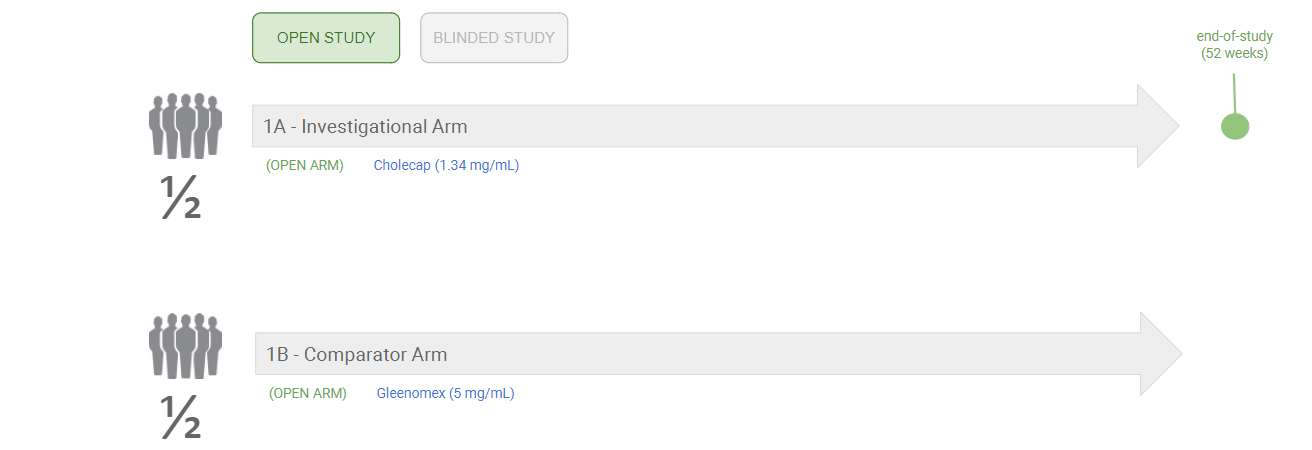
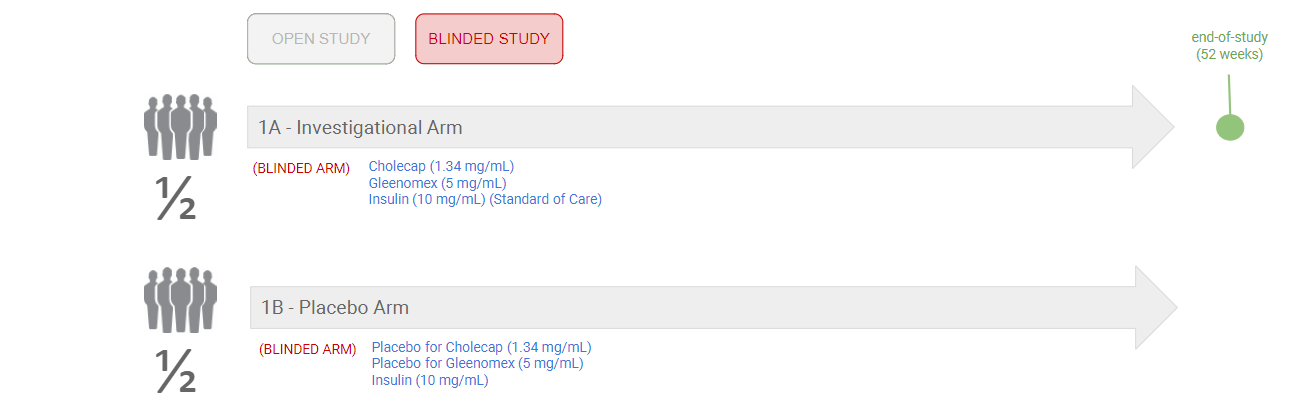
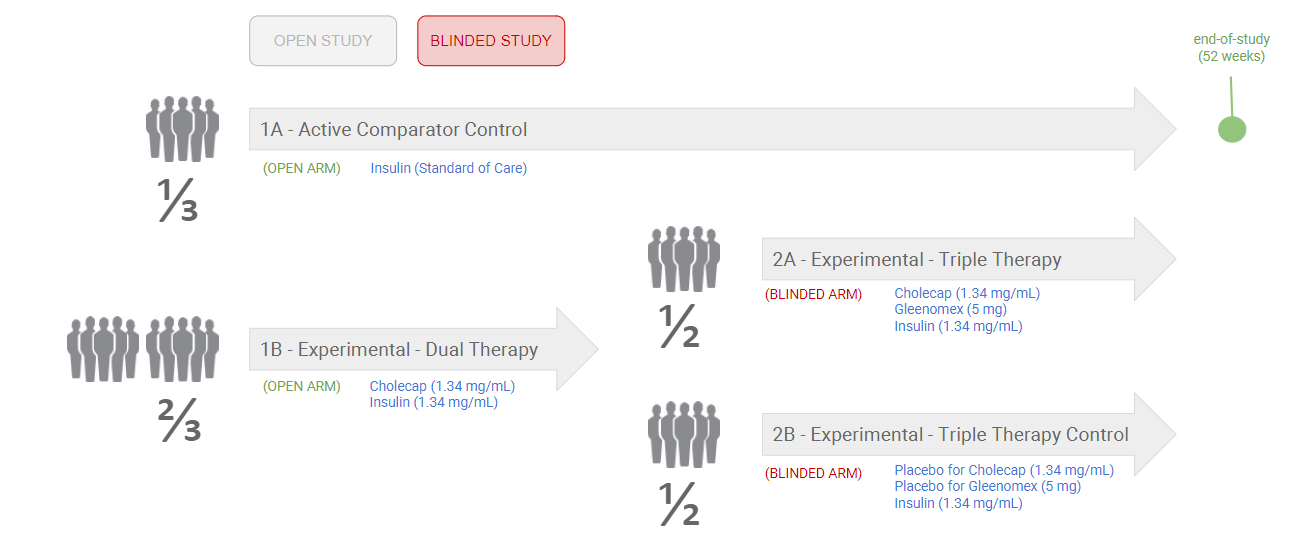
The following examples demonstrate a few variations of using study arms in a 52-week study for patients with Type 1 Diabetes.

The example study investigates the effects of Cholecap and Gleenomex on glycemic control, with Insulin as the Standard of Care where applicable.

<div class="note-border alert-info">
  <div class="alert alert-info" role="alert">
    <div><i class="far fa-info-circle"></i></div>
    <div class="alert-text">
      <p><strong>Note</strong>: Vault does not support dose run-in periods. You can, however, configure multiple <em>Study Arms</em> to represent different dosages to simulate a run-in dosage period.</p>
    </div>
  </div>
</div>


### Example 1: Different Products in Each Study Arm

The following diagram shows an example of an open study with different products and dosages in each arm:

<a href="https://platform.veevavault.help/assets/images/saf-study-arms-example-1.png" data-lightbox="saf-study-arms-example-1.png" data-title="" data-alt="Example of Different Products in Every Arm">
  <img class="docimage" src="https://platform.veevavault.help/assets/images/saf-study-arms-example-1.png" alt="Example of Different Products in Every Arm" style="max-width: 80%;"  />
</a>

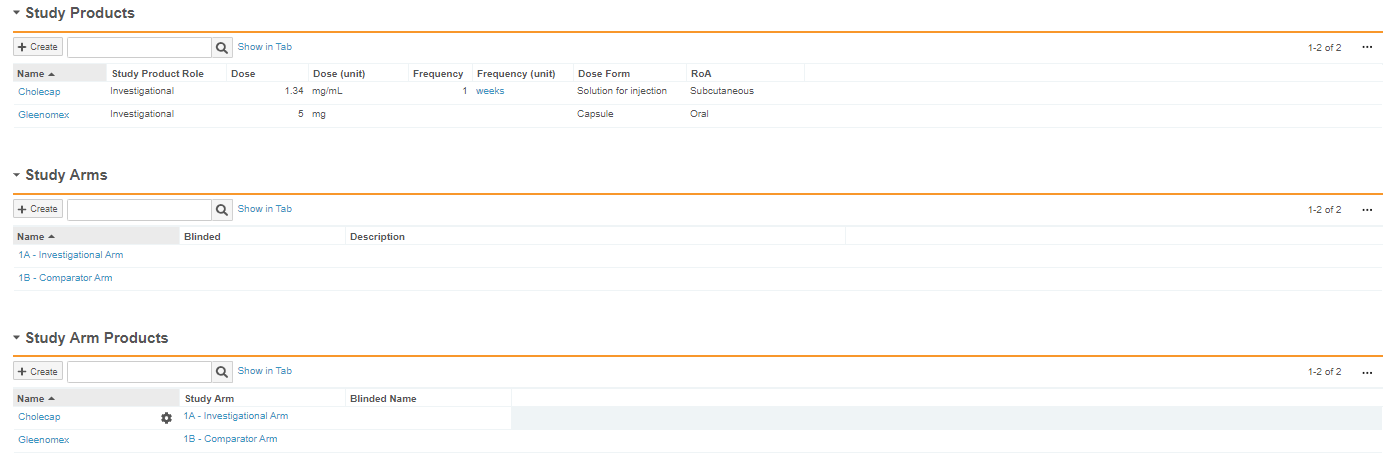
The following image shows how this _Study_ and its _Study Arms_ would be configured in Vault:

<a href="https://platform.veevavault.help/assets/images/saf-study-arms-example-1-config.png" data-lightbox="saf-study-arms-example-1-config.png" data-title="" data-alt="Vault Configuration of Different Products in every Arm">
  <img class="docimage" src="https://platform.veevavault.help/assets/images/saf-study-arms-example-1-config.png" alt="Vault Configuration of Different Products in every Arm" style="max-width: 80%;"  />
</a>

### Example 2: Blinded Product Names and Standard of Care

The following diagram shows an example of a blinded study with blinded product names and a Standard of Care in each arm:
<a href="https://platform.veevavault.help/assets/images/saf-study-arms-example-2.png" data-lightbox="saf-study-arms-example-2.png" data-title="Example of Blinded Product Names and Standard of Care" data-alt="Standard of Care and Blinded Product Names.">
  <img class="docimage" src="https://platform.veevavault.help/assets/images/saf-study-arms-example-2.png" alt="Standard of Care and Blinded Product Names." style="max-width: 80%;"  />
</a>

The following image shows how this _Study_, its _Study Arms_, and _Blinded Names_ would be configured in Vault:

<a href="https://platform.veevavault.help/assets/images/saf-study-arms-example-2-config.png" data-lightbox="saf-study-arms-example-2-config.png" data-title="" data-alt="Vault Configuration of Blinded Product Names and Standard of Care">
  <img class="docimage" src="https://platform.veevavault.help/assets/images/saf-study-arms-example-2-config.png" alt="Vault Configuration of Blinded Product Names and Standard of Care" style="max-width: 80%;"  />
</a>

### Example 3: Open and Blinded Arms

The following diagram shows an example of a blinded study with open and blinded arms:
<a href="https://platform.veevavault.help/assets/images/saf-study-arms-example-3.png" data-lightbox="saf-study-arms-example-3.png" data-title="Example of Open and Blinded Arms" data-alt="Open and Blinded Arms.">
  <img class="docimage" src="https://platform.veevavault.help/assets/images/saf-study-arms-example-3.png" alt="Open and Blinded Arms." style="max-width: 80%;"  />
</a>

The following image shows how this _Study_ and its _Study Arms_ would be configured in Vault:

<a href="https://platform.veevavault.help/assets/images/saf-study-arms-example-3-config.png" data-lightbox="saf-study-arms-example-3-config.png" data-title="" data-alt="Vault Configuration of Open and Blinded Arms">
  <img class="docimage" src="https://platform.veevavault.help/assets/images/saf-study-arms-example-3-config.png" alt="Vault Configuration of Open and Blinded Arms" style="max-width: 80%;"  />
</a>

##### Example 4: Cycles with the Same Dosage

The following diagram shows an example of an open study with multiple dosing cycles:

<a href="https://platform.veevavault.help/assets/images/saf-study-arms-example-4.png" data-lightbox="saf-study-arms-example-4.png" data-title="Example of Cycles with the same Dosage" data-alt="Cycles with the same Dosage.">
  <img class="docimage" src="https://platform.veevavault.help/assets/images/saf-study-arms-example-4.png" alt="Cycles with the same Dosage." style="max-width: 80%;"  />
</a>

The following image shows how this _Study_ and its _Study Arms_ would be configured in Vault:
<a href="https://platform.veevavault.help/assets/images/saf-study-arms-example-4-config.png" data-lightbox="saf-study-arms-example-4-config.png" data-title="" data-alt="Vault Configuration of Cycles with the same Dosage">
  <img class="docimage" src="https://platform.veevavault.help/assets/images/saf-study-arms-example-4-config.png" alt="Vault Configuration of Cycles with the same Dosage" style="max-width: 80%;"  />
</a>

## <a id="set-up-study-arms"></a>Set Up Study Arms

For both open-label and blinded studies, you can configure study arms and their respective products. During intake, users can select the appropriate study arm by selecting an open arm or indicating that the patient is in one of the blinded arms.

Vault maps data from a _Study Arm_ to create _Study Products_, _Dosages_, and _Indications_ under _Cases_ linked to a _Study Arm_. <!--HIDDEN CONTENT. Hiding until this field is reinstated - est. 26R1. You can configure when Vault will map dosage information using the <a href="/en/lr/01216/#dosage-download">_Download Dosage to Case_</a> field.-->

### <a id="add-a-study-arm">Add a Study Arm

Complete the following steps to add _Study Arms_ to a _Study_.

1. Navigate to **Business Admin > Objects > Studies**.
2. Select the _Study_ to which you want to add the _Study Arm_.
3. Under _Study Arms_, select **Create**.
4. Complete applicable _Create Study Arm_ [fields][3].
5. Select **Save**.

#### <a id="study-arm-fields">Study Arm Fields

<table>
  <thead>
    <tr>
      <th>Field</th>
      <th>Description</th>
    </tr>
  </thead>
  <tbody>
    <tr>
      <td><strong>Organization</strong> <br>(<code>organization__v</code>)</td>
      <td><p>Vault populates this field with the organization the parent Study is associated with.</p></td>
    </tr>
    <tr>
      <td><strong>Study</strong> <br>(<code>study__v</code>)</td>
      <td>Vault populates this field with the parent Study record.</td>
    </tr>
    <tr>
      <td><strong>Name</strong> <br>(<code>name__v</code>)</td>
      <td>Enter a name to identify the Study Arm. Vault references the Study Arm using the name that you enter in this field.</td>
    </tr>
    <tr>
      <td><strong>Blinded</strong> <br>(<code>study_arm_blinded_control__v</code>)</td>
      <td><p>This field appears when the parent Study <strong>Blinded</strong> field is set to Blinded.</p>
        <p>If this arm requires blind protection, select <strong>Blinded</strong>. Vault applies blind protection to Cases and Study Products linked to this Study Arm.</p>
        <p>If this arm does not require blind protection, select <strong>Open Label</strong> or <strong>Unblinded</strong>, as applicable.</p>
        <p>Depending on your Admin's configuration, the <strong>Blinded</strong> field on Study Arms may be named "Masking".</p>
      </td>
    </tr>
    <tr>
      <td><strong>Indication</strong> <br>(<code>indication_meddra__v</code>)</td>
      <td><p>Enter the Study Arm Indication at the LLT or PT level in the text field to <a href="/en/lr/01164/">code the MedDRA term</a>.</p>
          </td>
    </tr>
    <tr>
      <td><strong>Description</strong> <br>(<code>description__v</code>)</td>
      <td><p>Enter a description for the Study Arm.</p>
          <p>This field is for reference only.</p></td>
    </tr>
  </tbody>
</table>

### <a id="add-a-study-arm-product">Add a Study Arm Product

Once you have added a _Study Arm_, you can add _Study Arm Products_.

<div class="note-border alert-info">
  <div class="alert alert-info" role="alert">
    <div><i class="far fa-info-circle"></i></div>
    <div class="alert-text">
      <p><strong>Note</strong>: You must add the <em>Study Product</em> to the <em>Study</em> before you can add a <em>Study Arm Product</em>.</p>
    </div>
  </div>
</div>


To create a _Study Arm Product_:

1. Navigate to **Business Admin > Objects > Studies**.
2. Select the _Study_ to which you want to add the _Study Arm Product_.
3. Under _Study Arm Products_, select **Create**.
4. Complete applicable _Create Study Arm Product_ [fields][5].
5. Select **Save**.

#### <a id="study-arm-product-fields">Study Arm Product Fields

<table>
  <thead>
    <tr>
      <th>Field</th>
      <th>Description</th>
    </tr>
  </thead>
  <tbody>
    <tr>
      <td><strong>Organization</strong> <br>(<code>organization__v</code>)</td>
      <td>Vault populates this field with the organization the parent Study is associated with.</td>
    </tr>
    <tr>
      <td><strong>Study Arm</strong> <br>(<code>study_arm__v</code>)</td>
      <td>If you add the Study Arm Product under a Study Arm, Vault populates this field with the parent Study Arm record. Otherwise, select the Study Arm.</td>
    </tr>
    <tr>
        <td><strong>Study Product</strong> <br>(<code>study_product__v</code>)</td>
        <td>Select the Study Product for this arm from the drop-down list.</td>
    </tr>
    <tr>
        <td><strong>Name</strong> <br>(<code>name__v</code>)</td>
        <td>Enter a name to identify the Study Arm Product. Vault references the Study Arm using the name that you enter in this field.</td>
    </tr>
    <tr>
        <td><strong>Dose</strong> <br>(<code>dose_number__v</code> | <code>dose_unit__v</code> | <code>dose_unit_text__v</code>)</td>
        <td><p>Enter the amount of product that is administered in each dose.<br>
                   In the first field, enter a numeric value. In the second field, select a unit of measurement from the picklist or enter a custom unit.</p>
            <p>For open Study Arms, Vault maps this field to Cases upon Case promotion.</p>
            <p>This field is hidden for blinded Study Arms. Instead, Vault maps the Dose from the referenced Study Product.</p></td>
    </tr>
    <tr>
        <td><strong>Frequency</strong> <br>(<code>frequency__v</code>)</td>
        <td><p>Enter a numeric value specifying the frequency of the administered dose.</p>
            <p>For open Study Arms, Vault maps this field to Cases upon Case promotion.</p>
            <p>This field is hidden for blinded Study Arms. Instead, Vault maps the Frequency from the referenced Study Product.</p></td>
    </tr>
    <tr>
        <td><strong>Frequency (unit)</strong> <br>(<code>frequency_unit__v</code>)</td>
        <td><p>Select the unit of measurement specifying the frequency of the administered dose.</p>
            <p>For open Study Arms, Vault maps this field to Cases upon Case promotion.</p>
            <p>This field is hidden for blinded Study Arms. Instead, Vault maps the Frequency (unit) from the referenced Study Product.</p></td>
    </tr>
    <tr>
        <td><a id="blinded-name"></a><strong>Blinded Name</strong> <br>(<code>study_product_placeholder__v</code>)</td>
        <td><p>This field is hidden for open Study Arms.</p>
            <p>You can use this field to specify a <a href="/en/lr/840046/#blinded-names">Blinded Name</a> to assign descriptive Case Product names while still protecting the blind. For blinded Products in blinded Study Arms, you can also specify the primary blinded investigational Product, which Vault uses to calculate reportability to the PMDA.</p>
            <p>To specify a blinded name or the primary blinded investigational Product for a Product, perform one (1) the following actions:</p>
            <ul>
                <li>If the blinded name (Study Product Placeholder) exists, select it from the dropdown list or select <strong>Advanced Search</strong> (<img class="inline" src="https://platform.veevavault.help/assets/images/saf-binoculars-icon.png" alt="Binoculars icon" style="" />) to search for the Study Product Placeholder. After making your selection, click <strong>Close</strong>. 
                <ul><li>If needed, add a <em>Primary Blinded Investigational Product</em> to the <em>Study Product Placeholder</em> record. For more information, see <a href="/en/lr/01194/#primary-inv-prod">Set Up the Localized Business Admin Library for Japan</a>.</li></ul></li>
                <li>If the blinded name (Study Product Placeholder) does not exist, select <strong>Create Study Product Placeholder</strong> and complete the following steps:
                    <ol>
                        <li>In the <strong>Create Study Product Placeholder</strong> dialog, enter the blinded name in the <strong>Name</strong> field.</li>
                        <li>Optional: In the <strong>Primary Blinded Investigational Product</strong> field, select a Product. For more information on this field, see Blinded Study Product Reporting in <a href="/en/lr/696896/#blinded-study-prod-reporting">Report to the PMDA</a>.</li>
                        <li>Select <strong>Save</strong>.</li>
                    </ol>
                </li>
            </ul>
        </td>
    </tr>
    </tbody>
</table>

### <a id="blinded-names"></a>Blinded Names in Study Arms

You can set up blinded product names for _Study Arm Products_ using the _Study Product Placeholder_ object. When a _Blinded Name_ is specified, Vault generates descriptive _Case Product_ names while maintaining the blind on the _Study_.

When patients are administered an investigational product in one (1) study arm and a placebo in another, you can specify a single _Blinded Name_ for both _Study Arm Products_, such as `Investigational vs. Placebo`. When you open an associated study _Case_, Vault adds the _Study Product_ with the name `Investigational vs. Placebo`, keeping the product blinded but identifiable.

You can also assign a generic _Blinded Name_ to the Standard of Care Product being administered in both _Study Arms_.

<div class="note-border alert-info">
  <div class="alert alert-info" role="alert">
    <div><i class="far fa-info-circle"></i></div>
    <div class="alert-text">
      <p><strong>Note</strong>: Blinded names are used to generate <em>Case Product</em> names for blinded <em>Study Arms</em>. Each <em>Product</em> should have the same <em>Blinded Name</em> as its counterpart (investigational or placebo) in another <em>Study Arm</em>.</p>
    </div>
  </div>
</div>


[1]: #set-up-study-arms
[2]: #add-a-study-arm
[3]: #study-arm-fields
[4]: #add-a-study-arm-product
[5]: #study-arm-product-fields
