# Manage the Literature Review Process

SafetyDocs supports regular monitoring of medical literature to create a faster, more transparent process around Individual Case Safety Report (ICSR) detection and signal identification. You can: 
- Store your documents in a centralized location, simplifying reporting obligations
- Review documents in bulk
- Provide independent verdicts for literature articles that reference multiple products or cohorts of patients
- Document and immediately action decisions around relevance, such as opening a _Case_
- Mark literature articles for inclusion in aggregate reports
- Conduct literature article quality control (QC) sampling

Additionally, if configured by your Admin, Vault can <a href="/en/gr/891324/#documents-section">link and submit full-text and summary literature articles with E2B transmissions</a>.

### Literature Review Process

In SafetyDocs, the literature review process includes the following steps:

1. [Create a _Literature Review_][5].
2. [Start a _Literature Review_ workflow][6] and begin searching for literature articles.
3. [Upload literature documents into your Vault][7].
4. [Create a _Literature Article_][8] for each article.
5. Start a [_Literature Article Review_ workflow][9] for each article. Review each _Literature Article_, recording ICSRs and new safety information and documenting action taken as needed.
6. Close out each _Literature Article Review_ workflow.
7. Close out the _Literature Review_ workflow.

### Prerequisites

To use all of the features described on this page, your Admin must enable:

* <a href="/en/gr/01318/">Literature Review Process Management</a>
* <a href="/en/gr/825416/">Literature Integration to PubMed</a>
* <a href="/en/gr/680001/">Creation of Inbox Items from Literature Articles</a>
* <a href="/en/gr/01303/">Importing Literature References from Databases</a>
* <a href="/en/gr/01450/">Literature Abstract Translation</a>
* <a href="/en/gr/726861/">JAPIC Literature Intake</a>
* <a href="/en/gr/756262/">Literature Coding to Product Family</a>
* <a href="/en/gr/761427/">Literature Multi-Product Support</a>
* <a href="/en/gr/774337/">Literature E2B Retransmission</a>

 <div class="note-border alert-info">
  <div class="alert alert-info" role="alert">
    <div><i class="far fa-info-circle"></i></div>
    <div class="alert-text">
      <p><strong>Note</strong>: If your Admin has configured the Literature Integration to PubMed feature, you can manually test the database connection from within a <em>Literature Search Term</em> record. Learn how to <a href="/en/gr/01239/#test-the-pubmed-database-connection">test the PubMed database connection</a>.</p>
    </div>
  </div>
</div>


## Working with Literature Documents

When uploading literature documents such as articles or review documents, use the _Literature_ document type. This includes the following subtypes and classifications:

* _Literature > Literature Article > Full-Text_
* _Literature > Literature Article > Summary_
* _Literature > Review Document > Database Export_

If your organization uses the <a href="/en/gr/680195/">Create Inbox Items from Literature Articles</a> feature, for _Cases_ created from _Literature Articles_, when generating E2B reports Vault includes attachments with the _Literature Article_ classification if the _Retransmit_ field is _Yes_.

<a href="/en/gr/15085/">Upload literature documents</a> using the same process as for other document types.

## Create a Literature Review

Creating a _Literature Review_ record allows you to compile and manage all articles being reviewed for a specific product or product family and time period, helping you keep track of each step in the literature review process. 

Within a _Literature Review_, you can define the type of review, such as periodic, ad hoc, or signal detection, as well as:

* Store search terms
* Link related documents
* List the literature databases where searches were conducted
* Document review outcomes

To create a _Literature Review_:

1. Navigate to **Literature > Literature Reviews**.
2. Select **Create**.
3. Complete the applicable fields on the _Create Literature Review_ page, then select **Save**:

<table>
    <thead>
        <tr>
            <th>Field</th>
            <th>Description</th>
        </tr>
    </thead>
    <tbody>
        <tr>
            <td><em>Name</em></td>
            <td>Vault populates this value.</td>
        </tr>
        <tr>
            <td><em>Review Period Start</em></td>
            <td>Enter the first date of the review. Use the calendar to select the date or enter the date manually.</td>
        </tr>
        <tr>
            <td><em>Review Period End</em></td>
            <td>Enter the first date of the review. Use the calendar to select the date or enter the date manually.</td>
        </tr>
        <tr>
            <td><em>Product</em></td>
            <td>Select the primary <strong>Product</strong> that applies to the review from the drop-down or use the <strong>Advanced Search</strong> (<img class="inline" src="https://platform.veevavault.help/assets/images/saf-binoculars-icon.png" alt="binoculars-icon" style="" />) icon to use filters and refine your search.</td>
        </tr>
        <tr>
            <td><em>Product Family</em></td>
            <td>Select the <strong>Product Family</strong> that applies to the review from the drop-down or use the <strong>Advanced Search</strong> icon to use filters and refine your search.</td>
        </tr>
        <tr>
            <td><em>Review Type</em></td>
            <td>Select the type of review from the picklist:
                <ul>
                <li><em>Periodic</em></li>
                <li><em>Ad-Hoc</em></li>
                <li><em>Signal Detection</em></li>
                </ul>
            </td>
        </tr>
        <tr>
            <td><em>Description</em></td>
            <td>Enter a description of the literature review. This field supports up to 1,500 characters.</td>
        </tr>
        <tr>
            <td><em>Literature Search Group</em></td>
            <td>
                <p>Select the <a href="/en/gr/825419/"><strong>Literature Search Group</strong></a> related to the <a href="/en/gr/01239/#standard-search-term-field">associated <em>Literature Standard Search Term</em></a> from the drop-down or select the <strong>Advanced Search</strong> icon to use filters and refine your search. This field supports up to 1,500 characters.</p> 
                <p>Vault uses this value to group <em>Literature Review</em> records when conducting automatic literature searches, such as the <a href="/en/gr/01239/#test-the-pubmed-database-connection">PubMed database search</a>.</p>
            </td>
        </tr>
        <tr>
            <td><em>Organization</em></td>
            <td>
                <p>
                    Select the <strong>Organization</strong> for the literature review.
                </p>
                <p>
                    To see how Vault uses the value in this field, see <a href="/en/gr/680195/#organization">Create Inbox Items from Literature Articles</a>.
                </p>
            </td>
        </tr>
    </tbody>
</table>

### Search Terms

_Literature Search Terms_ allow you to keep records of search terms relevant to a literature review, recording your queries within each database and maintaining audit trails to ensure compliance with literature review obligations. We recommend creating a separate _Literature Search Term_ for each search term.

From the _Search Terms_ section of a _Literature Review_, select **Create** then complete the following fields to create a _Literature Search Term_:

<table>
    <thead>
        <tr>
            <th>Field</th>
            <th>Description</th>
        </tr>
    </thead>
    <tbody>
        <tr>
            <td><a id="standard-search-term-field"></a><em>Standard Search Term</em></td>
            <td>
                <p>Select a <a href="/en/gr/726859/"><em>Literature Standard Search Term</em></a> from the drop-down or select the <strong>Advanced Search</strong> (<img class="inline" src="https://platform.veevavault.help/assets/images/saf-binoculars-icon.png" alt="binoculars-icon" style="" />) icon to use filters and refine your search.</p>
                <p>If your Admin has configured Literature Integration to PubMed Enhancements, Vault can use this <em>Literature Standard Search Term</em> to map <em>Product</em>, <em>Product Family</em>, <em>Search Term</em>, and <em>Literature Database</em> values when creating ad-hoc <em>Literature Search Terms</em>.</p>
            </td>
        </tr>
        <tr>
            <td><em>Literature Database</em></td>
            <td>
                <p>Select the literature database in which the review was performed from the drop-down or select the <strong>Advanced Search</strong> icon to use filters and refine your search. Alternatively, select <strong>Create Literature Database</strong> to create a database.</p>
                <p>If your Admin has configured Literature Integration to PubMed, Vault can automatically search the PubMed database for <em>Literature Search Terms</em> with a <em>Literature Database</em> value of <em>PubMed</em>.</p>
            </td>
        </tr>
        <tr>
            <td><em>Product</em></td>
            <td>Select the <a href="/en/gr/01215/#add-a-product"><em>Product</em></a> related to this search term from the drop-down or use the <strong>Advanced Search</strong> icon to use filters and refine your search.</td>
        </tr>
        <tr>
            <td><em>Product Family</em></td>
            <td>Select the <a href="/en/gr/01215/#add-a-product-family"><em>Product Family</em></a>  related to this search term from the drop-down or use the <strong>Advanced Search</strong> icon to use filters and refine your search.</td>
        </tr>
        <tr>
            <td><em>Search Expression Number</em></td>
            <td>For JAPIC-imported references, enter the unique number associated with this search term. Vault uses this value to identify if a matching <em>Literature Search Term</em> or <em>Literature Standard Search Term</em> already exists and to <a href="/en/gr/01238/#search-expression-number-matching">populate fields accordingly</a>.</td>
        </tr>
        <tr>
             <td><em>Search Term</em></td>
            <td>Enter the search term that you used. If your Admin has configured Literature Integration to PubMed, Vault uses this value to search the PubMed database when conducting automated PubMed literature database searches.</td>
        </tr>
    </tbody>
</table>

#### Test the PubMed Database Connection 

If your Admin has configured your Vault to <a href="/en/gr/825416/">integrate with the PubMed database</a>, your Vault runs daily automated literature searches within the PubMed database. This feature simplifies the literature review process by searching PubMed for the _Search Term_ field values on your _Literature Search Terms_, then using the search results to create and populate new _Literature Reviews_ and _Literature Articles_ in your Vault.

When enabled, this feature automatically connects your Vault to the PubMed database every 24 hours and sends notifications to the user specified on the PubMed _Connection_ record for any connection errors. However, you may also choose to manually test the PubMed database connection from within any _Active_-state _Literature Search Term_ with a _Literature Database_ value of _PubMed_.

To manually test the PubMed database connection:
1. Navigate to **Literature > Literature Reviews**.
2. Select a  **Literature Review**.
3. In the _Search Terms_ section, select a **Literature Search Term**.
4. Select the inline **All Actions** icon then select **Search Database**.

**Result**

To indicate a successful PubMed database connection, Vault displays a temporary banner at the top of the page with the message `Successfully completed "Search Database"`.

### Literature Articles Section

In the _Literature Articles_ section, add existing _Literature Articles_ using the search bar, or <a href="#create-literature-articles">create new _Literature Articles_</a> by selecting **Create**.

### Documents Section

In the _Documents_ section, link the relevant articles and review documents that have been uploaded to the Vault _Library_.

| Field | Description |
| --- | --- |
| _Document Number_ | Select the document number of the document you want to link. |
| _Type_ | Vault populates this field based on the selected literature article's Document Type. |
| _Subtype_ | Vault populates this field based on the selected literature article's Subtype. |
| _Classification_ | Vault populates this field based on the selected literature article's Classification. |
| _Status_ | Vault populates this field based on the selected literature article's Status. |

## Create a Literature Article {#create-literature-articles}

For each article included in your review, you can create a _Literature Article_ to store details such as the article's DOI, title, abstract, and the search terms used to find it. To support independent verdicts for literature articles with multiple products, when you create a _Literature Article_, Vault links it to related _Products_ and _Product Families_ through <a href="#lit-art-prod">_Literature Article Products_</a>.


<div class="note-border alert-info">
  <div class="alert alert-info" role="alert">
    <div><i class="far fa-info-circle"></i></div>
    <div class="alert-text">
      <p><strong>Note</strong>: When <a href="/en/gr/01238/">importing literature references in bulk from a third-party database</a>, Vault creates <em>Literature Articles</em> and maps all fields from the imported RIS file to relevant sections on the article records.</p>
    </div>
  </div>
</div>


To create a _Literature Article_:

1. Navigate to **Literature > Literature Articles**.
2. Select **Create**.
3. Complete the applicable [fields][10], then select **Save**.

### Literature Article Fields {#literature-article-fields}

The following fields may be available:

<table>
    <thead>
        <tr>
            <th>Field</th>
            <th>Description</th>
        </tr>
    </thead>
    <tbody>
        <tr>
            <td><em>Title of Article</em></td>
            <td>Enter the title of the article.</td>
        </tr>
        <tr>
            <td><em>Title (English)</em></td>
            <td>For non-English articles, enter the title of the article in English.</td>
        </tr>
        <tr>
            <td><em>Access Date</em></td>
            <td>Enter the date on which the article was accessed. Use the calendar to select the date or enter the date manually.</td>
        </tr>
        <tr>
            <td><em>Abstract Language</em></td>
            <td>
                <p>Upon initially saving the <em>Literature Article</em>, Vault populates this field by detecting the language of the abstract. Vault does not update this value if any information changes.</p>
                <p>Alternatively, select a language from the picklist or use the <strong>Advanced Search</strong> (<img class="inline" src="https://platform.veevavault.help/assets/images/saf-binoculars-icon.png" alt="binoculars-icon" style="" />) icon to use filters and refine your search.</p>
            </td>
        </tr>
        <tr>
            <td><em>Search Term</em></td>
            <td>Select the <a href="/en/gr/01239/#search-terms"><em>Literature Search Term</em></a> used to find the article from the picklist or use the <strong>Advanced Search</strong> icon to use filters and refine your search.</td>
        </tr>
        <tr>
            <td><em>Product</em></td>
            <td><p>Select the primary <em>Product</em> that applies to the article from the drop-down or use the <strong>Advanced Search</strong> icon to use filters and refine your search.</p>
            <p>Vault updates this field in the following instances:</p>
                <ul>
                    <li>If you set the <em>Rank</em> field on a <em><a href="#lit-art-prod">Literature Article Product</a></em> for a different <em>Product</em> to <code>1</code>, Vault updates this field to reflect the new primary <em>Product</em>. The <em>Product</em> in this field becomes the primary <em>Product</em> on related <em>Cases</em>.</li>
                    <li>If the <em>Literature Article</em> includes only one <em>Literature Article Product</em> and you change its selected <em>Product</em>, Vault populates the new <em>Product</em>.</li>
                </ul>
            </td>
        </tr>
        <tr>
            <td><em>Product Family</em></td>
            <td><p>Select the <em>Product Family</em> that applies to the article from the drop-down or use the <strong>Advanced Search</strong> icon to use filters and refine your search.</p>
            <p>If the associated <a href="/en/gr/01239/#create-a-literature-review"><em>Literature Review</em></a> has a <em>Product Family</em> value, Vault populates the same value on the <em>Literature Article</em>. Vault updates this field in the following instances:</p>
                <ul>
                    <li>If you set the <em>Rank</em> field on a <em>Literature Article Product</em> for a different <em>Product Family</em> to <code>1</code>, Vault updates this field to reflect the new <em>Product Family</em>.</li>
                    <li>If the <em>Literature Article</em> includes only one <em>Literature Article Product</em> and you change its selected <em>Product Family</em>, Vault populates the new <em>Product Family</em>.</li>
                </ul>
            </td>
        </tr>
        <tr>
            <td><em>Product Overridden?</em></td>
            <td>Indicates whether the <em>Product</em> on the <em>Literature Article</em> has been changed from the primary <em>Product</em>. When Vault sets the <em>Product</em> in the <em>Literature Details</em> section based on the <em>Literature Article Product</em> with the <em>Rank</em> field set to <code>1</code>, Vault populates <em>Automatic</em>. If you manually update the <em>Product</em> on the <em>Literature Article</em>, Vault populates <em>Overridden</em>.</td>
        </tr>
        <tr>
            <td><em>URL</em></td>
            <td>Enter a link to the article. If your Admin has configured Literature Integration to PubMed, Vault populates the PubMed record URL when conducting article intake during automated PubMed literature searches.</td>
        </tr>
        <tr>
            <td><em>URL (Full Text)</em></td>
            <td>Enter a link to the full-text version of the article.</td>
        </tr>
        <tr>
            <td><em>URL (PDF)</em></td>
            <td>Enter a link to the PDF version of the article.</td>
        </tr>
        <tr>
            <td><em>Organization</em></td>
            <td>
                Select the <em>Organization</em> for the article. Vault uses this value when <a href="/en/gr/680195/#literature-article-to-inbox-item-field-mapping">mapping values from <em>Literature Articles</em> to <em>Inbox Items</em></a> for ICSRs detected during literature article reviews.
            </td>
        </tr>
        <tr>
            <td><em>Vancouver Citation (English)</em></td>
            <td>
                <p>When importing literature reference information from a database, Vault generates a <a href="/en/gr/01239/#vancouver-citation-section"><em>Vancouver Citation</em></a> for articles that have <em>Journal</em> as their <em>Reference Type</em>, then maps the citation to this section.</p>
                <p>For <em>Cases</em> created from <em>Literature Articles</em>, when generating E2B reports, Vault maps the <em>Vancouver Citation</em> value to the applicable data element:</p>
                <ul>
                <li>E2B(R2): A.2.2 Literature Reference(s)</li>
                <li>E2B(R3): C.4.r.1 Literature Reference(s)</li>
                </ul>
            </td>
        </tr>
        <tr>
            <td><em>Aggregate Report Outcome</em></td>
            <td>
                <p>Select a value from the picklist to indicate whether to include this <em>Literature Article</em> in the next aggregate report cycle.</p>
                <p>When this value changes on the <em>Literature Article</em>, Vault maps the updated value to its <em>Literature Article Products</em> in the following cases:</p>
                <ul>
                    <li>If the <em>Literature Article</em> has no <em>Literature Article Products</em>, Vault creates a <em>Literature Article Product</em> and maps its <em>Aggregate Report Outcome</em> value.</li>
                    <li>If the <em>Literature Article</em> has only one <em>Literature Article Product</em>, Vault maps the <em>Aggregate Report Outcome</em> value to that <em>Literature Article Product</em>.</li>
                </ul>
            </td>
        </tr>
        <tr>
            <td><em>Aggregate Report Special Type</em></td>
            <td>
                <p>Select one or more values from the picklist to indicate any special categories for the <em>Literature Article</em> for inclusion in aggregate reports.</p>
                <p>When these values change on the <em>Literature Article</em>, Vault maps the updated value to its <em>Literature Article Products</em> in the following cases:</p>
                <ul>
                    <li>If the <em>Literature Article</em> has no <em>Literature Article Products</em>, Vault creates a <em>Literature Article Product</em> and maps its <em>Aggregate Report Special Type</em> values.</li>
                    <li>If the <em>Literature Article</em> has only one <em>Literature Article Product</em>, Vault maps the <em>Aggregate Report Special Type</em> values to that <em>Literature Article Product</em>.</li>
                </ul>
            </td>
        </tr>
        <tr>
            <td><em>PubMed ID</em></td>
            <td>For PubMed articles, enter the article's unique PubMed database identifier.</td>
        </tr>
        <tr>
            <td><em>Medline ID</em></td>
            <td>For MEDLINE articles, enter the article's unique MEDLINE database identifier.</td>
        </tr>
    </tbody>
</table>

### <a id="lit-art-prod"></a>Literature Article Product Section

When you set a _Product_ or _Product Family_ on a _Literature Article_, Vault creates a _Literature Article Product_ with a _Rank_ of `1` and a link to the _Product_ or _Product Family_. This is helpful if you review articles that reference either multiple separate cohorts of patients or groups of patients taking multiple company products.

You can add or change _Literature Article Products_, which is useful for articles that reference multiple products and for updating the primary _Product_, using the following fields:

<table>
    <thead>
        <tr>
            <th>Field</th>
            <th>Description</th>
        </tr>
    </thead>
    <tbody>
        <tr>
            <td><em>Name</em></td>
            <td>Vault populates the name for the record.</td>
        </tr>
        <tr>
            <td><em>Product</em></td>
            <td>
                <p>Select <strong>Edit</strong> to add or change the <em>Product</em>.</p>            
                <p>When you create a <em>Literature Article</em> that specifies a <em>Product</em>, Vault maps the value to this field. If the <em>Product</em> on the <em>Literature Article</em> changes and there is only one <em>Literature Article Product</em> record, Vault updates the value in this field.</p>
                <div class="note-border alert-info">
  <div class="alert alert-info" role="alert">
    <div><i class="far fa-info-circle"></i></div>
    <div class="alert-text">
      <p><strong>Note</strong>: Every <em>Literature Article</em> must include at least one <em>Product</em> or <em>Product Family</em>.</p>
    </div>
  </div>
</div>


            </td>
        </tr>
        <tr>
            <td><em>Product Family</em></td>
            <td>
                <p>Select <strong>Edit</strong> to add or change the <em>Product Family</em>.</p>
                <p>When you create a <em>Literature Article</em> that specifies a <em>Product Family</em>, Vault maps the value to this field. If the <em>Product Family</em> on the <em>Literature Article</em> changes and there is only one <em>Literature Article Product</em>, Vault updates the value in this field.</p>
                <div class="note-border alert-info">
  <div class="alert alert-info" role="alert">
    <div><i class="far fa-info-circle"></i></div>
    <div class="alert-text">
      <p><strong>Note</strong>: Every <em>Literature Article</em> must include at least one <em>Product</em> or <em>Product Family</em>.</p>
    </div>
  </div>
</div>


            </td>
        </tr>
        <tr>
            <td><em>Rank</em></td>
            <td>
                <p>Upon <em>Literature Article</em> record creation, Vault sets the <em>Literature Article Product</em> to <em>Rank</em> <code>1</code>.</p>
                <p>If you add a <em>Literature Article Product</em> and set the <em>Rank</em> to <code>1</code>, Vault updates the previous <em>Rank</em> <code>1</code> <em>Literature Article Product</em> to <code>2</code> and updates the <em>Product</em> and <em>Product Family</em> fields on the <em>Literature Article</em> to the new primary values.</p>
            </td>
        </tr>
        <tr>
            <td><em>ICSR Review Outcome</em></td>
            <td>
                <p>When you create a <em>Literature Article</em> record that specifies the <em>ICSR Review Outcome</em>, Vault maps the value to this field. If the value in the <em>ICSR Review Outcome</em> field of the <em>Review Outcome</em> section changes and there is only one <em>Literature Article Product</em>, Vault updates the value in this field.</p>
                <p>If the <em>ICSR Review Outcome</em> field in the <em>Review Outcome</em> section of the <em>Literature Article</em> is populated and you add or change the value in this field on a <em>Literature Article Product</em> to a more conservative outcome, Vault updates the <em><a href="#icsr-review-outcome">ICSR Review Outcome</a></em> value in the <em>Review Outcome</em> section to the new value.</p>
                <p>ICSR review outcomes include the following options, listed from least conservative to most:</p>
                    <ul>
                        <li><em>No ICSRs Contained</em></li>
                        <li><em>More Information Needed</em></li>
                        <li><em>Confirmed ICSR(s)</em></li>
                    </ul>
            </td>
        </tr>
        <tr>
            <td><em>Investigation Review Outcome</em></td>
            <td><p>When you create a <em>Literature Article</em> that specifies the <em>Investigation Review Outcome</em>, Vault maps the value to this field. If the value in the <em>Investigation Review Outcome</em> field of the <em>Review Outcome</em> section changes and there is only one <em>Literature Article Product</em>, Vault updates the value in this field.</p>
            <p>If you add or change the <em>Investigation Review Outcome</em> value on any <em>Literature Article Product</em>, Vault updates the <em><a href="#inv-review-outcome">Investigation Review Outcome</a></em> value in the <em>Review Outcome</em> section to the new value.</p>
            </td>
        </tr>
        <tr>
            <td><em>Literature Article</em></td>
            <td>Vault populates a link to the associated <em>Literature Article</em>.</td>
        </tr>
        <tr>
            <td><em>Number of Identified Cases</em></td>
            <td>When you create a <em>Literature Article</em> that specifies the <em>Number of Identified Cases</em>, Vault maps the value to this field. If the value in the <a href="#number-identified"><em>Number of Identified Cases</em></a> field of the <em>Review Outcome</em> section changes and there is only one <em>Literature Article Product</em>, Vault updates the value in this field.</td>
        </tr>
        <tr>
            <td><em>Special Report Classification Outcome</em></td>
            <td>When you create a <em>Literature Article</em> that specifies a <em>Special Report Classification Outcome</em>, Vault maps the value to this field. If the value in the <a href="#sr-class"><em>Special Report Classification Outcome</em></a> field of the <em>Review Outcome</em> section changes and there is only one <em>Literature Article Product</em>, Vault updates the value in this field.</td>
        </tr>
        <tr>
            <td><em>Aggregate Report Outcome</em></td>
            <td>Select a value from the picklist to indicate whether to include this <em>Literature Article Product</em> in the next aggregate report cycle: 
                <ul>
                    <li><em>New and Significant for Aggregate Reporting</em></li>
                    <li><em>Not Relevant for Aggregate Reporting</em></li>
                </ul>
                Whenever this value changes on the <em>Literature Article Product</em>, Vault maps the updated value to its parent <em>Literature Article</em> in the following cases:
                <ul>
                    <li>If the <em>Literature Article</em> has only one <em>Literature Article Product</em>, Vault maps its <em>Aggregate Report Outcome</em> value to the <em>Literature Article</em>.</li>
                    <li>If the <em>Literature Article</em> has multiple <em>Literature Article Products</em>  and at least one of these records has an <em>Aggregate Report Outcome</em> value of <em>New and Significant for Aggregate Reporting</em>, Vault maps that value to the <em>Literature Article</em>.</li>
                </ul>
            </td>
        </tr>
            <td><em>Aggregate Report Special Type</em></td>
            <td>Select one or more values from the picklist to indicate any special categories for the <em>Literature Article Product</em> for inclusion in aggregate reports: 
                <ul>
                    <li><em>Pregnancy outcomes (including termination) with no adverse outcomes</em></li>
                    <li><em>Use in paediatric populations</em></li>
                    <li><em>Compassionate supply, named patient use</em></li>
                    <li><em>Lack of efficacy</em></li>
                    <li><em>Asymptomatic overdose, abuse or misuse</em></li>
                    <li><em>Medication error where no adverse events occurred</em></li>
                    <li><em>Important non-clinical safety results</em></li>
                </ul>
                Whenever these values change on the <em>Literature Article Product</em>, Vault maps the updated values to its parent <em>Literature Article</em> in the following cases:
                <ul>
                    <li>If the <em>Literature Article</em> has only one <em>Literature Article Product</em>, Vault maps its <em>Aggregate Report Special Type</em> values to the <em>Literature Article</em>.</li>
                    <li>If the <em>Literature Article</em> has multiple <em>Literature Article Products</em>, Vault maps all <em>Aggregate Report Special Type</em> values from all child <em>Literature Article Products</em> to the <em>Literature Article</em>.</li>
                </ul>
            </td>
    </tbody>
</table>

### Duplicate Section

Vault uses this section to link to possible duplicate records using the following fields:

<table>
    <thead>
        <tr>
            <th>Field</th>
            <th>Description</th>
        </tr>
    </thead>
    <tbody>
        <tr>
            <td><em>Duplicate Literature Article</em></td>
            <td>If multiple <em>Literature Articles</em> have the same <strong>Document Number</strong> or <strong>DOI</strong>, Vault links the first of these articles in this field.</td>
        </tr>
        <tr>
            <td><em>Duplicate Literature Review</em></td>
            <td>The <em>Literature Review</em> associated with the duplicate <em>Literature Article</em>.</td>
        </tr>
    </tbody>
</table>


### Review Outcome Section

Once you have reviewed the article, use this section to record information about its outcome.

<table>
    <thead>
        <tr>
            <th>Field</th>
            <th>Description</th>
        </tr>
    </thead>
    <tbody>
        <tr>
            <td><a id="icsr-review-outcome"></a><em>ICSR Review Outcome</em></td>
            <td><p>Select an ICSR review outcome from the following options, listed from least conservative to most:</p>
                <ul>
                    <li><em>No ICSRs Contained</em></li>
                    <li><em>More Information Needed</em></li>
                    <li><em>Confirmed ICSR(s)</em></li>
                </ul>
                <p>Vault updates this field in the following instances:</p>
                <ul>
                    <li>If this field is blank and you populate the <em>ICSR Review Outcome</em> field on a <em>Literature Article Product</em> record, Vault applies the value to this field.</li>
                    <li>If this field is populated and then you log a more conservative ICSR review outcome on an associated <em>Literature Article Product</em> record, Vault maps that value to this field. For example, if the <em>ICSR Review Outcome</em> field in this section is set to <em>More Information Needed</em> and you subsequently set the same field on a <em>Literature Article Product</em> record to <em>Confirmed ICSR(s)</em>, Vault sets this field to <em>Confirmed ICSR(s)</em>.</li>
                </ul>
                <p>If your outcome is <strong>Confirmed ICSR(s)</strong> and your organization is licensed for Veeva Safety, you can directly <a href="/en/gr/680195/">create <em>Inbox Items</em> from the ICSRs</a> and begin case processing.</p>
            </td>
        </tr>
        <tr>
            <td><a id="number-identified"></a><em>Number of Identified Cases</em></td>
            <td>Enter the number of <em>Cases</em> that were identified as a result of the literature article review. When multiple <em>Literature Article Products</em> include outcomes, Vault updates this value with the total number of identified cases across all <em>Literature Article Products</em>.</td>
        </tr>
        <tr>
            <td><a id="icsrs-serious"></a><em>ICSR(s) Serious?</em></td>
            <td>When <a href="/en/gr/01238/#field-mapping-from-ema-mlm-ris-files">importing an EMA MLM RIS file</a>, Vault populates this field depending on the value of the Serious (SR) tag in the file:
                <ul>
                    <li>If the tag value is <code>Y</code>, Vault sets this field value to <em>Serious</em>.</li>
                    <li>If the tag value is <code>N</code>, Vault sets this field value to <em>Non-serious</em>.</li>
                </ul>
            </td>
        </tr>
        <tr>
            <td><a id="inv-review-outcome"></a><em>Investigation Review Outcome</em></td>
            <td>Select an investigation review outcome from the following options, listed from least conservative to most:
                <ul>
                    <li><em>No Further Action</em></li>
                    <li><em>New Safety Information</em></li>
                </ul>
                <p>Vault updates this field in the following instances:</p>
                <ul>
                <li>If this field is blank and you populate the <em>Investigation Review Outcome</em> field on a <em>Literature Article Product</em>, Vault applies the value to this field.</li>
                <li>If this field is populated and then you log a more conservative investigation review outcome on an associated <em>Literature Article Product</em>, Vault overrides the value in this field. For example, if the <em>Investigation Review Outcome</em> field in this section is set to <em>No Further Action</em> and you subsequently set the same field on a <em>Literature Article Product</em> to <em>New Safety Information</em>, Vault sets this field to <em>New Safety Information</em>.</li>
                </ul>
            </td>
        </tr>
        <tr>
            <td><a id="sr-class"></a><em>Special Report Classification Outcome</em></td>
            <td>For JAPIC-imported articles that will be promoted to <em>Cases</em>, select from the following options, listed from least conservative to most:
                <ul>
                    <li><em>Safety Measures Report</em></li>
                    <li><em>Research Report</em></li>
                </ul>
                <p>Vault updates this field in the following instances:</p>
                <ul>
                <li>If this field is blank and you populate the <em>Special Report Classification Outcome</em> field on a <em>Literature Article Product</em>, Vault applies the value to this field.</li>
                <li>If this field is populated and then you log a more conservative special report classification outcome on an associated <em>Literature Article Product</em>, Vault overrides the value in this field. For example, if the <em>Special Report Classification Outcome</em> field in this section is set to <em>Safety Measures Report</em> and you subsequently set the same field on a <em>Literature Article Product</em> to <em>Research Report</em>, Vault sets this field to <em>Research Report</em>.</li>
                </ul>
                For more information, see <a href="/en/gr/680195/">Create Inbox Items from Literature Articles</a> and <a href="/en/gr/696904/">Process Special Report Classification Cases</a>.
            </td>
        </tr>
        <tr>
            <td><em>Article Notes</em></td>
            <td>Enter additional notes about the article. This field supports up to 5,000 characters.</td>
        </tr>
        <tr>
            <td><em>Article Review Notes</em></td>
            <td>Enter additional notes from the article review. This field supports up to 5,000 characters.</td>
        </tr>
                        </tbody>
</table>

### Reference Information Section

Use this section to record general reference information about the article, such as:

* DOI
* Reference Type
* Abbreviated Title of Journal
* Date of Publication
* Country of Publication
* Place of Publication
* Primary Author Country
* Language
* Database Name
* Database Provider
* EMA Inclusion/Exclusion Criteria
* Publisher
* Institution
* Conference
* Accession Number
* Title (English)
* Call Number
* ISBN/ISSN
* Volume
* Issue Number
* Section
* Edition
* Start Page
* End Page
* Reference ID
* Document Number
* Search Expression Number

 <div class="note-border alert-info">
  <div class="alert alert-info" role="alert">
    <div><i class="far fa-info-circle"></i></div>
    <div class="alert-text">
      <p><strong>Note</strong>: When <a href="/en/gr/01238/#field-mapping-from-ema-mlm-ris-files">importing an EMA MLM RIS file</a>, Vault populates the Inclusion/Exclusion (IE) tag value in the <em>EMA Inclusion/Exclusion Criteria</em> field.</p>
    </div>
  </div>
</div>


### Keywords Section

Use this section to record keywords from the article.

### Literature Author Section

Use this section to record information about the article's authors.

<table>
    <thead>
        <tr>
            <th>Field</th>
            <th>Description</th>
        </tr>
    </thead>
    <tbody>
        <tr>
            <td><em>Author Type</em></td>
            <td>Select the type of author from the picklist:
                    <ul>
                        <li><em>Primary</em></li>
                        <li><em>Non-Primary</em></li>
                        <li><em>Editor</em></li>
                        <li><em>Translator</em></li>
                    </ul>
            </td>
        </tr>
        <tr>
            <td><em>First Name</em></td>
            <td>Enter the author's first name. This field supports up to 60 characters.</td>
        </tr>
        <tr>
            <td><em>Last Name</em></td>
            <td>Enter the author's last name. This field supports up to 60 characters.</td>
        </tr>
        <tr>
            <td><em>Raw</em></td>
            <td>When importing reference information from a database, Vault maps the complete author reference to this field.</td>
        </tr>
    </tbody>
</table>

### Vancouver Citation Section

When importing literature reference information from a database, <a href="/en/gr/01238/#vancouver-citation">Vault generates a Vancouver Citation</a> for articles that have _Journal_ as their _Reference Type_, then maps the citation to this section.

### Abstract Section

Use this section to record the article's abstract.

When the _Abstract_ field is updated, Vault searches the field value for any mention of company products. If a company product is found, Vault automatically tags it with a new _Literature Article Product_ record.

#### <a id="translate-non-english-abstracts"></a>Translate Non-English Abstracts

When your _Literature Article_ has an _Abstract Language_ field value other than _English_, the _Abstract_ section displays a drop-down that allows you to toggle the abstract between English and the original language. Alternatively, you can use the <a href="/en/gr/01229/#literature-article-interaction">keyboard shortcut</a>.

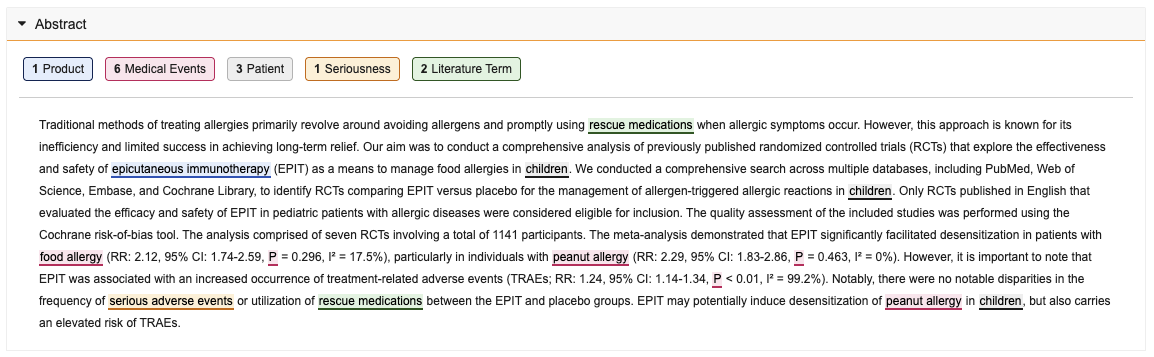
#### <a id="highlight-literature-abstract-terms"></a>Highlight Literature Abstract Terms

Depending on your Admin's configuration, Vault can automatically highlight relevant terms in the _Abstract_ field, allowing you to quickly review highlighted terms in order to determine whether a full-text review is necessary. 

When in Read mode on a _Literature Article_, the _Abstract_ section displays a row of buttons above the _Abstract_ field, with each button labeled with the term type and a count of the number of times it appears in the abstract. Within the body of the _Abstract_ field, Vault underlines and highlights each term using the color of the term type's button.

Vault determines which terms to highlight (and which terms to include in the button count) based on the following:
- **Product button**: All records for the following objects:
    - _Product_
    - _Product Family_
    - _Product Alias_
    - _Study_
    - _Substance_
    - _Substance Alias_
- **Medical Events button**: All records for the following objects:
    - _MedDRA_
    - _MedDRA Query_
    - _MedDRA Synonym_
- **Patient button**: All <a href="/en/gr/825344/">_Literature Highlighted Term_</a> records in the _Active_ state with a _Term Category_ value of _Patient_
- **Seriousness button**: All _Literature Highlighted Term_ records in the _Active_ state with a _Term Category_ value of _Seriousness_
- **Literature Term button**: All _Literature Highlighted Term_ records in the _Active_ state with a _Term Category_ value of _Company Term_

<a href="https://platform.veevavault.help/assets/images/safetydocs-literature-abstract-highlight.png" data-lightbox="images" data-title="A Literature Article Record With Highlight Functionality Enabled" data-alt="A Literature Article record with highlight functionality enabled">
  <img class="docimage" src="https://platform.veevavault.help/assets/images/safetydocs-literature-abstract-highlight.png" alt="A Literature Article record with highlight functionality enabled" style=""  />
</a>

To turn off term highlighting for a specific term type, select its term type button. To toggle term highlighting on or off for the entire _Abstract_ field, press **Alt + H** on your keyboard (**Opt + H** on Mac).

<div class="note-border alert-info">
  <div class="alert alert-info" role="alert">
    <div><i class="far fa-info-circle"></i></div>
    <div class="alert-text">
      <p><strong>Note</strong>: <a id="note-highlight-read-mode"></a>Highlight Literature Abstract Terms only works when the <em>Abstract</em> field is in Read mode and the language setting is <em>English</em>. If your <em>Literature Article</em> is in Edit mode or if your <em>Abstract</em> section is set to a non-English language, the highlight functionality is not available.</p>
    </div>
  </div>
</div>


### Literature Additional Information Section

When importing literature reference information from a database, <a href="/en/gr/01238/#literature-additional-information-section">Vault maps all additional information from your uploaded RIS file</a> to this section. 

## Literature Workflows

SafetyDocs supports using workflows to keep track of your literature management process. The following sections describe the default workflows available for configuration in your Vault. Your Admin may configure your Vault with alternate steps based on your organization's processes.

For more information, see <a href="/en/gr/33553/">Using Object Workflows</a>.

### Literature Review Workflow

This workflow follows all the steps involved in conducting a literature review, including searching for articles, deciding whether to go forward with article reviews, and coordinating these reviews.

### Literature Article Review Workflow

This workflow follows all the steps involved in conducting article reviews, including sending them out for review and taking action based on the outcomes. When configured by your Admin, Vault routes a percentage of _Literature Articles_ with an _Aggregate Report Outcome_ value of _New and Significant for Aggregate Reporting_ through an additional quality control (QC) review step.


[1]: #translate-non-english-abstracts
[2]: #highlight-literature-abstract-terms
[3]: #note-highlight-read-mode
[4]: #test-the-pubmed-database-connection
[5]: #create-a-literature-review
[6]: #literature-review-workflow
[7]: #working-with-literature-documents
[8]: #create-literature-articles
[9]: #literature-article-review-workflow
[10]: #literature-article-fields