With the 23R1 release, SafetyDocs supports the management of literature articles and article reviews for a faster, more transparent literature screening process around Individual Case Safety Report (ICSR) detection and signal identification. This feature allows you to store documents and document and action relevancy decisions in one centralized location.
Note: With the 26R2 release, Veeva Safety Suite introduces literature support to the Veeva Safety application, allowing Safety users to access literature functionality. To configure literature functionality for your Safety application users, enable literature features as applicable to your business processes.
Updates
SafetyDocs introduces the following new features:
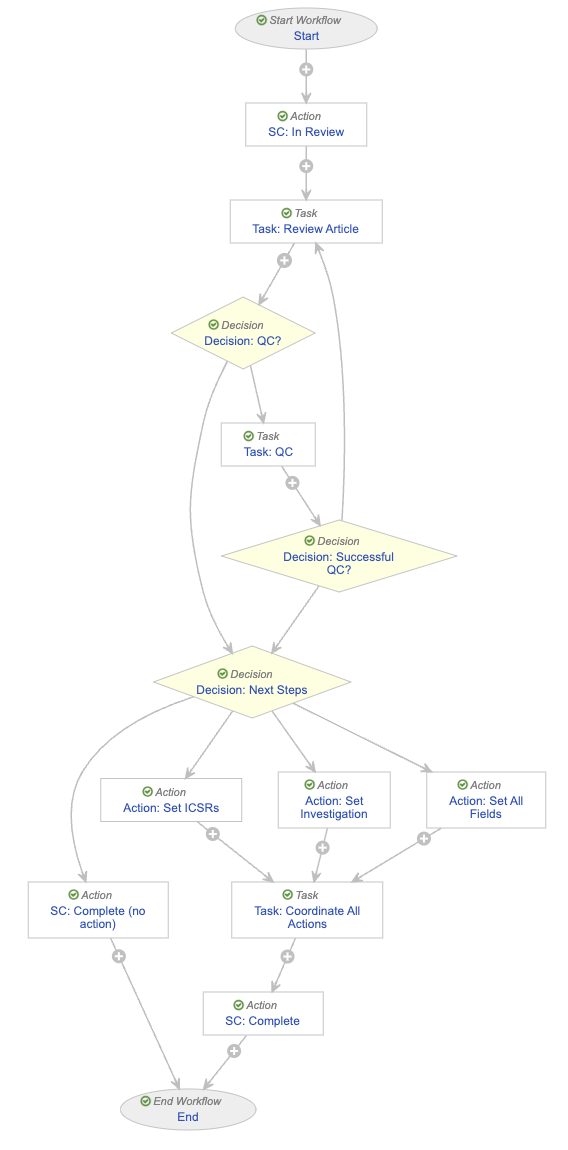
- Literature Article QC Sampling: With the 25R2 release, SafetyDocs supports randomized QC sampling for your Literature Articles, helping you ensure data quality. This feature routes Literature Articles with a randomly assigned QC Sampling Number value above a specified threshold through an additional QC step in the existing Literature Article Review workflow. To configure your Vault for this feature, see Configure Literature Article QC Sampling.
- Literature Inclusion in Aggregate Reports: With the 25R2 release, SafetyDocs extends aggregate reporting functionality by allowing users to mark specific Literature Articles and Literature Article Products for inclusion in aggregate reports. To configure your Vault for this feature, see Enable Literature Inclusion in Aggregate Reports.
- Highlight Literature Abstract Terms: With the 25R1 release, SafetyDocs introduces Highlight Literature Abstract Terms, streamlining the identification of ICSRs and emerging safety signals by automatically highlighting relevant terms in the Abstract field of your Literature Article records. This functionality allows your users to quickly review abstracts in order to determine whether a full-text review is necessary. You can configure your Vault to highlight the terms that matter for your organization’s specific patient, seriousness, and company-specific term needs. See Configure Highlight Literature Abstract Terms to configure your Vault for the updated feature. After you have enabled this feature, learn how to manage Literature Highlighted Terms.
Overview
To configure this feature in your Vault:
- Configure the Literature Database object layout
- Configure security
- Configure custom sharing rules
- Configure object lifecycles
- Configure the Literature Document Lifecycle
- Configure workflows
- Update object lifecycles to support workflows
- Configure tabs
Configure the Literature Database Object Layout
To configure the Literature Database object layout:
- Navigate to Admin > Configuration > Objects > Literature Database > Layouts > Literature Database Detail Page Layout.
- Select Edit.
- Configure the layout as follows:
- Ensure the Details section contains the Name field
- Ensure the System section contains the following fields in the following order:
- Created By
- Created Date
- Last Modified By
- Last Modified Date
- Select Save.
Configure Security
Configure security to grant access to the literature management features. Use the following settings as a starting point, but configure access according to your business process:
- Create a Literature Actions permission set
- Create a Literature security profile and add to it the Literature Actions permission set
- Grant permissions on the Literature Actions permission set
Grant Literature Actions Permissions
To grant permissions to the Literature Actions permission set:
- Grant View tab permissions to the following tabs:
- Home
- Library
- Reports
- Dashboards
- Literature Reviews
- Literature Articles
- Grant object permissions as follows:
| Permissions | Objects |
|---|---|
| Read |
|
| Create |
|
| Edit |
|
| Delete |
|
Configure Custom Sharing Rules
Configure custom sharing rules for the following objects:
- Literature Article
- Literature Review
- Literature Search Term
To configure custom sharing rules for an object:
- Enable custom sharing rules.
- Create a custom sharing rule with the following settings:
- Label: Enter
[Object] * Reviewer, where[Object]is the object for which you are creating the sharing rule - In the Roles section, add the following roles for the Literature group:
- Reviewer
- Editor
- Label: Enter
Configure Object Lifecycles
Configure the following object lifecycles:
Configure the Literature Article Lifecycle
To configure the Literature Article Lifecycle:
- Add the Reviewer and Aggregate Report Writer roles
- Edit role permissions
- Configure the Literature Article object lifecycle stage group
Edit Literature Article Lifecycle Role Permissions
Edit role permissions on the Literature Article Lifecycle as follows:
| Role | Lifecycle State | Permissions |
|---|---|---|
| Aggregate Report Writer | All lifecycle states |
|
| Editor | Pending Review |
|
| Further Action In-Progress |
|
|
| Complete |
|
|
| New |
|
|
| Inactive |
|
|
| In Review |
|
|
| Owner | All lifecycle states |
|
| Reviewer | Pending Review |
|
| Further Action In-Progress |
|
|
| Complete |
|
|
| New |
|
|
| Inactive |
|
|
| In Review |
|
|
| Viewer | All lifecycle states |
|
Configure the Literature Article Lifecycle Stage Group
Create an object lifecycle stage group with the following settings:
- Stage Group Label: Enter
Literature Article - Object Lifecycle: Select Literature Article Lifecycle
- Object Type: Select Base Literature Article
Then, create stages and define their states as follows:
- Create the New stage, then add the following states:
- New
- Pending Review
- Create the In Progress stage, then add the following states:
- In Review
- Further Action In-Progress
- Create the Complete stage, then add the Complete state
Configure the Literature Review Lifecycle
To configure the Literature Review Lifecycle:
- Add the Reviewer and Aggregate Report Writer roles
- Edit role permissions
- Configure atomic security on relationships for the Complete lifecycle state
- Configure the Literature Review object lifecycle stage group
Edit Role Permissions for the Literature Review Object
Edit role permissions on the Literature Review Lifecycle as follows:
| Role | Lifecycle State | Permissions |
|---|---|---|
| Aggregate Report Writer | All lifecycle states |
|
| Editor | Complete |
|
| Inactive |
|
|
| Searching |
|
|
| In Review |
|
|
| New |
|
|
| Owner | All lifecycle states |
|
| Reviewer | Complete |
|
| Inactive |
|
|
| Searching |
|
|
| In Review |
|
|
| New |
|
|
| Viewer | All lifecycle states |
|
Configure Atomic Security on Relationships for the Complete State
To configure atomic security on relationships for the Complete state of the Literature Review Lifecycle, apply the Read state behavior to the following relationships:
- Literature Articles
- Literature Search Terms
Configure the Literature Review Lifecycle Stage Group
Create an object lifecycle stage group with the following settings:
- Stage Group Label: Enter
Literature Review Stages - Object Lifecycle: Select Literature Review Lifecycle
- Object Type: Select Base Literature Review
Then, create stages and define their states as follows:
- Create the New stage, then add the New state
- Create the In Progress stage, then add the following states:
- Searching
- In Review
- Create the Complete stage, then add the Complete state
Configure the Literature Search Term Lifecycle
To configure the Literature Search Term Lifecycle:
- Add the Reviewer and Aggregate Report Writer roles
- Edit role permissions as follows:
| Role | Lifecycle State | Permissions |
|---|---|---|
| Aggregate Report Writer | All lifecycle states |
|
| Editor | Inactive |
|
| Active |
|
|
| Owner | All lifecycle states |
|
| Reviewer | Inactive |
|
| Active |
|
|
| Viewer | All lifecycle states |
|
Configure the Literature Document Lifecycle
To configure the Literature Document Lifecycle:
- Define allowed and default users for the Editor and Reviewer roles
- Update lifecycle state security settings
- Create actions
Define Allowed and Default Users for the Editor and Reviewer Roles
To define allowed and default users for the Editor and Reviewer roles, add the Literature group, then select the Default User checkbox.
Update Lifecycle State Security Settings
Update document lifecycle state security settings for the following states on the Literature Document Lifecycle:
Update Imported State Security Settings
Update lifecycle state security settings on the Imported state as follows:
| Role | Security Settings |
|---|---|
| Owner |
|
| Coordinator | No permissions |
| Editor |
|
| Viewer |
|
| Consumer | No permissions |
| Reviewer |
|
| Approver |
|
| Aggregate Report Writer |
|
Update Review Complete State Security Settings
Update lifecycle state security settings on the Review Complete state as follows:
| Role | Security Settings |
|---|---|
| Owner |
|
| Coordinator |
|
| Editor |
|
| Viewer |
|
| Consumer |
|
| Reviewer |
|
| Approver |
|
| Aggregate Report Writer |
|
Create Actions
Create a user action on the Imported state of the Literature Document Lifecycle with the following settings:
- Condition Type: Select Always
- Allow the following actions:
- Select Change State to
- Select Review Complete
- Action Label: Enter
Complete Review
Create an entry action on the Review Complete state of the Literature Document Lifecycle with the following settings:
- Condition Type: Select Always
- perform actions: Select Set new major version
Configure Workflows
Use the following object workflows as a starting point, but configure your workflows according to your business processes:
Create the Literature Review Workflow
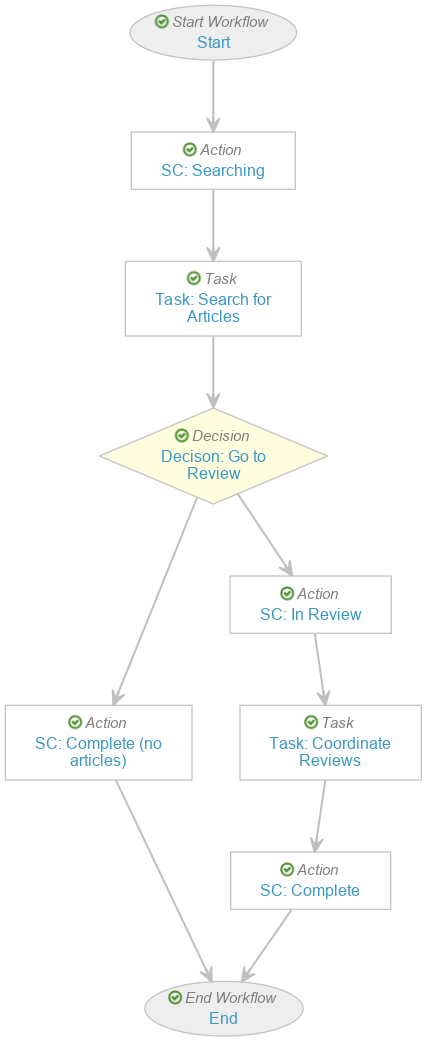
Create the following workflow to manage literature reviews:
- Navigate to Admin > Configuration > Workflows.
- Select Create.
- In the Create Workflow window, select Object Workflow.
- Select Continue.
- On the Create Workflow page, populate the fields as follows:
- Label: Enter
Literature Review Workflow - Lifecycle: Select Literature Review Lifecycle
- Label: Enter
- Select Save.
- In the Workflow Steps section, configure the workflow to include the following steps:
- Start Start step
- SC: Searching state change action step
- Task: Search for Articles task step
- Decision: Go to Review decision step
- SC: Complete (no articles) state change action step
- SC: In Review state change action step
- Task: Coordinate Reviews task step
- SC: Complete state change action step
- End end step
Create the Literature Article Review Workflow
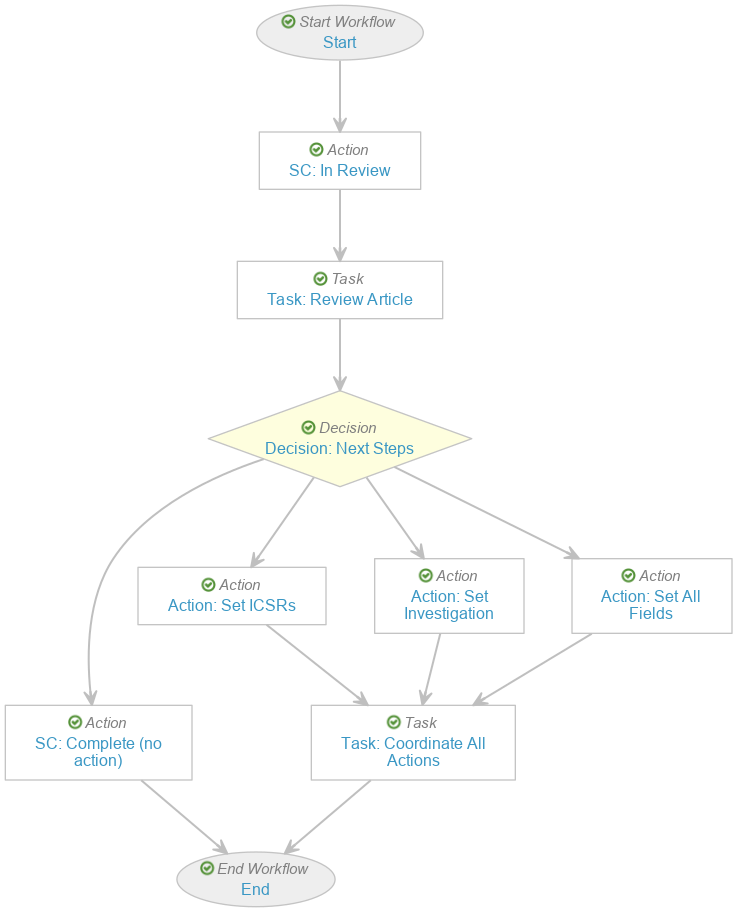
Create the following workflow to manage the review and approval process for literature articles:
- Navigate to Admin > Configuration > Workflows.
- Select Create.
- In the Create Workflow window, select Object Workflow.
- Select Continue.
- On the Create Workflow page, populate the fields as follows:
- Label: Enter
Literature Article Review Workflow - Lifecycle: Select Literature Article Lifecycle
- Label: Enter
- Select Save.
- In the Workflow Steps section, configure the workflow to include the following steps:
-
Start Start step with the following controls:
Control Description Control 1: Instructions Instruct users to specify the review team for each article Control 2: Participants - In the Participant Label field, enter
Reviewer(s) - Select Allow workflow initiator to select participants
- Select the Default Users from sharing settings checkbox
Control 3: Date In the Label field, enter Due Date - In the Participant Label field, enter
- SC: In Review state change action step
- Task: Review Article task step
- Decision: Next Steps decision step
- SC: Complete (no action) state change action step
- Action: Set ICSRs action step
- Task: Coordinate All Actions task step
- Action: Set Investigation action step
- Action: Set All Fields action step
- End end step
-
Update Object Lifecycles to Support Workflows
To update the Literature Article Lifecycle to support the Literature Article Review Workflow, create a user action on the Pending Review state to always start Article Review.
To update the Literature Review Lifecycle object lifecycle to support the Literature Review Workflow, create the following:
| Lifecycle State | Type | Configuration |
|---|---|---|
| New | Entry action | Always start Article Review |
| In Review | Entry action | Always change the state to Pending Review for records that are related by Literature Articles |
| Complete | Entry criteria | Always validate that the Literature Article object has no records that are in the Pending Review, New, or In Review states |
Configure Tabs
For easy user access to literature processing features:
- Set the tab status to Active for the following tabs:
- Literature
- Literature Reviews
- Literature Articles
- Create an active Literature Monitoring tab collection and add the following tabs:
- Home
- Literature
- Cases
- Analytics
- Library
(25R2) Configure Literature Article QC Sampling
To configure Literature Article QC Sampling, you must configure the Literature Article Review workflow:
- Navigate to Admin > Configuration > Workflows > Literature Article Review.
- Select Edit.
- Configure the following:
Note: While the following image and sections demonstrate the recommended workflow configuration, you can configure workflow settings according to your organization’s QC requirements.
Configure the QC Decision Step
To configure the decision step that routes a sampling of Literature Articles through QC review:
- In the Workflow Steps section, under the Task: Review Article step, select Create Step.
- In the Label field, enter
Decision: QC?, then select Save. - In the Type drop-down, select Decision.
- In the Rules section, select Create Rule and complete the fields as follows:
- Condition Type: Select All conditions are met
- If > Task > Task: Review Article > all labels equal > No Action Needed
- Select Add condition
- If > Field > QC Sampling Number > is greater than > 90Note
- then: Select Create Step
- In the Step Name field, enter
Task: QC, then select OK
- Select Create Rule and complete the fields as follows:
- Condition Type: Select All conditions are met
- If > Task > Task: Review Article > no labels equal > No Action Needed
- Select Add condition
- If > Field > QC Sampling Number > is greater than > 95Note
- then: Select Task: QC
- In the Else rule, in the then drop-down, select Decision: Next Steps.
- Select Save.
- Navigate back to the main page of the workflow.
Note: The field values specified for these rules determine the percentage of Literature Articles that are routed through the QC review process—in this example, 5% of Literature Articles that result in the creation of Signal Investigations, and 10% of other Literature Articles. You may specify different field values to configure these thresholds to suit your organization’s QC needs.
Configure the QC Review Task Step
To configure the QC Review task step:
- In the Workflow Steps section, select Task: QC, then select Edit.
- In the Type drop-down, select Task.
- In the Next Steps drop-down:
- Select Create Step
- In the Step Name field, enter
Decision: Successful QC? - Select OK
- In the Task Options section, complete the fields as follows:
- Task Label: Enter
Literature Article QC Review - Assign Task To: Select Workflow Owner
- Instructions: Enter
Please QC the results of the previous task. - Task Requirement: Select Required
- Display information about previous tasks: Select Task: Review Article
- Due Date: Select Task Creation Date > + then enter
2in the Days field - Prompts: Select Prompt for Verdicts
- In the Verdict Label field, enter
No quality concerns, continue - Select Add Verdict
- In the new verdict’s Verdict Label field, enter
Quality concerns, send back to article review - Select Add Comments
- In the Prompt for Comments field, enter
Please explain your decisionand then select Required
- In the Verdict Label field, enter
- Notification Template: Select ObjectTaskReminderNotification
- Task Label: Enter
- Select Save.
- Navigate back to the main page of the workflow.
Configure the QC Success Decision Step
To configure the decision step that routes Literature Articles that failed their QC check back through the review process:
- In the Workflow Steps section, select Decision: Successful QC?, then select Edit.
- In the Type drop-down, select Decision.
- In the Rules section, select Create Rule and complete the fields as follows:
- Condition Type: Select All conditions are met
- If > Task > Task: QC > at least one label equals > Quality concerns, send back to article review
- then: Select Task: Review Article
- In the Else rule, select Decision: Next Steps in the then drop-down.
- Select Save.
- Navigate back to the main page of the workflow.
Configure a User Action on the Literature Article Lifecycle
To configure the user action that initiates the Literature Article Review workflow:
- To navigate to the lifecycle, from the Lifecycle field, select Literature Article Lifecycle.
- On the Literature Article Lifecycle page, under the States section, select New.
- On the New lifecycle state page, next to User Actions, select Edit.
- Select Create Rule and complete the fields as follows:
- Condition Type: Select Always
- perform actions: Select Workflow > Literature Article Review
- Action Label: Enter an appropriate label
- Select Save.
(25R1) Configure Highlight Literature Abstract Terms
To configure Highlight Literature Abstract Terms, you need to:
- Update Load Terms for Abstract Highlighting settings
- Update the Literature Highlighted Term object layout
- Update the Literature Article object layout
- Grant Literature Highlighted Term object permissions
Update Load Terms for Abstract Highlighting Settings
To turn on this feature in your Vault:
- Navigate to Admin > Settings > SafetyDocs Settings.
- Select Edit.
- Select the Load Terms for Abstract Highlighting checkbox.
- Select Save.
Update the Literature Highlighted Term Object Layout
To update the Literature Highlighted Term object layout:
- Navigate to Admin > Configuration > Objects > Literature Highlighted Term > Layouts.
- Next to the standard layout, select the Actions menu and then select Save As.
- Review the information in the Save As dialog and select Done.
- Select Save to return to the Literature Highlighted Term > Layouts page.
- Next to the newly created layout, select the Actions menu and then select Set As Default.
- Next to the old custom layout, select the Actions menu and then select Delete > Continue.
Update the Literature Article Object Layout
Note: In addition to being a required change for enabling Highlight Literature Abstract Terms, as of 25R1, you must follow this process to update the Literature Article layout in support of Literature Abstract Translation. For more information, see Enable Literature Abstract Translation.
To update the Literature Article object layout:
- Navigate to Admin > Configuration > Objects > Literature Article > Layouts.
- Next to the standard layout, select the Actions menu and then select Save As.
- Review the information in the Save As dialog and select Done.
- Select Save to return to the Literature Article > Layouts page.
- Next to the newly created layout, select the Actions menu and then select Set As Default.
- Next to the old custom layout, select the Actions menu and then select Delete > Continue.
Grant Literature Highlighted Term Object Permissions
Ensure your permission sets are updated to grant the appropriate level of access for users to the Literature Highlighted Term object according to your organization’s process. Manage object permissions from Admin > Users & Groups > Permission Sets > Literature Actions > Objects > Literature Highlighted Term.
We recommend granting the following Literature Highlighted Term object permissions:
- Read
- Create
- Edit
- Delete