# Configure Email Transmissions

To allow users to send ICSR _Transmissions_ using email, configure Email Transmissions.

## Overview

Vault supports sending <a href="/en/lr/01264/#icsr-transmission-types">ICSR _Transmissions_</a> over email. You can also set up cover letter templates using Vault's controlled document management capabilities.

<div class="note-border alert-info">
  <div class="alert alert-info" role="alert">
    <div><i class="far fa-info-circle"></i></div>
    <div class="alert-text">
      <p><strong>Note</strong>: When sending emails, individual attachment file size cannot exceed 15 MB and total attachment file size cannot exceed 100 MB.</p>
    </div>
  </div>
</div>


### Purpose

This page provides instructions for Administrators to configure their Vaults to automatically generate Email Transmissions when a Case matches the reporting rules. For information on sending Email Transmissions for distribution manager users, see <a href="/en/lr/01267/">Send an Email Transmission</a>.

### Configuration Checklist

The following list outlines the high-level steps to configuring Email Transmissions:

* [Add an Email Transmission Profile][1]
* [Add Email Destination Persons][2]
* [Configure Reporting Rules][3]
* [(Optional) Add an Email Cover Letter Template][4]

## Prerequisites

Consider the following prerequisites before you configure Email Transmissions:

* You must be an administrator.
* A <a href="/en/lr/01274/">Vault user</a> must exist with the reply-to email address for outgoing emails (Sender User).
* The <a href="/en/lr/01213/">Organization records</a> must exist for the origin and destination organizations.
* Ensure that your Vault has the required <a href="/en/lr/01390/">configuration to make the Email Submissions and Distributions</a> feature available.

## Configure an Email Transmission Profile and Recipients {#email-profile}

To configure an Email Transmission Profile, you must set up the _Email Profile_ and add email destinations.

### Add an Email Profile

You must add an _Email Profile_, which is a type of _Transmission Profile_, to use Email Transmissions. <a href="/en/lr/01202/">Manage Transmission Profiles</a> provides instructions on setting up _Transmission Profiles_, including how to automatically attach Case Source Documents to email Transmissions.

Once complete, Vault creates the Email Profile and uses the Origin and Destination settings to match Cases with this Email Profile when evaluating reporting obligations.

Next, add [Email Destinations][2] to specify the email addresses that receive the email transmissions.

### Add Email Recipients {#email-destinations}

You can add up to ten Email Destinations per Email Profile.

#### Prerequisite: Add Person Records

Before you can add Email Destinations, you must add a Person record for each recipient with the appropriate email address. Manage Person records from **Business Admin > Objects > Persons**.

#### Add Email Destinations to Email Profile

1. On the Email Profile, expand **Email Destinations**, and then select **Create**.
2. In the **Destination Person** field, select the preconfigured Person record with the appropriate email address.
3. In the **Recipient Type** field, specify the type of recipient.

<div class="note-border alert-info">
  <div class="alert alert-info" role="alert">
    <div><i class="far fa-info-circle"></i></div>
    <div class="alert-text">
      <p><strong>Note</strong>: An Email Profile can contain only one Destination Person with the Recipient Type of <strong>To</strong>.</p>
    </div>
  </div>
</div>


**Result**

The Person is added as an email destination for this Email Profile. Add additional recipients as required.

## Supported Tokens for Email Message Subject and Body {#supported-email-tokens}

Only certain tokens are supported for use in the **Message Subject** and **Message Body** fields. Unsupported tokens are not generated.

<div class="note-border alert-info">
  <div class="alert alert-info" role="alert">
    <div><i class="far fa-info-circle"></i></div>
    <div class="alert-text">
      <p><strong>Note</strong>: If a token causes the Message Subject or Message Body to exceed the character limit, the text will be truncated at the character limit without a Vault notification.</p>
    </div>
  </div>
</div>


The following table lists the supported tokens:

<table>
    <thead>
        <tr>
            <th>Field</th>
            <th>Token</th>
        </tr>
    </thead>
    <tbody>
        <tr>
            <td>Case Number</td>
            <td><code>${Custom.case_number}</code></td>
        </tr>
        <tr>
            <td>Date of Birth (normalized)</td>
            <td><code>${Custom.dob}</code></td>
        </tr>
        <tr>
            <td>Date of Death (normalized)</td>
            <td><code>${Custom.dod}</code></td>
        </tr>
        <tr>
            <td>Due Date</td>
            <td><code>${Custom.due_date}</code></td>
        </tr>
        <tr>
            <td>Receipt Date</td>
            <td><code>${Custom.receipt_date}</code></td>
        </tr>
        <tr>
            <td>Name</td>
            <td><code>${Custom.name}</code></td>
        </tr>
        <tr>
            <td>New Info Date</td>
            <td><code>${Custom.new_info_date}</code></td>
        </tr>
        <tr>
            <td>Patient Initials</td>
            <td><code>${Custom.patient_id}</code></td>
        </tr>
        <tr>
            <td>Study Name</td>
            <td><code>${Custom.study_name}</code></td>
        </tr>
        <tr>
            <td>UID</td>
            <td><code>${Custom.uid}</code></td>
        </tr>
        <tr>
            <td>Worldwide UID</td>
            <td><code>${Custom.worldwide_uid}</code></td>
        </tr>
        <tr>
            <td>Report Type</td>
            <td><code>${Custom.report_type}</code></td>
        </tr>
        <tr>
            <td>CIOMS Remarks</td>
            <td><code>${Custom.cioms_remarks}</code></td>
        </tr>
        <tr>
            <td>Company Comments</td>
            <td><code>${Custom.sender_comments}</code></td>
        </tr>
    </tbody>
</table>

## Configure Reporting Rules {#reporting-rules}

There are two types of reporting rules that you can use with Email Transmissions:

* <a href="/en/lr/01254/">Partner Distribution List</a>: You can set up a Reporting Family of the type _Partner Distribution List_ to assign a reporting ruleset and add the Products and Studies that should trigger email transmission generation.
* <a href="/en/lr/01255/">MAH Distribution List</a>: You can assign an MAH reporting obligation to a Product or Study Registration for Email Distributions in place of regulatory submissions.

Vault matches reporting rules with the appropriate _Transmission Profile_, including _Email Profiles_, using the Origin and Destination pair.

## Email Cover Letter Templates {#cover-letter}

You can create email cover letter templates using Vault's controlled document template functionality.

<a href="/en/lr/5509/">Managing Document Templates</a> provides more information on controlled document templates.

### About Cover Letter Templates

You can add cover letter templates using the _Template › Cover Letter (Template) › Email Cover Letter (Template)_ document type.

When an Email Profile references a cover letter template, any Email Transmissions created from that profile generate and attach a cover letter using that template. Generated cover letters use the _Case › Cover Letter › Email Cover Letter_ document type.

You can use Vault merge field tokens within email cover letter templates. <a href="/en/lr/30965/">Using Merge Fields for Microsoft Word & Excel</a> provides information on using merge fields.

<div class="note-border alert-info">
  <div class="alert alert-info" role="alert">
    <div><i class="far fa-info-circle"></i></div>
    <div class="alert-text">
      <p><strong>Note</strong>: Do not include merge field tokens for sensitive information that should be blinded or masked. Blind protection is not available for email cover letters.</p>
    </div>
  </div>
</div>


### Add an Email Cover Letter Template {#cover-letter-template}

1. From the primary navigation bar, select **Create > Document > Upload**.
2. Select **Classify documents now**.
3. Set the **Choose document type** field to: **Template › Cover Letter (Template) › Email Cover Letter (Template)**. You may need to activate this template document type before it is available for use.
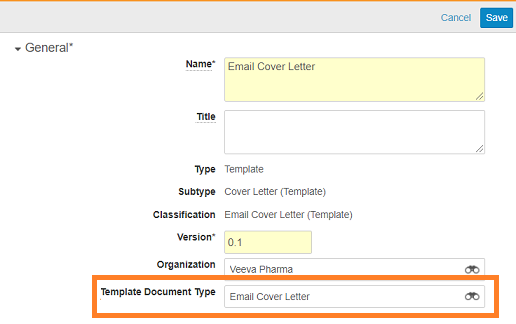
4. On the **Upload Files (Step 2)** page, set the **Template Document Type** to **Email Cover Letter**.
5. Complete additional fields on the **Upload Files (Step 2)** page as required.
6. Move the document to a Steady-state, such as Approved. The method to move the document to a steady-state depends on your Vault's configuration. We recommend configuring a document workflow for approval. The document must be in a steady-state to be used as a controlled template.

<a href="https://platform.veevavault.help/assets/images/saf-email-cover-letter-document-settings.png" data-lightbox="saf-email-cover-letter-document-settings.png" data-title="Email Cover Letter Template General Settings" data-alt="Email Cover Letter Template General Settings">
  <img class="docimage" src="https://platform.veevavault.help/assets/images/saf-email-cover-letter-document-settings.png" alt="Email Cover Letter Template General Settings" style=""  />
</a>

**Result**

The steady-state email cover template document is saved to the Library and available for selection on an Email Profile.

<div class="note-border alert-info">
  <div class="alert alert-info" role="alert">
    <div><i class="far fa-info-circle"></i></div>
    <div class="alert-text">
      <p><strong>Note</strong>: Merge field tokens are not replaced on the template document. The tokens will be replaced with the appropriate field values when a cover letter is generated for an Email Transmission using the template.</p>
    </div>
  </div>
</div>


## Use Custom Outbound Domains for Emails {#custom}

By default, Vault sends outbound emails using the standard @veevavault.com domain. You can configure custom outbound email domains and custom From Email Addresses.

To use this feature, you must first <a href="/en/lr/726172/">add the **From Email Address** field</a> to the _Transmission Profile_ object.

### Configure Custom Outbound Email Domains

Follow the instructions in <a href="/en/lr/78114/#creating-email-domains">Configuring Outbound Email Addresses</a> to create custom domains that are more relevant to your organization.

Next, proceed with [creating custom From Email Addresses][5] using the custom outbound domain.

### Create From Email Addresses

After [configuring custom outbound email domains][6], you can create a custom From Email Address:
1. Go to **Business Admin > Objects > Persons**.
2. Select **Create**.
3. In the **Create Person** dialog, select **From Email Person** and then select **Continue**.
4. Complete the following information:
* **First Name**: Enter the first name of this person.
* **Last Name**: Enter the last name of this person.
* **Email**: Enter the email address, using a custom outbound email domain.
* **Language**: Select a language from the dropdown.
5. Select **Save**.
6. Go to the new **Person** record and select the **All Actions** menu > **Verify Outbound Email**.

**Result**

Vault creates the new **Person** record of the **From Email Address** object type. After you verify the outbound email, the **Outbound Email Status** updates from **Inactive** to **Active**.

Next, see the following section to add this From Email Address to an Email Transmission Profile.

### Add the From Email Address to the Transmission Profile

For more information about creating an email profile, see the [Configure an Email Transmission Profile and Recipients][8] section.

Add the From Email Address you created to the Transmission Profile Email type:
1. Navigate to **Business Admin > Objects > Transmission Profiles > [Transmission Profile]**.
2. Select **Edit**.
3. In the **Details** section, in the **From Email Address** field, select a From Email Address.
4. Select **Save**.

**Result**

After adding the From Email Address to the email profile, it can now be used to send outbound emails from Vault.

[1]: #email-profile
[2]: #email-destinations
[3]: #reporting-rules
[4]: #cover-letter-template
[5]: #create-from-email-addresses
[6]: #configure-custom-outbound-email-domains
[7]: #add-the-from-email-address-to-the-transmission-profile
[8]: #configure-an-email-transmission-profile-and-recipients