# Set Up Scheduled Follow-Up Questionnaire Emails

Admins can configure Vaults to automatically generate and send email questionnaires to Case Reporters for follow-up information.

## About Scheduled Follow-Up Emails

This page provides instructions on how you can configure your Vault to generate and send questionnaires to Case Reporters for follow-up information. Follow-up questionnaires are used when there is missing information on the Inbox Item, resulting in an invalid Case. For instructions on how to use this feature once configured, see <a href="/en/lr/01175/">Send a Follow-Up Email Questionnaire to a Case Reporter</a>.

Vault's controlled document management capabilities include setting up questionnaires. To customize when a questionnaire is sent, configure Follow-Up Rules or leverage Watchlists to monitor Adverse Events of Special Interest (AESI).

If a Case matches with a questionnaire template for a Follow-Up Rule or Watchlist and the reporter provides their email and consent to be contacted, then Vault performs the following actions:

* Generates a **Correspondence Transmission** record to log events regarding the email
* Emails the questionnaire to the reporter's designated email address

<div class="note-border alert-info">
  <div class="alert alert-info" role="alert">
    <div><i class="far fa-info-circle"></i></div>
    <div class="alert-text">
      <p><strong>Note</strong>: We recommend <a href="/en/lr/726960/">setting up follow-up questionnaires for <em>Case Contacts</em></a> instead of the feature described in this article. You can only configure one of these questionnaire features in your Vault.</p>
    </div>
  </div>
</div>


## Prerequisites

Consider the following requirements before you can configure follow-up questionnaires:

* Before you can access this feature, you must <a href="/en/lr/01326/">enable Scheduled Follow-Up Questionnaire Emails</a>.
   * In addition to setting up layouts and security, you must perform the <a href="/en/lr/01326/#22r3">22R3 configuration</a> to remove constraints on the **Transmission** object.
* Before you can add questionnaire templates for Watchlists and Adverse Events of Special Interest (AESI), you must have already configured the <a href="/en/lr/01192/">Watchlist</a>.

In addition, if you enable <a href="/en/lr/01294/">Extend Definition of Suspect to Drug Not Administered</a>, questionnaires are generated for Case Products with a Drug Role of Suspect, Interacting, or Drug Not Administered. Otherwise, questionnaires are generated only for the Suspect and Interacting Drug Roles.

## Important Terms

Before you start configuring follow-up questionnaires, it's important to understand the following terms: 

* **Reporter**: The person reporting the adverse event. This may be a medical professional or the patient themselves. Reporter information is stored using a **Case Contact** record.
* **Email Consent**: The reporter has explicitly provided consent to be contacted about this Inbox Item or Case by email.
* **Questionnaire**: A predefined document with questions and requests for information to be sent to a reporter or health professional.
* **Watchlist**: A specific set of MedDRA terms of special interest for a specific product. This is sometimes referred to as Adverse Events of Special Interest (AESI).

## Best Practices & Recommendations

* Specify base global templates as much as possible.
* Specify only the Country and Language template document fields when required. This makes maintenance easier.
* Try to use templates at the watchlist-level instead of the MedDRA Criteria level where possible.
* You can have multiple watchlists under the same watchlist tag for easier management.

## Create the Questionnaire Template Document {#templates}

You must create a source questionnaire and add it as a controlled document template. Vault uses the questionnaire template to generate specific questionnaires for each Case. The resulting document is added as an attachment on the **Correspondence** record. To learn more about controlled document templates, see <a href="/en/lr/46018/">Creating & Managing Controlled Document Templates</a>. 

You can create the questionnaire source file using any document type. However, we recommend that you use a DOCX file format, which allows you to configure merge field tokens in the file. 

Merge field tokens are replaced by field values from the relevant Case when Vault generates a Case questionnaire. To learn more about using merge fields, see <a href="/en/lr/30965/">Using Merge Fields for Microsoft Word & Excel</a>. 

## <a id="email-persons"></a>Add Reply-To Contact Emails 

Add **Person** records to configure the email addresses for reply-to contacts on questionnaire emails. A reply-to contact must be selected when configuring questionnaire templates. The email does not have to be associated with a Vault user.

1. Go to **Business Admin > Objects > Persons**.
2. Select **Create**.
3. In the **Create Person** window, select the type of person, and then **Continue**. You can add any type of Person record to store the email address.
4. On the **Create Person** page, specify the fields, and then select **Save**.

**Result**

The **Person** record is added and can be selected as the reply-to email address in automated questionnaire emails.

## Case Follow-Up Rules

Set up case Follow-Up Rules to add questionnaires for a given product. When this feature is enabled, basic Follow-Up Rules are added to your Vault. You can customize these default Follow-Up Rules to specify the number of attempts to reach out to the reporter and how long to wait between each attempt.

Follow-Up Rule questionnaire templates use the **Template > Correspondence (Template) > Questionnaire (Template)** document type. 

To set up questionnaires specific to certain adverse events of special interest, set up a [Watchlist or MedDRA Term questionnaire template][1]. 

### Customize a Case Follow-Up Rule

1. Go to **Business Admin > Objects > Follow-Up Rules**.
2. Open the Follow-Up Rule that you want to customize.
3. Select **Edit**, and modify [these fields][2] as required.
4. Select **Save**.
        
<table>
    <thead>
        <tr>
            <th><a id="customize-fields"></a>Field</th>
            <th>Description</th>
        </tr>
    </thead>
    <tbody>
        <tr>
            <td>Name</td>
            <td>(Required) A name to describe the Follow-Up Rule. </td>
        </tr>
        <tr>
            <td>Follow-up Type</td>
            <td>(Required) The Follow-up Type on an Inbox Item or Case must match the type that you select in this field to qualify for the questionnaire. Select the follow-up type from the picklist.
                    <div class="note-border alert-info">
  <div class="alert alert-info" role="alert">
    <div><i class="far fa-info-circle"></i></div>
    <div class="alert-text">
      <p><strong>Note</strong>: You cannot create more than one Follow-Up Rule with the same Follow-up Type.</p>
    </div>
  </div>
</div>


                    </td>
        </tr>
        <tr>
            <td>Total Attempts to Make</td>
            <td>(Required) The total number of attempts that Vault should make to email the reporter. After the first email, Vault waits the specified <strong>Days Between Attempts</strong> before sending the next email, and each one thereafter. You can specify up to ten (10) attempts.</td>
        </tr>
        <tr>
            <td>Days Between Attempts</td>
            <td>(Required) The number of days that should pass between each email attempt to the reporter. You can specify up to thirty (30) days. </td>
        </tr>
        <tr>
            <td>Rank</td>
            <td>This field does not currently control any functionality, but can be used to sort Follow-Up Rules in Business Admin.</td>
        </tr>
    </tbody>
</table>
        
<div class="note-border alert-info">
  <div class="alert alert-info" role="alert">
    <div><i class="far fa-info-circle"></i></div>
    <div class="alert-text">
      <p><strong>Note</strong>: For custom Follow-Up Rules, the <strong>API Name</strong> must match the <strong>Follow-up Type</strong>. For example, a Custom Follow-Up rule named ‘Custom Clinical Study Rule’ with a custom Follow-Up Type ‘Custom Clinical Study’ (<code class="language-plaintext highlighter-rouge">custom_clinical_study__c</code>) would use the API name <code class="language-plaintext highlighter-rouge">custom_clinical_study__c</code>.</p>
    </div>
  </div>
</div>


**After You Finish**

Add one or more questionnaire template documents.

### Add Follow-Up Rule Questionnaire Templates

We recommend adding Follow-Up Rule questionnaires from the **Follow-Up Rule** record to automatically populate the **Follow-Up Rule** field and filter the document type field. However, you can also add templates from the **Library** tab.

1. On the new **Follow-Up Rule** record, expand **Template Documents**.
2. Select **Add**.
3. Perform one of the following sequences:
   * To use an existing template, select the document, and then select **Close**.
   * To add a new template, complete the following steps:
      1. Select **Create**.
      2. On the **Upload Files (Step 1)** page, upload the file and classify the document as **Template > Correspondence (Template) > Questionnaire (Template)**, and then select **Next**.
      3. On the **Upload Files (Step 2)** page, specify the [General Document Fields][3] and [Questionnaire Settings Fields][4], and then select **Save**. Once you save the document, you are directed back to the **Follow-Up Rule** record.
      4. Go to the template document in the **Library**. Select the document name link under **Template Documents** to find the document quickly.
      5. Move the document to a steady state, such as Approved. The method to move the document to a steady state depends on how your Admin has configured your Vault. We recommend configuring a document workflow for approval. The document must be in a steady state to be used as a controlled template.

**Result**

The template document is added to the Follow-Up Rule. Add as many template documents as you require. Vault uses the **Follow-Up Type** along with the **Questionnaire Settings** to determine when to send email questionnaires. See [Questionnaire Matching Logic][5] to understand how Cases are matched to templates.

## Watchlist and AESI Questionnaires {#watchlist-questionnaire}

You can add questionnaire templates at the Watchlist level and at the MedDRA Term level. If you add a questionnaire template for the entire Watchlist, and also add a questionnaire template for certain MedDRA Terms, the MedDRA Term template supersedes the Watchlist template for those terms only.

<div class="note-border alert-info">
  <div class="alert alert-info" role="alert">
    <div><i class="far fa-info-circle"></i></div>
    <div class="alert-text">
      <p><strong>Note</strong>: When a MedDRA Term supersedes a Watchlist, only the questionnaire for that MedDRA Term is sent for Cases and Inbox Items with that MedDRA Term. The core questionnaire for the Watchlist is not sent.</p>
    </div>
  </div>
</div>


Watchlist questionnaire templates use the **Template > Correspondence (Template) > AESI Questionnaire (Template)** document type. 

<div class="note-border alert-info">
  <div class="alert alert-info" role="alert">
    <div><i class="far fa-info-circle"></i></div>
    <div class="alert-text">
      <p><strong>Note</strong>: Watchlists and AESI Questionnaires are not supported for Inbox Items.</p>
    </div>
  </div>
</div>


### Add Questionnaire Templates for a Watchlist or MedDRA Term

We recommend adding the questionnaire from the Watchlist or MedDRA Term record to automatically populate certain fields. However, you can also add templates from the **Library** tab.

1. Go to **Business Admin > Objects > Watchlists**.
2. Open the Watchlist for which you want to schedule automated email follow-ups.
3. Perform one of the following sequences, depending on where you want to add the template: 
    * To add a template for the entire Watchlist:
        1. On the **Watchlist** record, expand **Templates**.
        2. Select **Add**. The **Watchlist** layout must be configured to show the **Templates** section. If your Admin has not configured this section in your Vault, add the document from the **Library** tab.
    * To add a template for a specific MedDRA Term:
        1. Expand **MedDRA Terms**, and then open the term for which you want to add the questionnaire template.
        2. On the **MedDRA Criteria** record, expand **Template Documents**.
        3. Select **Add**. The **MedDRA Term** layout must be configured to show the **Template Documents** section. If your Admin has not configured this section in your Vault, add the document from the **Library** tab.
4. Perform one of the following sequences:
    * To use an existing template, select the document, and then select **Close**.
    * To add a new template, complete the following steps:
        1. Select **Create**.
        2. On the **Upload Files (Step 1)** page, upload the file and classify the document as **Template > Correspondence (Template) > AESI Questionnaire (Template)**, and then select **Next**.
        3. On the **Upload Files (Step 2)** page, specify the [General Document Fields][3] and [Questionnaire Settings Fields][4], and then select **Save**. Once you save the document, you are directed back to the **Follow-Up Rule** record.
        4. Go to the template document in the **Library**. Select the document name link under **Template Documents** to find the document quickly.
        5. Move the document to a steady state, such as Approved. The method to move the document to a steady state depends on how your Admin has configured your Vault. We recommend configuring a document workflow for approval. The document must be in a steady state to be used as a controlled template.

**Result**

The template document is added to the Watchlist or MedDRA Criteria. Add as many template documents as you require. Vault uses the Watchlist or MedDRA Criteria along with the **Questionnaire Settings** to determine when to send email questionnaires. See [Questionnaire Matching Logic][5] to understand how Cases are matched to templates.

## Questionnaire Template Document Fields

The following sections describe the fields that appear on questionnaire document templates.

### <a id="general-fields"></a>General Document Fields

The following table describes the **General** fields. These fields appear on the Questionnaire (Template) document. 

<table>
    <thead>
        <tr>
            <th>Field</th>
            <th>Description</th>
        </tr>
    </thead>
    <tbody>
        <tr>
            <td>Organization</td>
            <td><p>(Required) Select the Organization to which this Follow-Up Rule applies.</p>
                <p>The Inbox Item or Case <strong>Organization</strong> field must match the Organization that you select in this field.</p></td>
        </tr>
        <tr>
            <td>Name</td>
            <td>(Required) Enter a name for this document. The name determines how Vault displays and refers to the document in the user interface. </td>
        </tr>
        <tr>
            <td>Title</td>
            <td>Enter a secondary identifier for the document.</td>
        </tr>
        <tr>
            <td>Template Document Type</td>
            <td>(Required) Select <strong>Questionnaire</strong>.</td>
        </tr>
    </tbody>
</table>

### <a id="questionnaire-fields"></a>Questionnaire Settings Fields

The following tables describe the **Questionnaire Settings** fields and the use cases for each questionnaire type. These fields appear on the Questionnaire (Template) document.

#### Fields for Follow-Up Rule Questionnaire Templates Only

<table>
    <thead>
        <tr>
            <th>Field</th>
            <th>Description</th>
        </tr>
    </thead>
    <tbody>
        <tr>
            <td>Follow-Up Rule</td>
            <td><p>(Required) The Follow-Up Rule referencing this template. Vault automatically populates this field when you add the template to a Follow-Up Rule.</p>
                <p>The Inbox Item or Case <strong>Follow-Up Type</strong> field must match the Follow-Up Rule set in this field.</p></td>
        </tr>
        <tr>
            <td>Products</td>
            <td><p>Select the Products to which this questionnaire applies. You can enter multiple values. The questionnaire will be sent to reporters of cases involving any of these products.</p>
                <p>The Inbox Item or Case must match the Product that you select in this field, according to the following conditions:</p>
                <ul>
                    <li>Inbox Item: The Product or Study Product on the Inbox Item must match a Product that you select in this field.</li>
                    <li>Case: The Case must contain a Case Product that meets both of the following requirements:
                        <ol>
                            <li>The Product or Study Product matches a Product set in this field.</li>
                            <li>The Drug Role is Suspect, Interacting, or Drug Not Administered.</li>
                        </ol>
                    </li>
                </ul>
                <p>If you do not select a Product, Vault populates this field using approved questionnaire templates that match the Country or Language specified on this questionnaire template. Questionnaire templates with blank <strong>Product</strong>, <strong>Country</strong>, and <strong>Language</strong> fields are considered a match.</p>
            </td>
        </tr>
        <tr>
            <td>Follow-up Questionnaire Rule</td>
            <td>The <em>Follow-up Questionnaire Rule</em> referencing this template.
            </td>
        </tr>
    </tbody>
</table>

#### Fields for AESI Questionnaire Templates Only
<table>
    <thead>
        <tr>
            <th>Field</th>
            <th>Description</th>
        </tr>
    </thead>
    <tbody>
        <tr>
            <td>Watchlist</td>
            <td><p>The Watchlist referencing this template. Vault automatically populates this field when you add the template to a Watchlist.</p>
                <p>The Case <strong>Watchlist Tags</strong> field must contain the tag for the Watchlist set in this field.</p></td>
        </tr>
        <tr>
            <td>MedDRA Terms</td>
            <td><p>The specific MedDRA Terms to which this questionnaire applies. When you add the template under a MedDRA term in a Watchlist, Vault populates this field automatically.</p>
                <p>Cases must contain a Case Adverse Event with a coded MedDRA term that matches the MedDRA Term set in this field.</p></td>
        </tr>
    </tbody>
</table>

#### Fields for All Questionnaire Templates
<table>
    <thead>
        <tr>
            <th>Field</th>
            <th>Description</th>
        </tr>
    </thead>
    <tbody>
        <tr>
            <td>Countries</td>
            <td><p>To make this questionnaire specific to certain countries, select the countries to which this questionnaire applies.</p>
                <p>The Inbox Item or Case must match a Country that you select in this field, according to the following conditions:</p>
                <ul>
                    <li>Inbox Item: The <strong>Reporter Country</strong> field on the primary Case Contact must match the Country selected in this field. If the <strong>Reporter Country</strong> field is blank, then Vault looks at the <strong>Event Country</strong> field on the primary Case Adverse Event.</li>
                    <li>Case: The <strong>Reporter Country</strong> field on the primary Case Contact must match the Country selected in this field. If the <strong>Reporter Country</strong> field is blank, then Vault looks at the <strong>Event Country</strong> field on the primary Case Adverse Event.</li>
                    <p>If each of the above fields are blank, Vault only matches questionnaires with an empty <strong>Country</strong> field.</p> 
                </ul>
            </td>
        </tr>
        <tr>
            <td>Language</td>
            <td><p>To make this questionnaire specific to certain languages, select the languages to which this questionnaire applies.</p>
                <p>The Inbox Item or Case must match a Language that you select in this field, according to the following conditions:</p>
                <ul>
                    <li>Inbox Item: The <strong>Reporter Language</strong> field on the primary Case Contact must match a Language selected in this field. If the <strong>Reporter Language</strong> field is blank, then Vault looks at the language in which the <strong>Event (Reported)</strong> field was coded on the primary Case Adverse Event.</li>
                    <li>Case: The <strong>Reporter Language</strong> field on the primary Case Contact must match a Language selected in this field. If the <strong>Reporter Language</strong> field is blank, then Vault looks at the language in which the <strong>Event (Reported)</strong> field was coded on the primary Case Adverse Event.</li>
                </ul>
                <p>If each of the above fields are blank, Vault only matches questionnaires with the <strong>Country</strong> field either left blank or set to English.</p>
            </td>
        </tr>
        <tr>
            <td>Reply-To</td>
            <td>(Required) Select the contact whose email should be populated in the <strong>Reply-To</strong> field on the email sent to the reporter. The available options depend on the <a href="#email-persons">Reply-To records</a> set up.</td>
        </tr>
    </tbody>
</table>

## How Vault Determines When to Send a Questionnaire

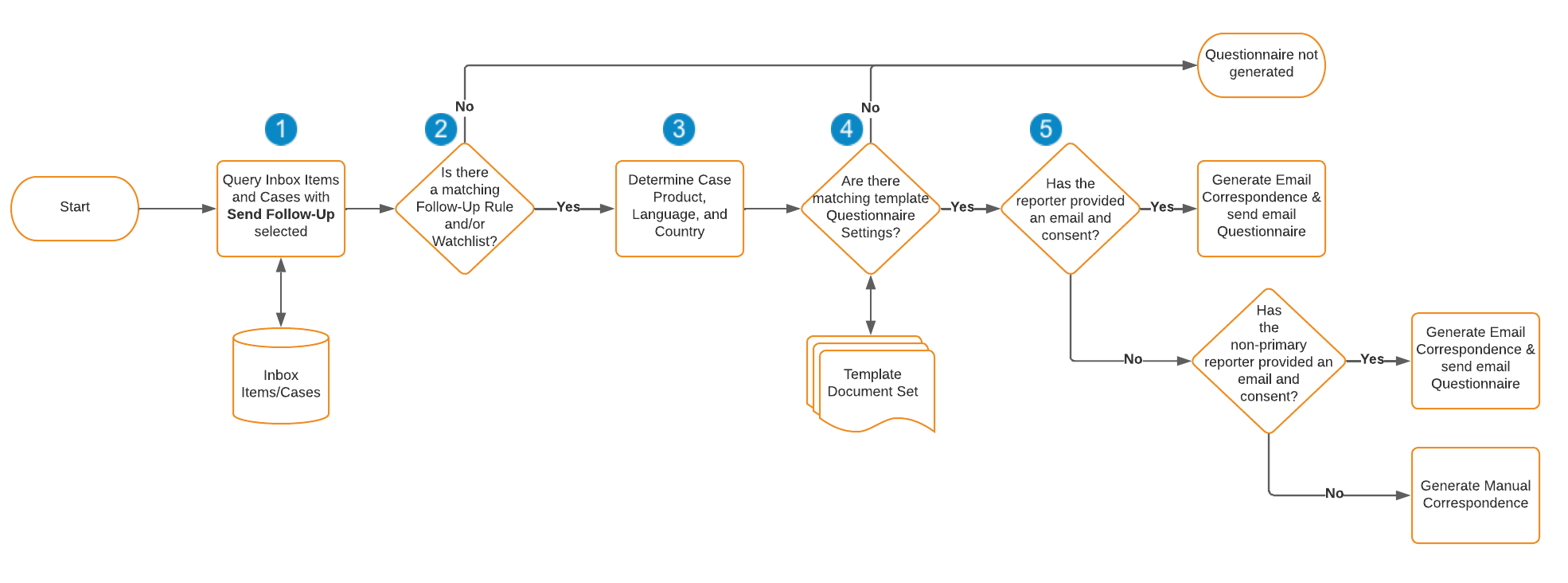
The following flowchart illustrates what Vault looks at to determine whether to generate the **Correspondence** record and email questionnaire for a given Case: 

<a href="https://platform.veevavault.help/assets/images/saf-follow-up-questionnaire-flow.png" data-lightbox="saf-follow-up-questionnaire-flow.png" data-title="Follow-Up Questionnaire Flowchart" data-alt="Follow-Up Questionnaire Action Flowchart">
  <img class="docimage" src="https://platform.veevavault.help/assets/images/saf-follow-up-questionnaire-flow.png" alt="Follow-Up Questionnaire Action Flowchart" style="max-width: 70%;"  />
</a>

The following list provides more information on each of the actions and decisions in the above flowchart: 

1. Once per day, at approximately midnight EST, to determine which Cases to consider sending a questionnaire for, Vault searches for Inbox Items and Cases with the **Send Follow-Up** checkbox selected.
2. Vault verifies that the Inbox Item or Case matches either a Follow-Up Rule, Watchlist tag, or MedDRA Term for which a questionnaire document template is configured.
3. Vault queries the Product, Language, and Country information from the Inbox Item or Case.
4. Vault verifies whether the Inbox Item or Case matches the criteria configured in the **Questionnaire Settings** section on a template document for the given Follow-Up Rule or Watchlist. If the Case matches multiple template documents, Vault generates multiple questionnaires.
5. If the Inbox Item or Case matches a questionnaire template, Vault verifies that the reporter provided their consent to be contacted for more information to use the appropriate Correspondence Transmission Method: 
    * If the Inbox Item or Case contains the reporter's email address and consent, then Vault generates and sends an automatic Email Correspondence.
    * If the Inbox Item or Case is missing either the reporter's email or their consent, Vault looks for the most recently created non-primary Reporter, if available.
    * If the Inbox Item or Case is missing either the non-primary Reporter's email address or consent, Vault generates a Manual Correspondence.

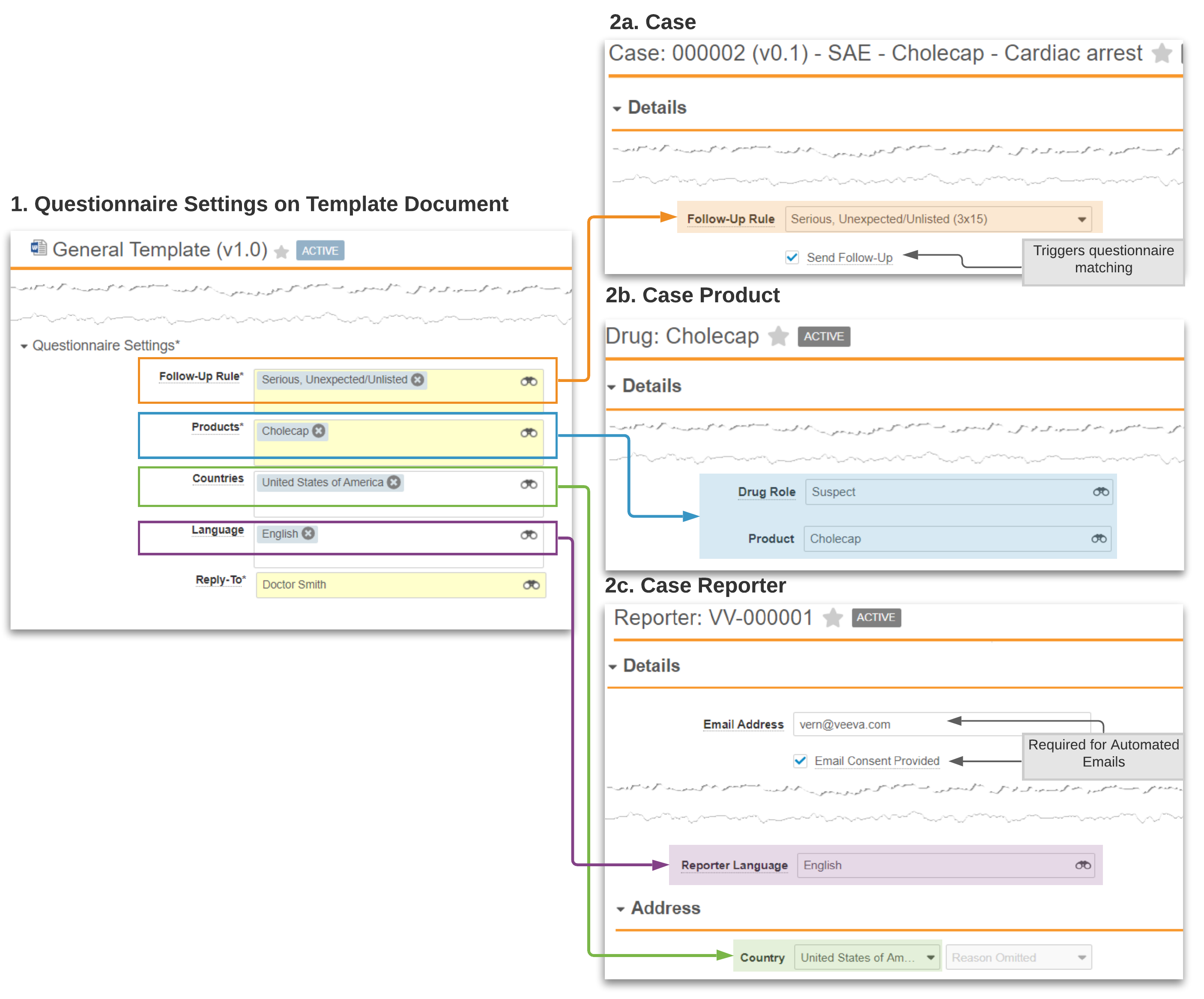
## Example: Follow-Up Rule Cholecap Questionnaire

The following diagram shows an example questionnaire for a postmarket product, Cholecap, and an example Case that would trigger this questionnaire being sent to the reporter: 
<a href="https://platform.veevavault.help/assets/images/saf-reporter-follow-up-email-matching.png" data-lightbox="saf-reporter-follow-up-email-matching.png" data-title="Matching Questionnaire Settings with Case Data" data-alt="Matching Questionnaire Settings with Case Data">
  <img class="docimage" src="https://platform.veevavault.help/assets/images/saf-reporter-follow-up-email-matching.png" alt="Matching Questionnaire Settings with Case Data" style="max-width: 50%;"  />
</a>

## Questionnaire Matching Logic {#questionnaire-matching}

The following sections describe how Vault determines matches between Inbox Items or Cases and the Questionnaire Settings for each template type.

#### Field Calculation 

The following list describes how Vault calculates the Product, Language, and Country when evaluating an Inbox Item or Case: 

* **Product**
  * **Inbox Item**: All Case Products or Company Products on the Inbox Item.
  * **Case**: All Case Products where the Drug Role is Suspect, Interacting, or Drug Not Administered.
* **Country**
  * **Inbox Item**: The **Reporter Country** field on the Primary Case Contact. If the **Reporter Country** field is blank, then Vault looks at the **Event Country** field on the primary Case Adverse Event.
  * **Case**: The **Reporter Country** field on the primary Case Contact. If the **Reporter Country** field is blank, then Vault looks at the **Event Country** field on the primary Case Adverse Event.
* **Language**
  * **Inbox Item**: The **Reporter Language** field on the primary Case Contact, if both the email address and consent are provided for this primary Reporter. If the email and consent for the primary Reporter are not provided, Vault uses the language in which the **Event (Reported)** field was coded for the primary Adverse Event. If this information is not available, Vault defaults to English.
  * **Case**: The **Reporter Language** field on the primary Case Contact. If the **Reporter Language** field is blank, then Vault looks at the language in which the **Event (Reported)** field was coded on the primary Case Adverse Event. If this information is not available, Vault defaults to English.

<div class="note-border alert-info">
  <div class="alert alert-info" role="alert">
    <div><i class="far fa-info-circle"></i></div>
    <div class="alert-text">
      <p><strong>Note</strong>: In addition to the criteria mentioned below, for Vault to generate a questionnaire, the Inbox Item or Case must always match with the Organization specified on the questionnaire template.</p>
    </div>
  </div>
</div>


### Questionnaire Matching {#matching}

Vault determines which templates to use based on a specific priority order and generates a questionnaire for each template with the associated matches. If none of the values match, Vault does not generate a questionnaire document.

<table>
<tr>
   <th></th>
   <th colspan="3" ><strong>Questionnaire (Template)</strong></th>
   <th colspan="3" ><strong>AESI Questionnaire (Template)</strong></th>
</tr>
<tr>
   <td><strong>Priority Order</strong></td>
   <td><strong>Product</strong></td>
   <td><strong>Country</strong></td>
   <td><strong>Language</strong></td>
   <td><strong>Watchlist</strong></td>
   <td><strong>Country</strong></td>
   <td><strong>Language</strong></td>
</tr>
<tr>
   <td><strong>1</strong></td>
   <td>Matches or blank</td>
   <td>Matches</td>
   <td>Matches</td>
   <td>Matches</td>
   <td>Matches</td>
   <td>Matches</td>
</tr>
<tr>
   <td><strong>2</strong></td>
   <td>Matches or blank</td>
   <td>Matches</td>
   <td><em>English</em> or blank</td>
   <td>Matches</td>
   <td>Matches</td>
   <td><em>English</em> or blank</td>
</tr>
<tr>
   <td><strong>3</strong></td>
   <td>Matches or blank</td>
   <td>blank</td>
   <td>Matches</td>
   <td>Matches</td>
   <td>blank</td>
   <td>Matches</td>
</tr>
<tr>
   <td><strong>4</strong></td>
   <td>Matches or blank</td>
   <td>blank</td>
   <td><em>English</em> or blank</td>
   <td>Matches</td>
   <td>blank</td>
   <td><em>English</em> or blank</td>
</tr>
</table>

### Watchlist and MedDRA Term Questionnaire Matching

For [Watchlist and AESI questionnaires][1], Vault evaluates each _Case Adverse Event_ with a MedDRA term of special interest when matching an _AESI Questionnaire (Template)_ document using the following logic in addition to matching on _Product_, _Country_, and _Language_: 

1. **MedDRA Term Questionnaire**: If there is a MedDRA Term questionnaire matching the term coded on the Case Adverse Event, then only the specific MedDRA Term template is used to create the questionnaire.
2. **Watchlist Questionnaire**: If there is no matching MedDRA Term questionnaire, but there is a Watchlist template matching the term coded on the Case Adverse Event, then the Watchlist template is used to create the questionnaire.
3. **Neither**: If the event coded on the Case Adverse Event does not match either a Watchlist or MedDRA Term template, then no Watchlist questionnaire is sent.

[1]: #watchlist-questionnaire
[2]: #customize-fields
[3]: #general-fields
[4]: #questionnaire-fields
[5]: #questionnaire-matching
[6]: #email-persons