Configure your Vault so that users can run the Create Correspondence and Questionnaires action to generate and send questionnaires for Cases that require follow-up. Vault uses Follow-up Questionnaire Rules to determine the criteria with which to match questionnaires. When the action runs, Vault evaluates the Case against the selected Follow-up Questionnaire Rules. Vault then generates a Questionnaire type of Transmission for each matching Follow-up Questionnaire Rule and Case Contact pair under the following conditions:
- A Case matches the criteria defined in a Follow-up Questionnaire Rule or Watchlist.
- The Case Contact has provided email consent.
For instructions on how to use this feature, see Send a Follow-Up Questionnaire to Case Contacts.
Prerequisites
Before configuring follow-up questionnaires, you must complete the following:
- Enable follow-up questionnaires.
- To import questionnaire responses for questionnaire data to follow-up Inbox Items, configure question field mappings.
- To add questionnaire document templates for Watchlists, configure the applicable Watchlists.
About Follow-Up Questionnaires
Vault generates the following types of follow-up questionnaires:
- Online Questionnaires: Vault generates online questionnaires leveraging checklists and sends respondents a link to enter follow-up data. Users can review and modify the questionnaires before sending them to respondents. Vault creates an Inbox Item for each completed questionnaire.
- Questionnaire Documents: Vault generates questionnaire documents from templates, which can be automatically or manually sent as email attachments. Users can modify the documents before sending them to respondents.
Vault matches each Case that requires follow-up with the applicable questionnaire template. The Correspondence Method of the associated Questionnaire determines if users send those documents automatically, through Vault, or manually, outside of your Vault.
Questionnaire Documents
Users can generate follow-up questionnaire documents from matching templates, then review and refine the documents before sending them to respondents. Vault creates Case > Correspondence > Questionnaire follow-up documents based on the matching document templates when the associated Follow-up Questionnaire Rule satisfies the following conditions:
- It is not linked to any active Questionnaire Checklist Designs.
- The Generate Document from Template and Distribute Document by Email field values are Yes (if only one value is Yes, Vault does not email questionnaires).
Vault matches questionnaire templates based on the Product, Country, and Language values of the template document and Case. You can use Questionnaire Content Rules to define conditions that display or suppress content based on case-related data, such as missing data points and risk management plan (RMP) requirements.
Online Questionnaires
Users can generate checklists for online questionnaires, then review and update the checklists before sending them to respondents to collect follow-up information. Vault sends respondents a public access link (PAL), allowing them to securely respond without logging into a Vault and without the ability to view or access any areas of your Vault. PALs are valid until Vault sends a reminder with a new PAL, or for 30 days if you do not configure a reminder. Vault generates an Inbox Item for follow-up from each submitted questionnaire.
You can configure an entry action or user action to trigger online questionnaire generation. The following flowchart illustrates how Vault determines whether to generate the Questionnaire and email questionnaires for a Case:
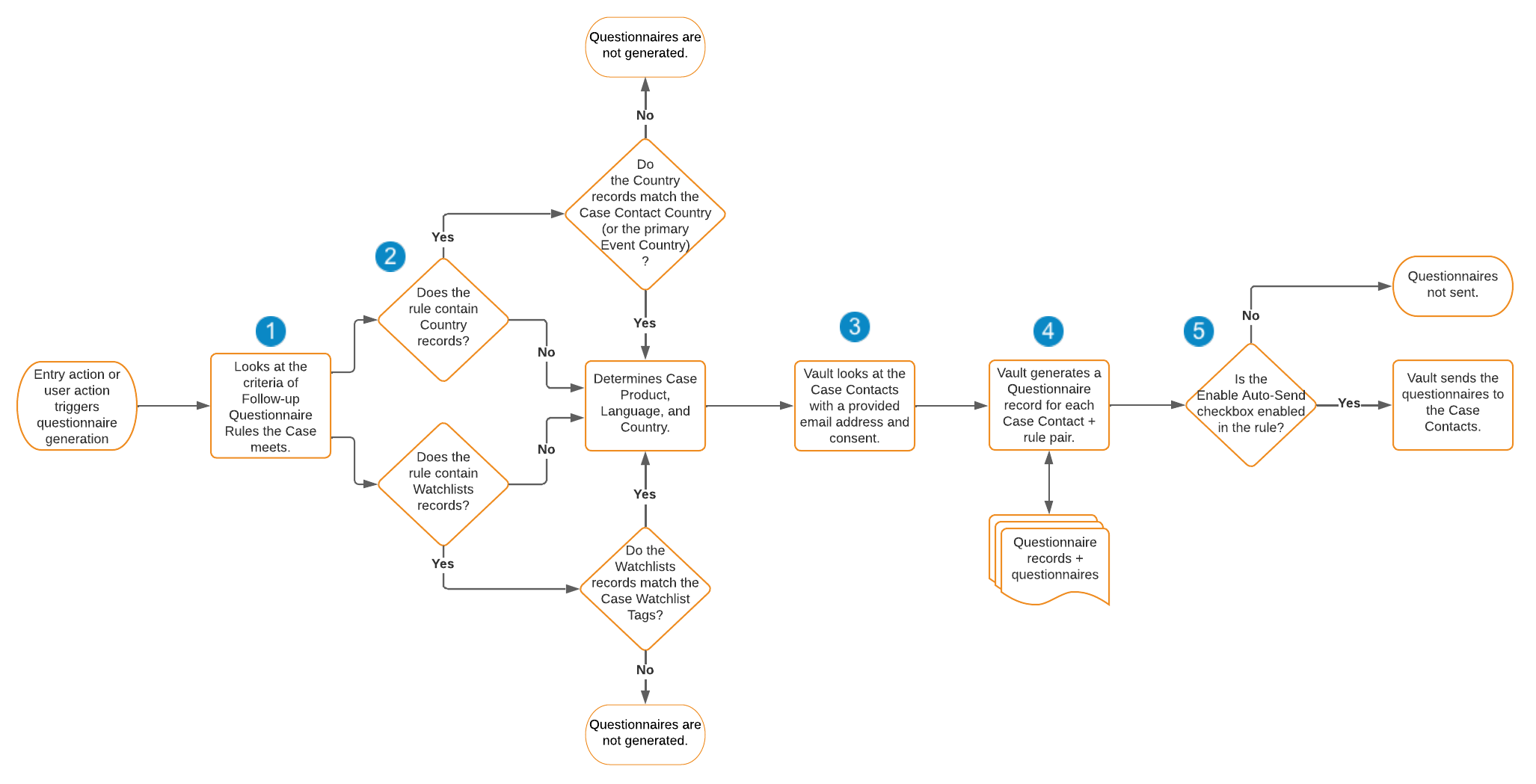
- Vault checks the criteria of the Follow-up Questionnaire Rules. Vault selects the Follow-up Questionnaire Rule when:
- The Case meets all the criteria.
- There are no criteria in the rule. When triggered by a user action, the user must also confirm Vault’s rule selection.
- For each selected Follow-up Questionnaire Rule, Vault selects the approved Questionnaire Checklist Designs that meet the following:
- Does not contain any Watchlist Designs or contains Watchlist Designs that match the Case Watchlist tags.
- Does not contain any Country Designs or contains Country Designs that match the Case Contact Country or, if blank, the primary Event Country.
- Vault checks the Case Contacts with the Consent Provided checkbox selected.
- For each Case Contact and Follow-up Questionnaire Rule pair, Vault generates a Questionnaire and links the questionnaires for the respective rule. The Correspondence Method of the associated Questionnaire determines if Vault sends the questionnaire automatically.
- Vault verifies which of the selected Follow-up Questionnaire Rules have selected the Enable Auto-Send checkbox. For these rules, Vault sends Email method questionnaires to the Case Contacts when the rule is met.
Note: PALs are not available when your Vault is in configuration mode or undergoing maintenance in anticipation of a Veeva Vault release.
Questionnaire Document Matching
Vault determines matches between Cases and the document template’s Questionnaire Settings for each template type using the following logic:
- For Product-specific questionnaires, Vault evaluates each suspect Case Product (with Drug Roles of Suspect, Interacting, and when applicable, Drug Not Administered) with a Product or Study Product associated with the Products specified in the Questionnaire (Template) document template.
- For AESI watchlist questionnaires, Vault evaluates the coded MedDRA terms of the Case Adverse Events that match the MedDRA Terms specified in the AESI Questionnaire (Template) document template using the Watchlist criteria logic. If no coded event matches a template, Vault does not generate a document.
- For Vault to generate a questionnaire, the Case must always match with the Organization specified on the questionnaire template.
Matching Logic
Vault determines which document template to use based on a specific priority order and generates a questionnaire for each template with the associated matches. If none of the values match, Vault does not generate a questionnaire document.
| Priority Order | Questionnaire | Questionnaire | Questionnaire | AESI Questionnaire | AESI Questionnaire | AESI Questionnaire |
|---|---|---|---|---|---|---|
| Product | Country | Language | Watchlist | Country | Language | |
| 1 | Matches or blank | Matches | Matches | Matches | Matches | Matches |
| 2 | Matches or blank | Matches | English or blank | Matches | Matches | English or blank |
| 3 | Matches or blank | blank | Matches | Matches | blank | Matches |
| 4 | Matches or blank | blank | English or blank | Matches | blank | English or blank |
When evaluating a Case, Vault determines matches using the following criteria:
- Country: The Reporter Country value of the Case Contact. If this field is blank, Vault uses the Event Country value of the primary Case Adverse Event. If both fields are blank, Vault matches questionnaires with blank Country values.
- Language: The Reporter Language value of the Case Contact. If this field is blank, Vault uses the language in which the Event (Reported) field is coded on the primary Case Adverse Event. If this information is not available, Vault defaults to English and matches questionnaires with Language values of English or blank.
Overview
Complete the following procedures to configure Follow-Up Questionnaires in your Vault:
- Optional: Create Questionnaire Content Rules to generate conditional content in questionnaire documents.
- Create Follow-up Questionnaire Rules to define the criteria Vault uses to generate questionnaires.
- To send document questionnaires, create document templates.
- To send online questionnaires, configure checklists.
- Optional: Create Auto-Submission Schedules to define when Vault generates Inbox Items for partially completed questionnaires.
- Optional: Customize notification templates Vault sends respondents.
Create Questionnaire Content Rules
Use Questionnaire Content Rules to generate dynamic questionnaire document content from Case data. These rules allow you to define language-specific statements that include follow-up content based on conditional criteria, such as missing core data or product details. After creating these records, link them to the applicable Follow-Up Questionnaire Rules. When generating a questionnaire for a Case, Vault determines which rule to apply using the Reporter Language value on the associated Case Contact. If this field is blank, Vault defaults to English. Vault includes the conditional content when generating questionnaires from document templates.
For each content rule you add to a Follow-Up Questionnaire Rule, Vault creates a Questionnaire Content record. Upon document generation, Vault creates Follow-up Content records for each rule-generated output included in the document. Users can review these records in the Follow-up Content Results section of the associated Questionnaire type of Transmission record.
To create Questionnaire Content Rules:
- Navigate to Business Admin > Objects > Questionnaire Content Rules.
- Select Create.
- Enter a Description for this rule.
- Select a Content Type to specify what kind of rule this applies to. This field value is for your own internal reference.
- Enter the numeric Order in which Vault applies this rule when generating output for the associated Follow-Up Questionnaire Rule.
- Select the Language of the associated content output.
- Enter a Content Formula to specify what content Vault outputs if the Condition returns true or is blank.
- Optional: Enter a Condition to specify when Vault includes the specified Content Formula. If you leave this field blank, Vault always considers the return to be true.
Content Formula
Use the Content Formula field to specify what content Vault outputs in a questionnaire follow-up when the specified Condition returns true. The field supports static text and the VS_Repeat function. For more details about creating formulas, see Creating Formulas in Vault.
When multiple Case descendant records exist, Vault sorts outputs by latest Created Date, with the following exceptions:
- Case Products: Ascending Rank
- Case Product Dosages: Earliest First Administration (normalized)
- Case Adverse Events: Ascending Rank
- Case Assessments: Ascending Rank
- Case Assessment Results: Ascending Rank of the associated Case Assessments
Note: All Object references must begin references at the Case or Localized Case level by showing their relationship to the case_version__v or localized_case__v object.
VS_Repeat
${VS_Repeat(Object, condition, "textOrFunctionToRepeat")}
This function allows you to evaluate the same formula multiple times with different values by supporting references to child and grandchild object relationships related to the Case or Localized Case object. When multiple records meet the condition, Vault executes the statement for each record and consolidates the output instead of returning multiple outputs, minimizing repetition in the generated narrative. You can nest up to two VS_Repeat functions.
This function includes the following inputs:
Object: Specifies the object on which the fields exist- Supports objects depending on if your input includes the
GroupBy_optionalinput:Excludesinput: Supports all Case child and grandchild objects as well as linked Cases, Localized Cases, and Transmissions- Supports
case_relationships_case__vrandcase_relationships_related_case__vrto reference Case relationships - Supports
transmissions_case_version__vrandtransmissions_localized_case__vrto reference the Transmissions of the Case or Localized Case
- Supports
- Includes input: Supports the following objects:
case_adverse_event__vandlocalized_case_adverse_event__vcase_assessment_result__vandlocalized_case_assessment_result__vcase_drug_history__vandlocalized_case_drug_history__vcase_medical_history__vandlocalized_case_medical_history__vcase_product__vandlocalized_case_product__vcase_test_result__vandlocalized_case_test_result__v
- Supports objects depending on if your input includes the
condition: Specifies the condition for which Vault considers records for the output- Supports Platform functions, Safety functions, and field references
- Supports the
ALLoperator, which allows you to include all child records within the output
"textOrFunctionToRepeat": Specifies which text or function repeats- Supports Platform functions, Safety functions, and field references
Example
The following example repeats the phrase ${Case Product Dosage} with product ${Case Product} is missing batch lot number for each Case Product Dosage with a blank Batch Lot Number value for Products with a Drug Role of Suspect when the specified condition returns true:
${VS_REPEAT(
        case_product_dosage__v,
        isBlank(case_product_dosage__v.batchlot_number__v) && case_product_dosage__v.case_product__vr.drug_role__vr.api_name__v = "suspect__v",
        ${Trunc(${case_product_dosage__v.dose_number__v}, 1)} ${case_product_dosage__v.dose_unit__v}" with product " ${case_product_dosage__v.case_product__v} " is missing batch lot number"
)}
Condition
Use the Condition field to define when Vault executes a Content Formula and includes the associated content in a questionnaire document. When a Condition returns true, Vault renders output based on the Content Formula. When a Condition returns false, Vault ignores the Questionnaire Content Rule when generating the document. When defining a Condition, you can use VQL, any of the operators and functions in the Vault Formula Reference Guide, and all Safety functions. For more details about creating formulas, see Creating Formulas in Vault.
Example
The following example returns true when the Date of Birth or Age fields are blank in the Patient section of the Case:
isBlank(case_version__v.dob_idate__v) ||
isBlank(case_version__v.age_value__v)
Create Follow-Up Questionnaire Rules
When Vault generates Transmissions and questionnaires for a Case, it uses Follow-up Questionnaire Rules to match questionnaires to the Case. You can create up to 100 Follow-up Questionnaire Rules, which determine the questionnaire’s parameters and content. Vault ignores all Inactive rules. To create Follow-up Questionnaire Rules:
- Navigate to Business Admin > Objects > Follow-up Questionnaire Rules.
- Select Create.
- On the Create Follow-up Questionnaire Rule page, complete the following information:
- Name: Enter a name.
- Days Between Attempts: The number of days that should pass between each reminder email to the Case Contact. You can specify up to 30 days.
- Total Attempts: The total number of attempts that Vault should make to email the Case Contact. After the first email, Vault waits the specified Days Between Attempts before sending the next email, and each one thereafter. You can specify up to 10 attempts.
- Enable Auto-Send: Select this checkbox to allow Vault to automatically send online questionnaires to the desired Case Contacts when a Case satisfies this Follow-up Questionnaire Rule.
- Reply-To: Select an email address. When this questionnaire is sent to a Case Contact, this identifies the recipient for the Case Contact’s reply. If blank, Vault sends emails from the
@tracked-email.veevavault.comdomain. - From: Select an email address. You may first need to configure the email addresses.
- Generate Document from Template: Select this checkbox to generate questionnaire documents from active templates. If you do not select this checkbox, Vault generates online questionnaires from checklists.
- Distribute Document by Email: If you selected the Generate Document from Template checkbox, select this checkbox to send generated documents as email attachments for automatic Correspondence Methods. If you do not select this checkbox, users must manually send questionnaire documents outside of your Vault.
- Optional: In the Document Content Rules section, add up to 500 Questionnaire Content Rules per specified Language to define the dynamic content Vault conditionally renders or suppresses in questionnaire documents generated from templates.
- Optional: Select an Auto-Submission Schedule to specify the completion window for associated questionnaires.
- Select Save.
Add Follow-Up Rule Criteria
Add up to ten Follow-up Rule Criteria to define the criteria a Case must satisfy to match a questionnaire:
- Navigate to the applicable Follow-up Questionnaire Rule.
- In the Follow-up Rule Criteria section, select Create.
- Define the criteria Vault uses to evaluate Case data for the associated Follow-up Questionnaire Rule using either of the following options:
- To define complex criteria, in the Follow-up Rule Criteria Query Builder field, enter a formula expression that returns as true.
- Optional: Use the Check Syntax button to validate your query.
- To define simple criteria, enter values in the following fields:
- Object Name: Enter the API name of the Case (
case_version__v) or Case child object. - Field Name: Enter the API name of the field on the specified object.
- Value: Enter the applicable value of the specified field.
- Object Name: Enter the API name of the Case (
- To define complex criteria, in the Follow-up Rule Criteria Query Builder field, enter a formula expression that returns as true.
- Select Save.
- Repeat the above steps to add more criteria. For simple criteria, you can create one Follow-up Rule Criteria for each Object Name and Field Name combination.
Follow-Up Rule Criteria Query Builder
When building a query using VQL formula expressions, you can use any of the operators and functions in the Vault Formula Reference Guide and the Safety-specific functions detailed in Create Formula Expressions.
Example
The following example returns true for serious, postmarketing Cases:
IF( AND(case_version__v.serious__v=TRUE, OR( AND(case_version__v.report_type__vr.api_name__v= "study__v",case_version__v.study_product_reason__vr.api_name__v!= "clinical_trial__v"), OR( case_version__v.report_type__vr.api_name__v="spontaneous__v", case_version__v.report_type__vr.api_name__v="literature__v", case_version__v.report_type__vr.api_name__v="literature_study__v"))), TRUE,FALSE)
Create Document Templates
If you plan to use document questionnaires, you must add the applicable document templates to the related records. We recommend adding these documents directly to the applicable record so Vault populates certain document fields. When Vault generates a questionnaire document from a template, it replaces merge field tokens with corresponding field values from the Case, such as product and event details. Users can review and refine the content - including conditional content included based on Questionnaire Content Rules - before distributing it to contacts.
To create a questionnaire document template:
- Create the applicable controlled document templates from which to generate questionnaire documents.
- To display content generated by Questionnaire Content Rules, we recommend including the following token in a table format:
${vault:document_transmission__vr.transmission_followup_content__vr.content_output__v}
- To display content generated by Questionnaire Content Rules, we recommend including the following token in a table format:
- Navigate to the applicable Follow-Up Questionnaire Rule or Watchlist.
- In the template documents section, select Add.
- Select an existing template or add a new file:
- Select Create.
- Upload a new document.
- Classify the document depending on which record you’re adding it to:
- For Follow-Up Questionnaire Rules, select Template > Correspondence (Template) > Questionnaire (Template).
- For Watchlists, select Template > Correspondence (Template) > AESI Questionnaire (Template).
- Populate the applicable General fields, including:
- Select the applicable Organization.
- For Template Document Type, select Questionnaire.
- Populate the applicable Questionnaire Settings fields. The following fields determine the parameters Vault uses to match this questionnaire:
- Select the applicable Countries.
- Select the applicable Language.
- For Questionnaire (Templates), select the applicable Products. If you leave this field blank, Vault populates this field using questionnaire templates that match the specified Country or Language.
- Select the Follow-Up Questionnaire Rule to which this questionnaire applies. Vault may populate this field.
- For AESI Questionnaire (Templates), select the applicable Watchlist values. Vault may populate the Watchlist field.
- Select Save.
- Navigate to the document in your Library.
- Move the document to a steady state, such as Active.
- The document must be in a steady state to use it as a controlled template. The method to move the document to a steady state depends on how your Admin has configured your Vault. You may need to configure a document workflow to update the state.
Note: Do not archive document templates that you are no longer using. Instead, remove the document’s Follow-up Questionnaire Rule or Watchlist field value, as applicable.
Configure Checklists
To send online questionnaires, you must configure checklists, which Vault sends to respondents.
Create Questionnaire Checklist Designs
To create Questionnaire Checklist Designs:
- Navigate to Business Admin > Objects > Checklist Designs.
- Select Create.
- Select the Questionnaire Checklist Design object type and then Continue.
- On the Create Questionnaire Checklist Design page, complete the following information:
- Checklist Name: Enter a name for this questionnaire checklist design.
- Checklist Type: Select a checklist type. You may need to first create a checklist type. For more information, see Configuring Checklists, Checklist Scoring & Weighting, and Translating Checklist Designs.
- Select Save.
- On the questionnaire, you can add sections in the left panel.
- Add questions to the questionnaire checklist design or see the section below to create Question Designs.
Note: You cannot create multiple Questionnaire Checklist Designs with the same Checklist Type.
After creating a Questionnaire Checklist Design, you can select the View Record Detail Page ( ) icon to populate fields and add the following records:
- Follow-up Questionnaire Rules
- Watchlists
- Countries
- Checklist Design Translations
- Question Field Mappings
- Section Designs
- Questions
Alternatively, you can create Question Designs as needed.
Enable Ad Hoc Questions and Sections
You can configure checklists so that users can add ad hoc questions and sections to checklists. You must grant permissions and update the following fields to Yes on the Questionnaire Checklist Design:
- Ad Hoc Questions Allowed
- Ad Hoc Sections Allowed
Add Watchlists and Countries
You can add the applicable Watchlists and Countries to each Questionnaire Checklist Design. These help Vault determine whether to send an online questionnaire to the Case Contacts. To do this:
- Navigate to the applicable Questionnaire Checklist Design.
- Optional: Add Watchlists:
- In the Watchlist section, select Add.
- In the window, select or create the applicable Watchlists. You can also use the search bar and filters to refine your search.
- Select OK.
- Optional: Add Countries:
- In the Countries section, select Add.
- In the window, select or create the applicable Countries. You can also use the search bar and filters to refine your search.
- Select OK.
Create Question Designs
A Question Design is a question associated with a section on a Questionnaire Checklist Design. To create a Question Design:
- Navigate to Business Admin > Objects > Question Designs.
- Select Create.
- Select a question type, and then Continue.
- Complete the information on the Question Type page. The fields on this page vary depending on the question type selected. See Checklist Question & Answer Setup for field information while noting the following differences:
- Section Design: Select the Questionnaire Checklist Design and section.
- Documents Allowed: Ensure this value is No.
- Documents Required: Ensure this value is Not Required.
- Select Save.
Create Question Field Mappings
Setting up Question Field Mappings allows Vault to pre-populate questionnaire answers and reduces respondent effort. Vault copies the respective field’s source value from the Case to the questionnaire response. When Question Field Mappings reuse the same fields and objects, you can set the Standard Question Field Mapping. This allows Vault to map API names of standard fields and their respective objects, instead of requiring manual entry.
Question Field Mapping and Standard Question Field Mappings support the following objects:
- Case
- Primary Case Adverse Event
- Primary Case Product
- Case Contact
When creating Question Field Mappings, required fields depend on whether you are selecting a Standard Question Field Mapping. To create Question Field Mappings:
- Navigate to Business Admin > Objects > Question Field Mappings.
- Select Create.
- On the Create Question Field Mapping page, enter the following:
- Field Name: Enter the API name of the field. If selecting a Standard Question Field Mapping, Vault populates this field upon saving the record.
- Object Name: Enter the API name of the object. If selecting a Standard Question Field Mapping, Vault populates this field upon saving the record.
- Questionnaire Design: Select a Questionnaire Checklist Design.
- Question Design: Select the Question Design.
- Standard Question Field Mapping: Select a Standard Question Field Mapping.
- Select Save.
Note: You cannot add more than one Question Field Mapping for a given Question Design.
Link Questionnaire Checklist Designs
When a Case satisfies the Follow-up Questionnaire Rule criteria, Vault matches it with a questionnaire. Link the Questionnaire Checklist Designs to the Follow-up Questionnaire Rule:
- Navigate to the applicable Follow-up Questionnaire Rule.
- In the Questionnaire Designs section, select Add.
- In the window, select all applicable checklist designs to link them to the Follow-up Questionnaire Rule, or select Create to create new checklist designs.
- Select OK.
Define Auto-Submission Schedules
To capture any partially completed questionnaire responses for online questionnaires, you can create Automatic Submission Schedules to define completion windows in which respondents can submit their questionnaires. Based on the defined schedule, Vault automatically submits the data on behalf of external respondents. To define a schedule:
- Navigate to Business Admin > Objects > Automatic Submission Schedules.
- Select Create.
- Enter a Name.
- For Timer (Hours), enter a number between 1-72 to specify the completion window for the questionnaire.
- Select Save.
You can create multiple schedules and assign them to specific Follow-Up Questionnaire Rules. When a respondent begins a questionnaire with an assigned schedule, a countdown timer displays on the page. If the timer expires before manual submission, Vault automatically submits any partially completed data and moves the associated Transmission Checklist to the Auto-Submitted state. For these questionnaires, Vault sends the Online Questionnaire Auto-Submit Email notification, which uses the ${Custom.timer__v} token to specify the total time that was allotted for submission. If a respondent starts a questionnaire shortly before the PAL expires, Vault automatically extends the link’s expiration to match the auto-submission deadline.
Customize Notification Templates
You can configure the following templates to customize the emails Vault sends for each questionnaire:
- For online questionnaires: Online Questionnaire Email
- For online questionnaires with auto-submission schedules: Online Questionnaire Auto-Submit Email
- For document questionnaires: Questionnaire Email with Documents
- To track incoming follow-up responses, add the following token to the Email Body. Though this token does not display in the email itself, we recommend placing it below all other content to prevent formatting issues:
<span style="display: none;">${Custom.email_response_identifier__v}</span>
- To track incoming follow-up responses, add the following token to the Email Body. Though this token does not display in the email itself, we recommend placing it below all other content to prevent formatting issues:
You can use the following object message tokens in the Subject and Email Body fields of the notification, which reference the corresponding fields on the Case:
${Custom.patient_id_value__v}${Custom.primary_event_reported__v}${Custom.primary_product_reported__v}${Custom.receipt_date__v}${Custom.new_info_date__v}${Custom.uid__v}${Custom.worldwide_uid__v}${Custom.timer__v}(available for the Online Questionnaire Auto-Submit Email notification)
Translate Email Notifications
You can use the bulk translation tool to add translations for the subject_template and message_template fields of the notification. This enables Vault to send Case Contacts language-specific emails. Vault determines which translation to use based on the Reporter Language value of the Case Contact. Vault uses the base language translation in the following scenarios:
- The Reporter Language of the Case Contact is blank or not supported
- The Translated Label column of the bulk translation file is blank