# Enable PSMF Request Management
With the 26R2 release, SafetyDocs introduces PSMF request management, allowing PSMF users to handle PSMF inquiries from end to end in one central location.
## Prerequisites
Before enabling this feature in your Vault, we recommend enabling PSMF Periodic Reviews. To support multiple reviewers on _PSMF Periodic Reviews_ created as a result of a _PSMF Request_, you must enable Support Multiple Reviewers During PSMF Periodic Review.
## Overview
To enable this feature in your Vault:
* Assign the _PSMF Request_ shared field to the _Pharmacovigilance System Master File_ document type
* [Update object layouts][1]
* [Configure security][2]
* [Create the _PSMF Request Workflow_][6]
* [Add actions to the _PSMF Request Lifecycle_][20]
* [Activate the _PSMF Request_ sub-tab][23]
## Update Object Layouts {#layouts}
To update the _PSMF Request_ and _PSMF Periodic Review_ object layouts:
1. Copy the standard layout and ensure the new layout is active.
2. Set the copied layout as the default.
3. Delete any other existing custom layouts.
To the updated _PSMF Request_ layout, add a related document section below the _Participants_ section as follows:
* **Referencing Document Field**: Select **PSMF Request**
* **Section Label**: Enter `PSMF Document(s) for Submission`
* **Criteria VQL**: Enter `type__v = 'Pharmacovigilance System Master File'`
## Configure Security {#security}
To configure security:
* Add the _PSMF Office_ role to the _PSMF Request Lifecycle_ object lifecycle
* [Edit role permissions][3] for the _PSMF Office_ role on the _PSMF Request Lifecycle_
* [Update the custom _PSMF Coordination Actions_ permission set][4]
* [Configure custom sharing rules for the _PSMF Request_ object][5]
### Edit Role Permissions for the PSMF Office Role {#role-permissions}
Edit role permissions for the _PSMF Office_ role on the _PSMF Request Lifecycle_ object lifecycle as follows:
| Lifecycle State |
Permissions |
| New |
|
| Cancelled |
|
| Completed |
|
| In PSMF Review |
|
| In Fulfillment |
|
### Update the Custom PSMF Coordination Actions Permission Set {#permission-set}
To update the custom _PSMF Coordination Actions_ permission set, add object permissions as follows:
* To the _PSMF Request_ object, add _Read_, _Create_, and _Edit_ permissions
* To the _PSMF Request - Person_ object, add _Read_, _Create_, _Edit_, and _Delete_ permissions
### Configure Custom Sharing Rules for the PSMF Request Object {#custom-sharing-rules}
To configure custom sharing rules for the _PSMF Request_ object:
1. Enable custom sharing rules for the _PSMF Request_ object.
2. Create a custom sharing rule labeled `PSMF Office - PSMF Requests` and in the _Roles_ panel, add a manual assignment as follows:
* **Role**: Select **PSMF Office**
* **Users & Groups**: Select **PSMF Coordination**
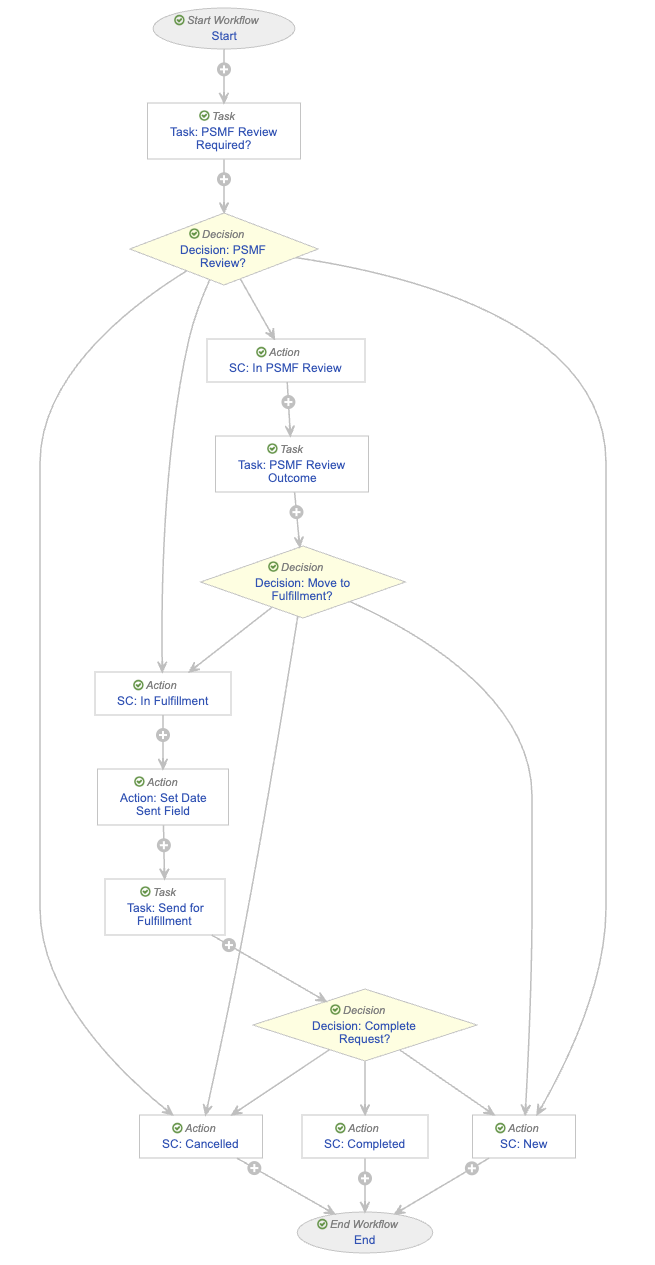
## Create the PSMF Request Workflow {#workflow}
To create the _PSMF Request Workflow_:
1. Create an object workflow, populating fields as follows:
* **Label**: Enter `PSMF Request Workflow`
* **Lifecycle**: Select **PSMF Request Lifecycle**
2. Configure the following workflow steps:
* [_Start_][7]
* [_Task: PSMF Review Required?_][8]
* [_Decision: PSMF Review?_][9]
* [_SC: Cancelled_][10]
* [_SC: In Fulfillment_][11]
* [_Action: Set Date Sent Field_][12]
* [_Task: Send for Fulfillment_][13]
* [_Decision: Complete Request?_][14]
* [_SC: Completed_][15]
* [_SC: In PSMF Review_][16]
* [_Task: PSMF Review Outcome_][17]
* [_Decision: Move to Fulfillment?_][18]
* [_SC: New_][19]
3. Activate the workflow.
 ### Configure the Start Step {#start-step}
To configure the _Start_ step:
1. Add a control as follows:
* **Control 1**: Select **Participants**
* **Participant Label**: Enter `PSMF Request Participants`
* **Add Participants**: Select **Use custom action to define participants**
* **Custom Action**: Select **Assign PSMF Request Workflow Participants**
2. In the **Next Steps** field:
* Remove the **End** step
* Select **Create Step**
* In the _Create Step_ dialog, enter `Task: PSMF Review Required?` in the **Step Name** field
### Configure the Task: PSMF Review Required? Step {#task-psmf-review-required-step}
To define the _Task: PSMF Review Required?_ task step:
1. In the _General Settings_ section, populate fields as follows:
* **Task Label**: Enter `PSMF Review Required?`
* **Assign Task To**: Select **PSMF Request Participants**
* Select **Assign to all users in participant group**
* **Instructions**: Enter `Determine if this PSMF Request requires a PSMF Ad Hoc Review.`
* **Task Requirement**: Select **Required**
2. In the _Prompts_ section, select the **Prompt for Verdicts** checkbox, then populate fields as follows:
* **Verdict Label**: Enter `PSMF Review Required`
* Select **Add Verdict**
* **Verdict Label**: Enter `PSMF Review Not Required`
* Select **Add Verdict**
* **Verdict Label**: Enter `Cancel Request`
* Select **Add Comments**, then in the **Prompt for Comments** field, enter `Cancel request details` and select the **Required** checkbox
3. In the _Details_ section, for **Next Steps**, select **Create Step**, then enter `Decision: PSMF Review?` in the **Step Name** field.
### Configure the Decision: PSMF Review? Step {#decision-psmf-review-step}
To define the _Decision: PSMF Review?_ decision step:
1. Select **Create Rule** then populate the fields as follows:
* **Condition Type**: Select **All conditions are met**
* **If**: Select **Task** > **Task: PSMF Review Required?** > **all labels equal** > **PSMF Review Required**
* **then**: Select **Create Step**
* In the _Create Step_ dialog, enter `SC: In PSMF Review` in the **Step Name** field.
2. Select **Create Rule**.
3. In the _Else Rule 2_ section, populate fields as follows:
* **Condition Type**: Select **All conditions are met**
* **If**: Select **Task** > **Task: PSMF Review Required?** > **all labels equal** > **PSMF Review Not Required**
* **then**: Select **Create Step**
* In the _Create Step_ dialog, enter `SC: In Fulfillment` in the **Step Name** field.
4. Select **Create Rule**.
5. In the _Else Rule 3_ section, populate fields as follows:
* **Condition Type**: Select **All conditions are met**
* **If**: Select **Task** > **Task: PSMF Review Required?** > **all labels equal** > **Cancel Request**
* **then**: Select **Create Step**
* In the _Create Step_ dialog, enter `SC: Cancelled` in the **Step Name** field.
6. In the **then** field of the _Else_ section, select **Create Step**.
* In the _Create Step_ dialog, enter `SC: New` in the **Step Name** field.
### Configure the SC: Cancelled Action Step {#sc-cancelled-step}
To define the _SC: Cancelled_ action step:
1. Create a rule as follows:
* **Condition Type**: Select **Always**
* **perform actions**: Select **Change State**
* **Lifecycle State**: Select **Cancelled**
2. For **Next Steps** select **End**.
### Configure the SC: In Fulfillment Action Step {#sc-in-fulfillment-step}
To define the _SC: In Fulfillment_ action step:
1. Create a rule as follows:
* **Condition Type**: Select **Always**
* **perform actions**: Select **Change State**
* **Lifecycle State**: Select **In Fulfillment**
2. For **Next Steps** select **Create Step**, then enter `Action: Set Date Sent Field` in the **Step Name** field.
### Configure the Action: Set Date Sent Field Step {#action-set-date-sent-field-step}
To define the _Action: Set Date Sent Field_ action step:
1. Create a rule as follows:
* **Condition Type**: Select **Always**
* **perform actions**: Select **Update field**
* **Fields**: Select **Date Sent for Fulfillment/Submission**
* **Set to value**: Enter `Today()`
2. For **Next Steps** select **Create Step**, then enter `Task: Send for Fulfillment` in the **Step Name** field.
### Configure the Task: Send for Fulfillment Step {#task-send-for-fulfillment-step}
To define the _Task: Send for Fulfillment_ task step:
1. In the _General Settings_ section, populate fields as follows:
* **Task Label**: Enter `Send for Fulfillment`
* **Assign Task To**: Select **PSMF Request Participants**
* Select **Assign to all users in participant group**
* **Instructions**: Enter `Send PSMF document(s) to relevant Requester(s). Once sent, please enter the Request Completion Date, upload evidence of submission/receipt, and click the Complete button.`
* **Task Requirement**: Select **Required**
2. In the _Prompts_ section, select the **Prompt for Verdicts** checkbox, then populate fields as follows:
* **Verdict Label**: Enter `Complete`
* Select **Add Verdict**
* **Verdict Label**: Enter `Cancel Request`
3. In the _Details_ section, for **Next Steps**, select **Create Step**, then enter `Decision: Complete Request?` In the **Step Name** field.
### Configure the Decision: Complete Request? Step {#decision-complete-request-step}
To define the _Decision: Complete Request?_ decision step, create rules as follows:
1. Select **Create Rule** then populate the fields as follows:
* **Condition Type**: Select **All conditions are met**
* **If**: Select **Task** > **Task: Send for Fulfillment** > **all labels equal** > **Complete**
* **then**: Select **Create Step**
* In the _Create Step_ dialog, enter `SC: Completed` in the **Step Name** field.
2. Select **Create Rule**.
3. In the _Else Rule 2_ section, populate fields as follows:
* **Condition Type**: Select **All conditions are met**
* **If**: Select **Task** > **Task: Send for Fulfillment** > **all labels equal** > **Cancel Request**
* **then**: Select **SC: Cancelled**
4. In the _Else_ section, select **SC: New** for the **then** field.
### Configure the SC: Completed Action Step {#sc-completed-step}
To define the _SC: Completed_ action step:
1. Create a rule as follows:
* **Condition Type**: Select **Always**
* **perform actions**: Select **Change State**
* **Lifecycle State**: Select **Completed**
* Select **Add Action**
* Select **Update field**
* **Fields**: Select **Request Completion Date**
* **Set to Value**: Enter `today()`
2. For **Next Steps**, select **End**.
### Configure the SC: In PSMF Review Action Step {#sc-in-psmf-review-step}
To define the _SC: In PSMF Review_ action step:
1. Create a rule as follows:
* **Condition Type**: Select **Always**
* **perform actions**: Select **Change State**
* **Lifecycle State**: Select **In PSMF Review**
2. For **Next Steps** select **Create Step**, then enter `Task: PSMF Review Outcome` in the **Step Name** field.
### Configure the Task: PSMF Review Outcome Step {#task-psmf-review-outcome-step}
To define the _Task: PSMF Review Outcome_ task step:
1. In the _General Settings_ section, populate fields as follows:
* **Task Label**: Enter `PSMF Review Outcome`
* **Assign Task To**: Select **PSMF Request Participants**
* Select **Assign to all users in participant group**
* **Instructions**: Enter `Detail the outcome of the PSMF Review and determine if the request is ready to be fulfilled.`
* **Task Requirement**: Select **Required**
2. In the _Prompts_ section, configure prompts as follows:
* Select the **Prompt for Fields** checkbox, then populate fields as follows:
* **Fields**: Select **PSMF Changes Required**
* Select the **Required** checkbox
* Select the **Prompt for Verdicts** checkbox, then populate fields as follows:
* **Verdict Label**: Enter `Move to Fulfillment`
* Select **Add Verdict**
* **Verdict Label**: Enter `Cancel Request`
3. In the _Details_ section, for **Next Steps**, select **Create Step**, then enter `Decision: Move to Fulfillment?` in the **Step Name** field.
### Configure the Decision: Move to Fulfillment? Step {#decision-move-to-fulfillment-step}
To define the _Decision: Move to Fulfillment?_ decision step:
1. Select **Create Rule** then populate the fields as follows:
* **Condition Type**: Select **All conditions are met**
* **If**: Select **Task** > **Task: PSMF Review Outcome** > **all labels equal** > **Move to Fulfillment**
* **then**: Select **SC: In Fulfillment**
2. Select **Create Rule**.
3. In the _Else Rule 2_ section, populate fields as follows:
* **Condition Type**: Select **All conditions are met**
* **If**: Select **Task** > **Task: PSMF Review Outcome** > **all labels equal** > **Cancel Request**
* **then**: Select **SC: Cancelled**
4. In the _Else_ section, select **SC: New** for the then field.
### Configure the SC: New Action Step {#sc-new-step}
To define the _SC: New_ action step:
1. Create a rule as follows:
* **Condition Type**: Select **Always**
* **perform actions**: Select **Change State**
* **Lifecycle State**: Select **New**
2. For **Next Steps**, select **End**.
## Add Actions to the PSMF Request Lifecycle {#add-actions}
To support the _PSMF Request Workflow_, add the following actions to the _PSMF Request Lifecycle_ object lifecycle:
* [Add a user action to the _New_ state][21]
* [Add an entry action to the _In PSMF Review_ state][22]
### Add a User Action to the New State {#user-action-new-state}
Add a user action to the _New_ state of the _PSMF Request Lifecycle_ as follows:
* **Condition Type**: Select **Always**
* **Allow the following actions**: Select **Workflow**
* Select **PSMF Request Workflow**
* **Action Label**: Enter `Begin PSMF Request Workflow`
### Add an Entry Action to the In PSMF Review State {#entry-action-in-psmf-review-state}
Add an entry action to the _In PSMF Review_ state of the _PSMF Request Lifecycle_ as follows:
* **Condition Type**: Select **Always**
* **perform actions**: Select **Create Ad Hoc PSMF Review**
## Activate the PSMF Request Sub-Tab {#activate-sub-tab}
To activate the _PSMF Request_ sub-tab, navigate to the **PSMF** tab collection, select the **PSMF Request** tab, and set the **Status** to **Active**.
[1]: #layouts
[2]: #security
[3]: #role-permissions
[4]: #permission-set
[5]: #custom-sharing-rules
[6]: #workflow
[7]: #start-step
[8]: #task-psmf-review-required-step
[9]: #decision-psmf-review-step
[10]: #sc-cancelled-step
[11]: #sc-in-fulfillment-step
[12]: #action-set-date-sent-field-step
[13]: #task-send-for-fulfillment-step
[14]: #decision-complete-request-step
[15]: #sc-completed-step
[16]: #sc-in-psmf-review-step
[17]: #task-psmf-review-outcome-step
[18]: #decision-move-to-fulfillment-step
[19]: #sc-new-step
[20]: #add-actions
[21]: #user-action-new-state
[22]: #entry-action-in-psmf-review-state
[23]: #activate-sub-tab
### Configure the Start Step {#start-step}
To configure the _Start_ step:
1. Add a control as follows:
* **Control 1**: Select **Participants**
* **Participant Label**: Enter `PSMF Request Participants`
* **Add Participants**: Select **Use custom action to define participants**
* **Custom Action**: Select **Assign PSMF Request Workflow Participants**
2. In the **Next Steps** field:
* Remove the **End** step
* Select **Create Step**
* In the _Create Step_ dialog, enter `Task: PSMF Review Required?` in the **Step Name** field
### Configure the Task: PSMF Review Required? Step {#task-psmf-review-required-step}
To define the _Task: PSMF Review Required?_ task step:
1. In the _General Settings_ section, populate fields as follows:
* **Task Label**: Enter `PSMF Review Required?`
* **Assign Task To**: Select **PSMF Request Participants**
* Select **Assign to all users in participant group**
* **Instructions**: Enter `Determine if this PSMF Request requires a PSMF Ad Hoc Review.`
* **Task Requirement**: Select **Required**
2. In the _Prompts_ section, select the **Prompt for Verdicts** checkbox, then populate fields as follows:
* **Verdict Label**: Enter `PSMF Review Required`
* Select **Add Verdict**
* **Verdict Label**: Enter `PSMF Review Not Required`
* Select **Add Verdict**
* **Verdict Label**: Enter `Cancel Request`
* Select **Add Comments**, then in the **Prompt for Comments** field, enter `Cancel request details` and select the **Required** checkbox
3. In the _Details_ section, for **Next Steps**, select **Create Step**, then enter `Decision: PSMF Review?` in the **Step Name** field.
### Configure the Decision: PSMF Review? Step {#decision-psmf-review-step}
To define the _Decision: PSMF Review?_ decision step:
1. Select **Create Rule** then populate the fields as follows:
* **Condition Type**: Select **All conditions are met**
* **If**: Select **Task** > **Task: PSMF Review Required?** > **all labels equal** > **PSMF Review Required**
* **then**: Select **Create Step**
* In the _Create Step_ dialog, enter `SC: In PSMF Review` in the **Step Name** field.
2. Select **Create Rule**.
3. In the _Else Rule 2_ section, populate fields as follows:
* **Condition Type**: Select **All conditions are met**
* **If**: Select **Task** > **Task: PSMF Review Required?** > **all labels equal** > **PSMF Review Not Required**
* **then**: Select **Create Step**
* In the _Create Step_ dialog, enter `SC: In Fulfillment` in the **Step Name** field.
4. Select **Create Rule**.
5. In the _Else Rule 3_ section, populate fields as follows:
* **Condition Type**: Select **All conditions are met**
* **If**: Select **Task** > **Task: PSMF Review Required?** > **all labels equal** > **Cancel Request**
* **then**: Select **Create Step**
* In the _Create Step_ dialog, enter `SC: Cancelled` in the **Step Name** field.
6. In the **then** field of the _Else_ section, select **Create Step**.
* In the _Create Step_ dialog, enter `SC: New` in the **Step Name** field.
### Configure the SC: Cancelled Action Step {#sc-cancelled-step}
To define the _SC: Cancelled_ action step:
1. Create a rule as follows:
* **Condition Type**: Select **Always**
* **perform actions**: Select **Change State**
* **Lifecycle State**: Select **Cancelled**
2. For **Next Steps** select **End**.
### Configure the SC: In Fulfillment Action Step {#sc-in-fulfillment-step}
To define the _SC: In Fulfillment_ action step:
1. Create a rule as follows:
* **Condition Type**: Select **Always**
* **perform actions**: Select **Change State**
* **Lifecycle State**: Select **In Fulfillment**
2. For **Next Steps** select **Create Step**, then enter `Action: Set Date Sent Field` in the **Step Name** field.
### Configure the Action: Set Date Sent Field Step {#action-set-date-sent-field-step}
To define the _Action: Set Date Sent Field_ action step:
1. Create a rule as follows:
* **Condition Type**: Select **Always**
* **perform actions**: Select **Update field**
* **Fields**: Select **Date Sent for Fulfillment/Submission**
* **Set to value**: Enter `Today()`
2. For **Next Steps** select **Create Step**, then enter `Task: Send for Fulfillment` in the **Step Name** field.
### Configure the Task: Send for Fulfillment Step {#task-send-for-fulfillment-step}
To define the _Task: Send for Fulfillment_ task step:
1. In the _General Settings_ section, populate fields as follows:
* **Task Label**: Enter `Send for Fulfillment`
* **Assign Task To**: Select **PSMF Request Participants**
* Select **Assign to all users in participant group**
* **Instructions**: Enter `Send PSMF document(s) to relevant Requester(s). Once sent, please enter the Request Completion Date, upload evidence of submission/receipt, and click the Complete button.`
* **Task Requirement**: Select **Required**
2. In the _Prompts_ section, select the **Prompt for Verdicts** checkbox, then populate fields as follows:
* **Verdict Label**: Enter `Complete`
* Select **Add Verdict**
* **Verdict Label**: Enter `Cancel Request`
3. In the _Details_ section, for **Next Steps**, select **Create Step**, then enter `Decision: Complete Request?` In the **Step Name** field.
### Configure the Decision: Complete Request? Step {#decision-complete-request-step}
To define the _Decision: Complete Request?_ decision step, create rules as follows:
1. Select **Create Rule** then populate the fields as follows:
* **Condition Type**: Select **All conditions are met**
* **If**: Select **Task** > **Task: Send for Fulfillment** > **all labels equal** > **Complete**
* **then**: Select **Create Step**
* In the _Create Step_ dialog, enter `SC: Completed` in the **Step Name** field.
2. Select **Create Rule**.
3. In the _Else Rule 2_ section, populate fields as follows:
* **Condition Type**: Select **All conditions are met**
* **If**: Select **Task** > **Task: Send for Fulfillment** > **all labels equal** > **Cancel Request**
* **then**: Select **SC: Cancelled**
4. In the _Else_ section, select **SC: New** for the **then** field.
### Configure the SC: Completed Action Step {#sc-completed-step}
To define the _SC: Completed_ action step:
1. Create a rule as follows:
* **Condition Type**: Select **Always**
* **perform actions**: Select **Change State**
* **Lifecycle State**: Select **Completed**
* Select **Add Action**
* Select **Update field**
* **Fields**: Select **Request Completion Date**
* **Set to Value**: Enter `today()`
2. For **Next Steps**, select **End**.
### Configure the SC: In PSMF Review Action Step {#sc-in-psmf-review-step}
To define the _SC: In PSMF Review_ action step:
1. Create a rule as follows:
* **Condition Type**: Select **Always**
* **perform actions**: Select **Change State**
* **Lifecycle State**: Select **In PSMF Review**
2. For **Next Steps** select **Create Step**, then enter `Task: PSMF Review Outcome` in the **Step Name** field.
### Configure the Task: PSMF Review Outcome Step {#task-psmf-review-outcome-step}
To define the _Task: PSMF Review Outcome_ task step:
1. In the _General Settings_ section, populate fields as follows:
* **Task Label**: Enter `PSMF Review Outcome`
* **Assign Task To**: Select **PSMF Request Participants**
* Select **Assign to all users in participant group**
* **Instructions**: Enter `Detail the outcome of the PSMF Review and determine if the request is ready to be fulfilled.`
* **Task Requirement**: Select **Required**
2. In the _Prompts_ section, configure prompts as follows:
* Select the **Prompt for Fields** checkbox, then populate fields as follows:
* **Fields**: Select **PSMF Changes Required**
* Select the **Required** checkbox
* Select the **Prompt for Verdicts** checkbox, then populate fields as follows:
* **Verdict Label**: Enter `Move to Fulfillment`
* Select **Add Verdict**
* **Verdict Label**: Enter `Cancel Request`
3. In the _Details_ section, for **Next Steps**, select **Create Step**, then enter `Decision: Move to Fulfillment?` in the **Step Name** field.
### Configure the Decision: Move to Fulfillment? Step {#decision-move-to-fulfillment-step}
To define the _Decision: Move to Fulfillment?_ decision step:
1. Select **Create Rule** then populate the fields as follows:
* **Condition Type**: Select **All conditions are met**
* **If**: Select **Task** > **Task: PSMF Review Outcome** > **all labels equal** > **Move to Fulfillment**
* **then**: Select **SC: In Fulfillment**
2. Select **Create Rule**.
3. In the _Else Rule 2_ section, populate fields as follows:
* **Condition Type**: Select **All conditions are met**
* **If**: Select **Task** > **Task: PSMF Review Outcome** > **all labels equal** > **Cancel Request**
* **then**: Select **SC: Cancelled**
4. In the _Else_ section, select **SC: New** for the then field.
### Configure the SC: New Action Step {#sc-new-step}
To define the _SC: New_ action step:
1. Create a rule as follows:
* **Condition Type**: Select **Always**
* **perform actions**: Select **Change State**
* **Lifecycle State**: Select **New**
2. For **Next Steps**, select **End**.
## Add Actions to the PSMF Request Lifecycle {#add-actions}
To support the _PSMF Request Workflow_, add the following actions to the _PSMF Request Lifecycle_ object lifecycle:
* [Add a user action to the _New_ state][21]
* [Add an entry action to the _In PSMF Review_ state][22]
### Add a User Action to the New State {#user-action-new-state}
Add a user action to the _New_ state of the _PSMF Request Lifecycle_ as follows:
* **Condition Type**: Select **Always**
* **Allow the following actions**: Select **Workflow**
* Select **PSMF Request Workflow**
* **Action Label**: Enter `Begin PSMF Request Workflow`
### Add an Entry Action to the In PSMF Review State {#entry-action-in-psmf-review-state}
Add an entry action to the _In PSMF Review_ state of the _PSMF Request Lifecycle_ as follows:
* **Condition Type**: Select **Always**
* **perform actions**: Select **Create Ad Hoc PSMF Review**
## Activate the PSMF Request Sub-Tab {#activate-sub-tab}
To activate the _PSMF Request_ sub-tab, navigate to the **PSMF** tab collection, select the **PSMF Request** tab, and set the **Status** to **Active**.
[1]: #layouts
[2]: #security
[3]: #role-permissions
[4]: #permission-set
[5]: #custom-sharing-rules
[6]: #workflow
[7]: #start-step
[8]: #task-psmf-review-required-step
[9]: #decision-psmf-review-step
[10]: #sc-cancelled-step
[11]: #sc-in-fulfillment-step
[12]: #action-set-date-sent-field-step
[13]: #task-send-for-fulfillment-step
[14]: #decision-complete-request-step
[15]: #sc-completed-step
[16]: #sc-in-psmf-review-step
[17]: #task-psmf-review-outcome-step
[18]: #decision-move-to-fulfillment-step
[19]: #sc-new-step
[20]: #add-actions
[21]: #user-action-new-state
[22]: #entry-action-in-psmf-review-state
[23]: #activate-sub-tab