With the 23R2 release, SafetyDocs supports the automatic triggering of periodic reviews of PSMF content. You can configure your Vault to detect documents or binders that are due for review and assign tasks to check if any updates need to be made. This feature provides an efficient way of ensuring your PSMF content is regularly reviewed and updated to maintain compliance.
Updates
We have added the following updates to this feature:
- PSMF Binder Periodic Review Grouping: With the 26R3 release, SafetyDocs allows you to configure your Vault to generate unique PSMF Periodic Review records for each qualifying PSMF Binder, allowing for more granular review assignment. To configure this feature in your Vault, update the Periodic Review Grouping setting to Multiple records by PSMF Binder.
- PSMF Binder Periodic Reviews: With the 26R1 release, SafetyDocs extends the PSMF periodic review functionality to include PSMF Binders. To configure this feature in your Vault, see Configure PSMF Binder Periodic Reviews.
Overview
To enable PSMF Periodic Reviews:
- Configure object layouts
- Configure the PSMF Coordination Actions permission set
- Create the PSMF Periodic Review Workflow
- Configure object lifecycles
- Configure Custom Sharing Rules on PSMF periodic review objects
- Configure the PSMF Periodic Review job
Configure Layouts
To configure object layouts, complete the following for the PSMF Periodic Review and PSMF Document Review objects:
- Copy the standard layout and ensure it is active.
- Set the new custom layout as the default.
- Delete any other existing custom layouts.
Configure the PSMF Coordination Actions Permission Set
Add security settings to grant access to the PSMF Periodic Review features. Use the following settings as a starting point, but configure access according to your business processes:
- Copy the standard PSMF Coordination Actions permission set.
- To manage tab-level permissions, grant View access to the Periodic Document Reviews tab.
Add the PSMF Periodic Review Workflow
Create a workflow to manage PSMF periodic reviews. Use these steps as a starting point, but configure your workflow according to your business processes:
- Navigate to Admin > Configuration > Workflows.
- Select Create.
- In the Create Workflow window, select Object Workflow.
- Select Continue.
- On the Create Workflow page, populate the fields as follows:
- Label: Enter
PSMF Periodic Review Workflow - Lifecycle: Select PSMF Periodic Review Lifecycle
- Label: Enter
- Select Save.
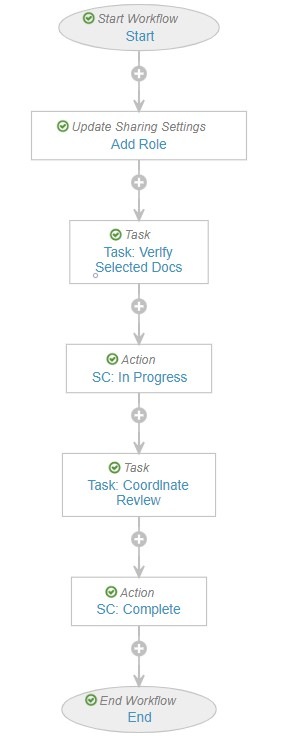
- In the Workflow Steps section, configure the workflow to include the following steps in order:
- Start Start step
- Add Role Update Sharing Settings step
- Task: Verify Selected Docs Task step
- SC: In Progress state change action step
- Task: Coordinate Review Task step
- SC: Complete state change action step
- End End step
- In the Status field, select Make configuration active.
Configure Object Lifecycles
Configure the following object lifecycles:
Configure the PSMF Periodic Review Lifecycle
To configure the PSMF Periodic Review Lifecycle:
- Add the standard PSMF Office role
- Update role permissions
- Add the Start Review user action to the New state
- Add entry criteria to the Complete state
Add the PSMF Office Role
To add the standard PSMF Office role1:
- Navigate to Admin > Configuration > Object Lifecycles > PSMF Periodic Review Lifecycle.
- In the Roles section, select the Add Role (
 ) icon.
 - In the Search: Application Role window, select PSMF Office.
- Select OK.
Note: 1. Depending on the creation date and configuration of your Vault, it may have both a custom PSMF Office role and a standard PSMF Office Manager role. We recommend migrating your PSMF feature configuration to the standard PSMF Office Manager role and relabeling this role to PSMF Office. If you require assistance, contact your Veeva Representative.
Update Role Permissions
Edit role permissions as follows:
- To the Editor and Owner roles, add permissions to lifecycle states as follows:
- To the New state, select Read, Edit, and Delete
- To the Inactive state, select Read, Edit, and Delete
- To the In Progress state, select Read
- To the Complete state, select Read
- To the standard PSMF Office role1, add permissions to lifecycle states as follows:
- To the New state, select Read and Edit
- To the Inactive state, select Read and Edit
- To the In Progress state, select Read and Edit
- To the Complete state, select Read
- To the Viewer role, add Read permissions to all lifecycle states
Add Start Review User Action to the New State
To add the Start Review user action to the New state:
- In the States section, select New.
- In the User Actions section, select Edit.
- Select Create Rule and configure the rule as follows:
- Condition Type: Select Always
- Allow the following actions: Select Workflow > PSMF Periodic Review
- Action Label: Enter
Start Review
- Select Save.
Add Entry Criteria to the Complete State
To add entry criteria to the Complete state:
- In the States section, select Complete.
- In the Entry Criteria section, select Edit.
- Select Create Rule and configure the rule as follows:
- Condition Type: Select Always
- Validate that: Select State of Related Record > PSMF Document Reviews > All records equal > Complete
- Select Save.
Configure the PSMF Document Review Lifecycle
To configure the PSMF Document Review Lifecycle:
Add the PSMF Office Role
To add the standard PSMF Office role1:
- Navigate to Admin > Configuration > Object Lifecycles > PSMF Document Review Lifecycle.
- In the Roles section, select the Add Role () icon.
- In the Search: Application Role window, select PSMF Office.
- Select OK.
Update Role Permissions
Edit role permissions as follows:
- To the Assigned To and standard PSMF Office1 roles, add permissions to lifecycle states as follows:
- To the Complete state, select Read
- To the Open state, select Read and Edit
- To the Editor and Owner roles, add permissions to lifecycle states as follows:
- To the Complete state, select Read
- To the Open state, select Read, Edit, and Delete
- To the Viewer role, add Read permissions to all lifecycle states
Configure Custom Sharing Rules on PSMF Periodic Review Objects
To configure Custom Sharing Rules, complete the following for both the PSMF Periodic Review and PSMF Document Review objects:
- Navigate to Admin > Configuration > Objects > [Object].
- Select Edit.
- Select the Enable Custom Sharing Rules checkbox, then select Continue and Save.
- Navigate to the Sharing Rules tab and select Create.
- In the Label field, enter a name for your rule, then select Save.
- In the Roles section, select Add.
- In the Add Manual Assignment window, populate the fields as follows, then select Save:
- Role: Select PSMF Office
- Users and Groups: Select PSMF Coordination
Configure the PSMF Periodic Review Job
To configure the PSMF Periodic Review job:
- Navigate to Admin > Operations > Job Definitions > PSMF Periodic Review.
- Select Edit.
- Complete the applicable fields, then select Save.
Once configured, the PSMF Periodic Review job runs monthly, automating review task assignment and allowing users to assess and update PSMF content as necessary. Each time the PSMF Periodic Review job runs, if PSMF documents and binders are eligible for review, Vault creates a series of records and review tasks.
PSMF Periodic Review Job Fields
| Field | Description |
|---|---|
| Job Owner | Select the group in your organization that will be responsible for overseeing this job. This group will receive notifications for any errors encountered. |
| Schedule | This field is set to Monthly by default and cannot be modified. |
| Repeat By | Update the Repeat By value to define whether Vault runs this job on a specified day of the week or day of the month. |
| Repeat On Day | This field appears if you select Day of Month in the Repeat By field. Use the drop-down to select the day of the month on which Vault runs this job. |
| Repeat On | This field appears if you select Day of the Week in the Repeat By field. Use the drop-downs to select the day of the week on which Vault runs this job every month. |
| Vault Time | Use the drop-downs to define when on the selected day Vault runs this job. |
| Status | Select Active from the picklist to activate this job. |
(26R1) Configure PSMF Binder Periodic Reviews
To configure PSMF Binder Periodic Reviews:
- Under the Pharmacovigilance System Master File document type, assign the following shared fields to the either the PSMF Binder document subtype or the PSMF Global Binder or PSMF Local Binder document classification, depending on your organization’s processes:
- Last Review Date
- Review Frequency
- Next Review Date
- Reorder these fields in the PSMF Details field layout to the following order, below the PSMF Annex field:
- Last Review Date
- Review Frequency
- Next Review Date