By default, you can search and filter documents according to the Name values of records selected in object reference fields. In addition, the Searchable Object Fields page (Admin > Configuration > Document Setup > Searchable Objects Fields) allows you to configure additional fields from those referenced objects for Vault to include when searching and filtering documents. For example, you could configure the Abbreviation and Generic Name fields from the Product object, which allows documents to be searched and filtered on those fields in addition to the Product Name, which is always searchable.
When you add or remove additional fields, they are placed in an uncommitted state, which means they are not immediately made active in your configuration. This behavior gives you the opportunity to review your changes first and make further changes as needed. When ready, you can commit your changes and make your configuration active by selecting Actions > Commit Changes. You can also cancel your changes by selecting Actions > Revert Changes.
Admins can also specify which object fields are searchable and filterable during creation of an object-type document field.
How to Add Fields
To make additional object fields available for searching and filtering documents:
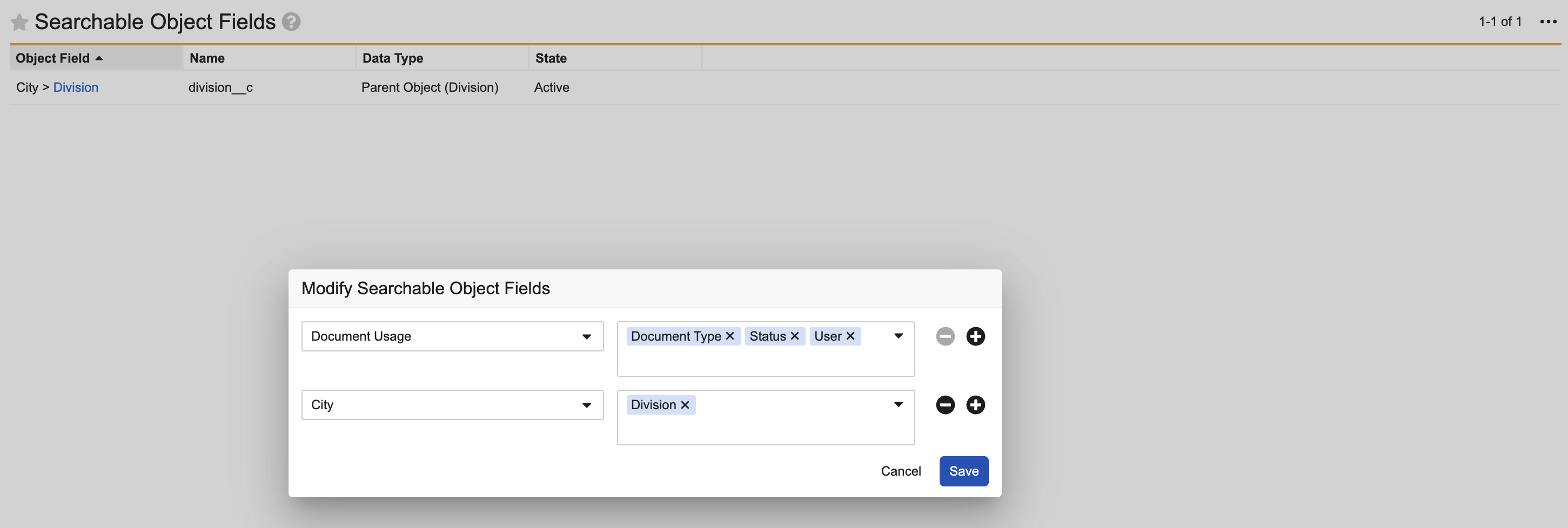
- Select Actions > Modify Fields.
- In the Modify Searchable Object Fields dialog, select an object from the left picklist. If the object contains existing committed or uncommitted searchable fields, they are displayed in the dialog.
- Select an object field available on the selected object from the right picklist.
- Optional: Use the plus (+) button to add another object for modifying searchable object fields or the minus (-) button to remove an object from the dialog.
- Click Save. Your added searchable object fields appear on the Searchable Object Fields page in the Uncommitted Add status.
- Click Actions > Commit Changes.
- Vault displays a message identifying the number of documents that require indexing due to your committed changes. The fields will not become searchable until the indexing is complete. Click Continue.
Your added searchable object fields are now active and available for use.
How to Remove Fields
To remove an object field from document searching and filtering:
- Select Actions > Modify Fields.
- In the Modify Searchable Object Fields dialog, select an object with searchable object fields from the left picklist.
- Click the X icon that appears on the field label in the right picklist.
- Click Save. Your removed searchable object fields appear on the Searchable Object Fields page in the Uncommitted Removal status.
- Click Actions > Commit Changes.
- Vault displays a message identifying the number of documents that require indexing due to your committed changes. Click Continue.
Your removed searchable object fields are now deleted from the Searchable Object Fields page and they can no longer be searched.
Custom Views
If a searchable object field is a filter within a custom view, and then you remove the field from the Searchable Object Fields page, the custom view will no longer include that filter. While the view will still work, users will see the filter crossed out and filter values are no longer applied.
Reverting Changes
You can cancel changes made in the Modify Searchable Object Fields dialog before they are committed. This action is helpful if you make a mistake in your configuration and need to make changes before activating or removing searchable object fields.
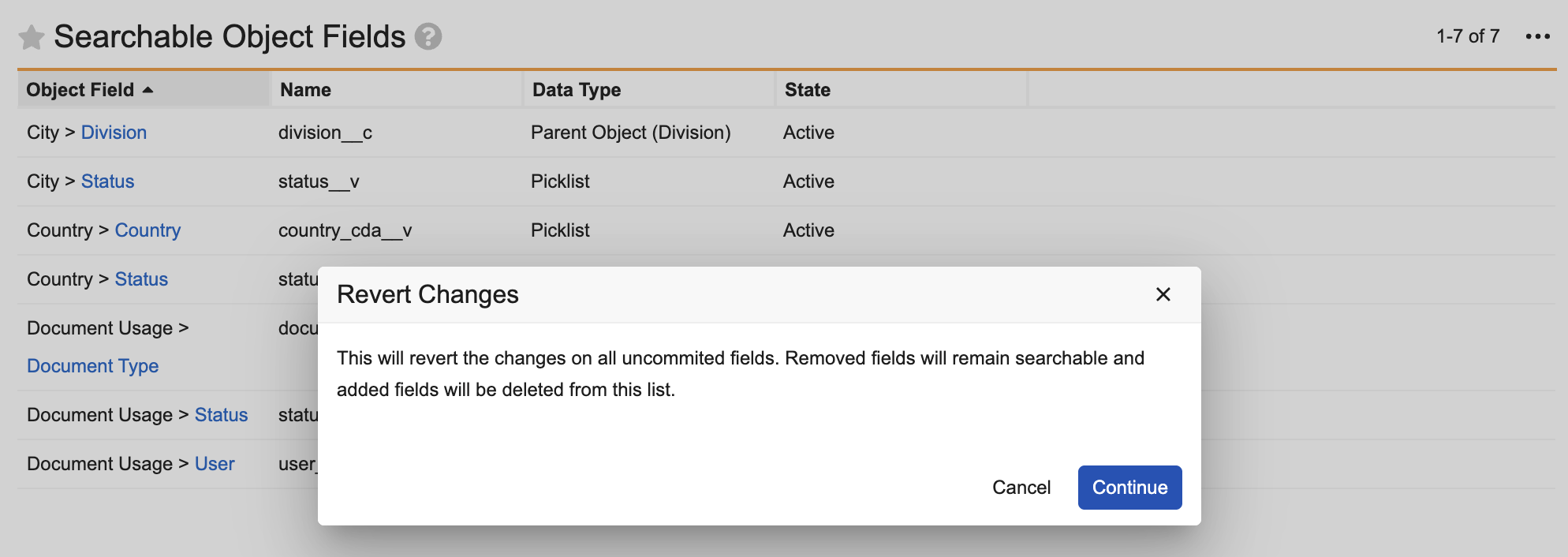
To revert changes, select Actions > Revert Changes. Vault displays a dialog stating the revert action will apply to all uncommitted fields. Uncommitted Removal fields will remain searchable, and Uncommitted Add fields are deleted from the Searchable Object Fields list. Click Continue in the dialog to complete the action.
Reindexing
Any time you make a change to searchable object fields (adding or removing a field), Vault reindexes documents.
Searchable Object Field Limits
Vault has a limit of 50 custom searchable object fields. If you attempt to make additional fields searchable, you’ll see a prompt to remove some fields first.