# Enable Creating Safety Investigations from PEC Periods
Learn how to configure your Vault to create Safety Investigations directly from PEC Periods.
## About the Feature
With the 24R2 release, SafetyDocs offers the ability to create Safety Investigations directly from PEC Periods, enhancing the efficiency of your signal management process. For more information, see Create Safety Investigations for Signal Management and Enable Signal Management.
## Add Actions
Complete the steps below to add actions to the **PEC Period** object that will allow users to create Safety Investigations from these records.
The **Open Investigation** action allows users to create a Safety Investigation from a single PEC Period, and the **Open Investigation from Dispositions** action allows users to create a Safety Investigation from multiple PEC Periods.
1. Go to **Admin > Configuration > Objects > PEC Period**.
2. In the **Actions** section, select **Create**.
3. In the **Create Action** dialog, select **Open Investigation** and then select **Continue**.
4. Select **Save**.
5. To enable creating a Safety Investigation from multiple PEC Periods, repeat the steps above to add the **Open Investigation from Dispositions** action.
## Create User Actions
Go to **Admin > Configuration > Object Lifecycles > PEC Period Lifecycle** and complete the steps in the following sections to configure user actions on the **Active** and **In Progress** states.
The **Open Investigation** action allows users to create a Safety Investigation from a single PEC Period, and the **Open Investigation from Dispositions** action allows users to create a Safety Investigation from multiple PEC Periods.
### Active State
Complete the following steps to create a user action on the **Active** state:
1. In the **States** section, select **Active > User Actions > Edit**.
2. Select **Create Rule** and create the following rule:
* Perform with conditions:
* If > **Safety Investigation > is blank**
* Allow the following actions:
* **Open Investigation**
* Action Label: "Open Investigation"
* **Open Investigation from Dispositions**
* Action Label: "Open Investigation from Dispositions"
3. Select **Save**.
### In Progress State
Complete the following steps to create a user action on the **In Progress** state:
1. In the **States** section, select **In Progress > User Actions > Edit**.
2. Select **Create Rule** and create the following rule:
* Perform with conditions:
* If > **Safety Investigation > is not blank**
* Allow the following actions:
* **Open Investigation**
* Action Label: "Open Investigation"
* **Open Investigation from Dispositions**
* Action Label: "Open Investigation from Dispositions"
3. Select **Save**.
## Update Workflow
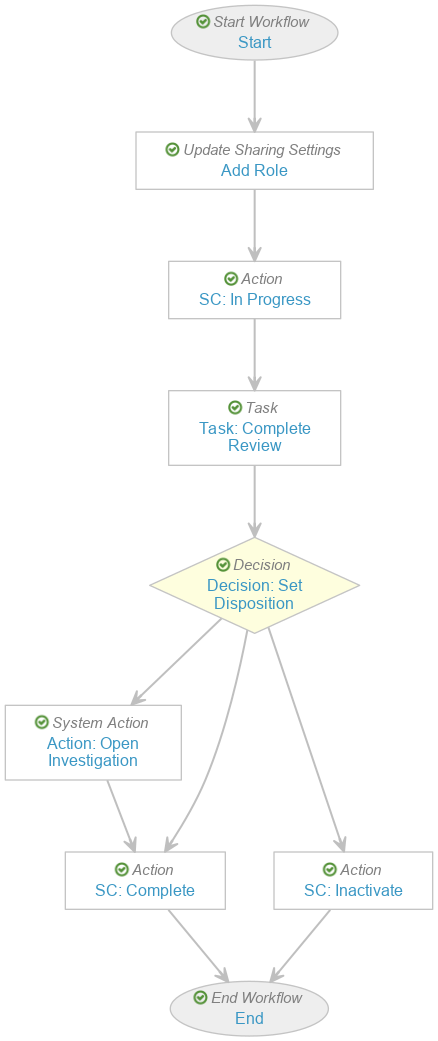
Go to **Admin > Configuration > Workflows > Evaluate Disposition** and update the **Evaluate Disposition** workflow for this feature as detailed in the following sections:
### Update the Decision: Set Disposition Step
Complete the following to allow users to update this Decision step:
1. In the **Workflow Steps** section, select **Decision: Set Disposition**.
2. Select **Edit**.
3. In the **Rules** section, update **Rule 1** as follows:
* If > **Task > Task: Complete Review > at least one label equals > Needs Investigation**
* Then > **+ Create Step >** Step Name: "Action: Open Investigation" > **OK**
4. Select **Save**.
### Configure the Action: Open Investigation Step
Complete the following to configure this newly created Action step:
1. In the **Workflow Steps** section, select **Action: Open Investigation**.
2. Select **Edit**.
3. In the **Details** section, complete the fields as follows:
* **Type**: Select **System Action**
* **Next Steps**: Select **SC: Complete**
4. In the **System Action Options** section, in the **System Action** field, select **Open Investigation**.
5. Select **Save**.
### Set Status to Active
Return to the **Workflows > Evaluate Disposition** page, and in the **Status** field, select **Make configuration active** to activate the updated configuration.
The updated workflow will appear as follows:
 ## Update Permission Set
Complete the following steps to update the custom **Signal Management** (`signal_management__c`) permission set to allow users to create a Safety Investigation from multiple PEC Periods:
1. Go to **Admin > Users & Groups > Permission Sets**.
2. Select the custom **Signal Management** (`signal_management__c`) permission set.
3. In the **Application** section, select **Edit**.
4. Under **Vault Actions**, in the **Object** section, select the **Bulk Action** checkbox.
5. Select **Save**.
## Update Permission Set
Complete the following steps to update the custom **Signal Management** (`signal_management__c`) permission set to allow users to create a Safety Investigation from multiple PEC Periods:
1. Go to **Admin > Users & Groups > Permission Sets**.
2. Select the custom **Signal Management** (`signal_management__c`) permission set.
3. In the **Application** section, select **Edit**.
4. Under **Vault Actions**, in the **Object** section, select the **Bulk Action** checkbox.
5. Select **Save**.